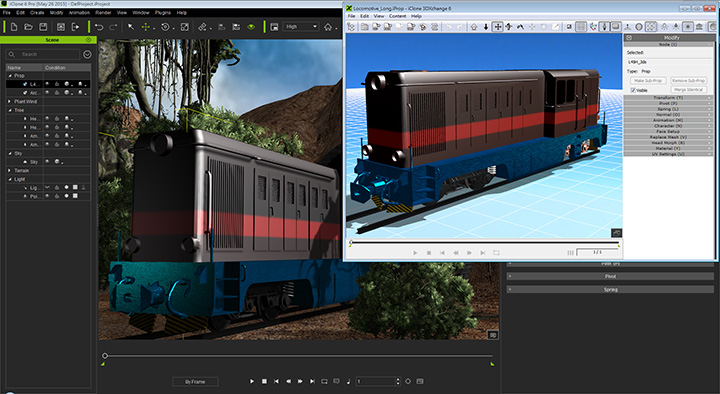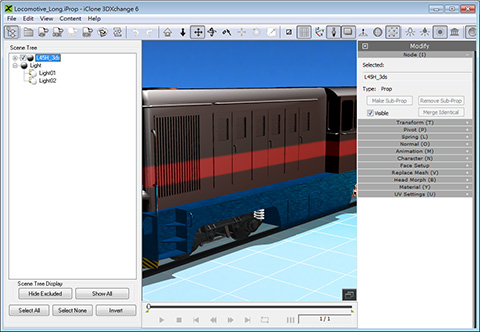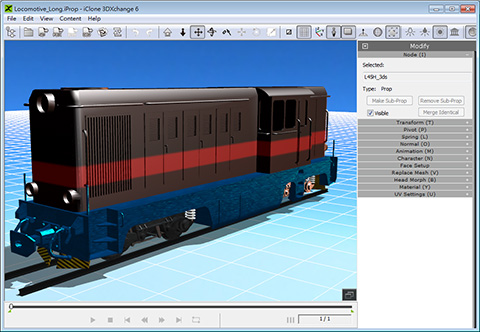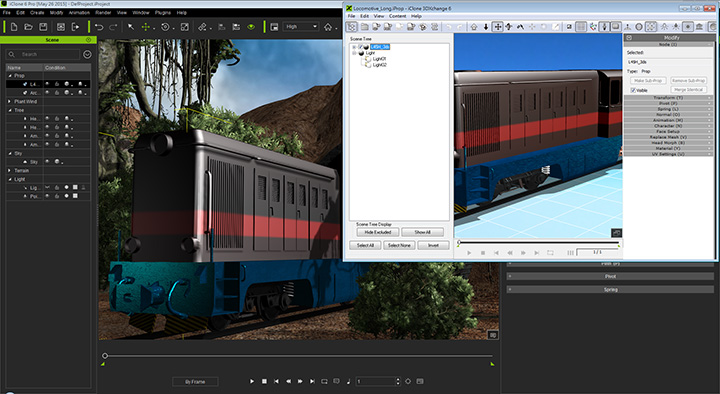
After you load a model into 3DXchange, you may sometimes need a wider 3D view, and might not want to resize the entire program for better viewing. To do so, simply close the Scene Tree pane and the View port will show more of the model without the need of zooming out the camera.
This feature is useful when 3DXchange and iClone are both launched and the size of 3DXChange is already scaled down.
By hiding the Scene Tree, you are able to see more of the 3DXchange 3D view.