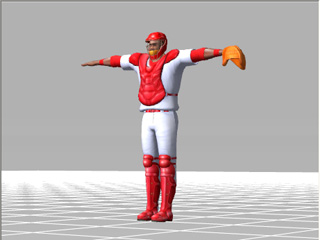
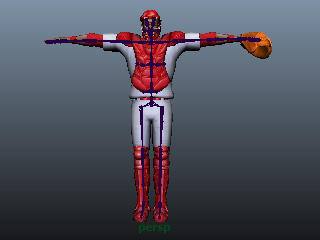
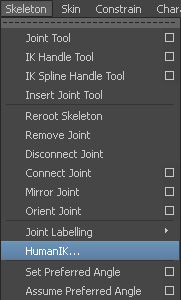
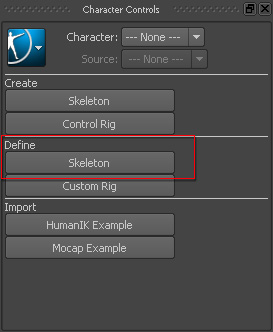
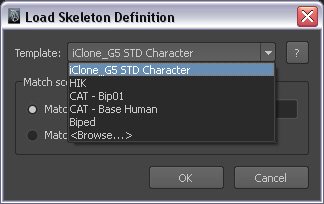
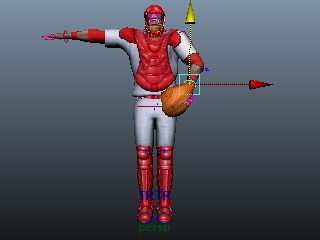
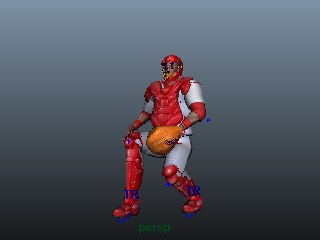
If you want to use iClone standard or non-standard characters in Maya with the HumanIK
feature in order to do key-frame animations, you need to export the character from 3DXchange in FBX
format and then characterize the exported character FBX in Maya.
With this method, you do not need to spend too much time on setting IK control manually,
but utilize the HumanIK feature provided in Maya instead.
Please note that this pipeline is suitable for Maya 2013 or above.
Step 1: Exporting a Standard Character from 3DXchange
Load a standard or non-standard character into 3DXChange.
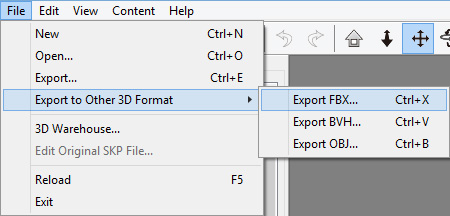
Execute the File > Export to Other 3D Format >
Export FBX...command.
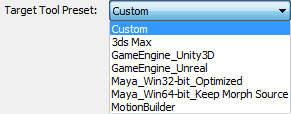
In the Export FBX panel, use the Target Tool Preset
drop-down list to auto-load the settings for Maya.
Remember to deactivate the Include Animation check box for exporting the
bone-skinned model only with T-pose.
Please refer to The Settings for Exporting an FBX File
section for more information about the details of the settings.
Click the OK button to export the model in FBX format.
Before loading the character into Maya, please make sure you have downloaded and extracted the
iClone_G5_Std_Character_Template file (.xml) into the following folder:
Windows XP: C:\Documents and Settings\[user account]\Application Data\Autodesk\HIKCharacterizationTool4\template\
Windows 7 or above: C:\Users\[user account]\AppData\Roaming\Autodesk\HIKCharacterizationTool4\template\
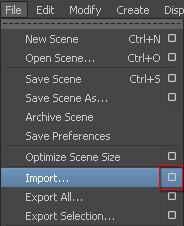
Click the box besides the File >> Import... command in Maya.
The Import Options panel will come up.
Select FBX from the File Type
drop-down list.
Deactivate the Use namespaces box and select Clashing nodes from
the Resolve drop-down list.
Click the Import button and the Import panel shows.
Select Add from the File Content drop-down list.
Click the Import button to import the bone-skinned character.