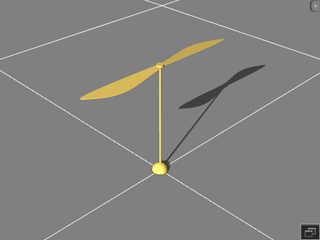
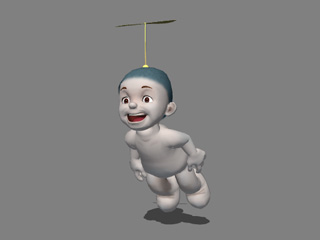
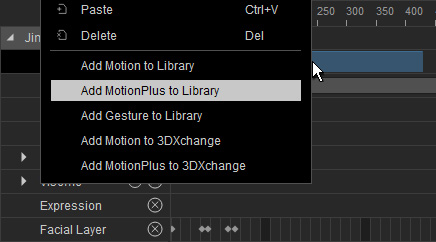
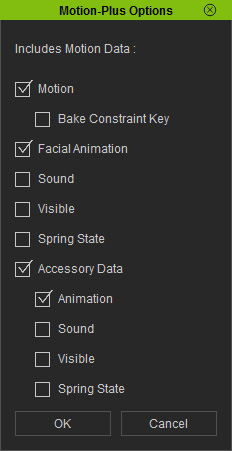
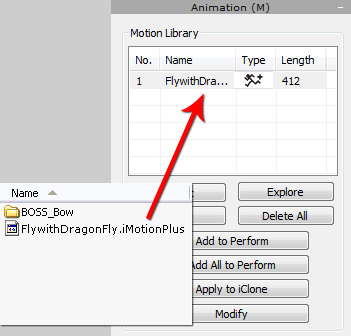
If you have attached an animated accessory to a character in iClone, the recorded animation can be transferred along
with the accessory to 3DXchange.
You can play back to view the accessory's animation and export the accessory with the animation together in FBX format
so that the accessory can re-use the animation in other 3D tools.
Step 1: Preparing Character and Animated Accessory (in iClone)
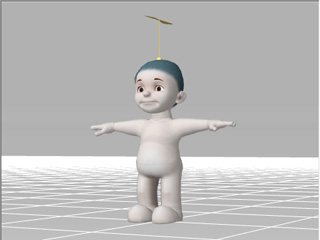
Load a character in iClone.
Drag and drop an accessory to the character (The wings, for example).
Right click the character and select Move >> Flying Forward command. Click on the ground to
have the character fly to the destination (make it far if you want the accessory to animate longer).
Click the Add button to add the character with the animated accessory into the Actor custom library.
Step 2: Loading the Character (in 3DXchange)
Make sure the character is selected.
In iClone, go to the Actor >> Avatar >> Avatar section, click
the Edit in 3Dxchange button to load the character into 3Dxchange.
Alternatively, you can drag and drop the character template added in the last section.
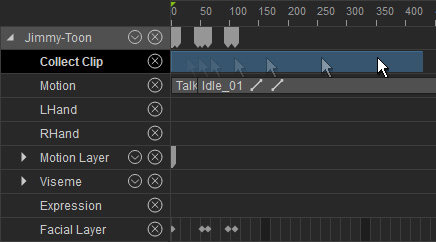
Click the Play button and the accessory will start to animate.
Step 3: Exporting in FBX Format
Press Ctrl + X to start to export the character with the accessory.