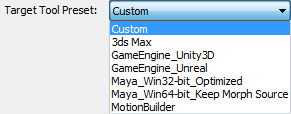
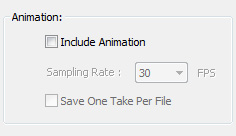
Unity is 3D game engine which supports FBX files with geometry and animations. However, when you export models with animations from 3DXchange, you need to modify some more settings to ensure that you get ideal animation results in this tool.
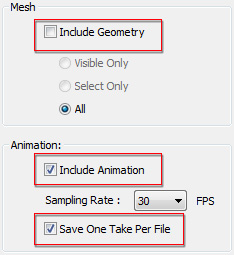
If you have multiple animations in the Perform Editor and you want to export them all for reuse in Unity, then it is highly recommended that the geometry and the animations should be exported separately.
In this step, the animations of the model will be exported into separate FBX files. The number of the files are the same as the amount in the Perform Editor.
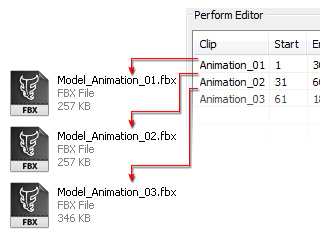
The geometry and the animation files can then be loaded into Unity separately, which will ensure the correct animation result.