Mocap Correction
AI posing can effectively solve some mocap challenges such as shoulder stiffness, motion distortion. It can even enhance animations with realistic hand gestures.
Mocap Correction - Basic
- Create a new character, use mocap device to create motion for the character.
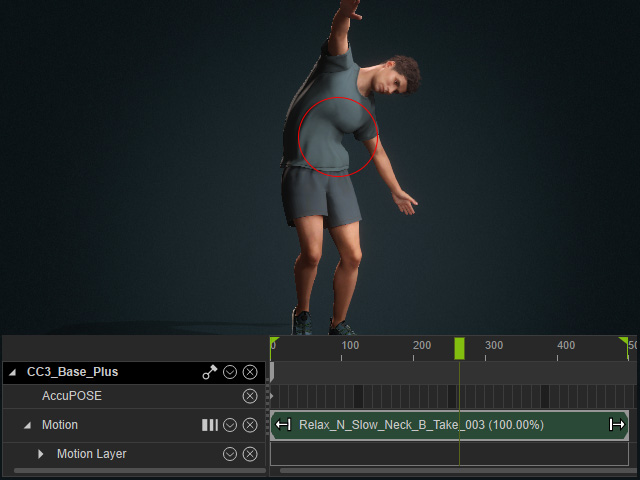
Here, the waist oddly twists when the character bends forward.
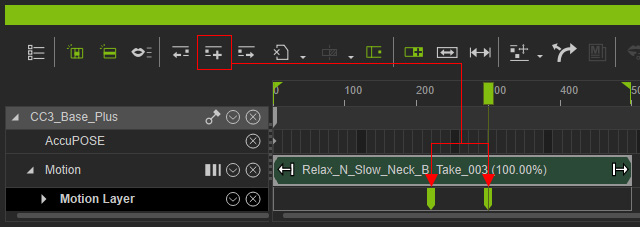
- Add motion layer keys into the timeline before and after the
faulty pose.
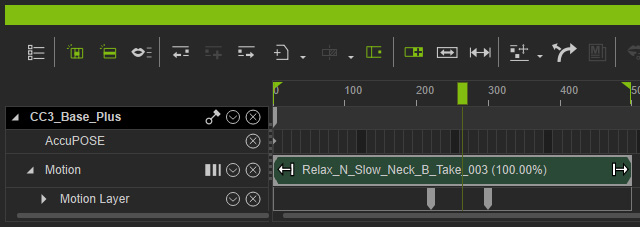
- Hone in on the time frame of the flawed pose.
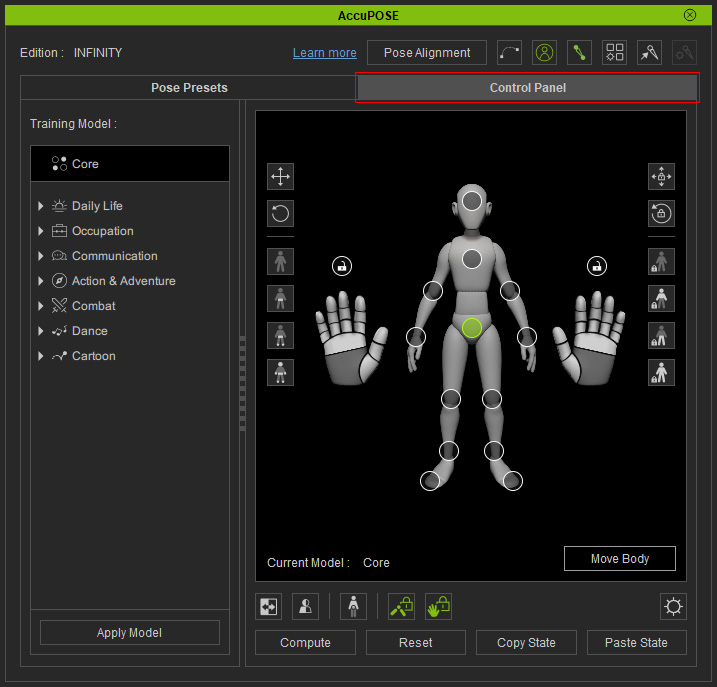
- Open the AccuPOSE panel and switch to the
Control Panel tab.
- Lock the translation and rotation for every control point except the chest.
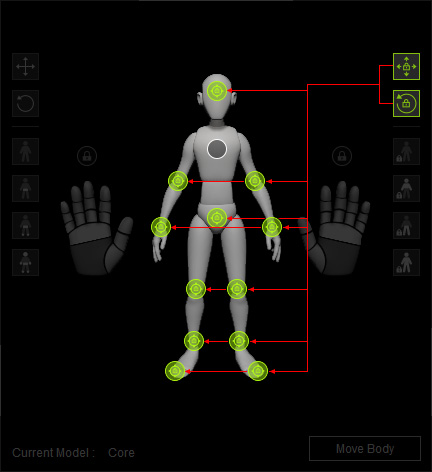
- Also, set the translation and rotation to manual for every
control point except for the chest.
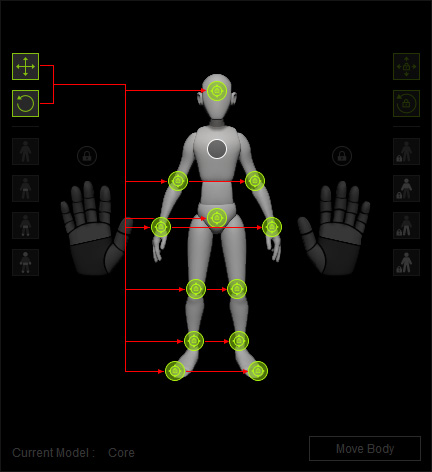
- Select the chest and set its translation to manual and allow the
rotations to be computed with AI.
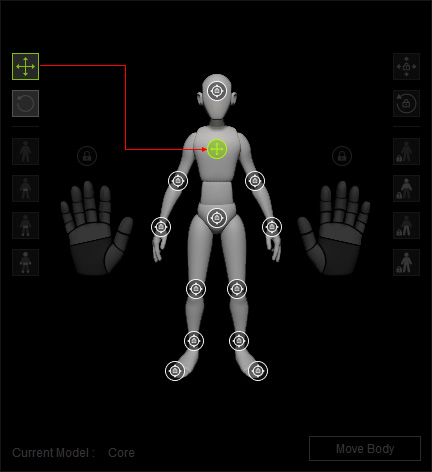
** Steps 5, 6, and 7 ensure that AI only fine-tunes the rotations of the chest control point. - Click the Compute button in the AccuPOSE
panel. The waist twist will then be fixed.
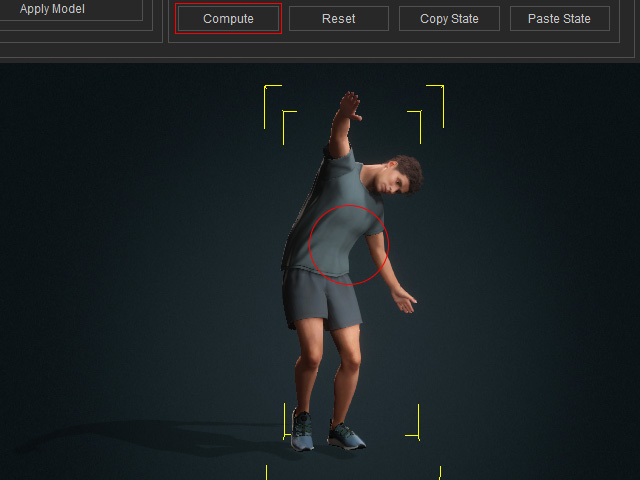
- Playback to view the animation.
Mocap Correction - Advanced
- Create a character and use mocap device to create motion for the
character. Here, the shoulders and the fingers are stiff, while the
palm intersects with the body after the character stands up.
- Go to the time frames when you want to correct the motion, and add motion layer key by click the Add Key button.
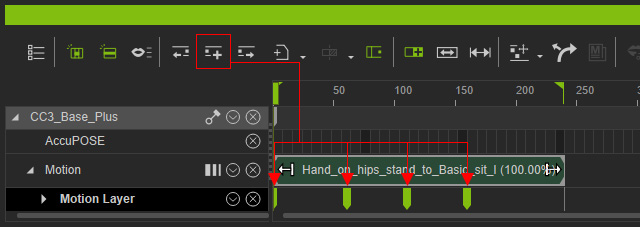
- Go to the time frame of the first motion layer key. Open the AccuPOSE panel (shortcut: 9) and switch to the Control Panel tab.
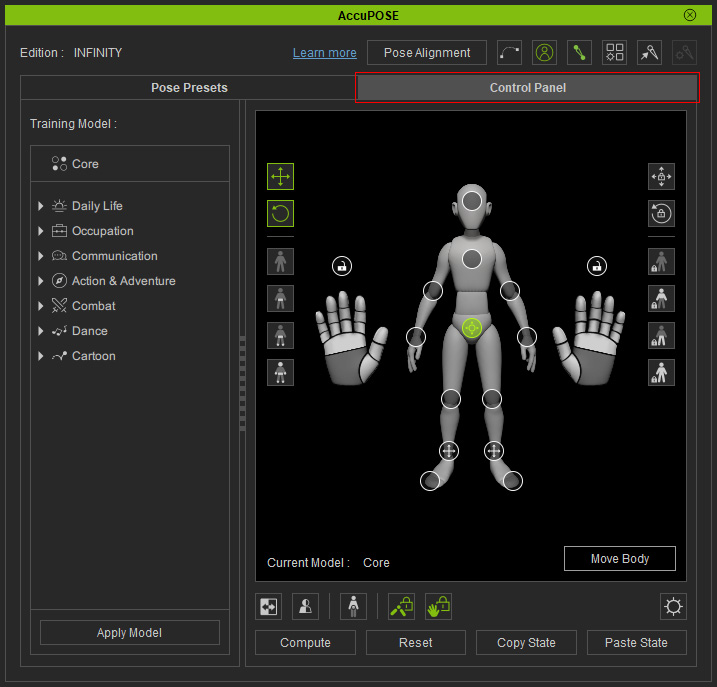
- Lock the rotation and translation of the Head, Chest, Hip and Legs, activate the translate setting for both hands' control point.
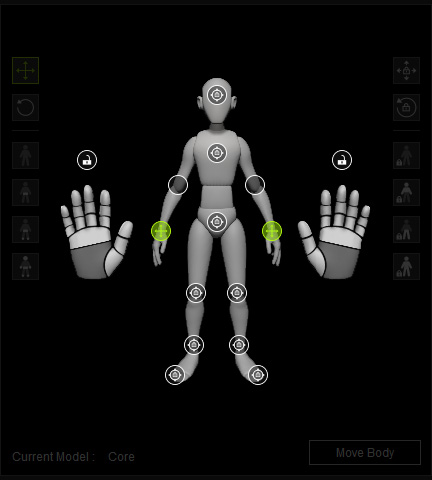
- Translate and rotate the hands. As you can see the shoulders, elbows and fingers become loosen by AI-assisting mechanism.
- Go to the next motion layer key and click the Compute button on the AccuPOSE panel.
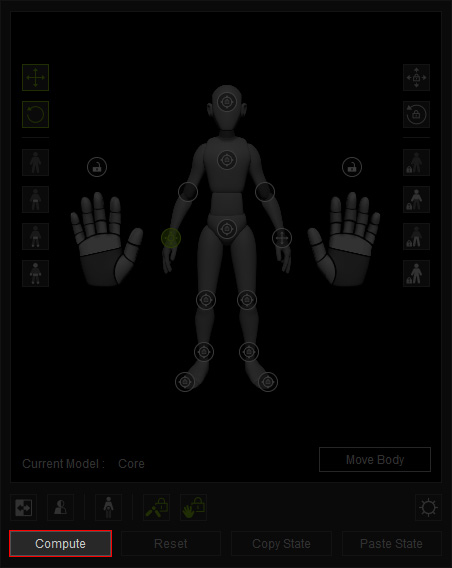
This step also loosen the shoulders, elbows and the fingers by AI-assistence.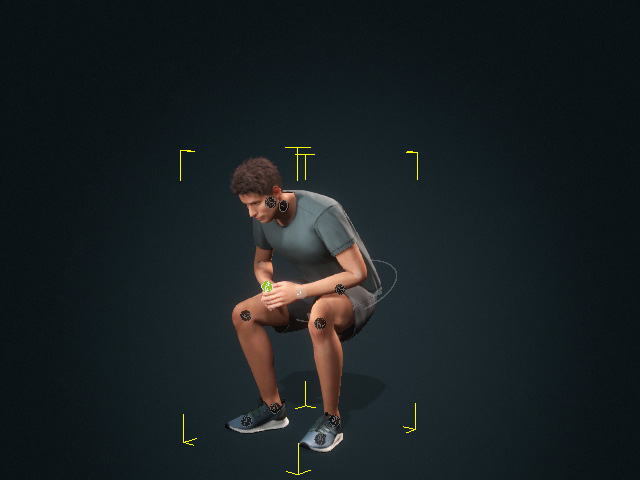
- Transform the hands again.
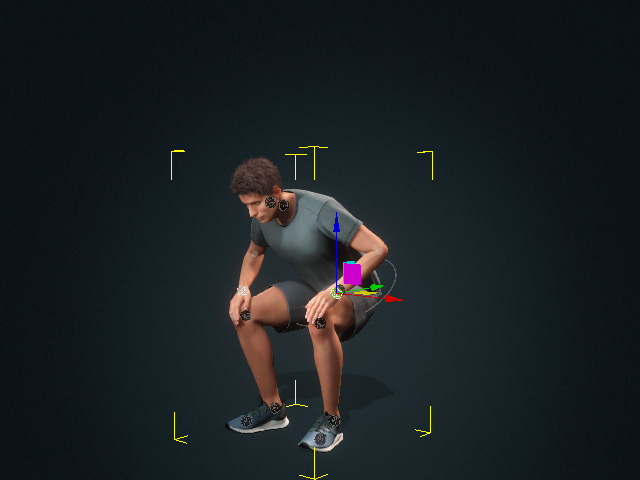
- Drag the play head forward to any timeframe when the penetration happens.
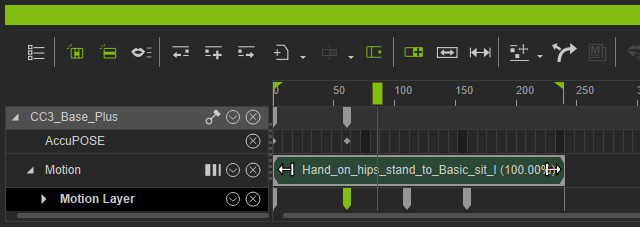
Transform the hand control point to solve the issue.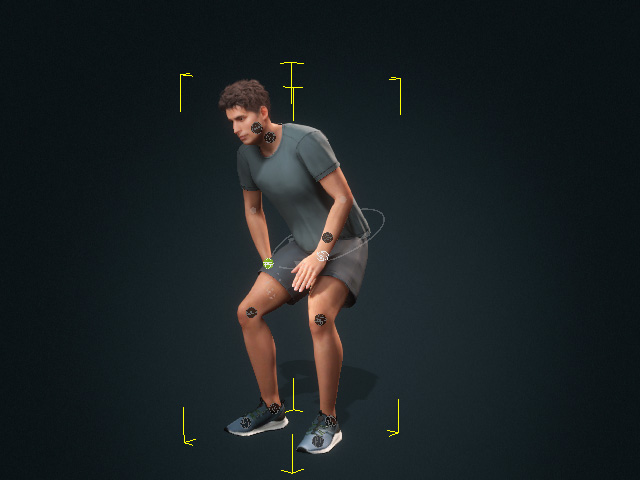
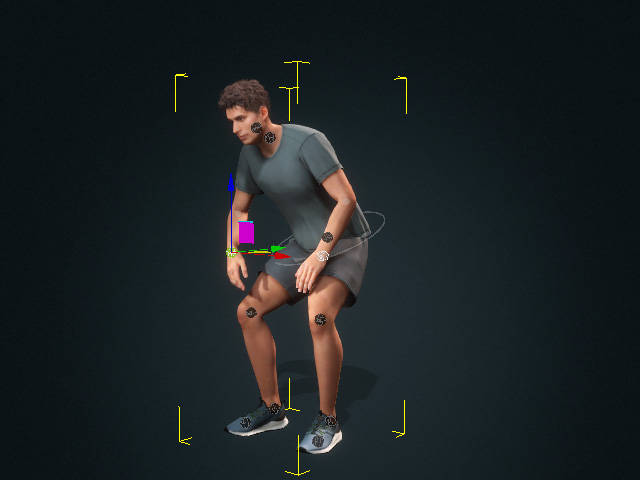
Before
After
- New keys will be automatically added to the AccuPOSE and Motion Layer tracks.
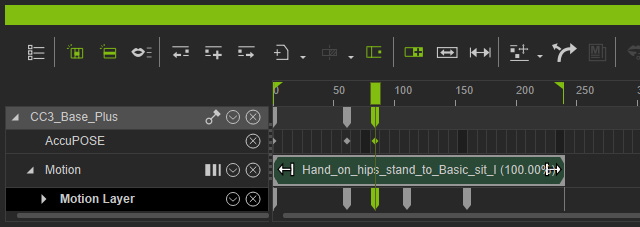
- Go to the next key when there is no penetration issue.
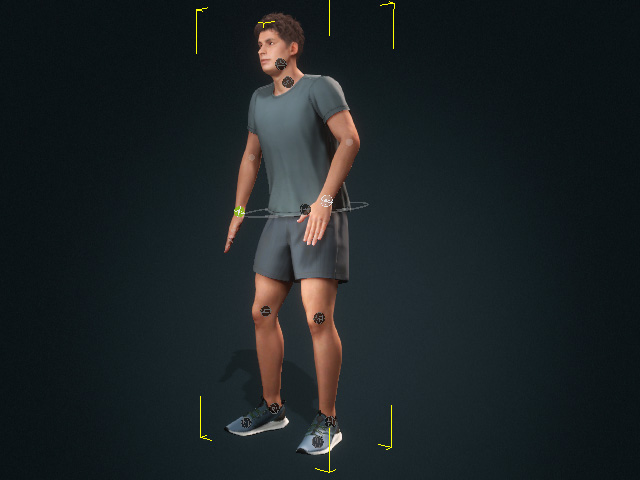
Simply click the Compute button to have the shoulders, elbows and fingers loosen.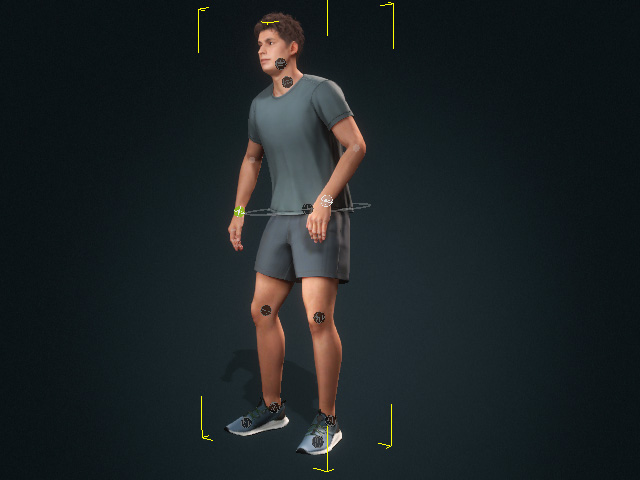
- Repeat the same steps (click Compute button, transform the hand) to adjust for the final penetration issue.
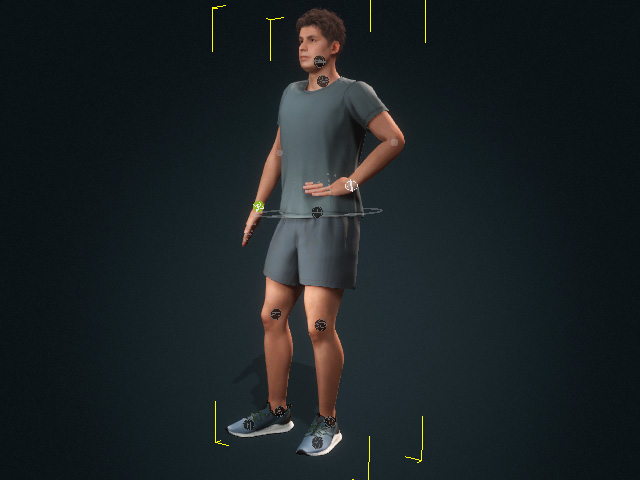
Before enhancement
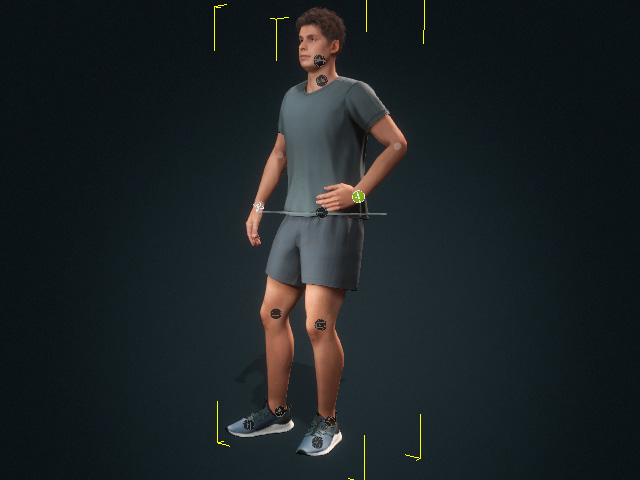
After enhancement
- Playback to view the fixed result.
