Adding Motions and poses to Actors
In the Motion List, there are two primary scenarios for incorporating motions into your actor: initial motion additions and additional motion additions. Once you've integrated these motions with your actor, you can enhance the motion list even more by generating poses from these motions. To delve deeper into this process, follow the steps outlined below.
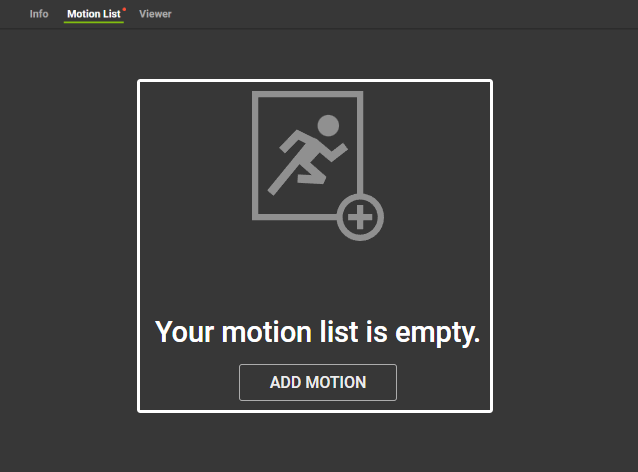
- Click the ADD MOTION button to add motions to your actor.
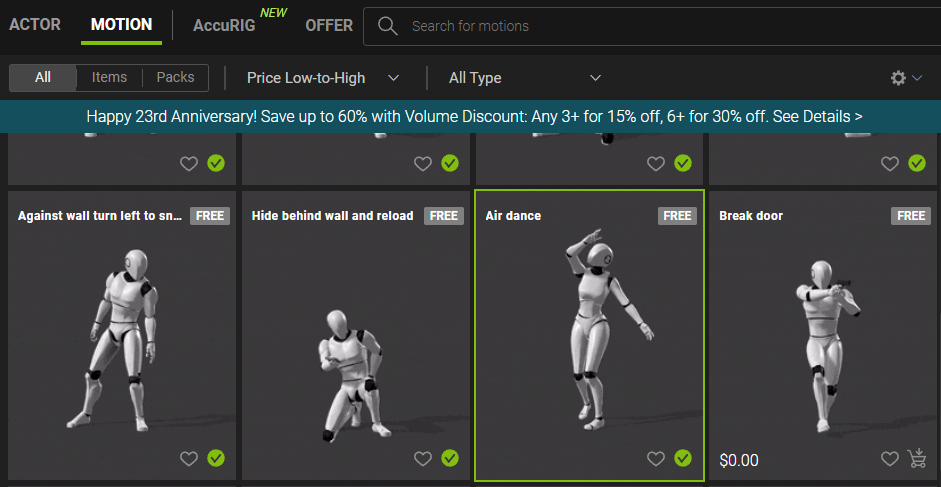
- On the Motion page, select the motion you want for your actor.
- In the viewport, click Add to Motion List to add an entry into your actor’s motion list.
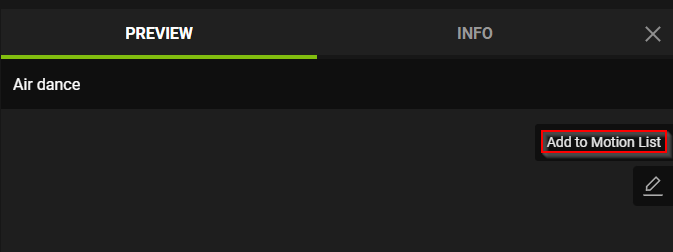
- After you have added the motion, click on the pencil icon under Add to Motion List, and select Edit.
Note: If you want to go back to the Uploaded Actors page, select Your Uploaded Actors.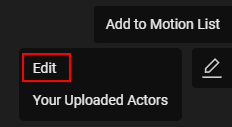
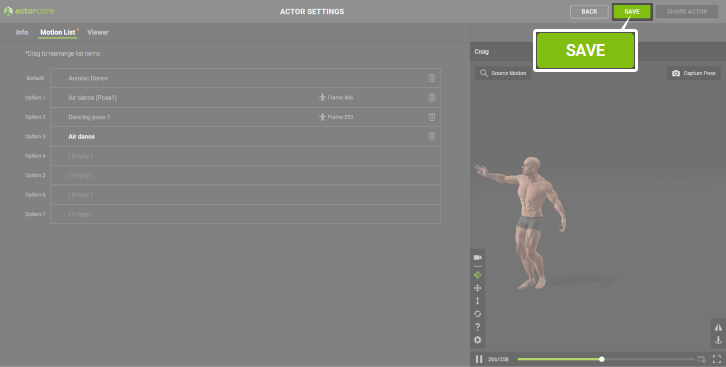
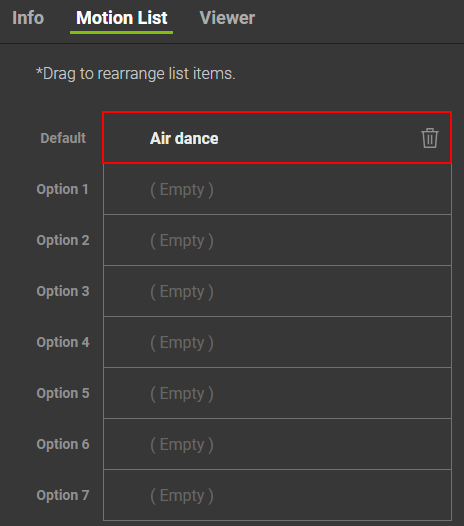
- In the Motion List, you will see that your selected new motion is now added to your list.
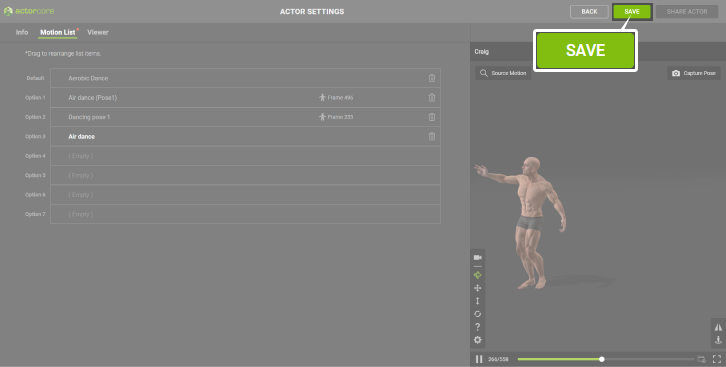
- Click the Save button on the top right corner to save your motion list settings.
Adding Extra Motions
Once you have added motions or poses to your Motion List, the ADD MOTION button will no longer be visible. To add new motions to the list, please follow the steps below.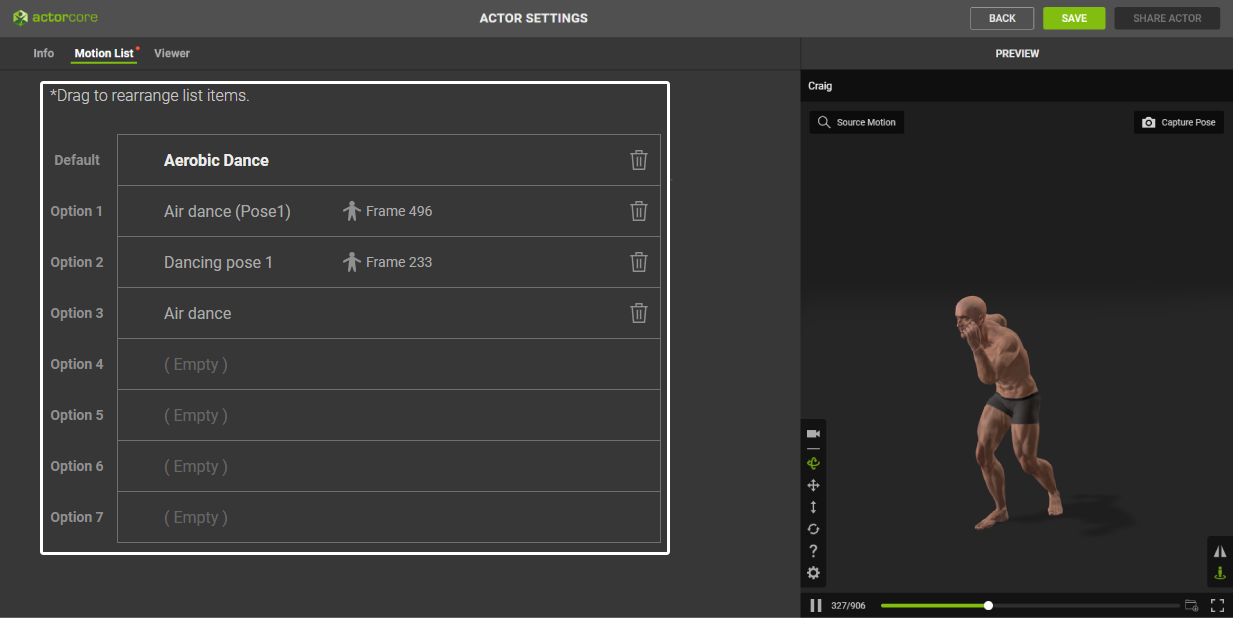
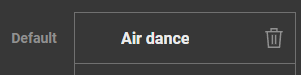
- Select any motion you have already added to the Motion List.
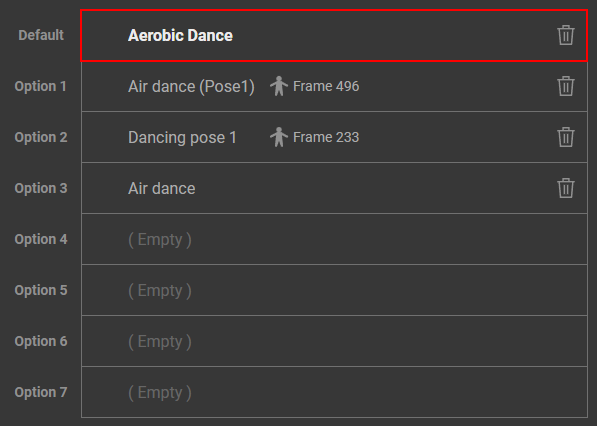
- In the viewport, click the Source Motion button on the top left corner, and it will direct you to the ActorCore Motion page.

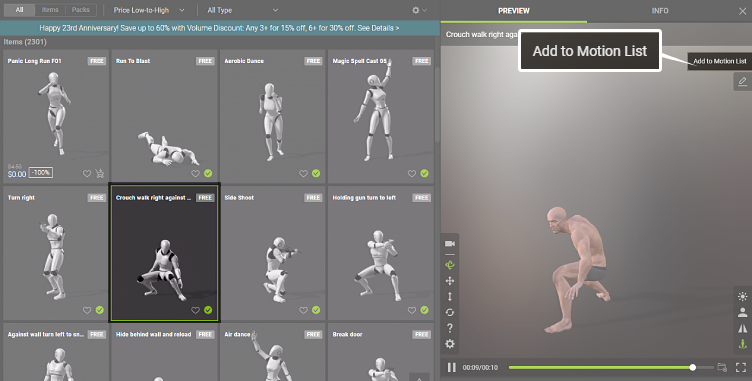
- Select the desired motion, then within the viewport, click on Add to Motion List to incorporate the new motion into your actor’s list of motions.
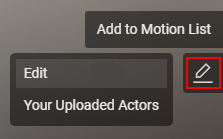
- Under the Add to Motion List button, click the pencil icon and select Edit.
- In the Motion List, you will see that the selected motion is now added.
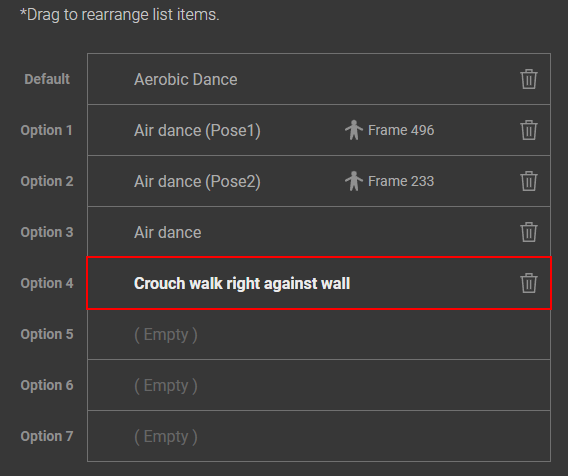
To save the newly added motions for your actor, simply click the SAVE button located near the top right corner.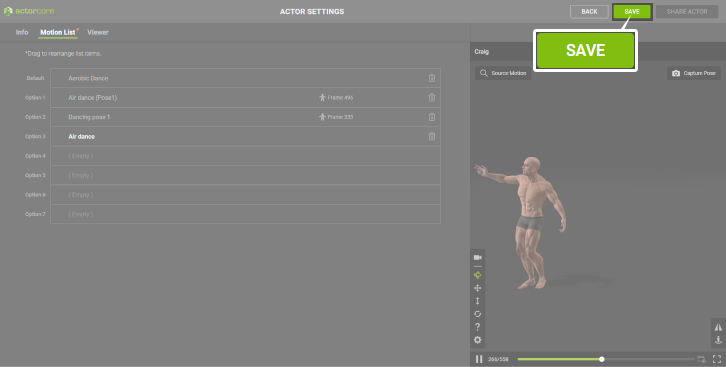
Adding Poses from Motion
To create static poses from your selected motion, use the toolbars within the viewport and use the Capture Pose button.
- Select the motion you want to capture a pose from.
- Use the toolbars in the viewport to adjust the viewing for this pose.
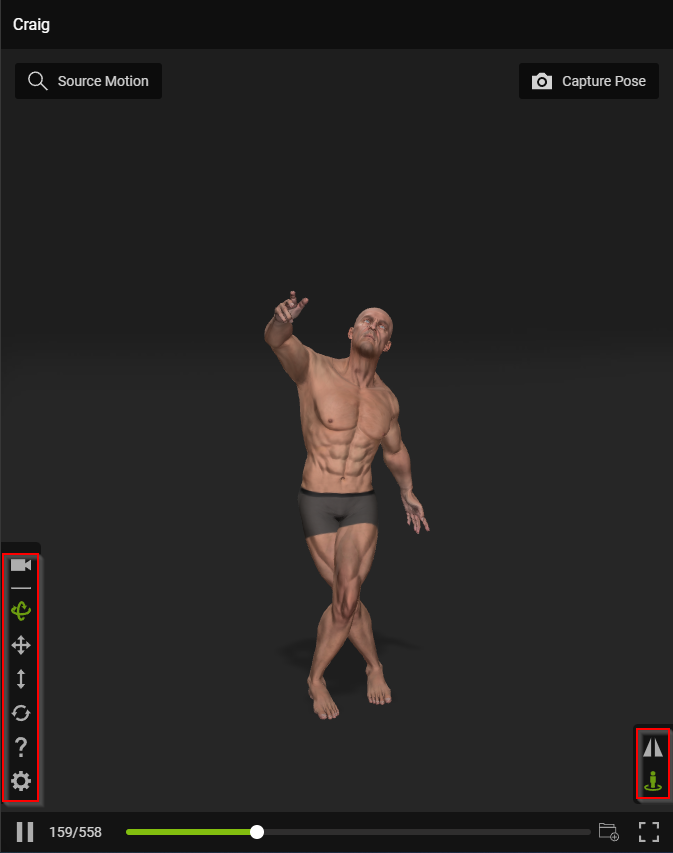
- Click Capture Pose when you are satisfied with the pose you want to capture.

- Within the Motion List, a new pose is added, displaying the name of the original motion and the corresponding frame number from which the pose was captured.
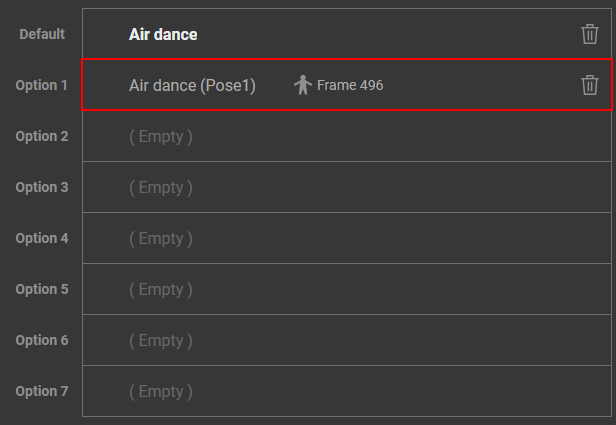
To save the added poses, simply click the SAVE button located near the top right corner.