Viewport Head-up Display
The HUD (heads-up display) icons on the sides of the viewport are tools that can be used to improve your viewing experience, especially when it comes to inspecting motions.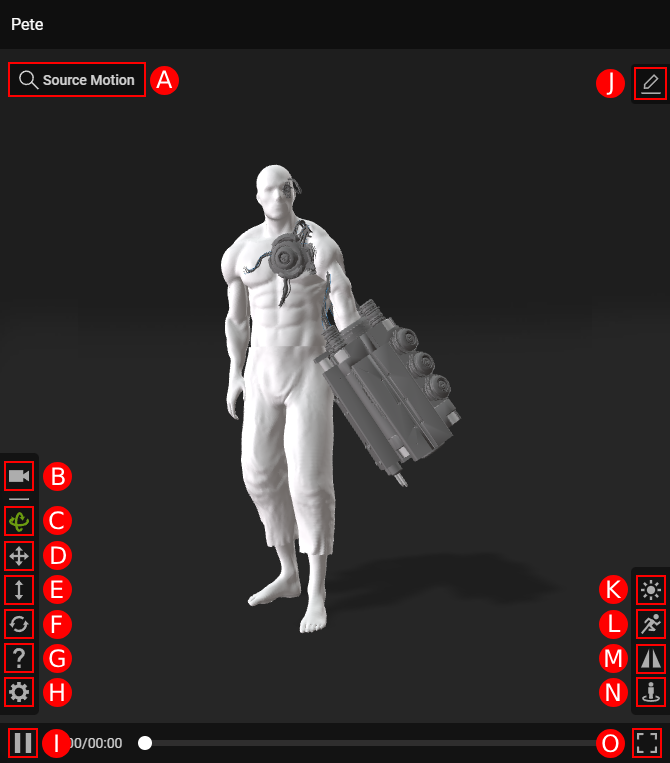
 A. Source Motion
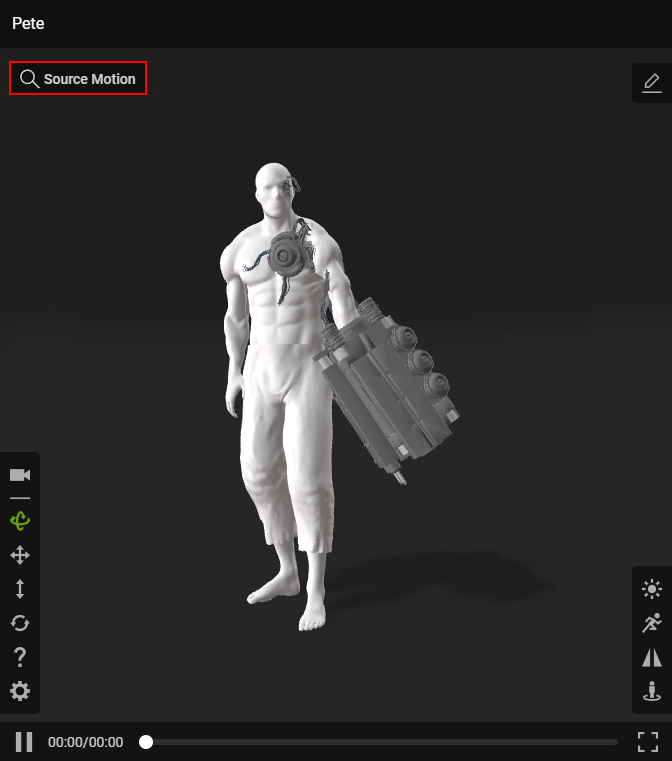
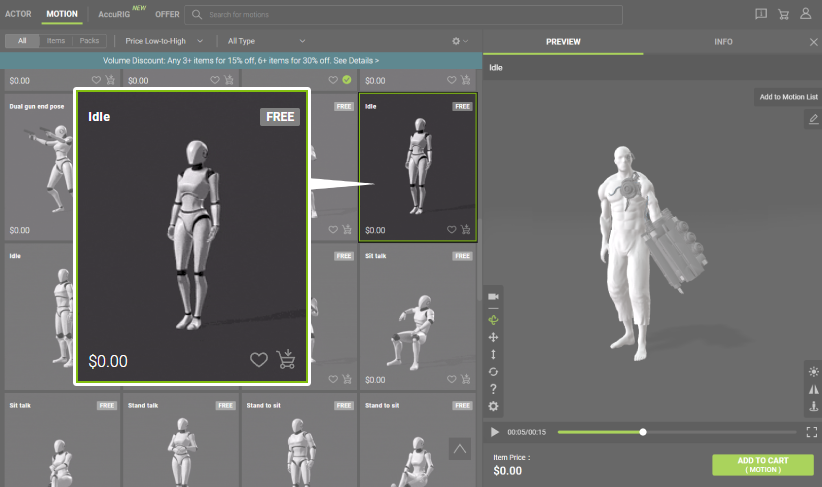
An ActorCore link to the motion currently deployed on the actor.
|
|
|
The Source Motion button is found near the top-left corner of the viewport. |
Clicking on the Source Motion button brings up the associated store item. |
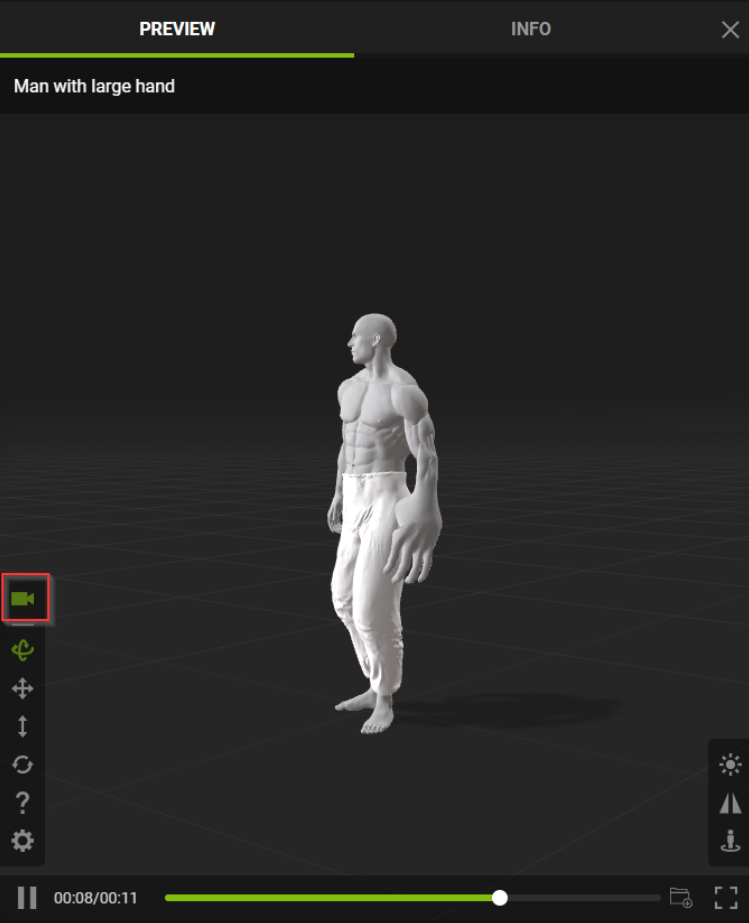
B. Follow Camera
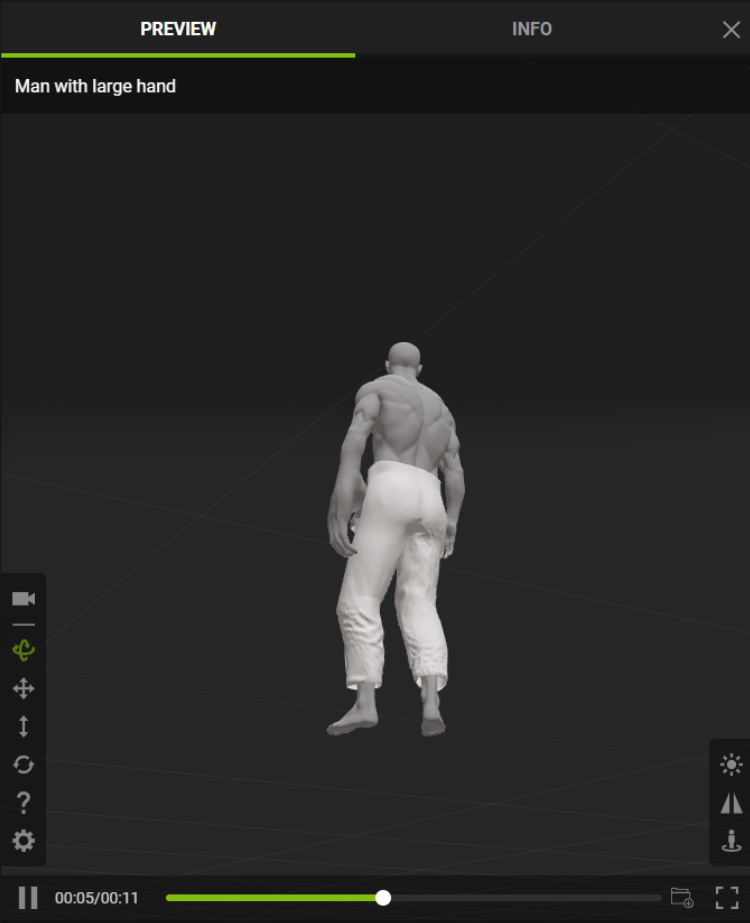
Have the camera track the actor as it performs its motions.
|
|
|
Before |
After |
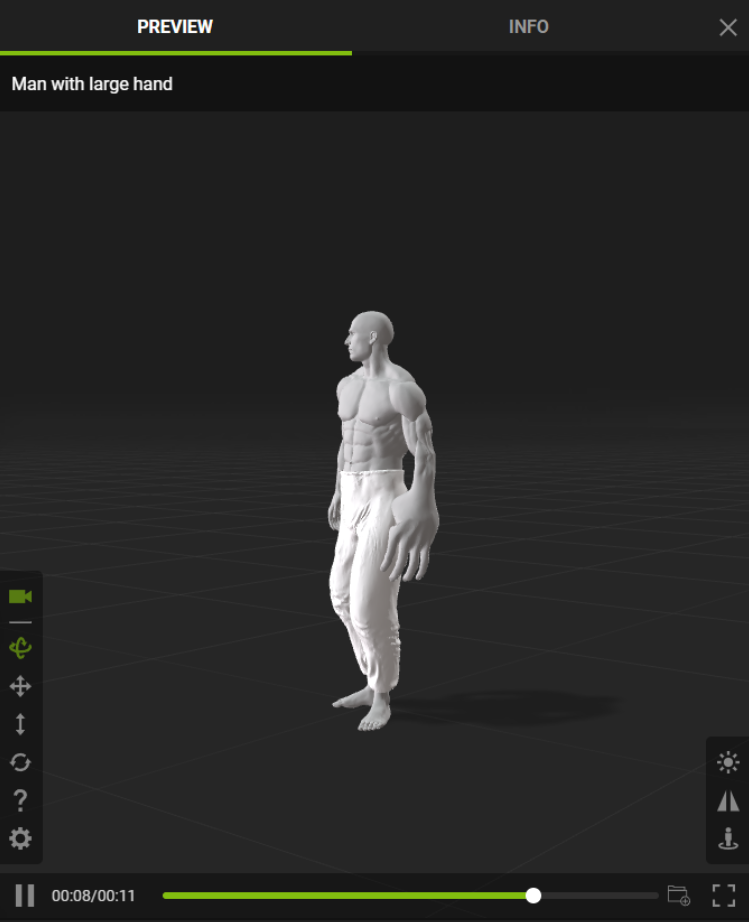
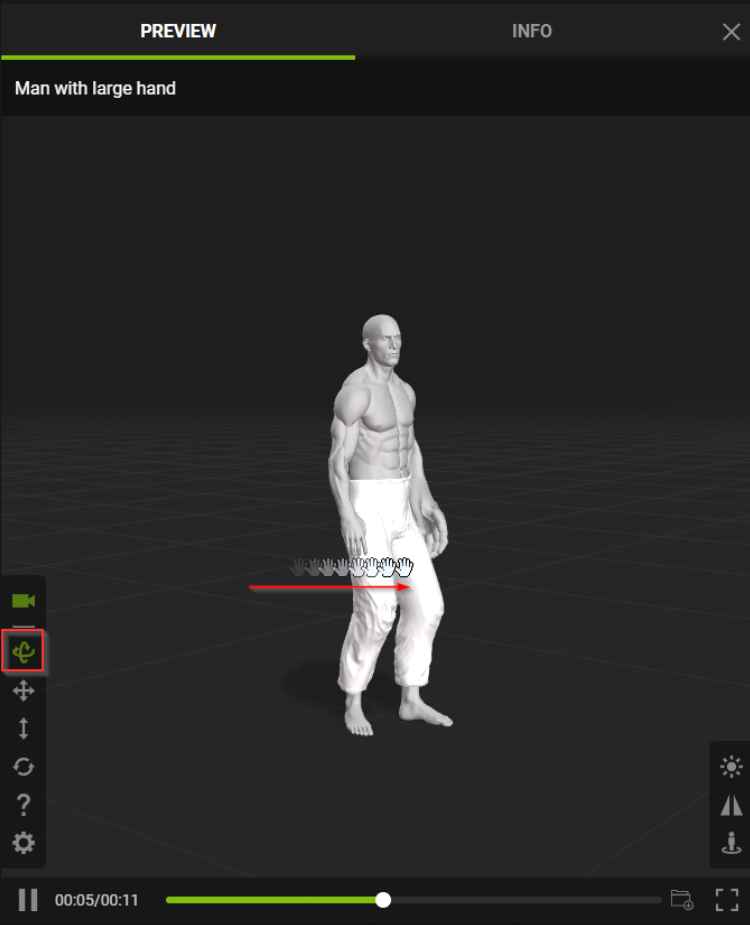
C. Rotate (mode)
Hold the left mouse button and drag the mouse to orbit the camera.
|
|
|
Before |
After |
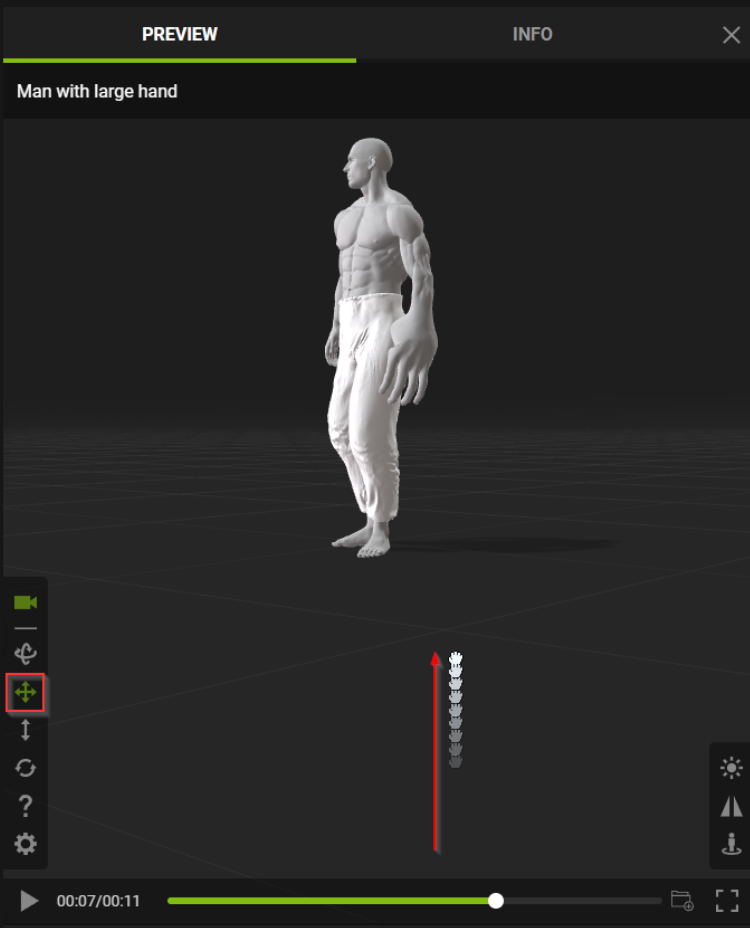
D. Pan (mode)
Hold the left mouse button and drag the mouse to pan the camera. You can also hold the right mouse button and drag the mouse in the viewport.
|
|
|
|
Before |
After |
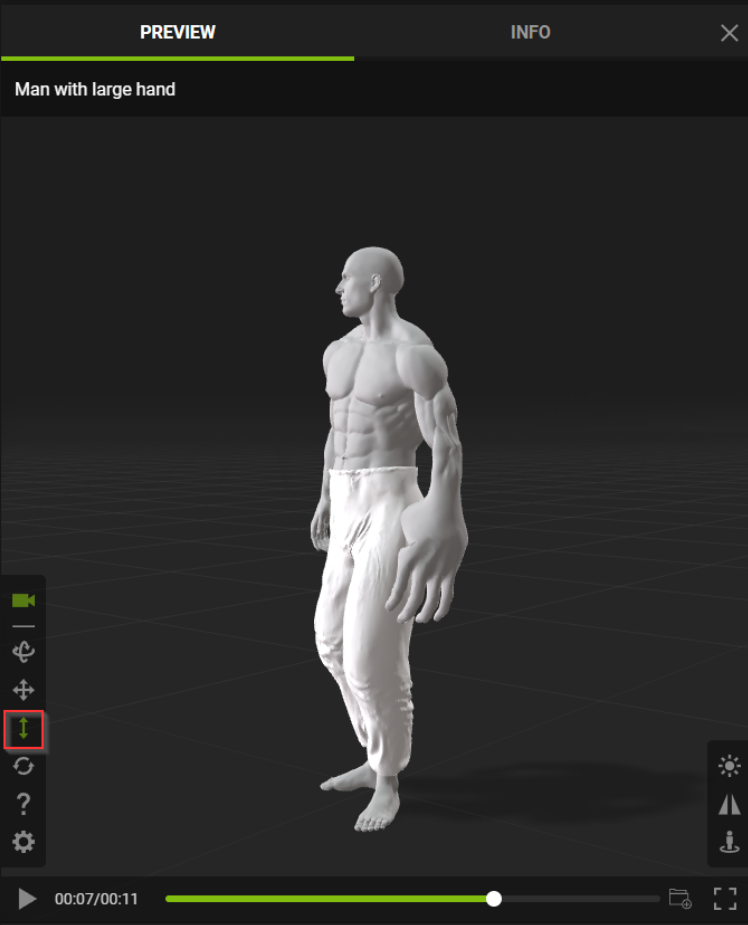
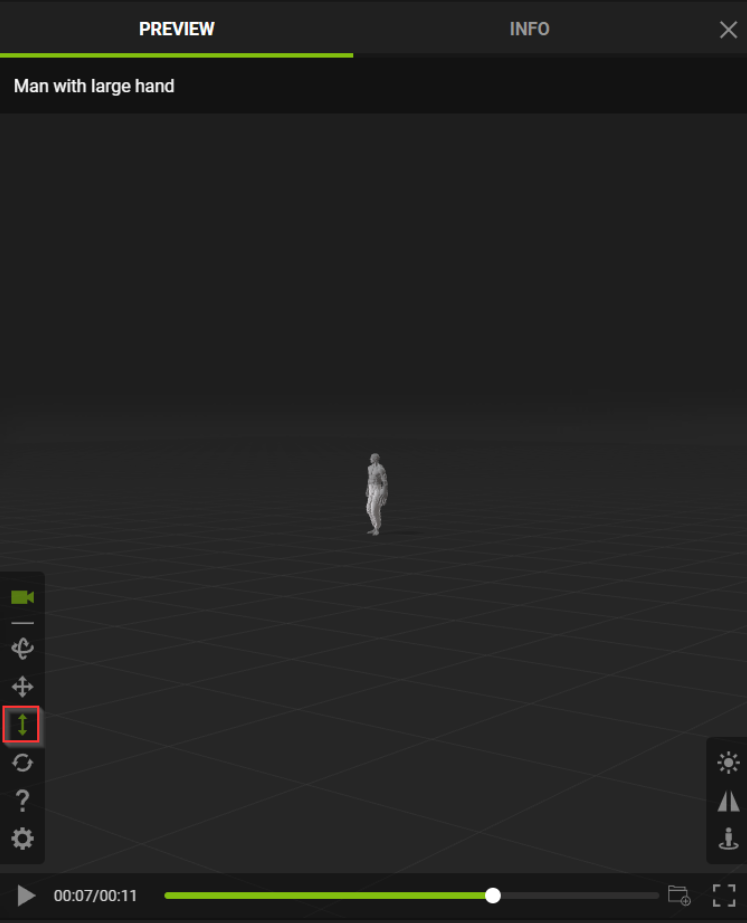
E. Zoom (mode)
Hold the left mouse button and drag the mouse to dolly the camera. You can also use the mouse wheel. You can look for issues with the model by zooming in on the actor.
|
|
|
|
Neutral |
Zoom In |
|
|
|
Zoom Out |
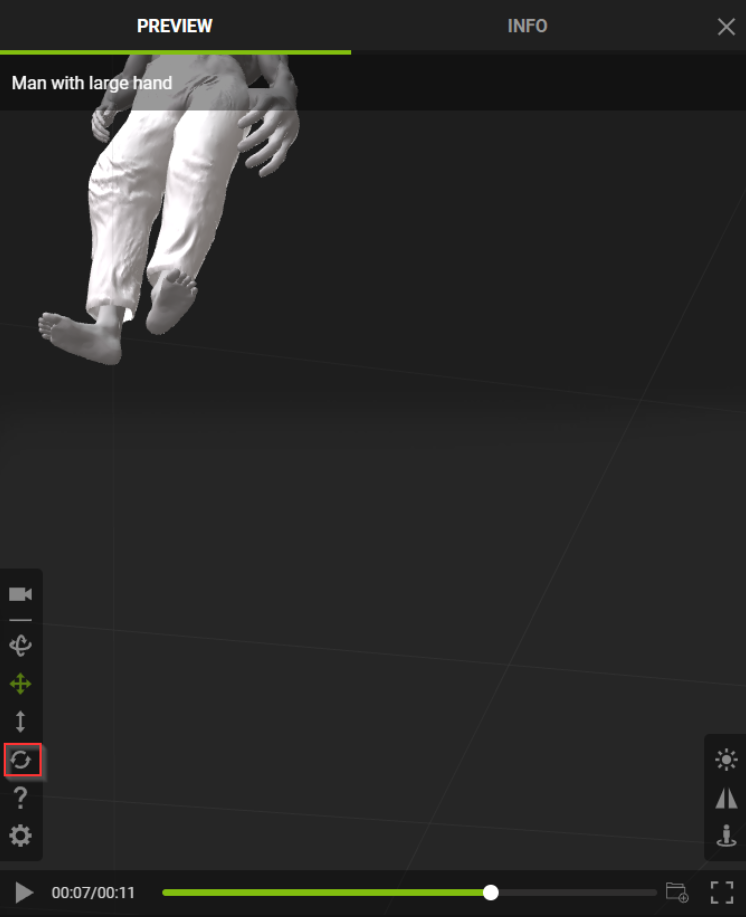
F. Reset Camera
This tool lets you reset the camera back to its original position and orientation.
|
|
|
Before |
After |
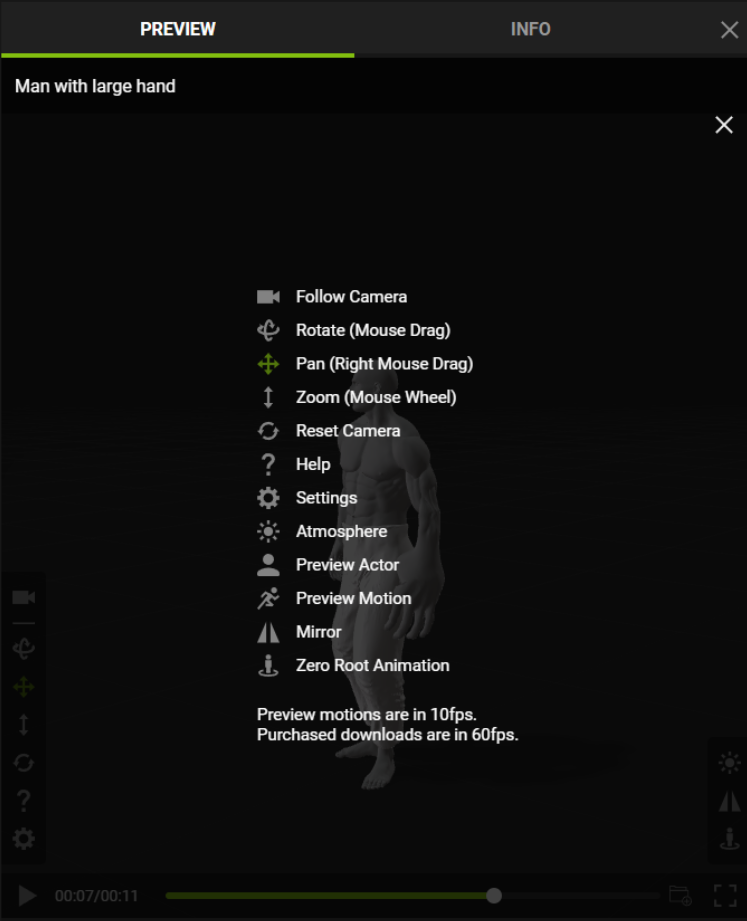
G. Help
Provides a guide to the viewport HUD icons and information about the viewport display itself.
|
|
|
|
Before |
After |
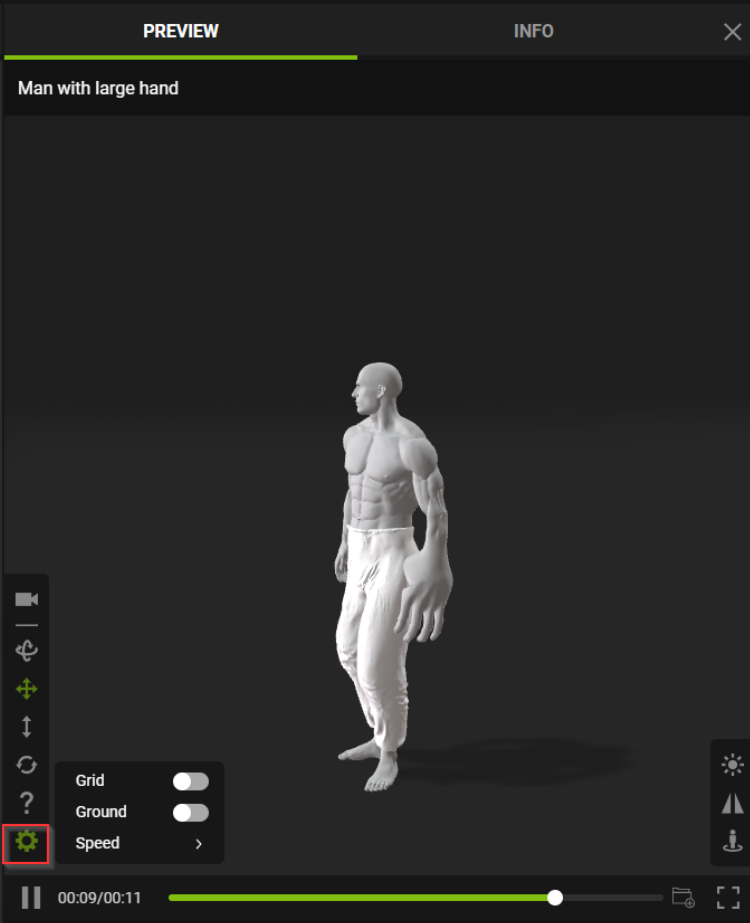
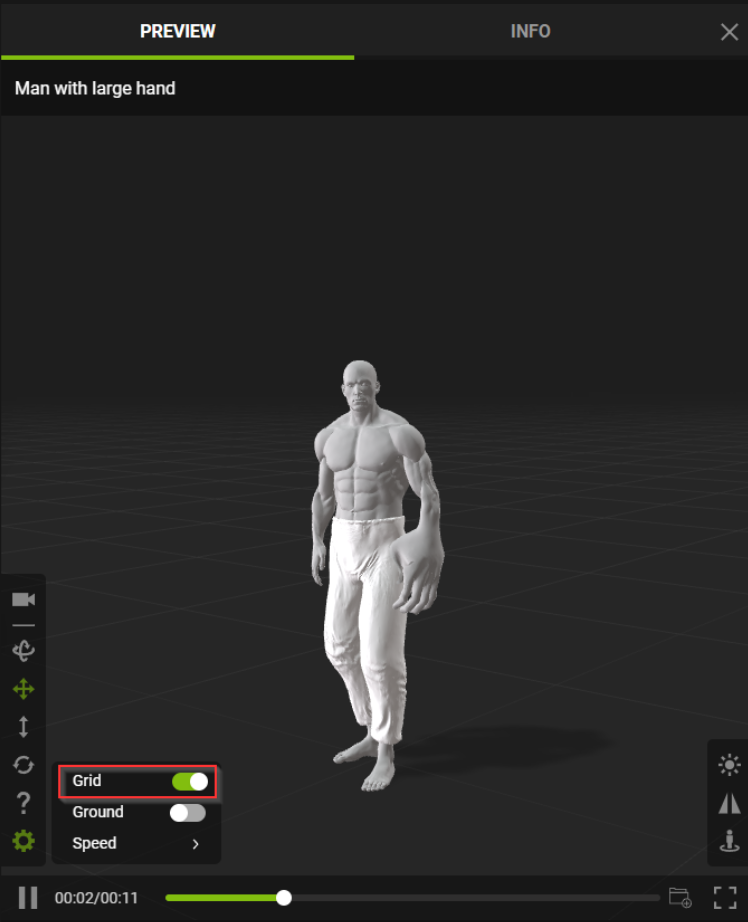
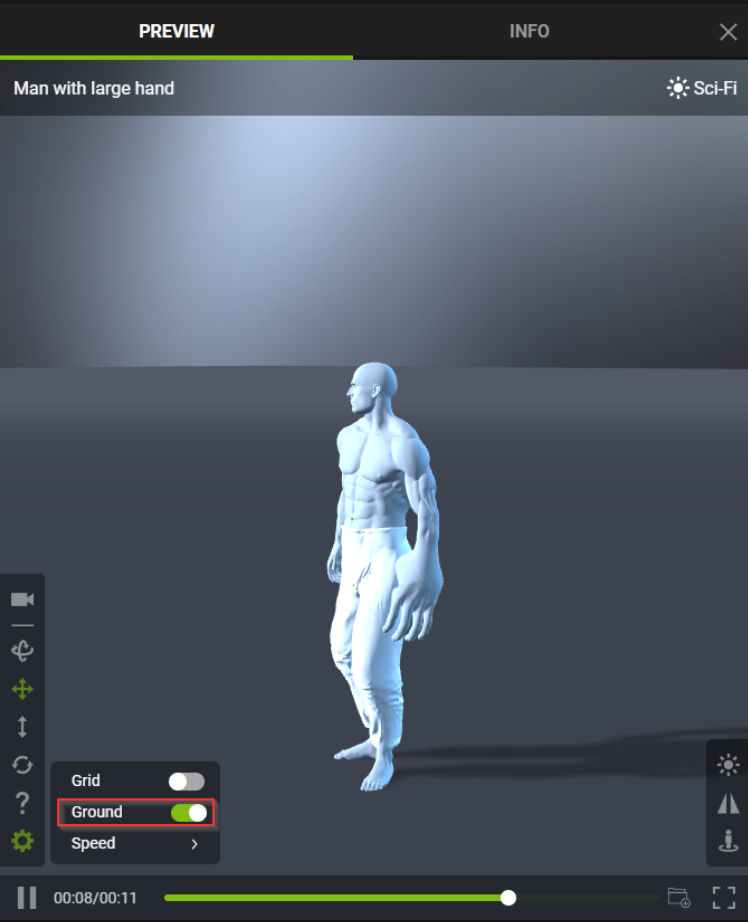
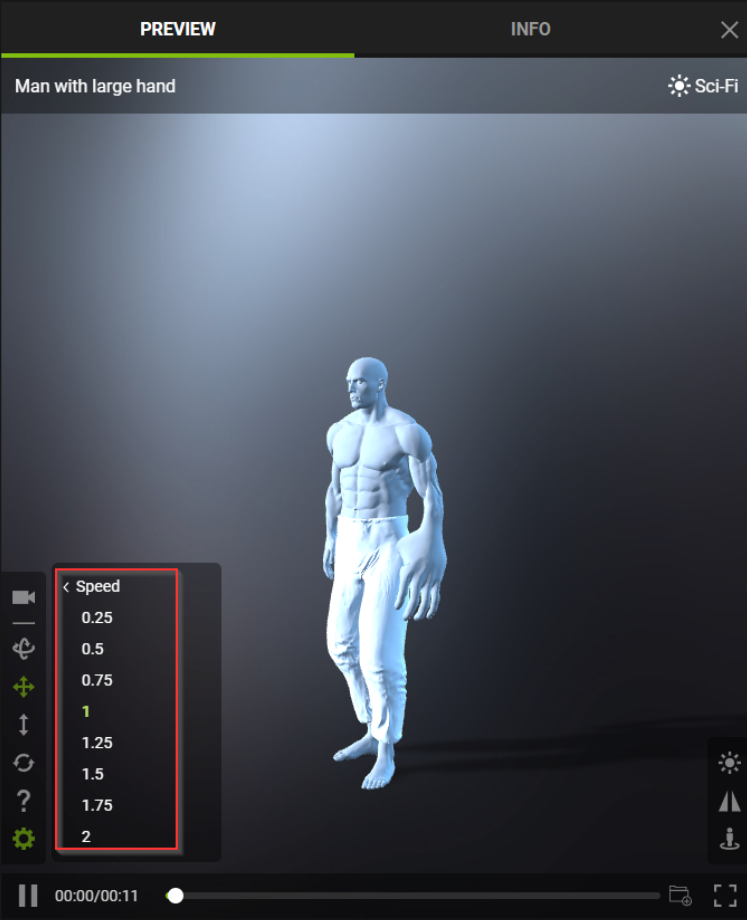
H. Settings
This feature has three settings for adjusting the visibility of the ground and the grid and provides a way to adjust the playback speed.
|
|
|
Before |
After |
|
|
|
Before |
After |
I. Play
Playback or pause the motion.
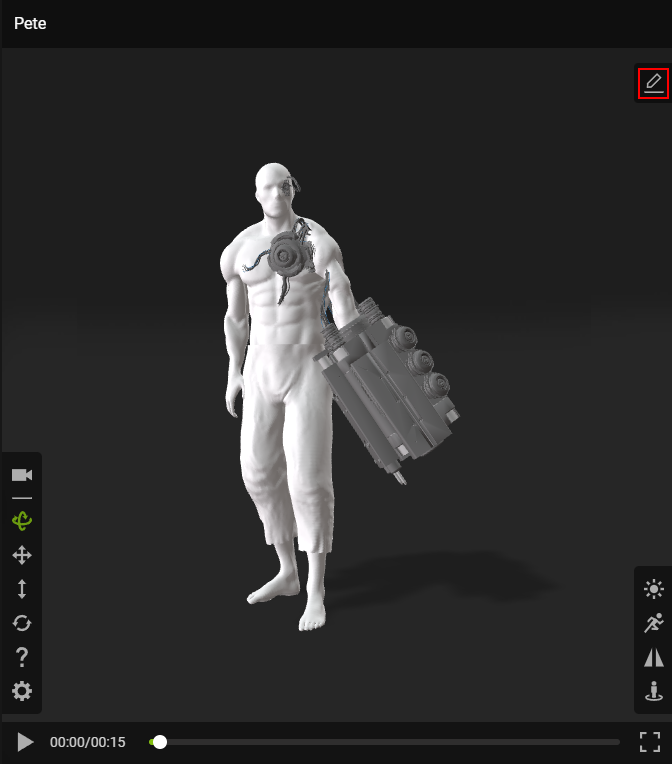
J. Edit
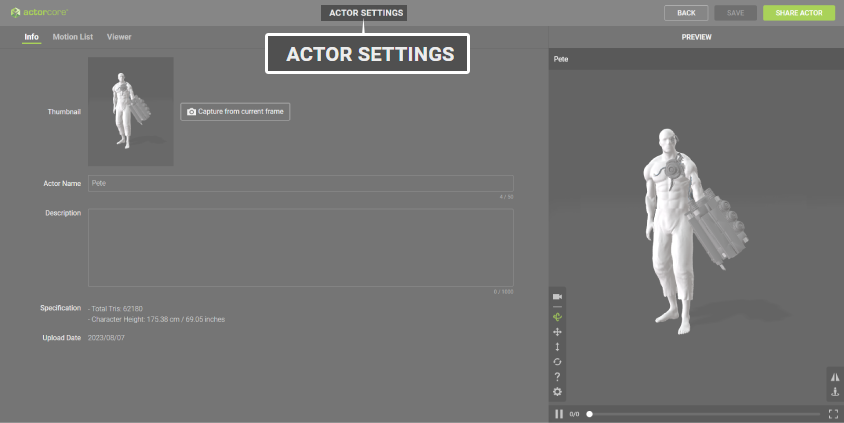
A shortcut button to navigate you to your actor’s ACTOR SETTINGS page.
|
|
|
The ACTOR SETTINGS button is represented by a pencil icon. |
Clicking on ACTOR SETTINGS lets you adjust the viewer options. |
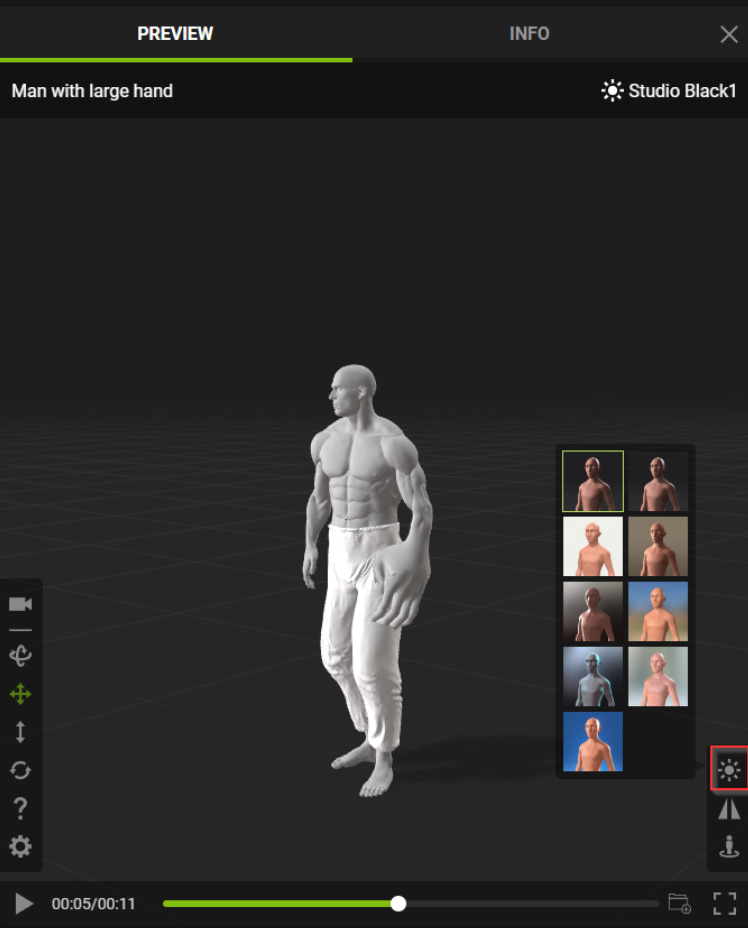
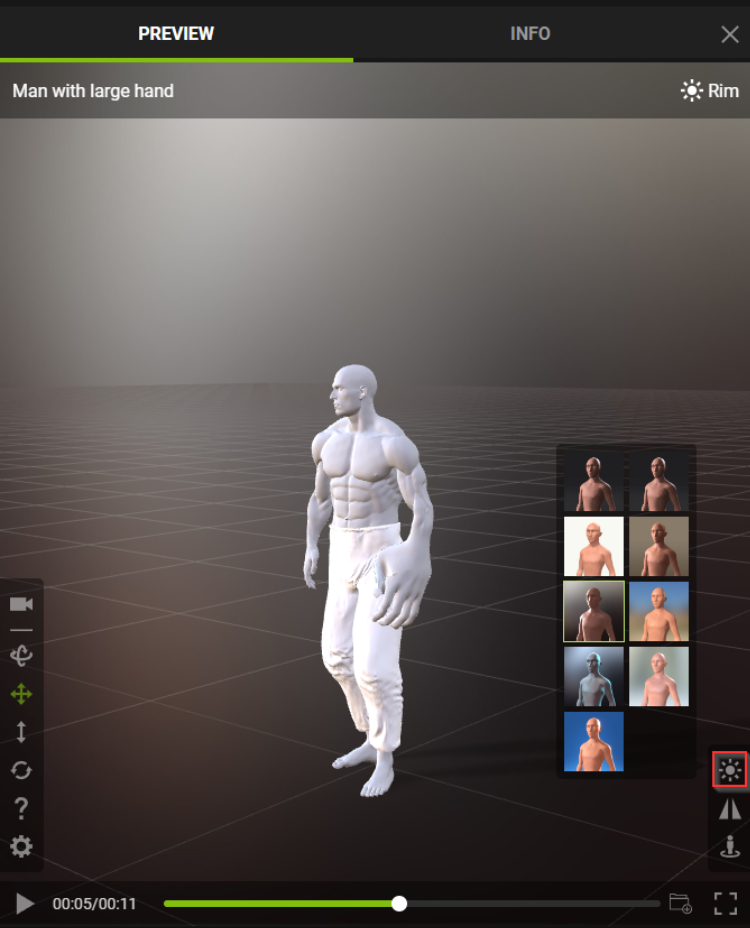
K. Atmosphere
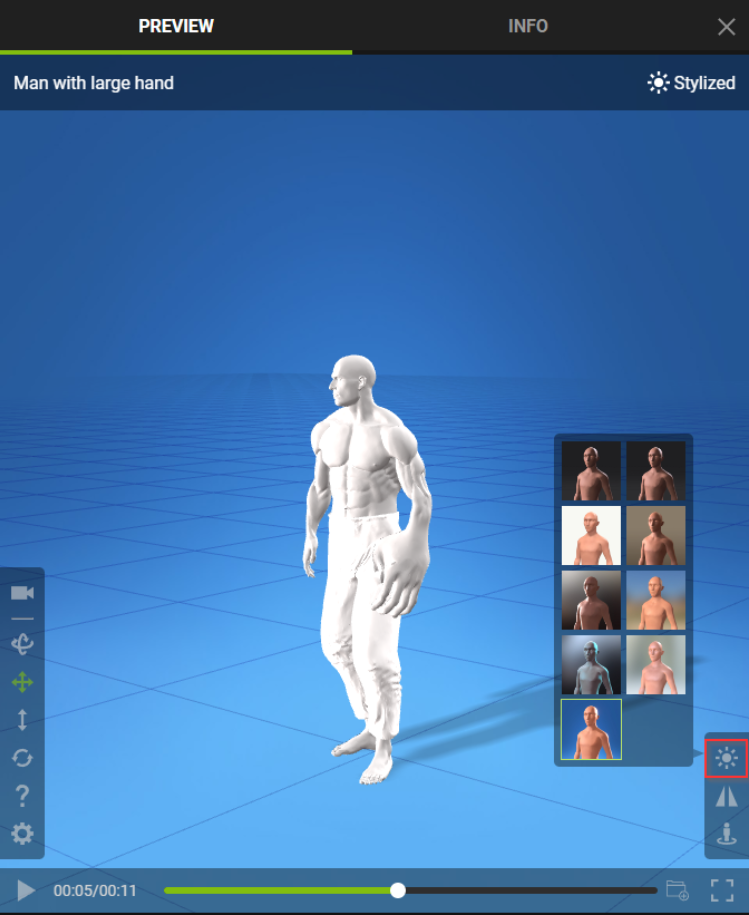
Provides nine different environments and lighting conditions for the actors. This helps to present your actor in certain environments.
|
|
|
Default |
Atmosphere 1 |
|
|
|
Atmosphere 2 |
L. Motion List
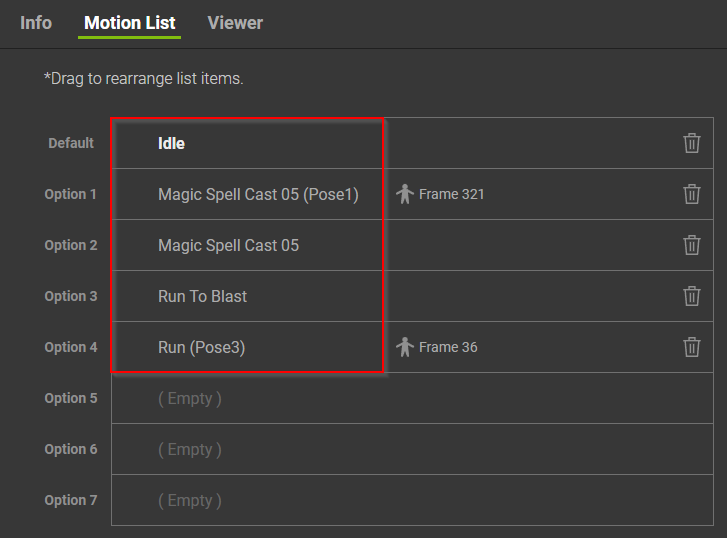
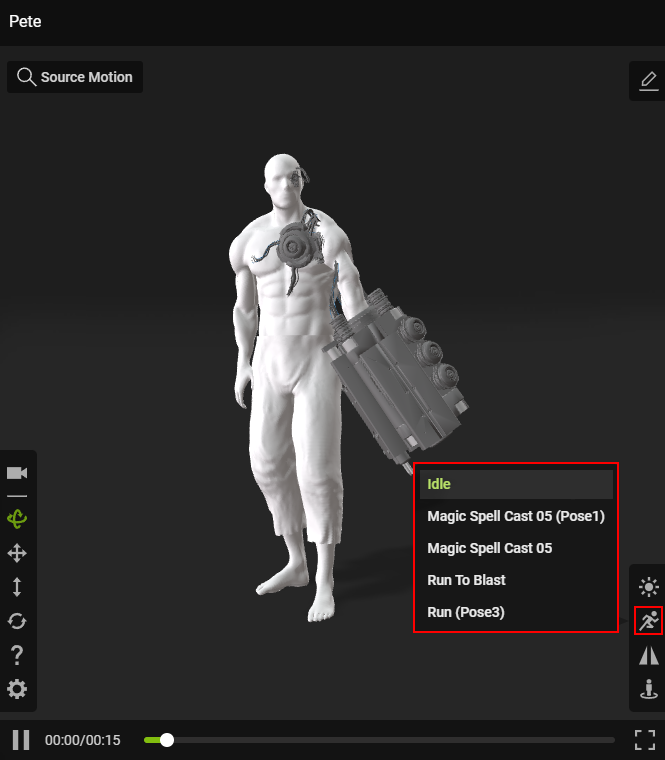
The motions and poses curated by the author become choices that other users have access to (under Shared Actors).
|
|
|
The motion list in the author’s ACTOR SETTINGS. |
The resulting motion list displayed on another user’s Shared Actors page. |
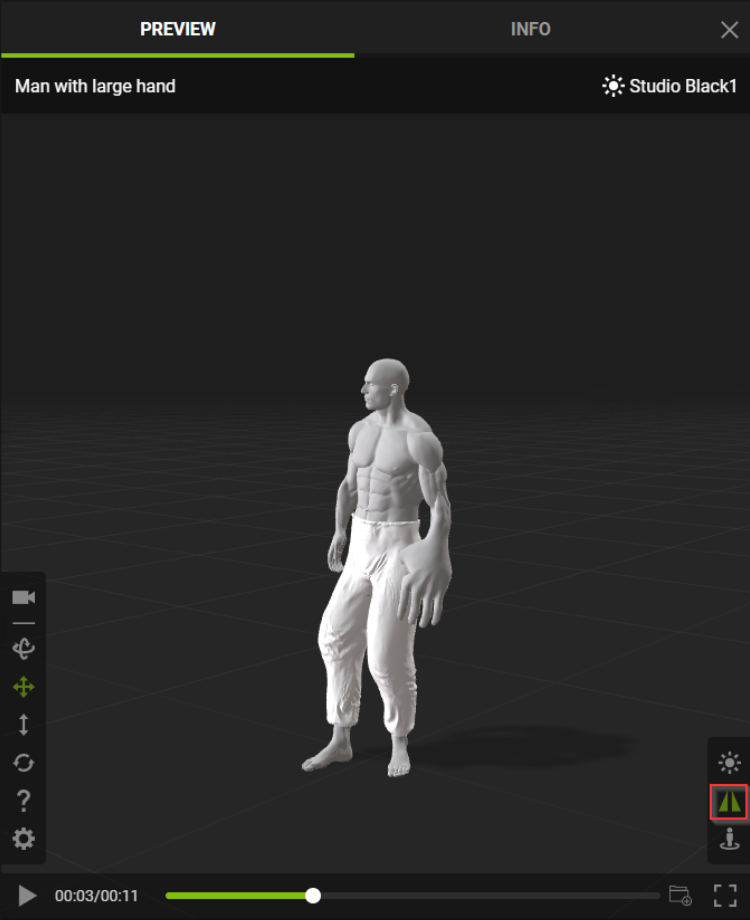
M. Mirror
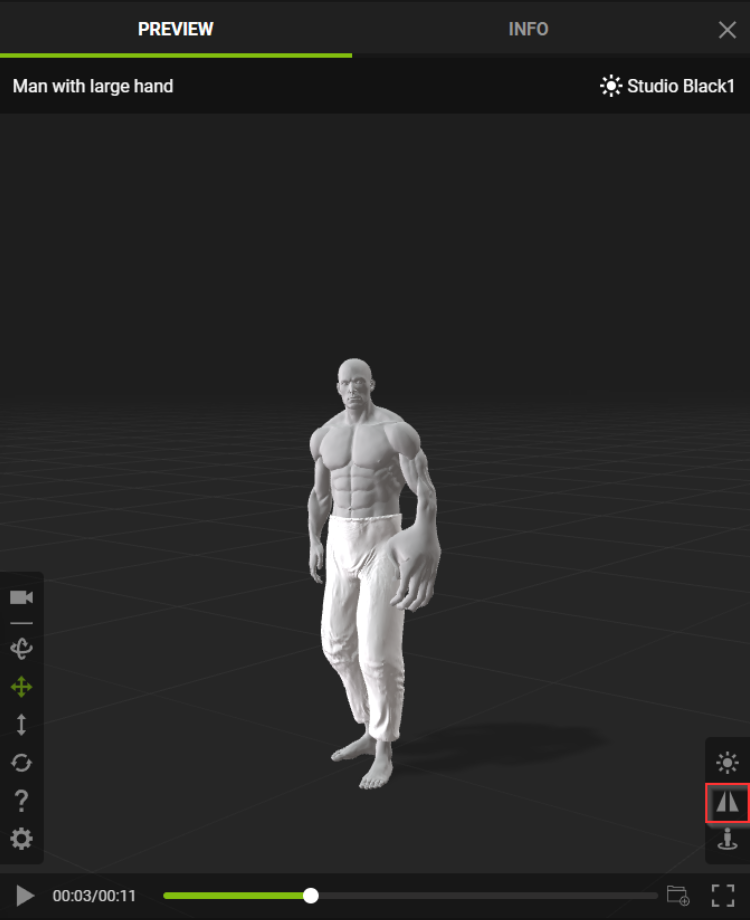
Use this feature to laterally mirror the motion of your actor.
|
|
|
Default |
Mirror On |
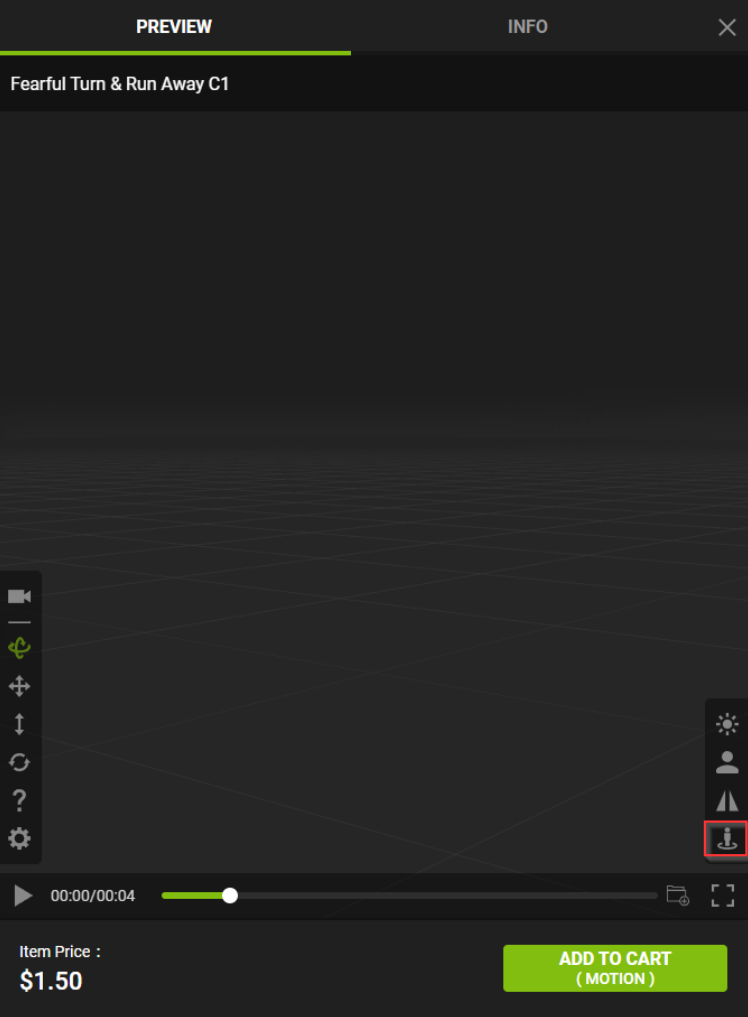
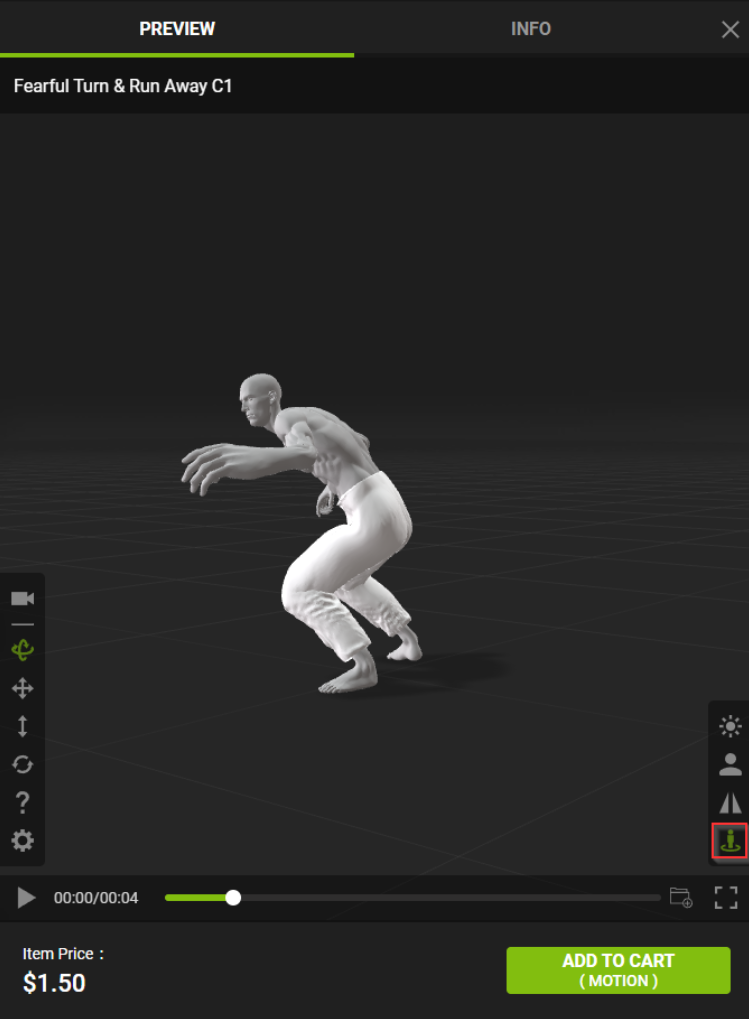
N. Zero Root Animation
Fixes the character to the origin so it is prevented from moving out of frame when a motion is applied.
|
|
|
Before |
After |
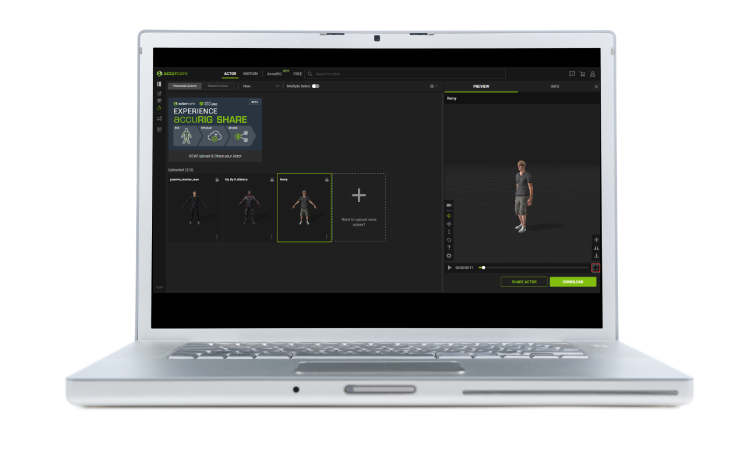
O. Full Screen
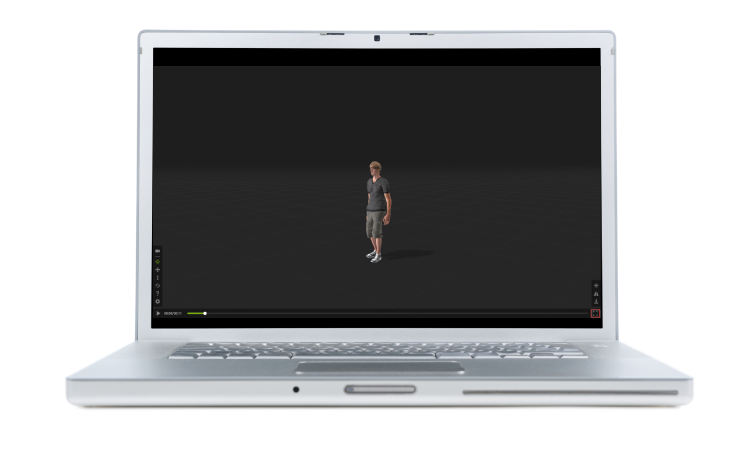
This setting expands the viewport to cover the area of the browser window.
|
|
|
Default |
Full Screen |
