Downloading Actors
ActorCore allows you to download actors you have uploaded to Uploaded Actors as well as downloadable actors that were shared to you. There are multiple settings to choose from before the actual download is carried out and they fit different scenarios and purposes.
- You are able to download actors from both Personal Actors and Shared Actors.

- Both personal and shared actor types can be downloaded using the same methods.
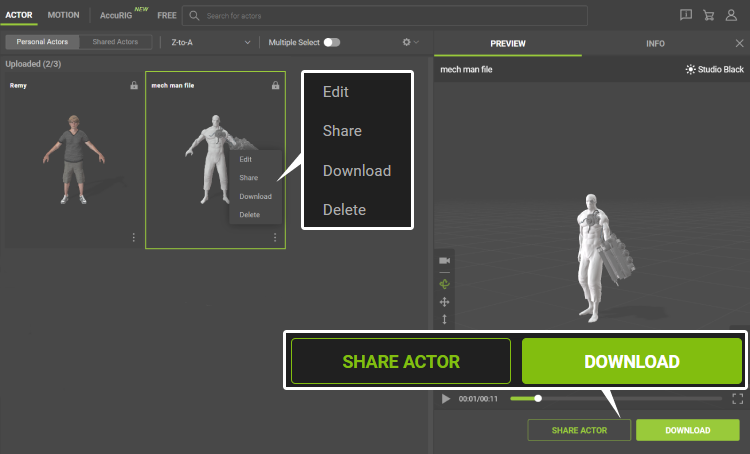
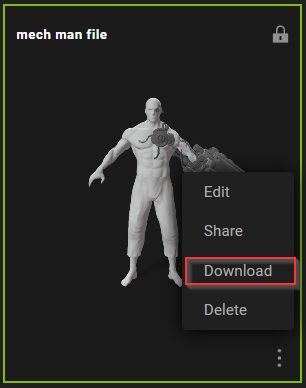
- One method is to use the kebab menu on the bottom-right corner of the actor thumbnail and select Download.
- Another method is to click on the actor’s thumbnail and click the DOWNLOAD button at the bottom of the preview window.
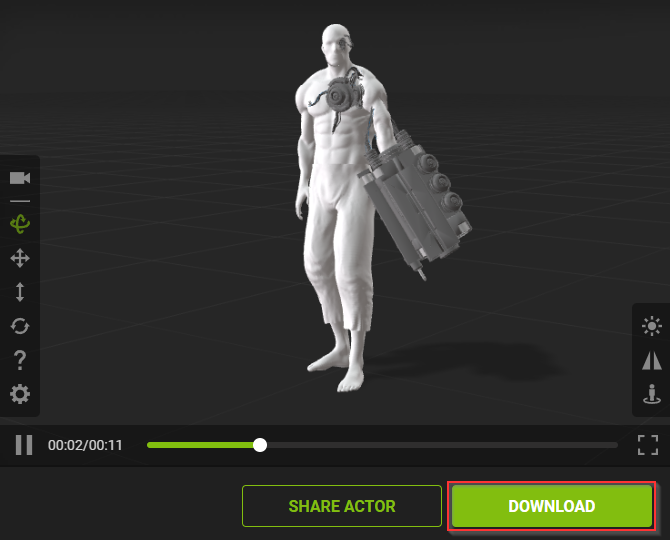
- Another method is to click on the actor’s thumbnail and click the DOWNLOAD button at the bottom of the preview window.
- Once you click the DOWNLOAD button, the AVATAR DOWNLOAD SETTINGS dialog box will appear.
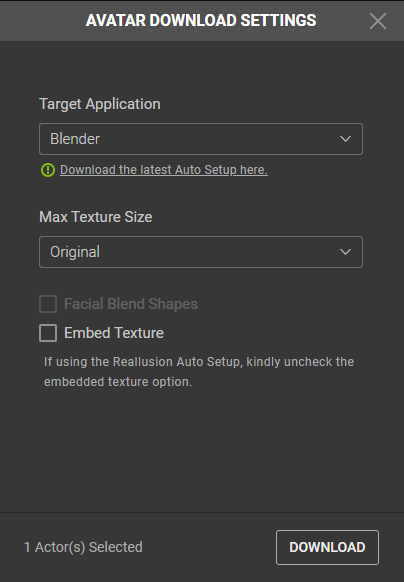
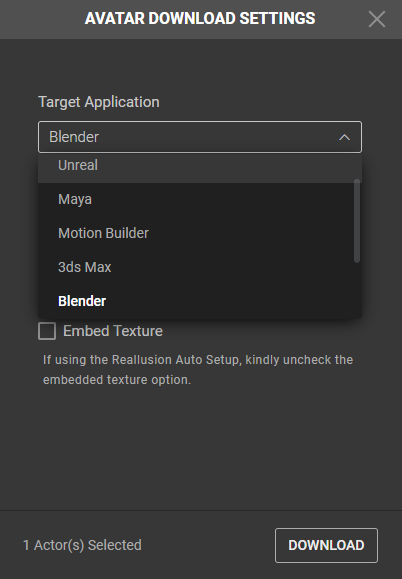
- To prep your actor for a specific software, select the appropriate entry in the Target Application drop-down menu.
- Choose an appropriate resolution in the Max Texture Size drop-down menu.
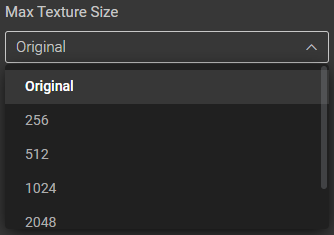
There are a variety of texture sizes for you to choose from. Depending on the intended usage, a smaller or higher texture size might be used. Lower texture size is ideal for crowd animation since it puts less pressure on the system. On the other hand, a larger texture size is preferred for close-up or principal actor animation since it delivers more detail and a more realistic image.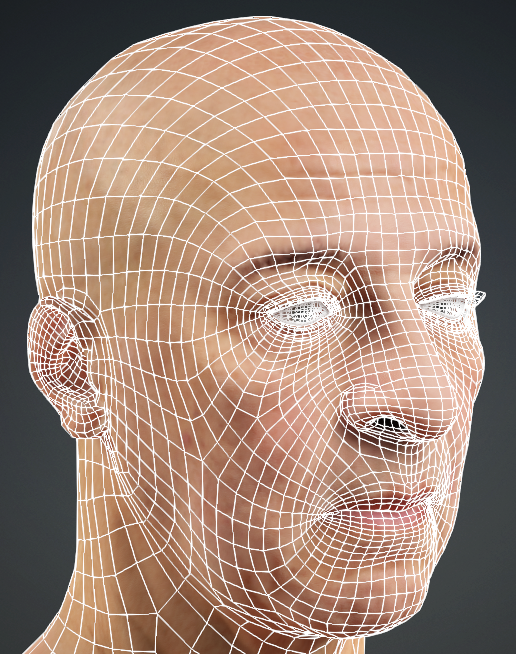
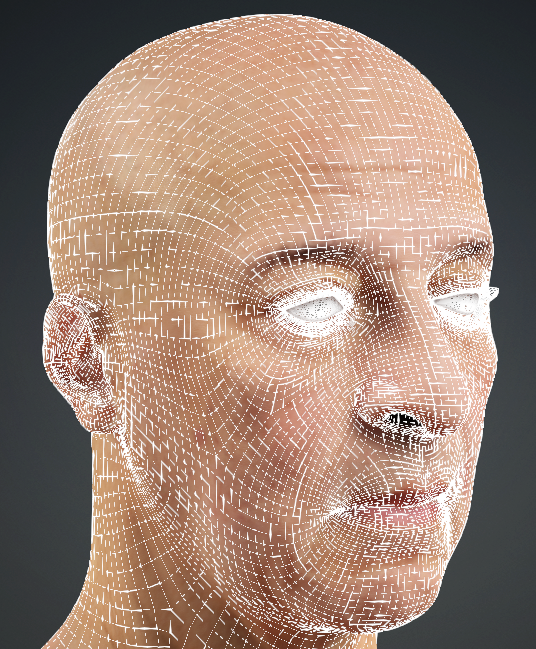
Texture Size: 256
Texture Size: 2048
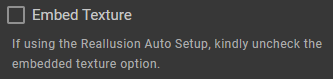
- If you do not plan on using Reallusion Auto Setup, then you can enable Embed Texture to include the textures on your actor.
- Click the DOWNLOAD button to start downloading the actor.