Buildings
Every building generated by the Building Gen plugin comprises multiple individual “units” stacked together, and each unit contains various props. Familiarizing yourself with the fundamental rules of the building blocks will help you minimize and prevent potential issues in the future.
What is a Unit?
A “unit” is a 3-dimensional space that serves as the building block, containing various props to create buildings.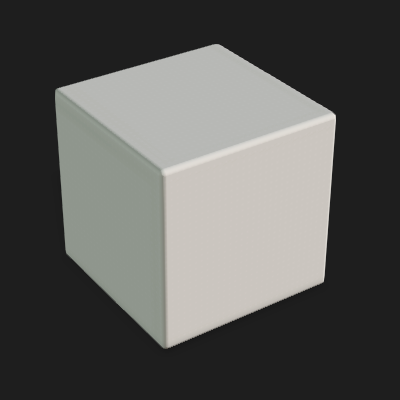
 Note:
Note:
The building gen embedded content uses a unit size of 3 meters length and width by default. Add image with grid below, and info you can customize your unit size in the building gen packager.
The width and depth of the building are determined by the number of units and can be adjusted in the New Building panel.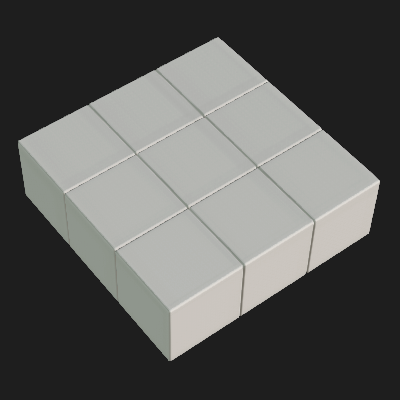
The generated building will maintain consistent level dimensions throughout the entire structure, determined by the specified width and depth settings.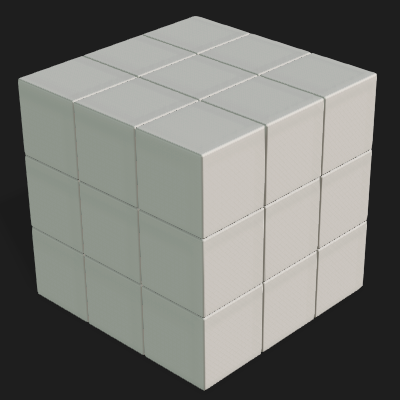
The height of the unit is determined by the tallest wall or “Pillar” props within it.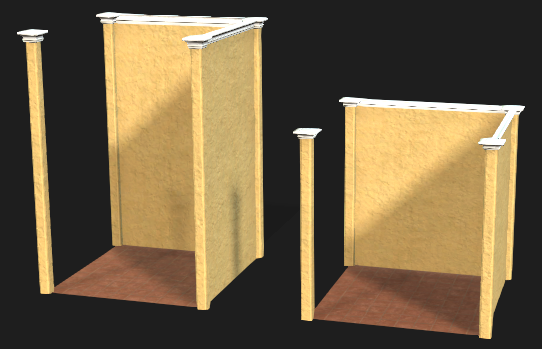
Regular and Cut Corners
The Building Gen plugin employs two primary Blueprint settings to construct buildings: Regular and Cut Corner.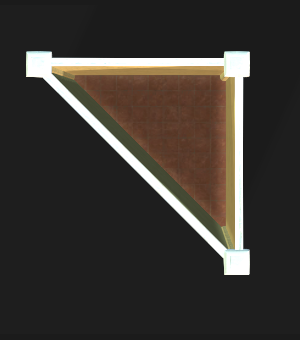
Note:
All units are open 3D shapes, with the top part intentionally left open. This design prevents conflicts between plain surfaces on the z-axis within generated buildings, ensuring smooth connections between each building level.
In a unit, choosing the Regular setting creates a 3-dimensional open cuboid with five individual sides at right angles.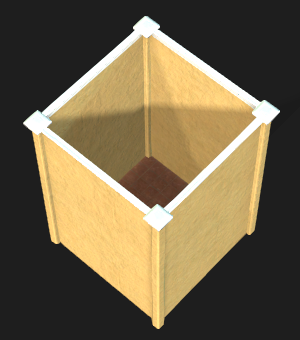
Within a unit, selecting the Cut Corner setting creates a 3-dimensional triangular prism. The base takes the forms of a 45°, 45°, and 90° isosceles triangle.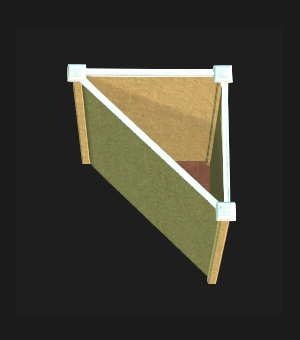
Note:
When utilizing the New Building panel to create buildings, the Cut Corner settings are exclusively applicable to the four corners of the building. For more information on cut corner options, see here.
Building Parts
Within each unit, the fundamental structure of a building is generated using three main types of unit parts: “wall”, “floor”, and “pillar”.
White: Different variations of wall parts
Green: Different types of pillar parts
Pink: Different types of floor parts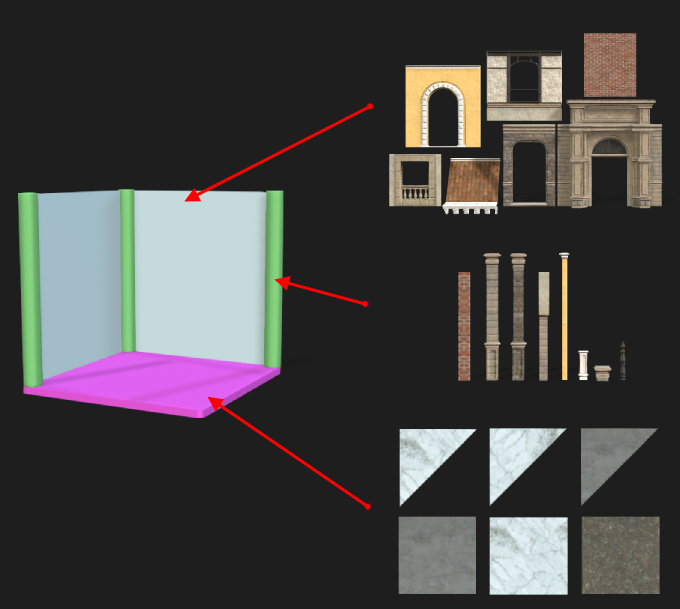
Building Hierarchy
Before you create or edit buildings, it is crucial to understand the hierarchy system employed by Building Gen. This will help you streamline your workflow and prioritize the elements that matter most to you.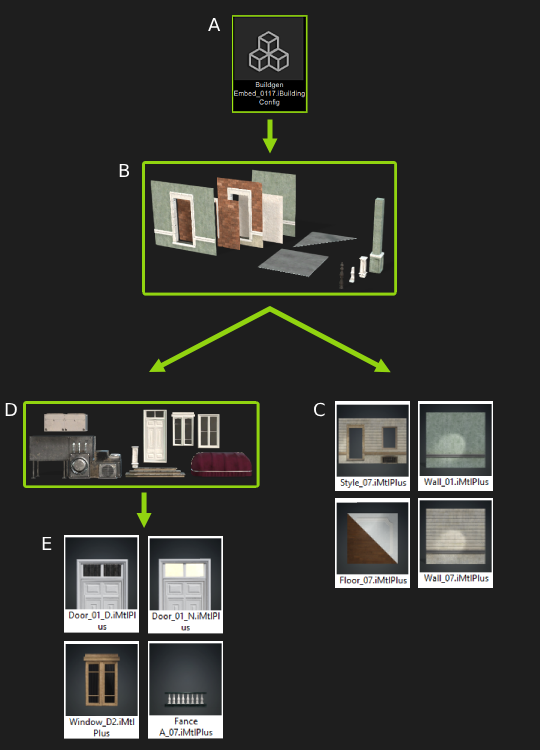
- iBuildingConfig: The building file stores information on the props and materials that will be used for building generation through selected building styles and their default configuration settings. When executing the file in iClone, the New Building panel will appear and will utilize the selected iBuildingConfig file.
- Unit Parts: These unit parts serve as the fundamental building blocks for creating a building’s structure.
- Part Materials: Material textures for unit parts enable the creation of buildings with greater variety.
- Child Element Components: These sub-parts are attached to specific unit parts, enhancing the ability to create buildings with greater detail and design variety.
- Child Element Materials: The material textures on child elements enable a broader range of visual variety.
Different Level Types
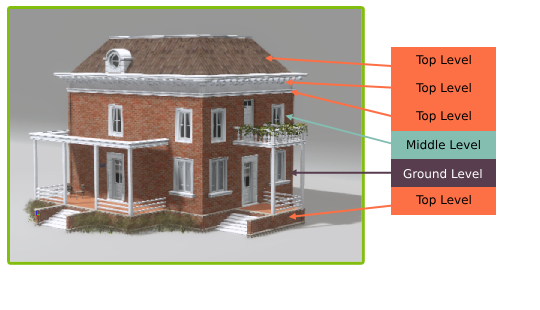
For generating buildings with blueprints, there are three types of levels: Ground, Middle, and Top Level. The order of each level within a building is flexible and can be freely adjusted in the Building Gen interface. Diverse and unique building facades can be made by varying the number and types of levels.
Examples of different level combinations:
Building 1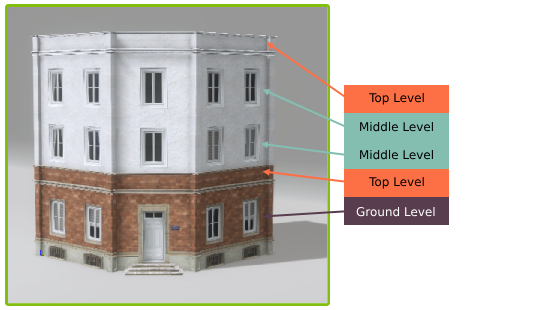
Building 2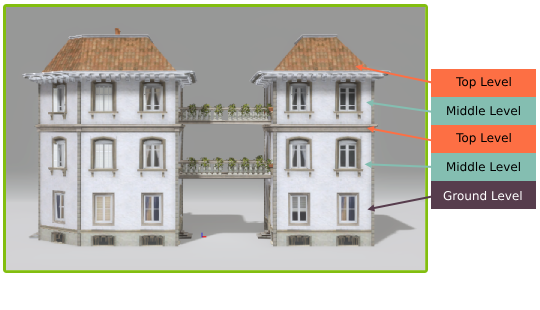
Building 3