New Building panel
The New Building panel enables the procedural creation of buildings based on your specified settings, utilizing various building styles. 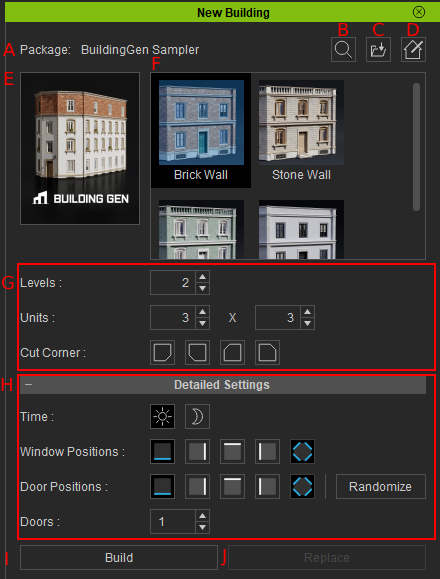
|
UI |
Name |
Function |
| A |
Package |
Shows the name of the current iBuildingConfig in the New Building panel. |
| B |
Uses Smart Gallery to search and locate configuration files in the Content Manager. |
|
| C |
Loads an external iBuildingConfig into the New Building panel manually. |
|
| D |
Opens the Custom Style panel for stylizing the buildings. |
|
| E |
iBuildingConfig Thumbnail |
Displays the thumbnail image of the current iBuildingConfig. |
| F |
Building Styles |
Presents various building styles that are accessible in the loaded configuration file. |
| G |
Basic Settings |
Shows the basic building settings including Levels, Units, and Cut Corner parameters. |
| H |
Detailed Settings |
Shows the building's detailed settings allow for adjustments to the time of day, Window Positions, Door Positions, and the number of Doors. |
| I |
Creates a building using the current settings and style selection in the New Building panel. |
|
| J |
Replaces the existing building with a new one featuring the current settings. |
Basic Settings UI
These settings will adjust the scale and corner type of your building, allowing you to create buildings ranging from small houses to large apartment complexes. 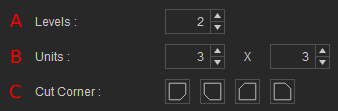
|
UI
|
Name |
Function |
|
A
|
Levels |
Modify the number of levels for the building, ranging from 1 to 40. |
|
B
|
Units |
Displays the width and depth of the building, adjustable from 1 to 15. |
|
C
|
Cut Corner |
Represents the four corners of the building. Enabling these icons will cut the corresponding corner of the building. |
Detailed Settings UI
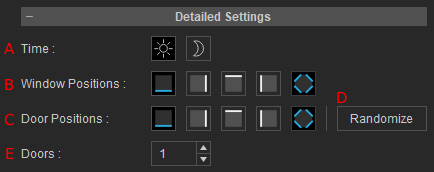
The Detailed Settings features enables you to customize day or night configurations for your building's child element materials. You can specify the number of doors and adjust the positions of windows, doors, and walls according to your preferences.
|
UI |
Name |
Function |
|
A |
Time |
Toggle the icons to change the building's day and night settings for the child element materials. |
|
B |
Window Positions |
Offers five icons to decide eligible sides of the building for window placement. |
|
C |
Door Positions |
Select the icons to determine which sides of the building are eligible for door placement. |
|
D |
Randomize |
Clicking the Randomize button will randomly position the designated number of doors to the activated Door Positions. |
|
E |
Doors |
Adjust the number of doors you want to add to your building based on the unit settings and Door Position configurations. |
