Sourcing external assets and textures
The BuildingGen plugin utilizes a modular building approach with building part instances to construct buildings. Consequently, external assets purchased from online stores or generated using other 3D software should contain sufficient components to be transformed into unit parts (such as floors, walls, pillars, and child elements).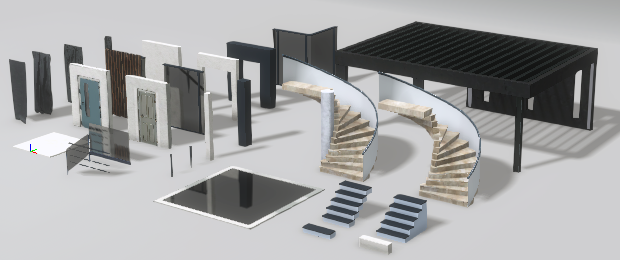
- Browse for a floor asset in FBX or OBJ format and drag and drop it into the iClone viewport.
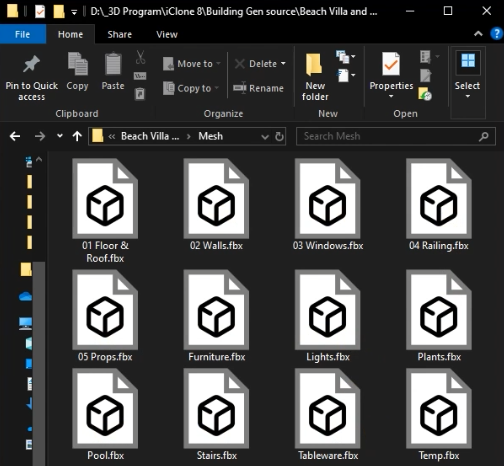
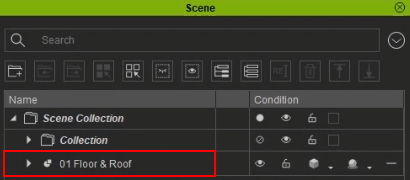
- Navigate to Scene > Name and select your imported meshes Collection tab in the Scene tree.
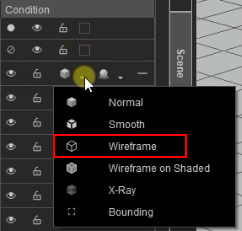
- In the Condition column open the Render State drop-down menu and select the Wireframe option.
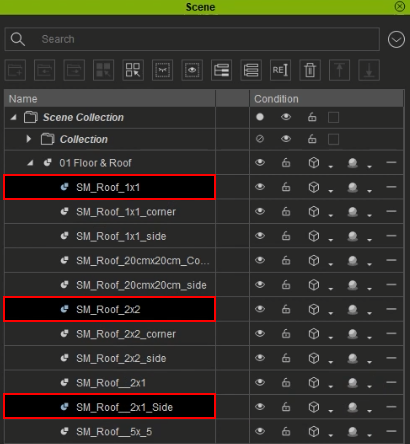
- In the Scene panel select the floor meshes you want to utilize.
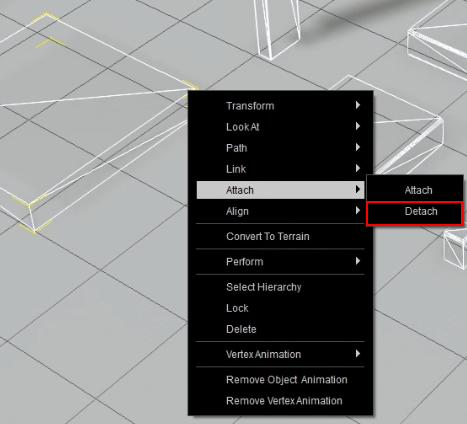
- In the viewport, right-click the selected mesh, and in the drop-down menu go to Attach > Detach to separate the selected meshes.
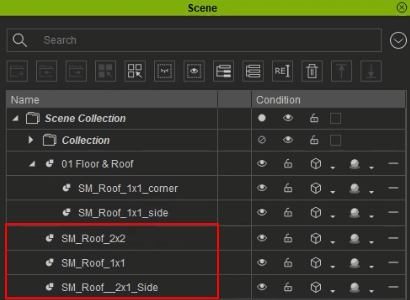
- In the scene tree, you will see the selected meshes are detached from the original collection.
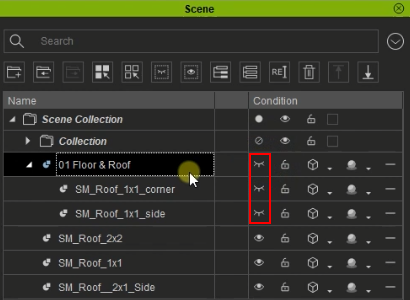
- Hide the rest of the unused meshes by clicking the on the eye icons.
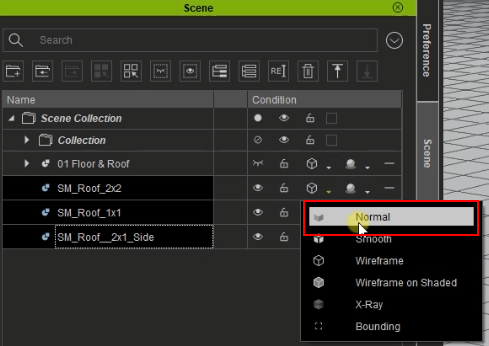
- Select the detached meshes and change the Render State setting back to the "Normal" option.
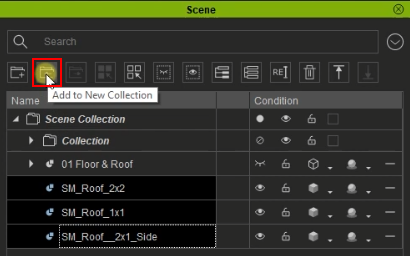
- For better organization, select detached meshes in the scene tree and use the Add to New Collection icon to create a collection group to store the imported meshes.
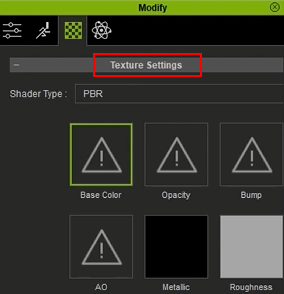
- Choose a floor mesh, then go to Modify > Material > Texture Settings.
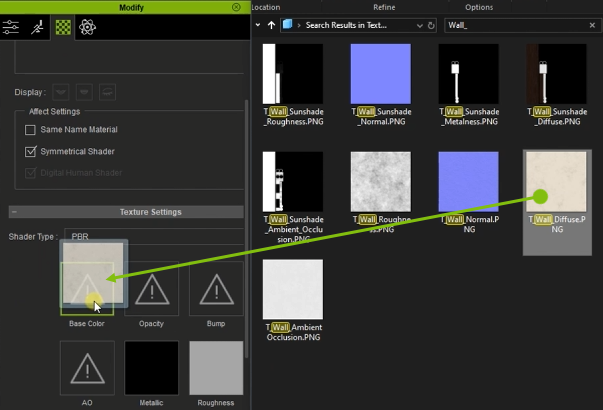
- Import the texture maps that are available for your selected mesh by dragging and dropping them into the correct texture type in Texture Settings.
- After you have imported your texture maps, go to Material Settings and click Diffuse Color.
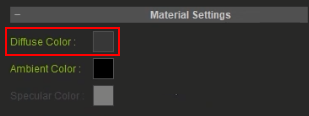
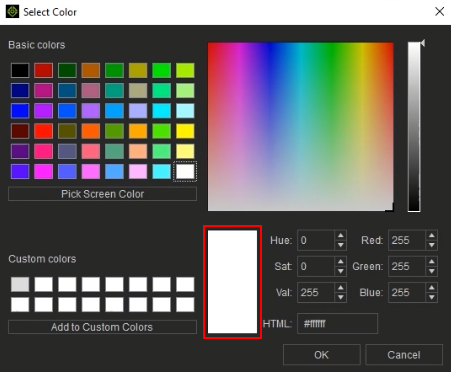
- Change the color to white to remove the tint on the textures.
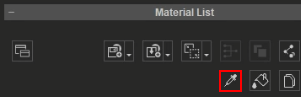
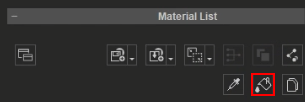
- Under the Material List select the Pick Material icon then select your texturized mesh to copy its texture and material settings.
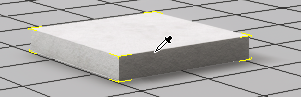
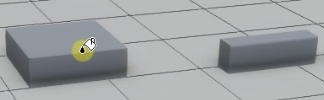
- Click the Paint Material icon then click the meshes in the viewport to apply the copied texture maps and settings.
-
Repeat the same process to apply textures to other building parts.
If a single file contains multiple meshes, a pop-up will appear. Click Yes to separate the meshes, as you will need to edit them individually.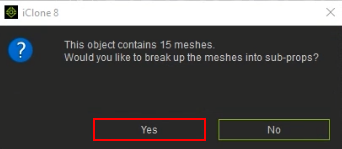
 Note:
Note:When importing any mesh into iClone, it will automatically convert it into .iProp for better cohesion with the tools within iClone.
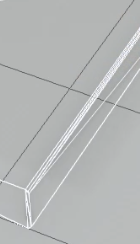
It's recommended to use assets for unit parts with sharp edges instead of rounded edges. This ensures seamless connections of floor meshes without gaps in between.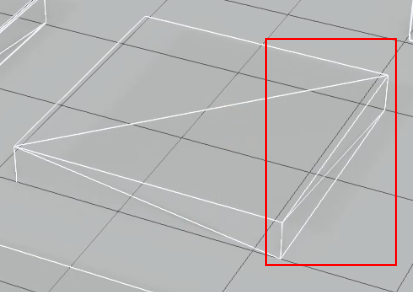
Note:
The wireframe setting makes it easier to identify whether the mesh edges are sharp or rounded.
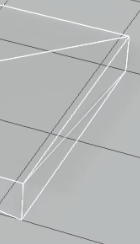
| 
|
Sharp mesh edges. | Sharp mesh edges. |
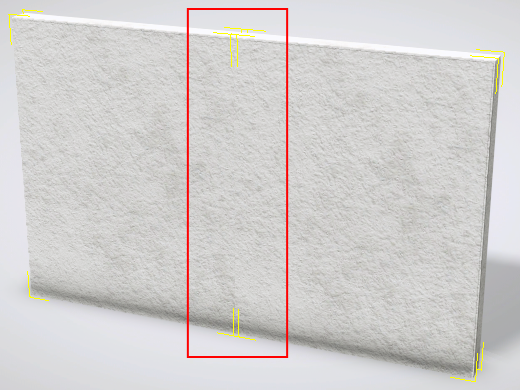 | 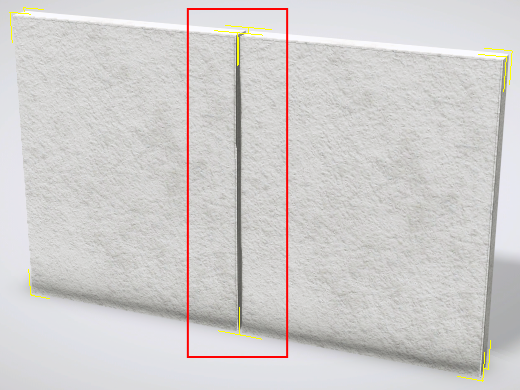 |
2 wall meshes with sharp edges align perfectlytogether, leaving no gaps in between. | 2 wall meshes side-by-side will have a gap no matter how well aligned. |
For consistent building parts, opt for meshes with uniform widths for walls and floors, and heights for pillars and walls. This ensures seamless alignment and avoids protrusions during building creation. For guidance on measuring part dimensions, refer to this page for utilizing grids in iClone.
The floor parts currently used as examples have dimensions of 200 cm width and 200 cm depth.
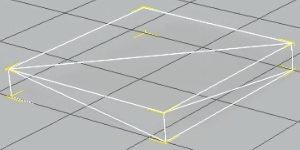
|
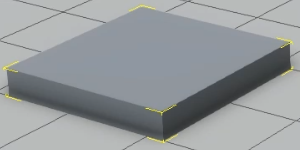
|
|
Wireframe render setting. |
Normal render setting. |
The floor meshes are now given textures.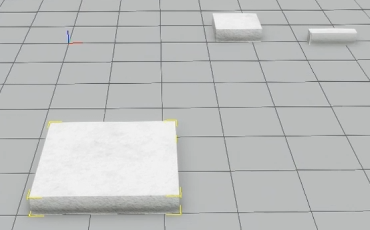
To assign the correct pivot point for each of your unit parts please refer to the links below.
