Skin (New for v1.24)
Get stunning renders for Digital Human skin in UE5 with the Reallusion Auto Setup tool. Digital Human Skin shader is set up to easily adjust subsurface scattering, roughness, specular, and micro-normals for character skin. Parameters on different facial parts can be adjusted separately with the help of RGBA masking.
You can create skin variations by adjusting the settings.
Skin Shader – optional adjustments: How to get the results you’re looking for
- Skin Shader > MicroNormal Strength and MicroNormal Tiling Value – Optional patterned skin micro-normal adjustment.

- Skin Shader > Mirco Roughness – Adjust roughness in different facial areas with the help of RGBA masking.

- Skin Shader > Specular – Adjust skin specular level.

- Skin Shader – Make subsurface scattering and transmission adjustments.
- Find the RL_HQSkinSSS in the Content Browser. Double-click to open it up.

- Adjust the settings to tweak the transmission effect of the skin.

- To get the light transmission to work properly, make sure to switch your light mobility to “movable” and enable transmission.

- Find the RL_HQSkinSSS in the Content Browser. Double-click to open it up.
Ray-Traced Shadows
How to turn off Ray Traced shadows – You might come across a weird shadow artifact when using ray tracing, which normally appears on meshes with transparent properties.
Simply follow these steps to turn it off
- Double-click on the material with inaccurate shadows.

- Click the button of the material instance to find the parent node.

You can find its parent shader blueprint.
- Duplicate the blueprint if it is directed to the RL_Standard shader (PBR shader). You do not want to overwrite the original PBR shader otherwise you will turn off Ray Tracing shadows on all the PBR assigned meshes.

- Rename the duplicated material blueprint.
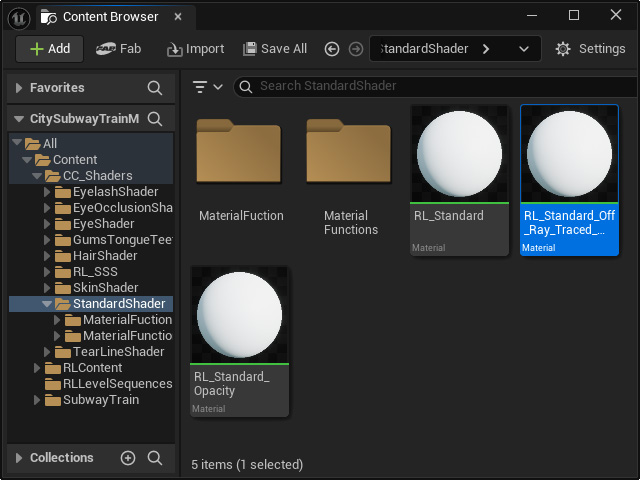
- Assign the duplicated material blueprint to the material instance.

- Open up (by double-click) the blueprint. Select the terminal node in the Material Graph panel.

- Search for “Cast Ray Traced Shadows” in the Detail panel and disable it.

- Save and let it compile.

Check out the result of Kevin in different lighting scenarios
