Bringing iClone crowd scene into 3ds Max
This article will guide you on the export of a complex scene with multiple types of models from iClone and import them into 3ds Max using the CC Auto Setup plugin. For this example, we will work with a pre-prepared crowd scene project.
-
Open the project you want to export in iClone.

- Select the models that are the same model types, take characters as an example, and select all the character models in the scene.

 Note:
Note:Character models transferred to 3ds Max do not have a body rig, causing difficulty in posing and adjusting your character's pose and animation. Therefore it is best to complete all the posing and animation works in iClone before transferring to 3ds Max.
- Navigate to File > Export > Export FBX… to open the Export FBX window.

- In the Target Tool Preset drop-down menu, select the "3ds Max" option. For Export Range select Current Frame for poses or select Range and enter the animation range you want to export. Leave the rest of the settings as default, and click Export to save your model as an FBX file.

- Choose a folder to save the files in the Save As pop-up window, then click Save.

- Repeat steps 2 to 5 for each model type you want to export. Ensure each FBX file and its associated file exports are saved in a separate folder. Mixing different texture maps of different model types in the same folder can cause errors when importing into 3ds Max.

- After exporting all of the models, launch the CC Auto Setup plugin in 3ds Max.

- In the CC Auto Setup dockable panel open the Supported Render Engine combo box and select the render engine you want to utilize for the rendering.

- Click the Browse FBX button to browse the FBX file you want to import.

- Select the FBX file you want to import, then click Open to confirm your selection.

- After selecting your FBX file the Browse the Character’s JSON File section should auto-select the corresponding JSON file if the file is in the same location. Otherwise, click Browse JSON to import the JSON file.

- Click the Import button to initiate the import process.

- Repeat steps 8 to 11, if you wish to import additional FBX files.
The exported files will consist of a texture folder with all the texture maps inside, an FBX file, and a JSON file.
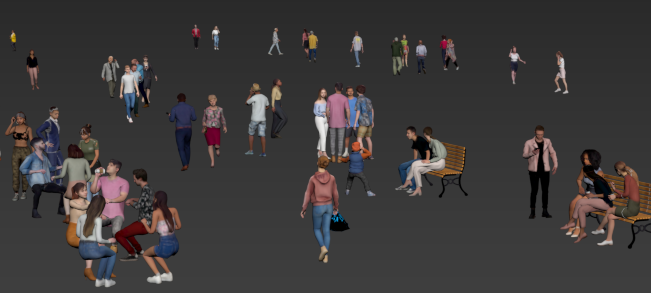
The complete iClone scene will be imported into 3ds Max.
Note:The position information of the models in iClone are saved within the FBX file, ensuring the models retain their original positions in 3ds Max.
The Arnold render of the iClone scene in 3ds Max.
