Exporting animated characters for CC Auto Setup in 3ds Max
The following is an outline for downloading an animated character from ActorCore and importing it into 3ds Max using CC Auto Setup.
- Go to the ActorCore website, navigate to the Actor section, and choose the character you want to download. For this example, a character will be selected from the Inventory.


- Click the Motion tab and choose the desired animation.
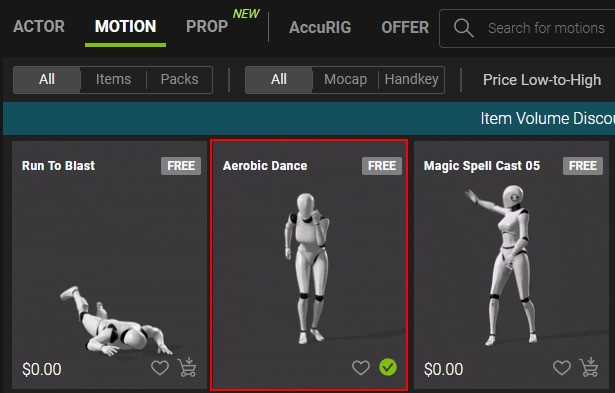
- After selecting the animation for your character, a preview will appear showing your character in motion with the selected animation.

- Click the Download button to start the download process.

- In the DOWNLOAD SETTINGS dialog box, select the character you want to download with the motion, then click NEXT.

- Switch the Target Application option to “3ds Max” and adjust the Max Texture Size and FPS accordingly, then click the Download button.

- Once file preparation is complete, your selected character will appear under the Download Panel. Click it to start downloading.
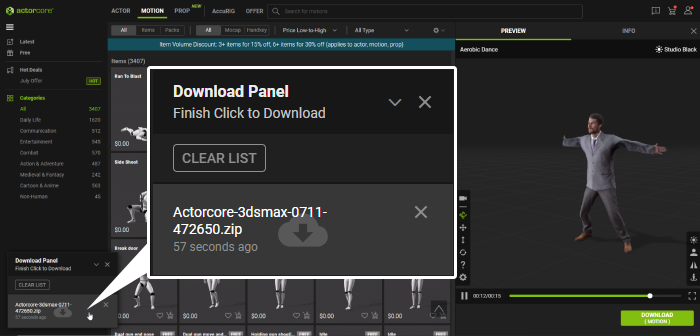
- After downloading the zip file, extract its contents.

- The extracted file should consist of two separate files, one is "Actor" and the other is "Motion".

- Open the CC Auto Setup plugin in 3ds Max.


- Click the Browse FBX button to browse the FBX file you want to import.

- Select the FBX file you want to import then click Open to confirm your selection.

- After selecting your FBX file the Browse the Character’s JSON File section should auto-select the corresponding JSON file if it’s in the same folder. Otherwise, click Browse JSON to import the JSON file manually.

- After everything is completed, click the Import button to initiate the import process.

- To import your character's animation, navigate to the menu bar and select File > Import > Import….
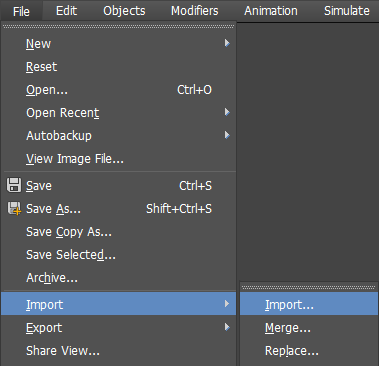
- Select the motion you have downloaded with your ActorCore model, then click Open.

- In the FBX Import pop-up window, ensure the option in File content is set to Update animation, then click OK.

- Click the play button in the timeline toolbar to preview the character animation.

The character will be imported into 3ds Max.
