Using CC Auto Setup to import models into 3ds Max
Follow the steps below to open the CC Auto Setup plugin and use it to import FBX files into 3ds Max.
The CC Auto Setup only supports FBX files exported from iClone, Character Creator, and ActorCore.
 Note:
Note:If you haven’t downloaded the CC Auto Setup plugin, visit here to begin the installation process.
- In 3ds Max, click on Reallusion > CC Auto Setup in the top menu bar.

- In the CC Auto Setup dockable panel, open the Supported Render Engine drop-down menu and select the render engine you want to utilize for the rendering.
 Note:
Note:When importing FBX files into 3ds Max, it's best to use the same render engine throughout your project. Different render engines handle materials and texture maps differently, so switching engines can cause models to render poorly.
- Click the Browse FBX button to search for the FBX file you want to import.

- Select the FBX file you want in the Browse Character FBX pop-up window then click Open to confirm your selection.

- After selecting your FBX file the Browse the Character’s JSON File section should auto-select the corresponding JSON file if the file is in the same folder. Otherwise, click Browse JSON to select the JSON file manually.
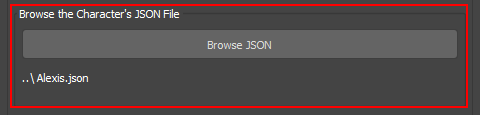
- After adjusting the settings, click the Import button to initiate the import process.

The CC Auto Setup panel will appear.
Your characters will appear within the 3ds Max scene.
 |  | 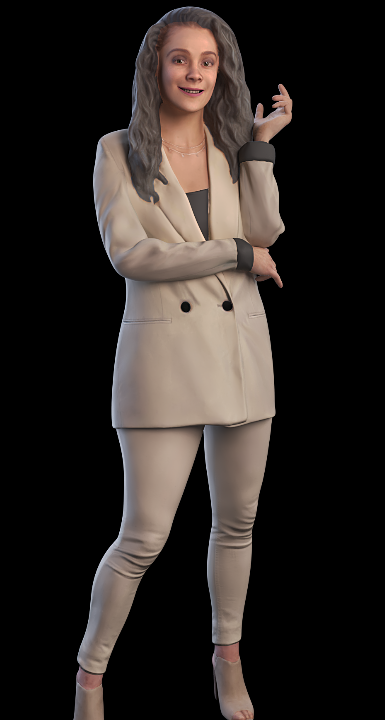 |
iClone’s FBX export supports exporting multiple character models, along with props like cloth and hair as separate models. | Character Creator's FBX export supports exporting a single character model, along with props like hair and cloth as separate models. | ActorCore’s FBX export supports exporting a low poly one-piece character model with props like hair and clothes included as a single model. |
