Using Look Dev - Lighting
After importing an FBX file into Marmoset Toolbag, you can apply lighting presets to replace the original scene lighting. This allows you to quickly change the overall tone and atmosphere of your project.
Applying Lighting Presets
- Transfer the exported FBX file (from iClone or Character Creator) to Marmoset Toolbag project.
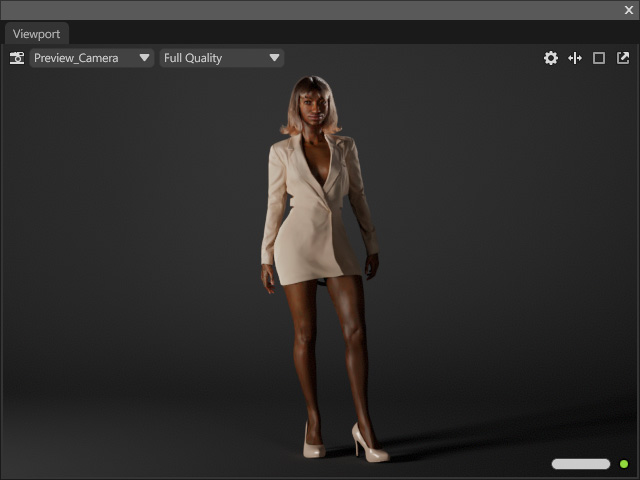
- Expand Look Dev Settings > Light Preset section in the plugin panel.

- Go to Scene > Add Object > Camera to create a new camera.

Then rename it in the Scene panel.
You will notice that additional lights and a backdrop prop are automatically added to the scene.
- Switch the viewport to the new camera’s perspective.

Adjust the view to focus on the head.
- Click a lighting preset name under the Head Lighting group.

A new light group will be added to the scene.
- Turn off the original lights to observe the effects of the selected Head Lighting Preset.
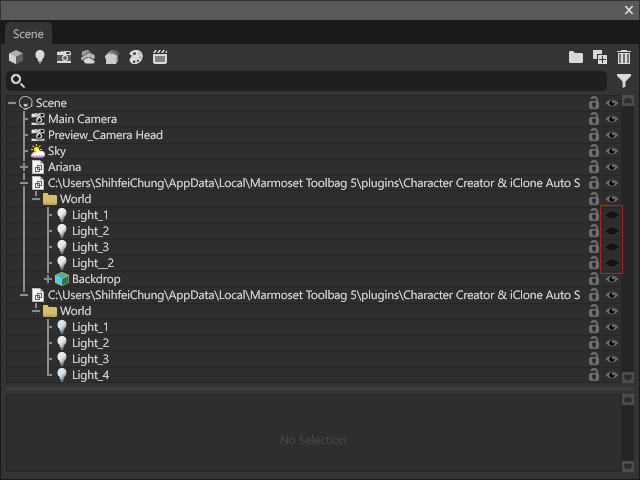
The images below show only the lighting results from the preset (original lights excluded).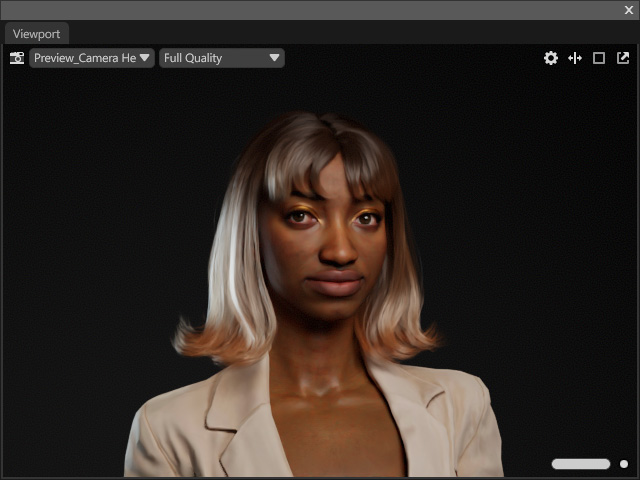
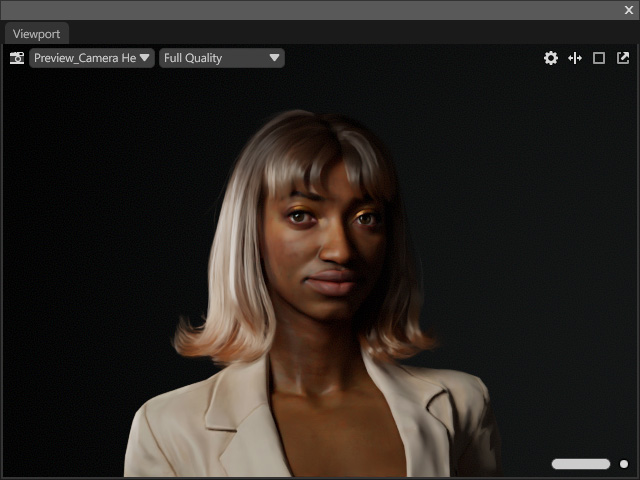
Studio
Outdoor

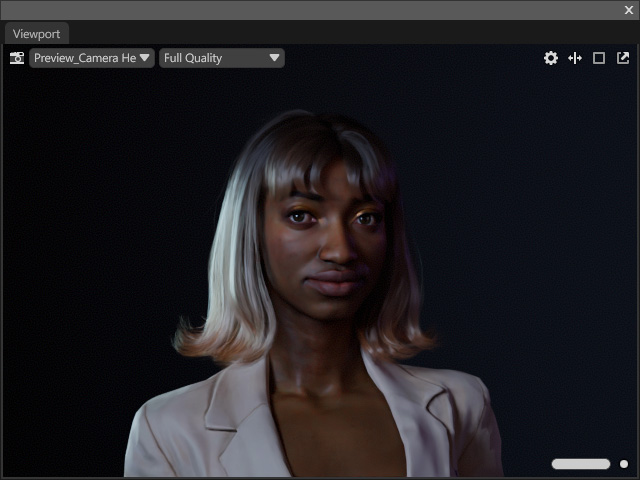
Dawn
Aqua

Neon
- Switch to the camera view showing the entire character or scene.
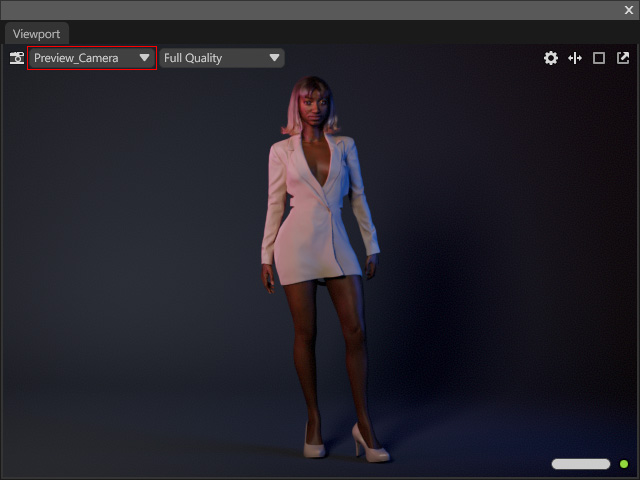
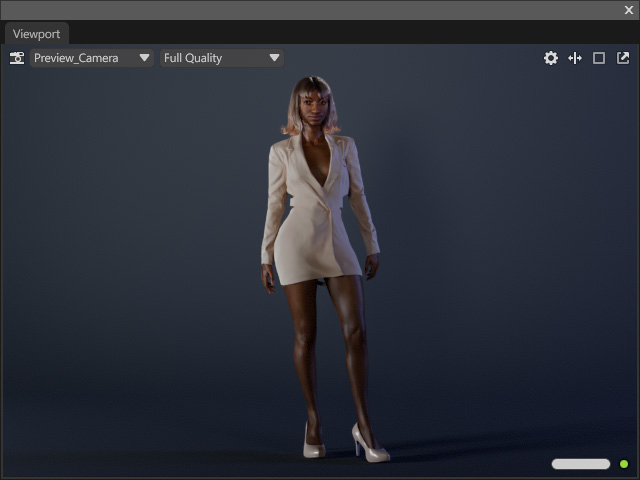
- Click a lighting preset under the Full Body Lighting group.
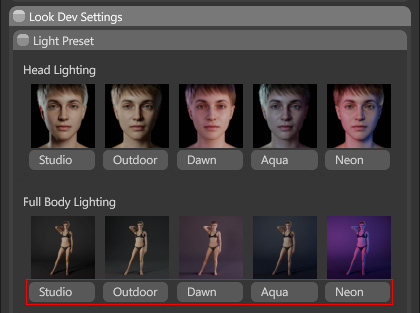
A new light group and backdrop prop will be added to the scene.
- The images below show only the lighting results from the Full Body Lighting Preset (original lighting and backdrop excluded).
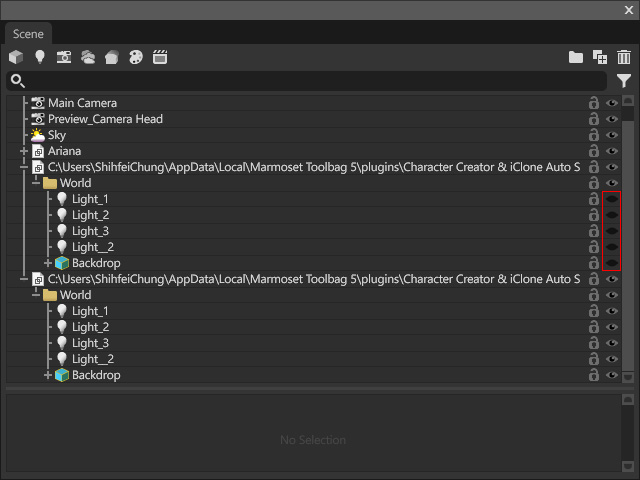
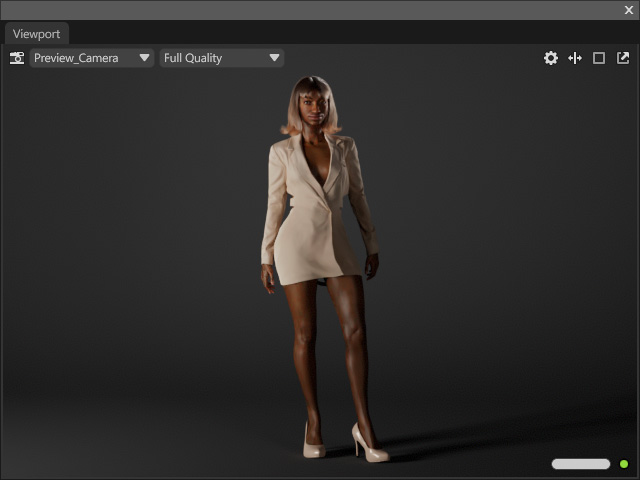
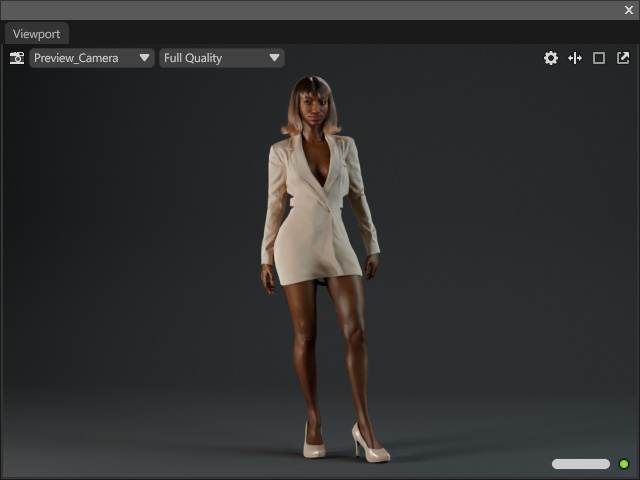
Studio
Outdoor
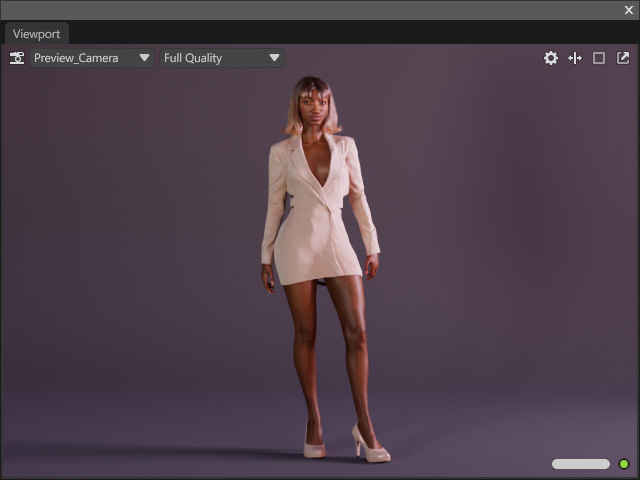
Dawn
Aqua
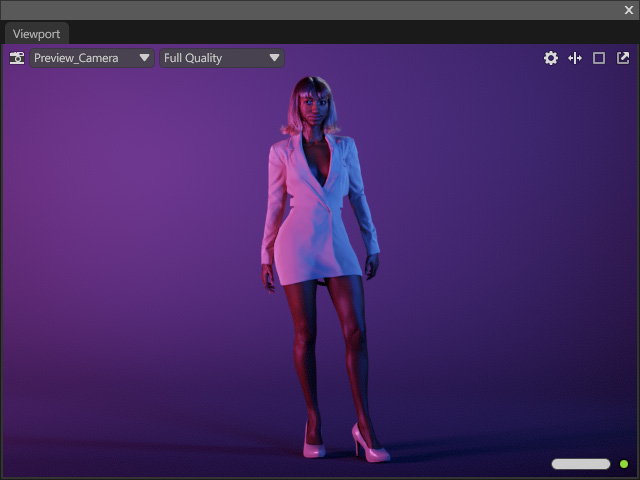
Neon
Adjusting Sky Lighting
When applying a lighting preset, a specific Sky Light object from the Marmoset Toolbag Library is also loaded automatically.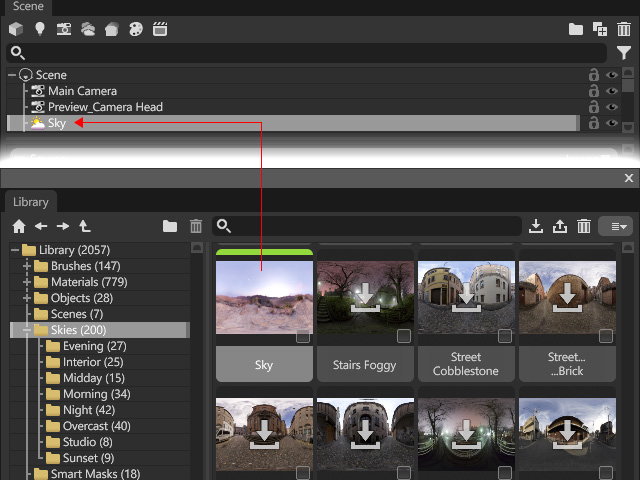
You can adjust its illumination and orientation using the controls in the plugin panel.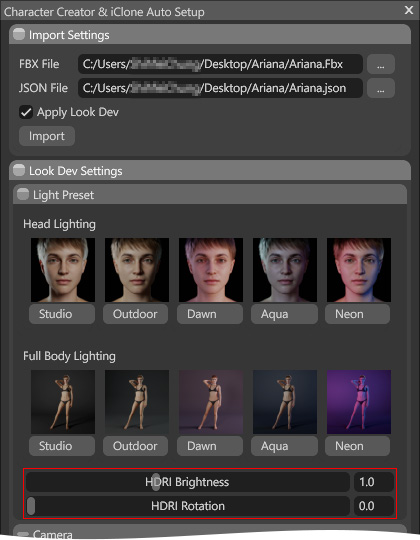
- HDRI Brightness: Adjusts the overall illumination of the scene.
This setting corresponds to the Brightness property of the Sky Light object.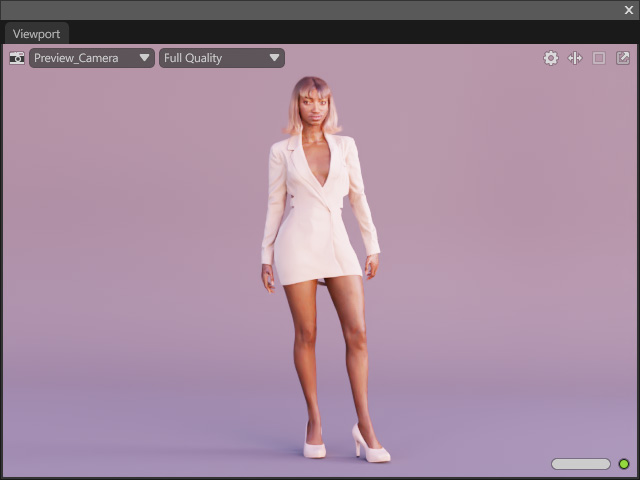
Full Body Lighting Preset: Dawn
HDRI Brightness = 1.0HDRI Brightness = 2.0

- HDRI Rotation: Rotates the sky light around the vertical axis to change the lighting direction.
This setting corresponds to the Rotation property of the Sky Light object.
HDRI Rotation = 0.0
HDRI Rotation = 90.0

