The PSD 2.0 Structures for G3 Characters
The official PSD 2.0 structure for G3 Human Characters is basically composed of three main folders:
"RL_Bone_HumanV2", "RL_BoneHeadV2" and "RL_ImageV2".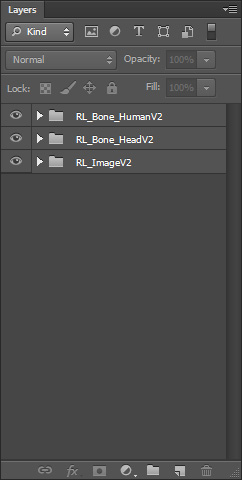
 RL_Bone_HumanV2
This main folder contains layers of the skeleton. And you can
reposition the bones by moving these points.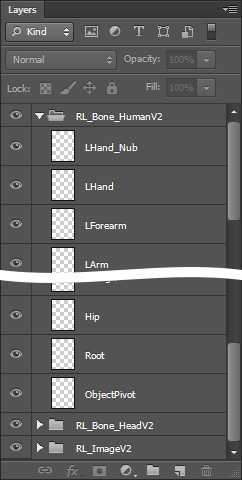
The bones are represented by colored points with crosses. Red points are the spine, orange
for the left hands, yellow for the right hands, green for the left leg and blue
for the right leg.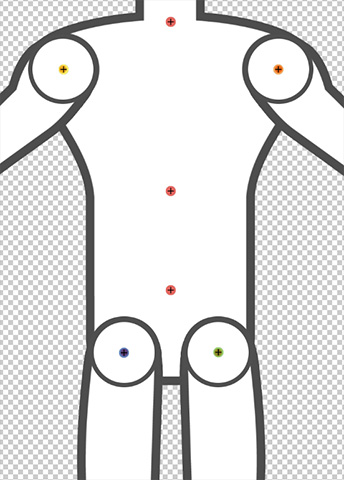
RL_BoneHeadV2
This main folder contains layers of the facial bones. And you can
reposition the bones by moving these points.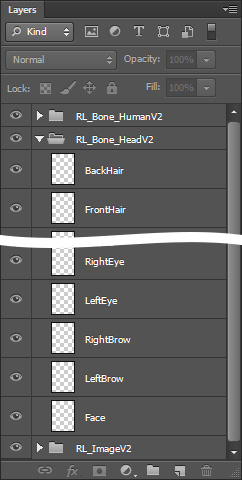
The facial bones are represented by yellow crosses.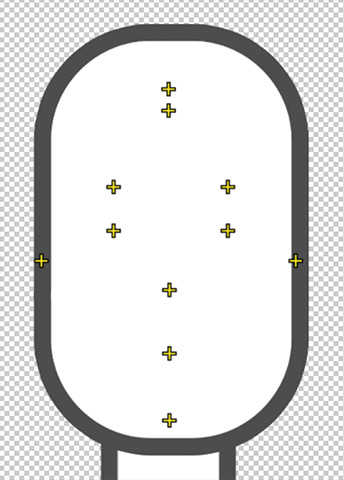
RL_ImageV2
This main folder contains "RL_RLHeadV2" and body-related sub-folders, in which the image layers build up the character's head and body.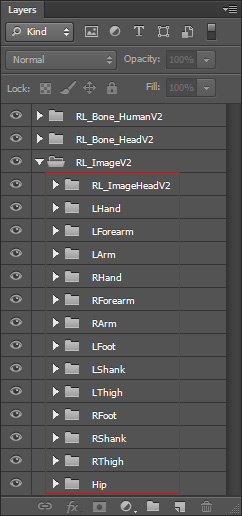
- "RL_ImageHeadV2" contains the sub-folders for each face components, including the front and back hair.
In each sub-folder, the angle sub-folders are included if the components have individual image layers.
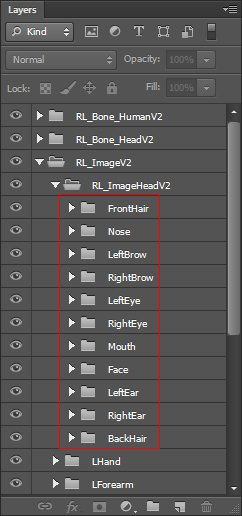
-
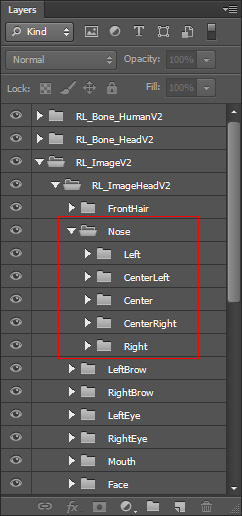
Take the nose sub-folder as an example, if the nose has
different image layers for different angles, then you
will see the folders of the angle name in which the
images reside.
- You can edit or add images in these layers to
create or modify the character. The facial features must be put into their corresponding layer groups.
Although the hair is not a facial feature, you must add custom hair, with front and back, into certain groups.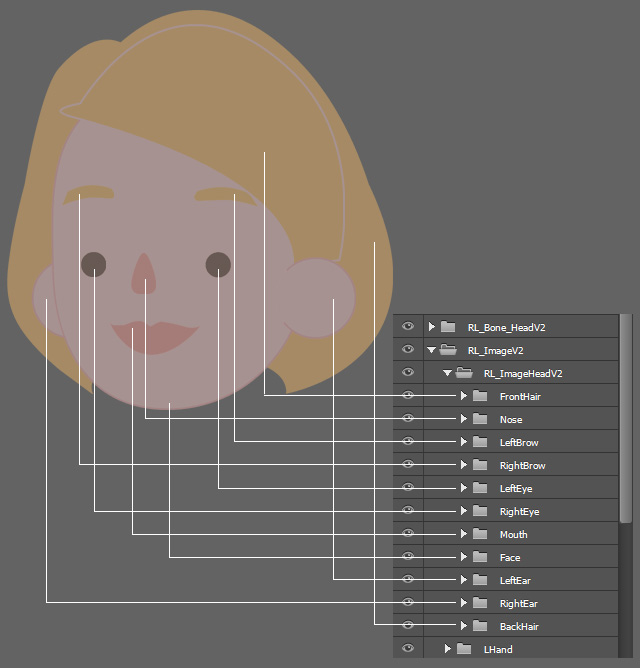
-
Take the nose sub-folder as an example, if the nose has
different image layers for different angles, then you
will see the folders of the angle name in which the
images reside.
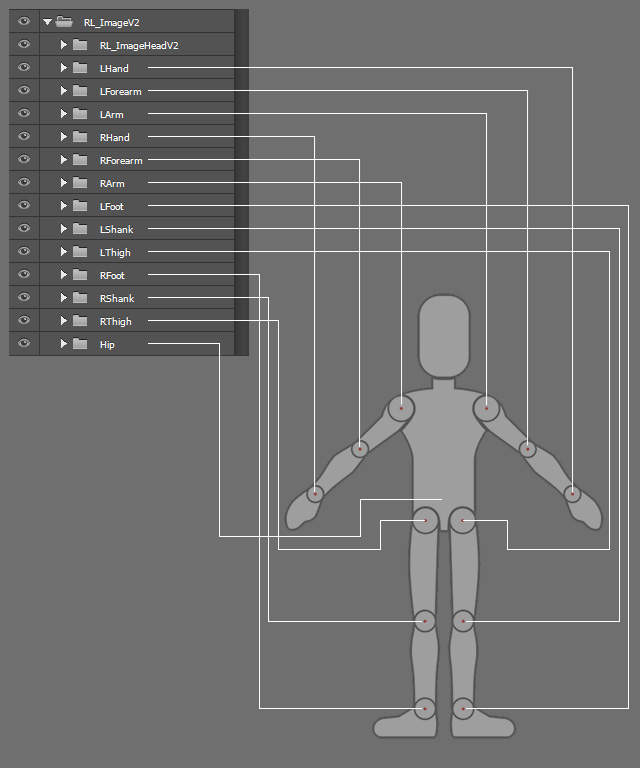
- Sub-folders of body-related image layers: You can edit
or add images in these layers to create or modify the
character.
( Watch Tutorial - Animated Accessory Design )
Note:If you want to create fixed accessories such as buttons, patches, badges, etc., then put them into specific layer groups.
However, if you want to create animatable accessories in CTA, then save them as isolated PSD files instead of adding them into the groups of the body or head PSD files.
Refer to the Converting Props to Accessories section for more information.