Adjusting Speed Variation on Motion Path
You can establish position keys on various anchor points to guide the object's movement. Moreover, you have the flexibility to introduce variations in the object's speed while it follows the Motion Path. Although adjusting the animation speed along the path can be achieved by repositioning keys at different time intervals, employing transition curves between Path Progress keys is often a more effective approach.
-
Given an object moving along a path with initial speed as shown below.
- Open the timeline and show the Path_Progress track of the object (in this case, the character), you will see the path keys in the track.
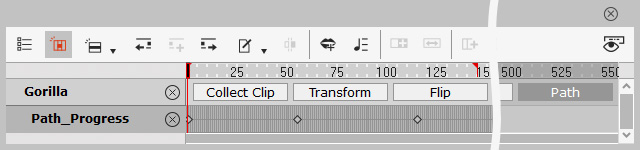
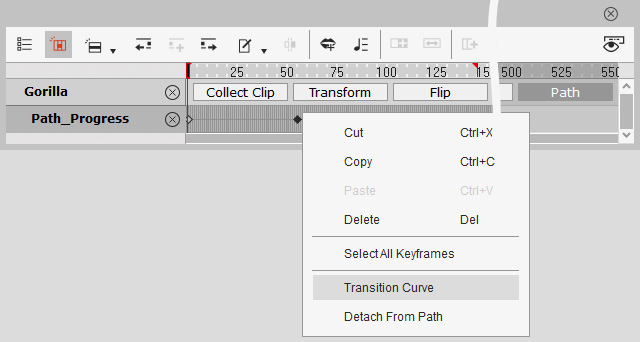
- Right click on any one of the keys and choose the Transition Curve command from the pop-up menu.
- Choose the suitable template for the path animation in the Transition Curve panel.
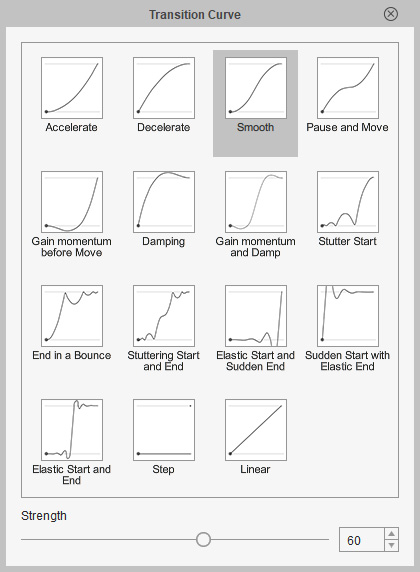
* Notice that the Strength slider only supports for the first four templates (Accelerate, Decelerate, Smooth, and Pause and Move). - Repeat the same steps for the rest of the path progress keys.
- Playback to view the result after the speed variation.
