Creating character sprites for sequence animation with Sprite Editor (New in version 5.3)
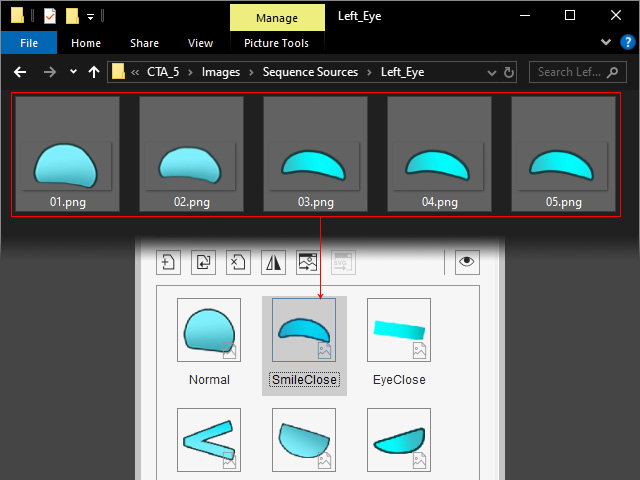
- Prepare a "numbered" sequence of images for the facial features
or body parts and add them to a folder.
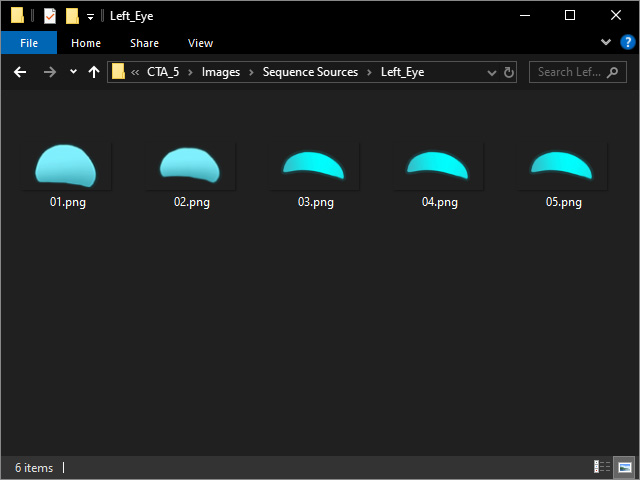
- Create a character.
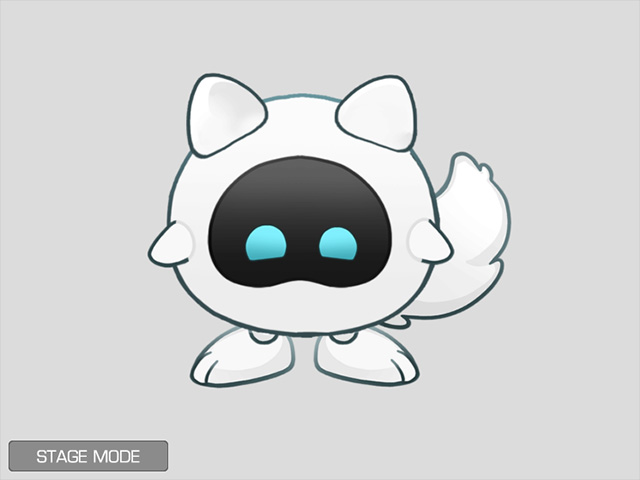
- Select the character and switch to the Composer mode.
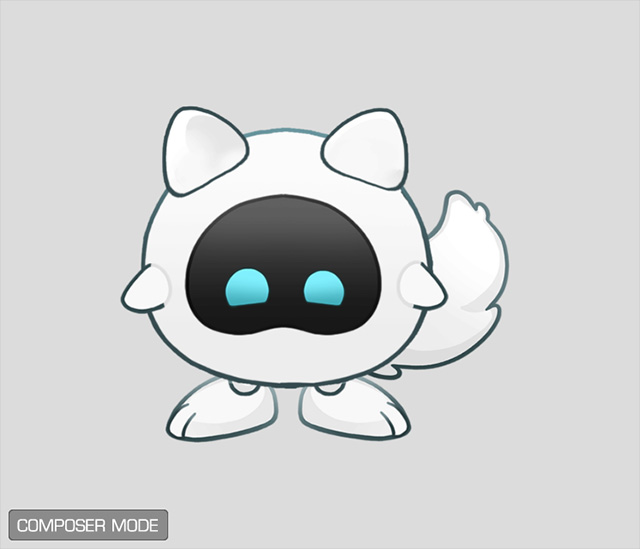
- Pick one of the facial features or body parts (in this case, the left eye).
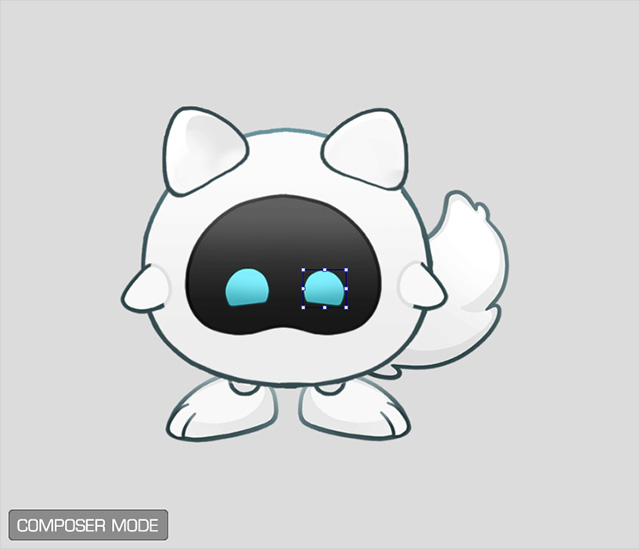
- Open the Sprite Editor. Select the element you want to replace.
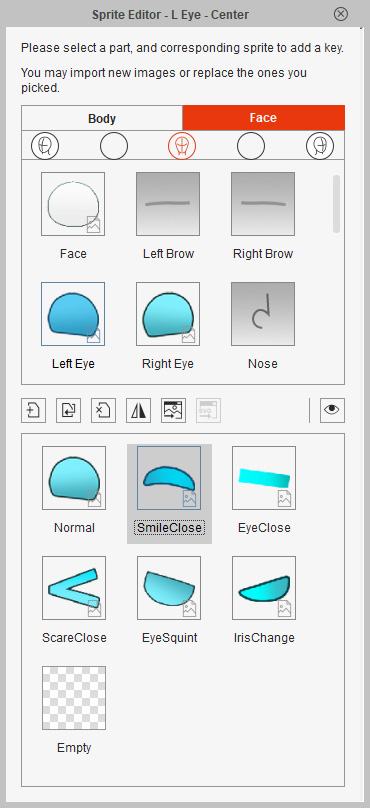
- Replace the element using either of two methods:
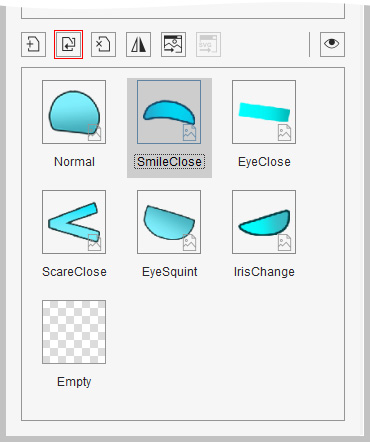
- Click the Replace Current Element
button to load all the numbered images.
- Select all sequenced images, then drag and drop them onto the slot of the element.
- Click the Replace Current Element
button to load all the numbered images.
- Choose the item from the Frame Options drop-down list to determine the playback behavior for the element,
then click the OK button. Notice that this setting can be made in the later step.
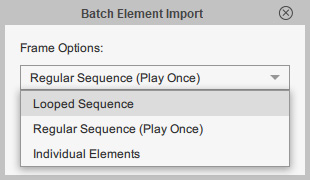
- Looped Sequence: The element loops forever once it is activated by the sprite editor on stage.
- Regular Sequence (Play Once): The element plays once when it is activated on stage.
- Individual Elements: Each sequence image becomes a new sprite element.
- The sprite element will contain the sequence images.
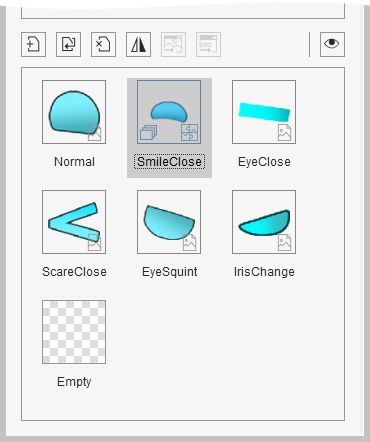
This is evident with the icon near the lower-left corner.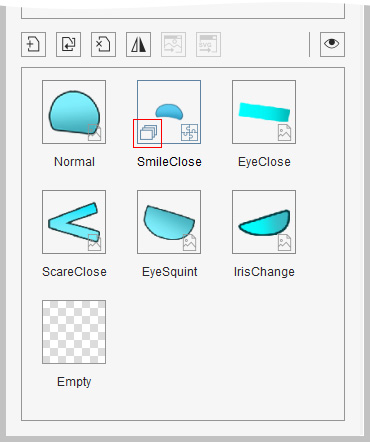
You can also transform the element manually if necessary.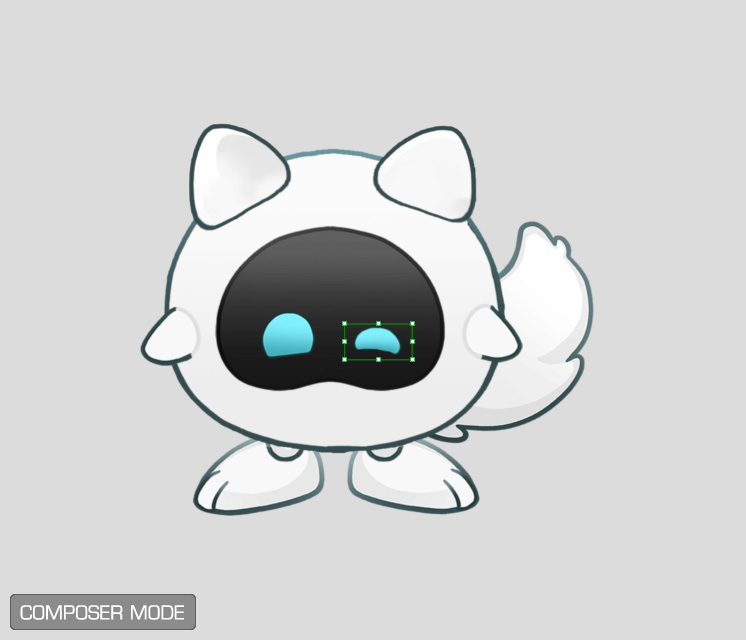
- Right click on the element to invoke the context menu.
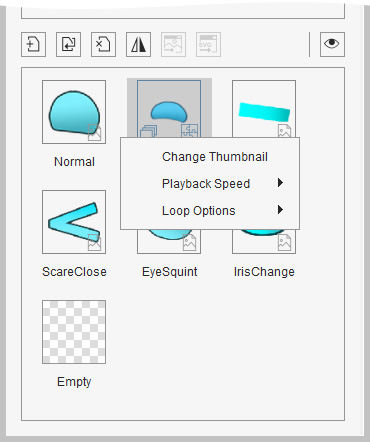
- Change Thumbnail: Loads an image to customize the appearance of the thumbnail.
- Playback Speed: You can choose to set the playback speed of the sequence animation of this element.
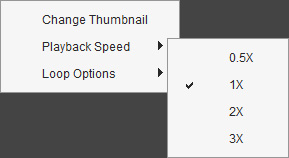
- Loop Options: You can choose the loop style
when this element is activated by the
sprite switch key.
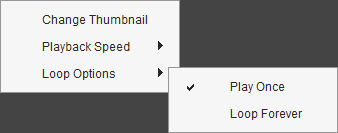
For facial features or body parts, it's Play Once, by default.
- Click the Preview button to check out the animation.
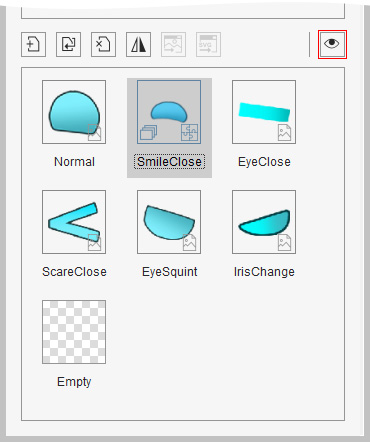
- Repeat the same steps for other elements of the face and body.
- Return to the Stage mode and create facial expressions for the character.
Notice the differences in the element composed of a sequence image.
