Flipping, Visibility and Opacity Cards for Objects (New in version 5.3)
Clip-based animation templates along with key-based templates like "Flipping", "Visibility", and "Opacity" effects can be used to create animation cards.
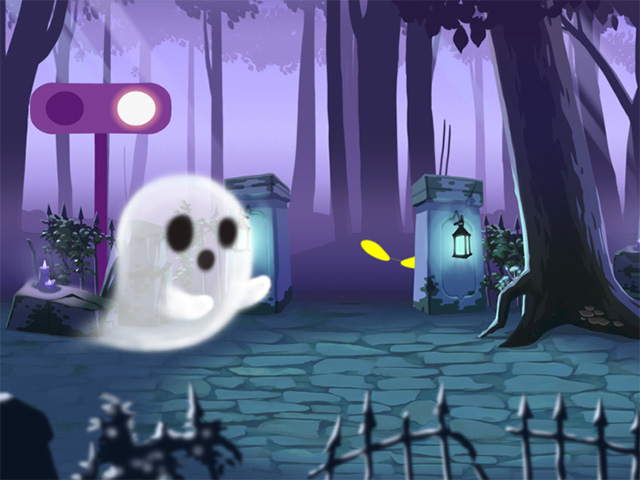
- Create or load a scene with props.
- Select one of the props.
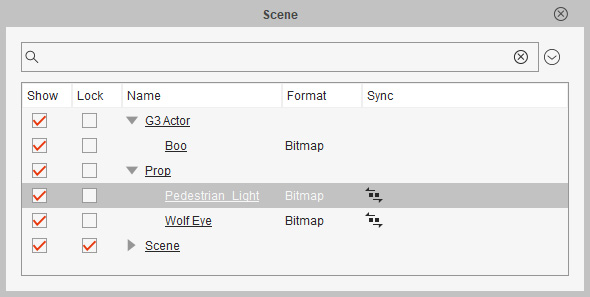
And then Launch the Puppet Stage panel.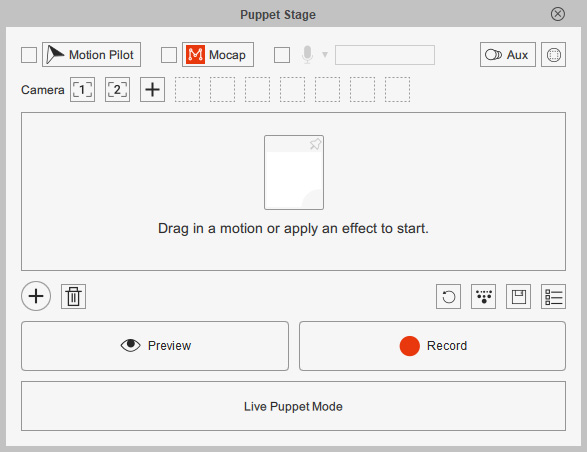
- Click the toolbar button to expand the Animation Card settings.
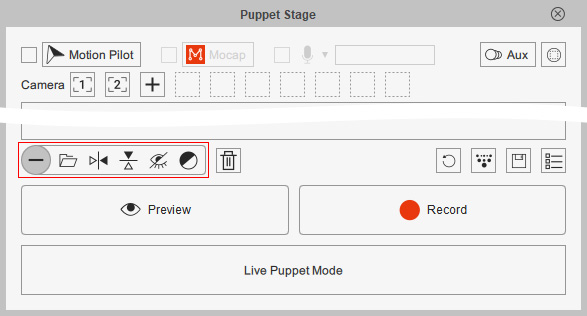
- Click the Horizontal Flip button to add an
animation card to the prop.
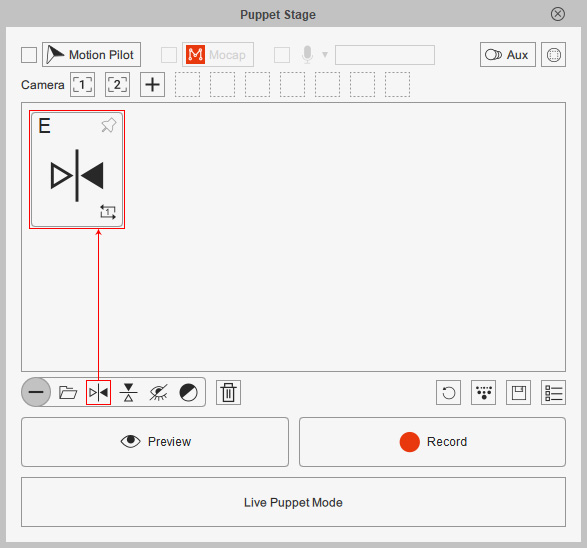
A shortcut key can also be assigned.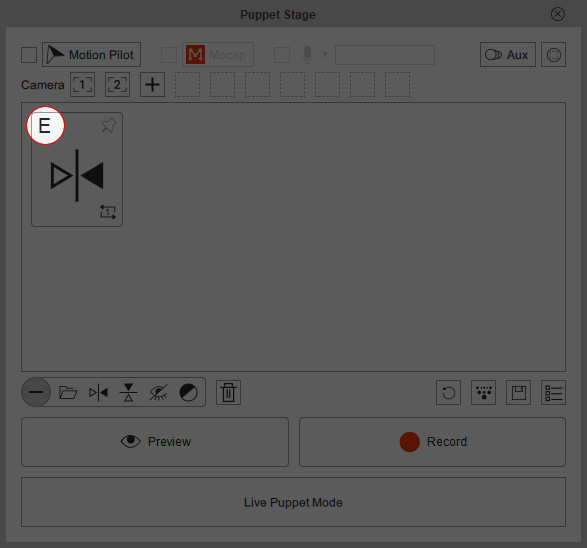
- Select the other prop from the Scene manager.
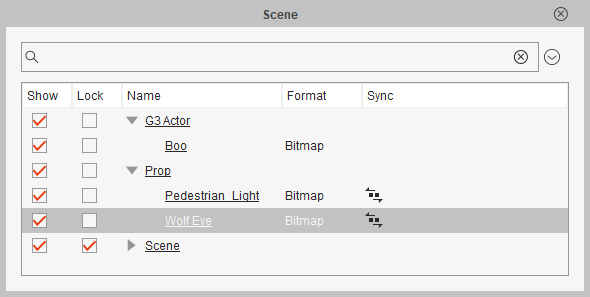
- Repeat the same steps to add "Toggle Visibility" and assign a
hotkeys to this new animation card.
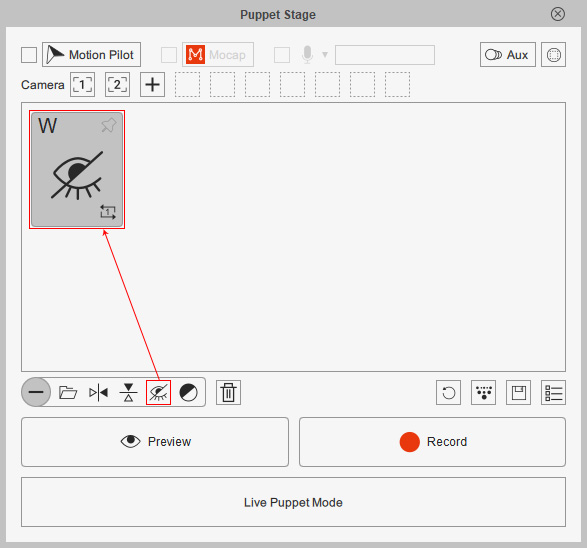
** Notice that the shortcut key can be either identical or not to any other motion card integrated in another object. The motions will be triggered simultaneously by doing so. - Select the character from the Scene manager.
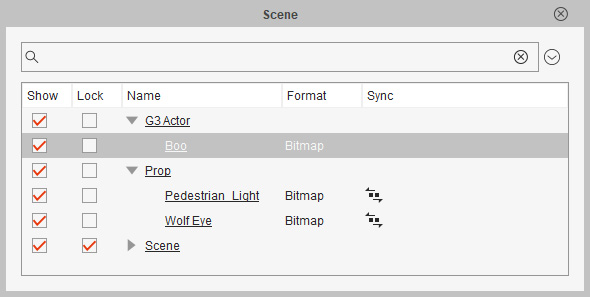
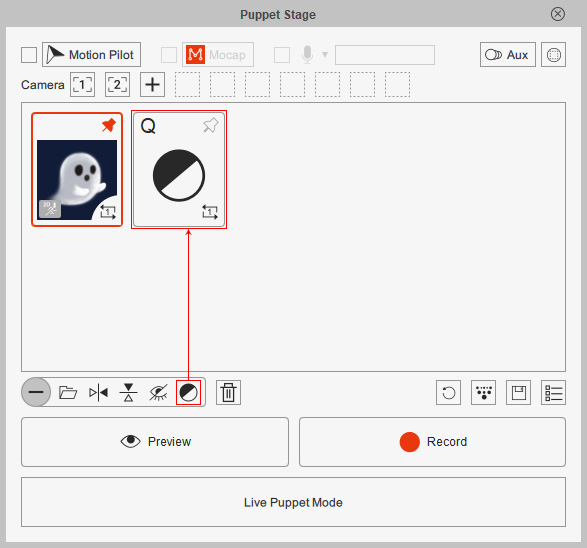
- Repeat the same steps again to add "Transparency" and assign its
hotkey.
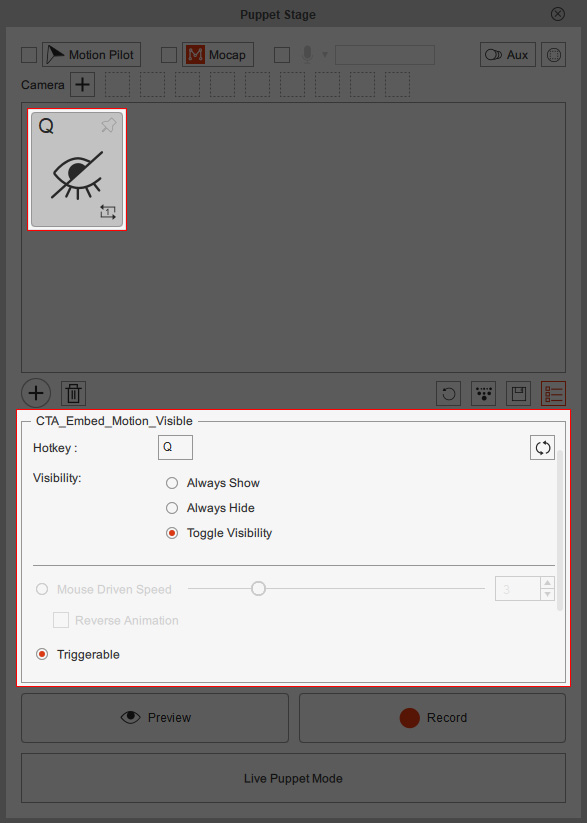
- Double-click on the animation card to expand its settings. See Common Settings and Specific Settings for more information.
- Make sure the objects with animation cards are selected.
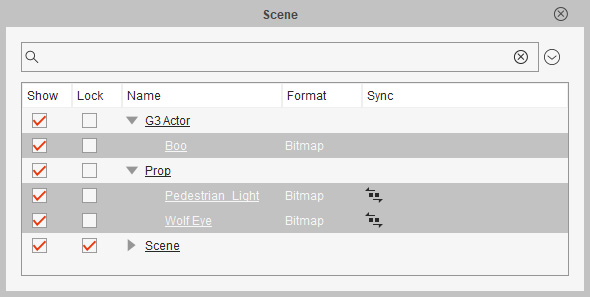
You can click the Aux button to check if the objects you want to puppet are included in the panel.
- Click the Preview button in the Puppet Stage panel and
press the spacebar to start previewing.
- You can then start to recording for generating animations or commence the Live Streaming session.
