Creating Flocking Animation with Puppet Stage Panel (New in version 5.3)
In addition to puppeting singular objects on the stage, you can use the Puppet Stage panel to animate multiple objects at once. By setting multiple animation cards with identical shortcut keys, you can trigger them all at once, even for characters.
- Create or load a project with a group of characters in an environment.
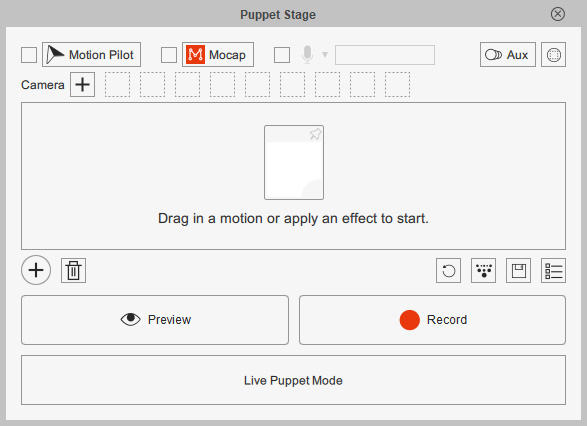
- Select one of the characters and launch the Puppet Stage panel.
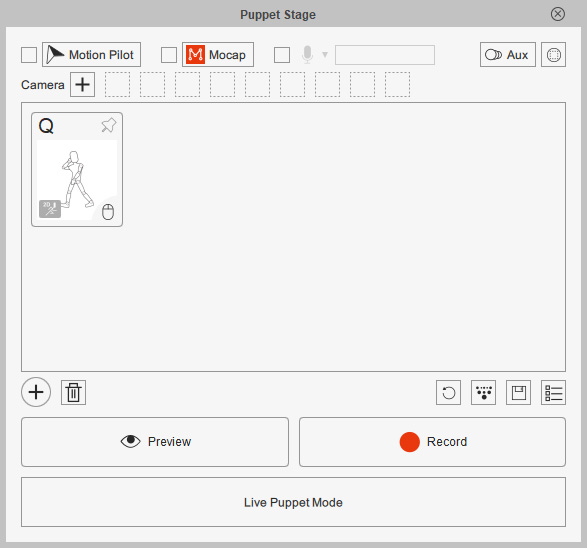
- Drag and drop the desired 2D motion from the library into the animation card list.
- Click the Motion Pilot button near the top of the panel.

- Adjust the settings in the Motion Pilot panel. The settings will be individually stored on the character.
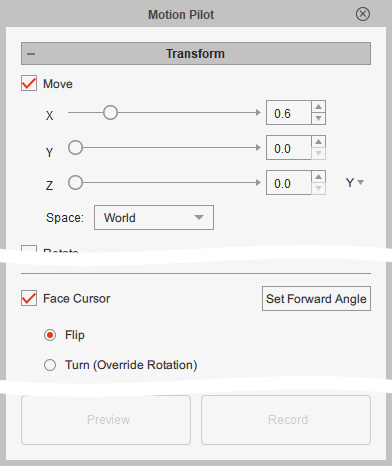
Make sure the Motion Pilot checkbox for the character is activated to enable Motion Pilot on the character.
- Select another character and repeat the same steps with a different animation card and Motion Pilot settings.

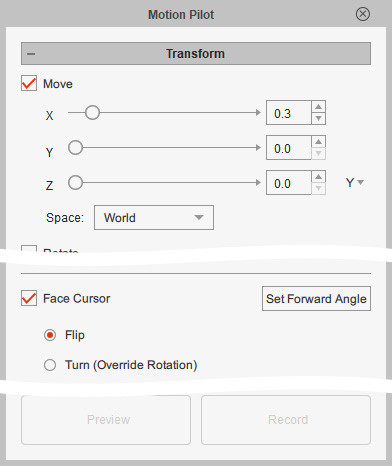
Animation card settings.
Motion Pilot settings
- Repeat the same steps for the other characters. Make sure their Motion Pilot checkboxes are all activated.
- Choose all the characters for puppeting from the stage or the Scene manager.
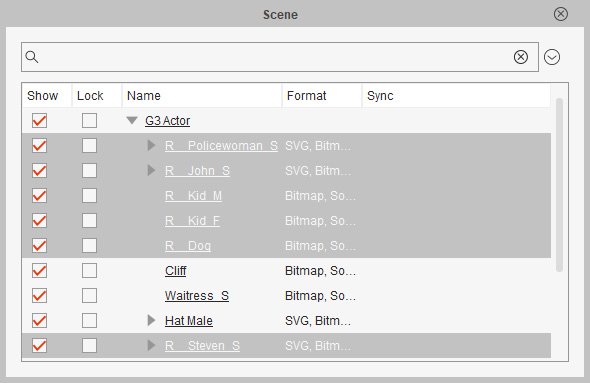
- Ensure Puppet Stage panel is open.
- Click the Aux (Auxiliary Object) button to view the animation cards for all characters.
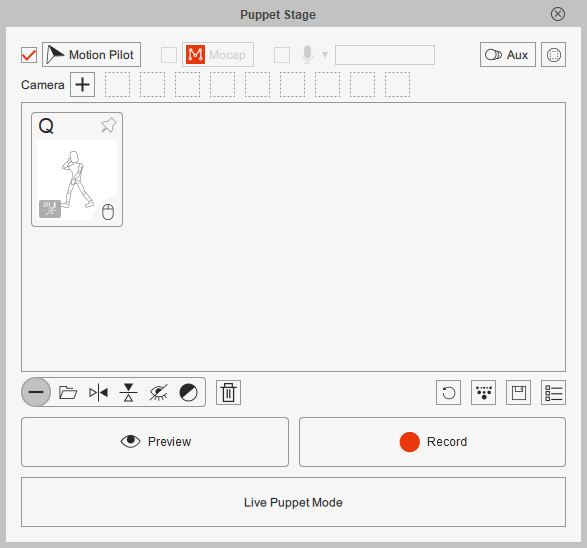
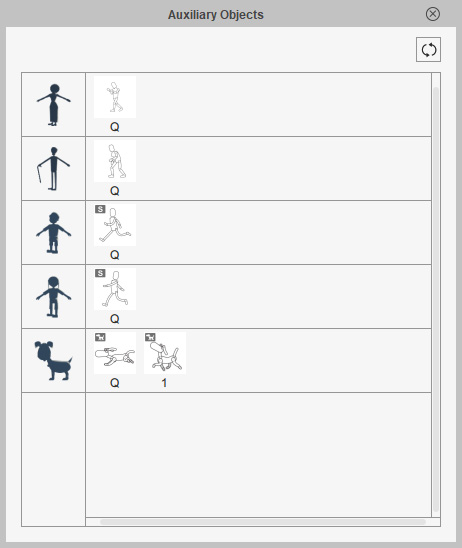
Animation card settings for the leader character.
Animation card and hotkey list for the follower characters.
- The animation cards of the main character (leader) is listed in the Puppet Stage panel.
- The follower characters are listed in the Auxiliary Objects panel, with their individual motion cards.
- Motion cards with the same shortcut keys are triggered together.
- Only the settings in the Puppet Stage panel can be adjusted.
- Click the Flock Settings button to show the namesake panel.
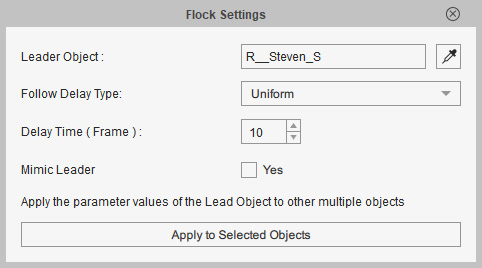
- Leader Objects: You can use the eyedropper to pick the leader.
- Follow Delay Type and Delay Time (Frame): There are three types for the selected follower to follow the leader after specific interval time frame: "None", "Uniform", and "Random".
- None: Keeps the follower completely in sync with the leader.
- Uniform: Sets a specific delay time before the follower begins to move with the leader.
- Random: Picks a random delay time within a range before the follower begins to move with the leader.
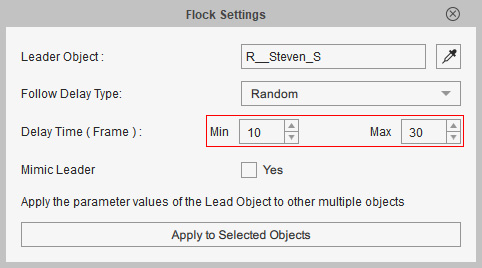
- Mimic Leader: Animate the followers with the same settings of the leader.
- You can click the Apply to Selected Objects button to apply the settings to all selected characters.
- Click the Preview button and press the spacebar to start previewing. The character stays in place while the motion cards trigger performances.
