Facial Wireframe Modes
You may click the
Basic Facial Mode or Detailed Facial Mode
 button to view the wire frame
around your character. You may also drag the control points, or lines, to fit a character’s face more precisely.
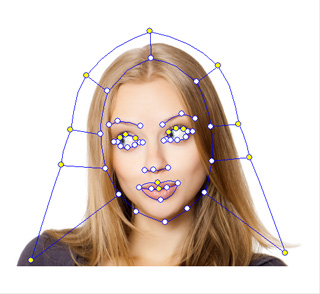
button to view the wire frame
around your character. You may also drag the control points, or lines, to fit a character’s face more precisely.
 Fine-Tuning the Wireframes
-
By default, the Basic Facial Mode button is pressed.
- Use the basic tools described in the last section to roughly frame up the wire frames as close to the facial-feature contours (skull, eyebrows, eyes, nose and mouth) as possible.
-
Click to press the Detail Facial Mode button to show more wire frame control points.
-
Thoroughly move the control points to make the wire frames even closer to the facial features.
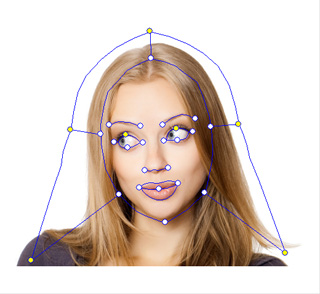
Basic Facial Mode
Detailed Facial Mode
Note:Please refer to the Hair Mesh Layer section for more information.
Wireframes for Opened Mouth
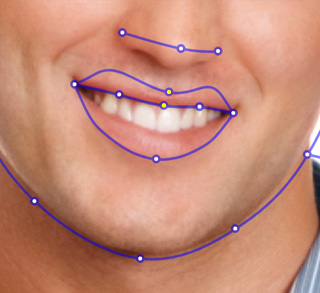
If the character in the image you have loaded is with opened mouth, then the position of the middle wire can not be determined; you need to do the following steps:
-
Make sure that the Detail Facial Mode button is pressed down.
-
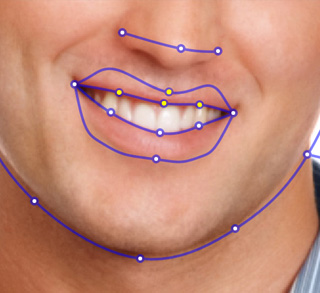
Press down the Open Mouth Points
 button.
- Move the wire with Yellow control points to match the edge of the upper lip; while the one with White control points to the edge of the lower lip.
-
Note:
If you want the actor to close up the mouth, then you need to activate the Force to Close feature in the Teeth Settings panel.
|
|
|
Close Mouth Points |
Open Mouth Points |

