


Introduction of Facial Animation Setup Panel
In Cartoon Animator, you can always replace a character with another one by drag and dropping the desired one onto the existing one. However, now there are some regulations for replacing characters.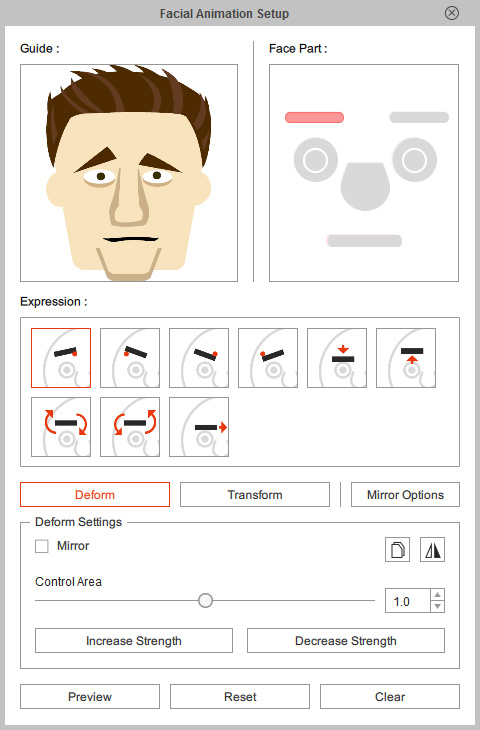
| Name | Description | |
| 1 | Indication | This animation indicates the animation result of the selected expression of the facial feature. |
| 2 | Face Part | You can select adjustable facial features from this pane. Including the eyebrows, eyes, irises, nose and mouth. |
| 3 | Expression | Select one of the expressions within the list for further adjustments. |
| 4 | Adjusting Mode | You can switch to Deform or Transform mode by pressing down either one of these buttons. |
| 5 | Mirror Options | Click this button to determine the mirror method for the currently selected facial feature or expressions. |
| 6 | Deform Settings | Use the deform settings to determine the size and influencing weight of the Deform box for the currently selected expression. |
| 7 | Preview | Click this button to preview the deforming result of the selected expression. |
| 8 | Reset | Click this button to ignore your adjustments to the selected expression and reset to the default one. |
| 9 | Clear | Click this button to return the selected expression to a neutral one, for no expression at all. |
