Passing Render Styles between Objects
The Render Style feature not only quickly sets styles of any object in the scene, but also can make the entire scene or specific objects cohesive with identical render style presets. You can also pass render style data from one object to another.
 Making Objects Cohesive with Prepared Render Style Settings
If the objects (characters or props) in the scene already have predefined Render Style presets, you can quickly transfer the style to other ones in Stage Mode without opening the Render Style panel repetitively. This method is specially suitable for the Vector-based (SWF) objects.
-
Build a project in which the objects have been given render style settings.

-
Pick one of the objects for changing the render style (in this case, the character).

-
Open the Render Style panel to
pick an adequate preset of the object
for matching the scenario.
-
Make sure the object is still selected. Click the
Apply Selected Render Style button on the
General Tool Bar.

-
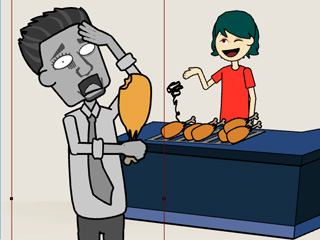
Move your cursor (paint bucket) on top of a target object to select that render style.

-
Click on another object to transfer that selected render style to another object/character.

Quickly Defining Render Styles Presets
If the objects have 10 render style presets but are not well-defined in advance, then you may use the Apply Selected Render Style feature to quickly define the presets without entering the Composer Mode. This method is suitable for both bitmap-based or vector- based (SWF) objects.
-
Apply objects with pre-defined render style presets as the source.


Vector-based (SWF) source object
Bitmap-based source object
-
Apply other objects without pre-defined render style presets as the
target.

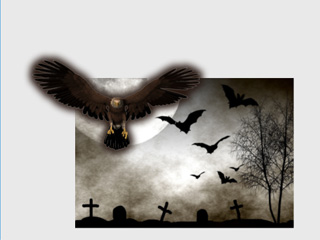
Vector-based (SWF) target object
Bitmap-based target object
Note:Please make sure you have performed the procedures for these objects before the next steps.
- Bitmap-based Objects: The object must be assigned with 10 render style presets first via the Toggle between G1/G2 Render Styles feature.
-
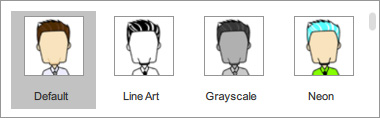
Normally, bitmap-based objects can only be given the three
embedded presets in the panel, Default, Contrast
and Saturation.
-
You may optionally execute the Modify >> Toggle Between G1/G2 Render Styles
command in the Composer Mode to toggle the 10 render style presets for the
objects.
-
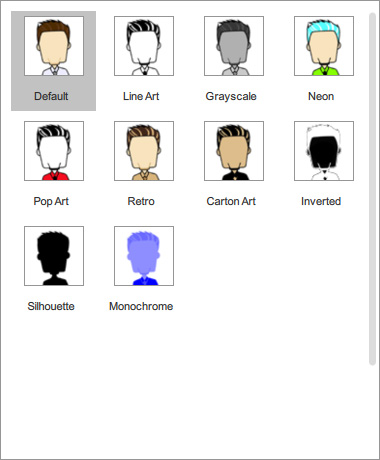
Select the source objects and open the Render Style panel.
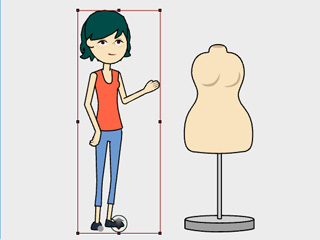
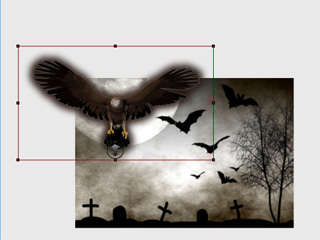
The source objects are picked.
-
Pick one of the presets to change the color style of the source objects.
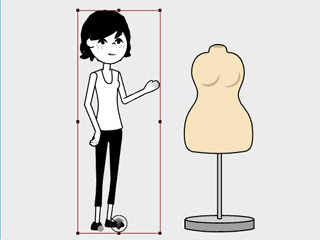
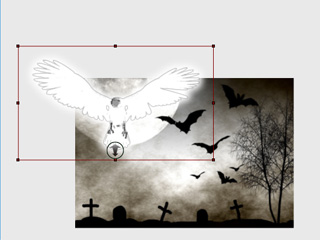
The Line Art preset is utilized.
-
Make sure the object is still selected. Click the
Apply Selected Render Style button on the
General Tool Bar.
-
Move your cursor (paint bucket) on top of the target objects for applying the same render style.
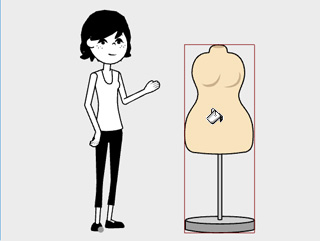
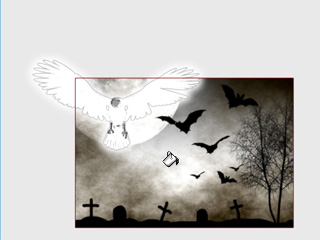
-
Click on the target object to apply the render style.

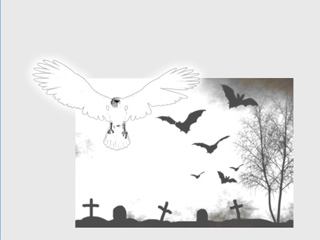
The Line Art preset is passed to the target objects.
-
Repeat steps 4, 5 and 6 until the ten render style presets of the
target objects are pastes from the source ones.
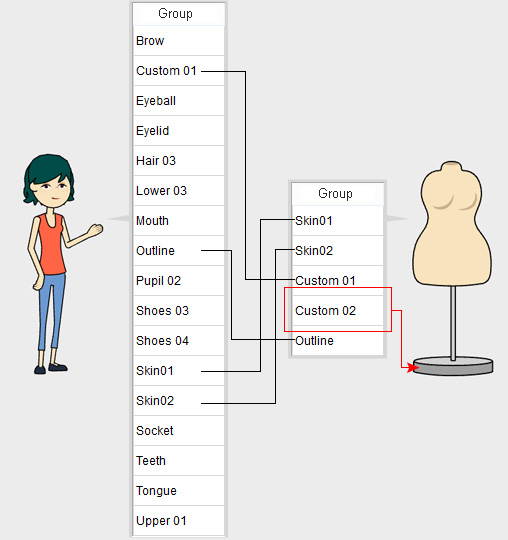
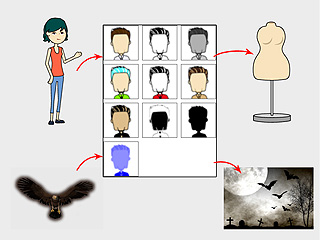 Note:
Note:Please note that, for the Vector-based (SWF) objects, if the group names between the source and target objects do not completely match, then only the identical groups will be influenced after the Apply Selected Render Style is performed. In the following case, the color grouped into the Custom 02 will not take any effect after the target object has been given a render style preset from the source object.