


Introducing the Face Key Editor
( Watch Tutorial - Face Key Editing Basics )
( Watch Tutorial - Face Key Editor Enhancements )
 Bringing up the Key Editor
The face Key editor facilitates setting or modifying keys in the Head, Face or Eyes tracks by using a more intuitive and interactive interface. To bring up the Face Key Editor, you may:
-
Select the character,
then click the
 Face Key Editor button.
 - Select the character, then press the Ctrl + K combination keys on the keyboard.
- Double-click on the desired key in the Head, Face or Eyes tracks to edit the existing key.
- Double-click anywhere in the Head, Face or Eyes tracks to initiate a new key.
The Face Key Editor is divided into four tabs: Morph, Template, Transform and Deform.
Morph Tab
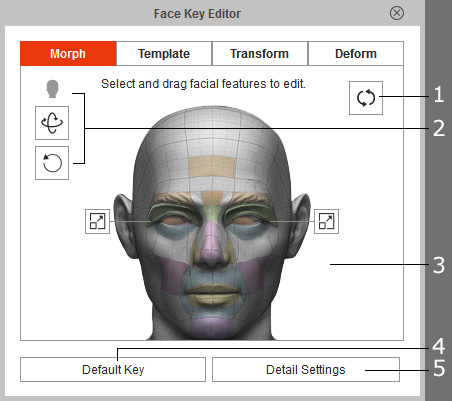
|
1. Clear Selection |
Deselect all features. |
|
Select to rotate / tilt the head. |
|
|
Select to highlight the desired features and convert the changes into keys. |
|
|
4. Default Key |
Click to set keys and neutralizes all adjustments made to facial features. |
|
5. Detail Settings |
Click to open the Detail Settings panel to adjust facial features with sliders. Please refer to the Detail Settings panel section in this page for more information. |
Template Tab
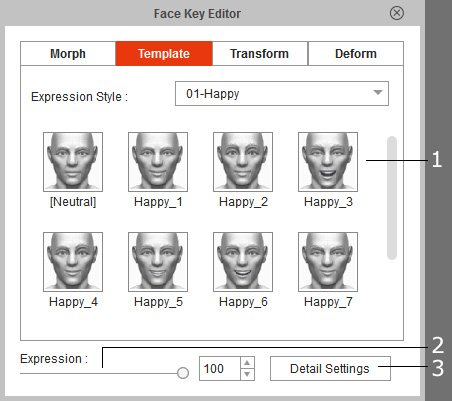
|
1. Expression Style |
Use the drop-down list to switch to a different expression template library. |
|
2. Expression |
Drag the slider to decide the strength of the applied expression template. |
|
3. Detail Settings |
Click to open the Detail Settings panel to adjust facial features with sliders. Please refer to the Detail Settings panel section in this page for more information. |
 Detail Settings Panel
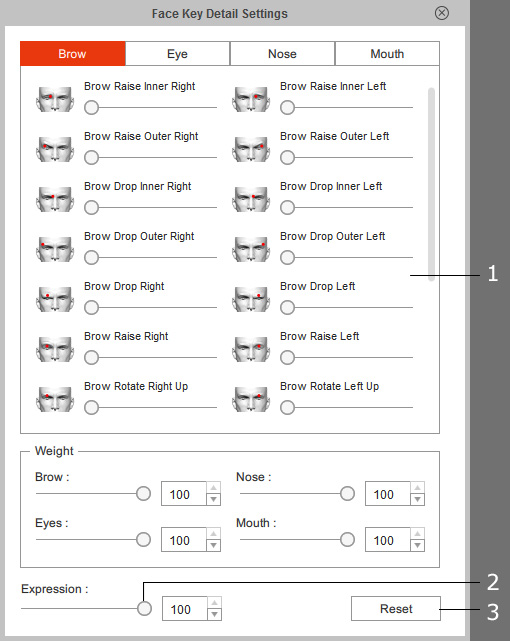
|
Drag the sliders in this pane to set a key to the individual facial offset features. |
|
|
2. Expression |
Drag the slider to decide the strength of the applied expression template. |
|
3. Reset |
Click this button to reset the sliders to their initial status. |
Transform Tab
(For Sprite-based head only)
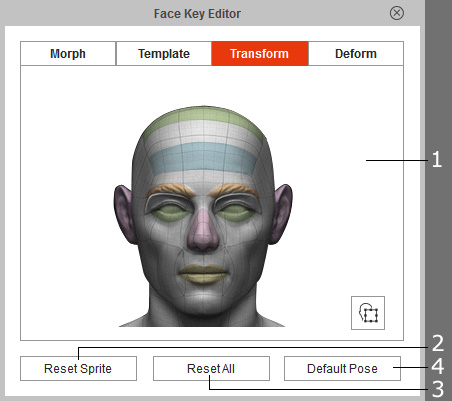
|
Select to highlight the desired features and transform the selected facial features. |
|
|
2. Reset Sprite |
Reset the transformation data of the selected facial feature. |
|
3. Reset All |
Reset the transformation data for all facial features. |
|
4. Default Pose |
Reset the transformation and deform data for all facial features. |
Deform Tab
(For Sprite-based head only)
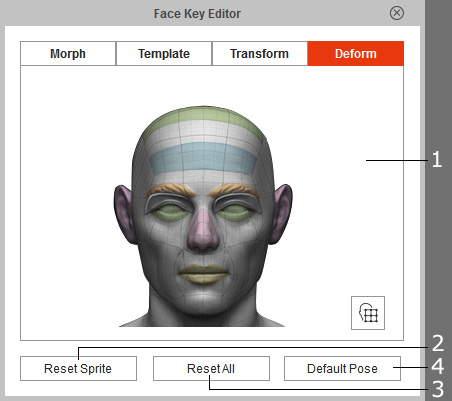
|
Select to highlight the desired features and transform the selected facial features. |
|
|
2. Reset Sprite |
Reset the deform data of the selected facial feature. |
|
3. Reset All |
Reset the deform data for all facial features. |
|
4. Default Pose |
Reset the transformation and deform data for all facial features. |
