Replacing Motion Clips
When applying a motion clip to an object (character or prop) in the middle of its animation, the basic rule is to overlap the motion clip to the original one and take over the control from it, the object thus will perform the new animation accordingly.
However, you can replace the original motion clip without the need to find the start frame by opening the Timeline and scrubbing through the time measure. The advantage of this feature is that you can quickly replace a motion clip even though the Timeline is Closed.
-
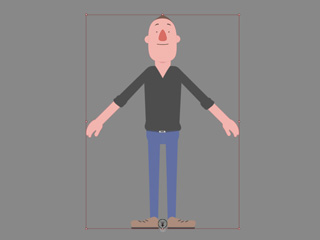
Apply a character (G1, G2 or G3).
-
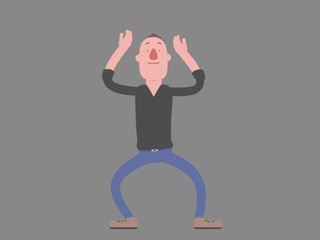
Apply a motion template to the character from the Content Manager.
You can optionally open the Timeline to view the data in the Motion track.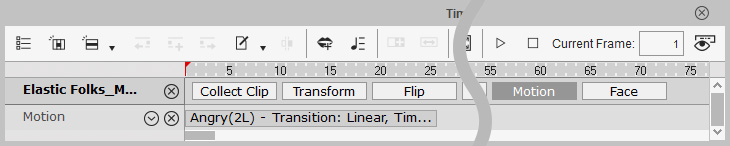
-
Play back the project to observe the motion, pause in the middle of the performance.
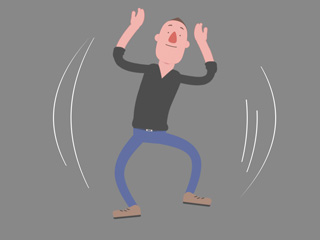
You can drag the play head on the play bar to view the motion as well.
- Press down and hold the Alt key and drag another motion template from the library and then drop it onto the character.
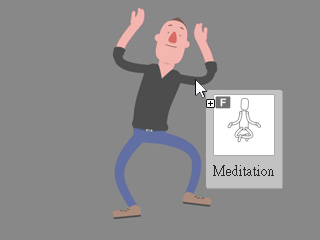
- The original clip spanning cross the time frame will be replaced.
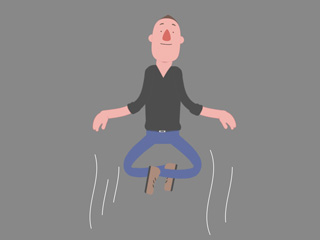
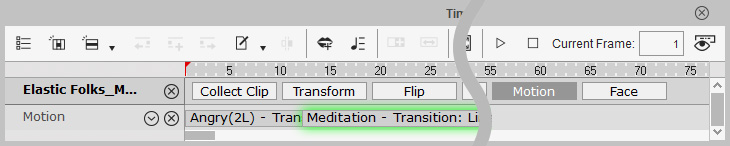
You can open the Timeline to view the replacing result.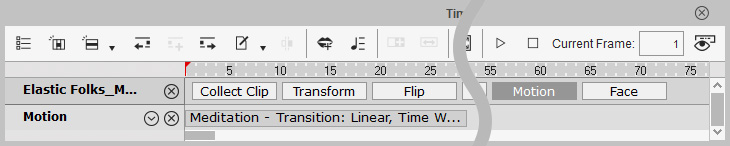
 Note:
Note:Without holding the Alt key you can apply any clip to the middle of an animation or motion (traditional way to apply clip templates) without replacing, but overlapping will happen.