Time Warp for Motion Clips
By default, the playback speed of character motions and prop animation clips are linear. However, you are allowed to alter the clip with dynamic speeds, which means that the speed of the motion or animation can be altered within the clip.
-
Apply a motion clip to a character. By default, the motion will be set to Linear mode.
- Open the Timeline (Shortcut Key: F3) to show a character's Motion track.
-
Right-click on the motion clip and select the Time Warp entry in the Menu
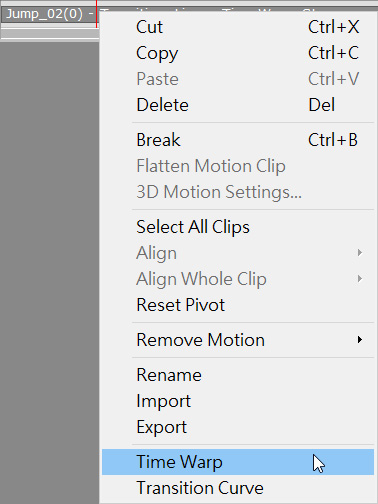
- You will see the Transition Curve panel displaying on the screen.
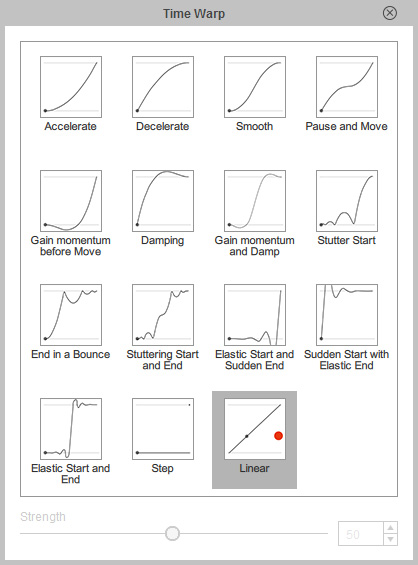
- Move your cursor onto the transition profiles and the thumbnail will play an animated guide to show you the effect of the Transition method.
- Click on the desired transition effect profile and close the panel.
- Drag the Strength slider to dramatizing or weaken the transition curve effect.

 Note:
Note:Only the Accelerate, Decelerate, Smooth and Pause and Move profiles can be applied with the Strength value.
-
Play back to view results.
Accelerate
Decelerate
Smooth
Pause and Move
Gain Momentum before Move
Damping
Gain Momentum and Damp
Stutter Start
End in a Bounce
Stuttering Start and End
Elastic Start and Sudden End
Sudden Start with Elastic End
Elastic Start and End
Step
Note:Please note that the motion of the high and low boundary lines will cause no motion.

