Motion Section
When modifying the motions applied to actors,
you may decide whether to show the useful information dialog.
You can turn it on or off by using the Preference panel.
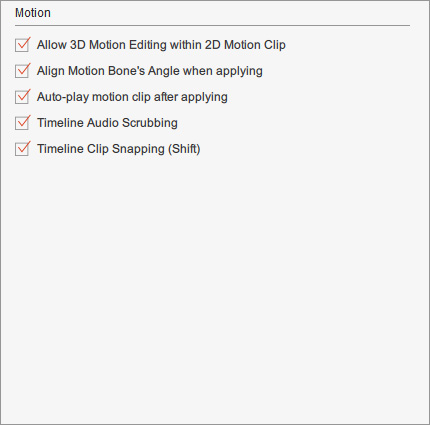
 Allow 3D Motion Editing within 2D Motion Clip
When this box is activated, a dialog prompts you that the current 2D motion clip will be cut out after your editing in the 3D Motion Key Editor.
- Apply a 2D motion clip to a G2 or G2+ actor.
-
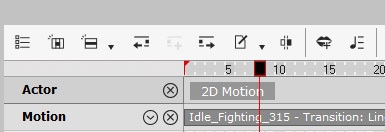
Open the Timeline and
drag the play head to the clip where you need to do 3D motion editing.
-
Click the
 3D Motion Key Editor button on the Functional Tool Bar to
access the 3D Motion Key Editor.
3D Motion Key Editor button on the Functional Tool Bar to
access the 3D Motion Key Editor.
-
A dialog shows by default,
to remind you that the remaining 2D motion clip will be cut out.
You may hide this dialog by deactivating the Allow 3D Motion Editing within 2D Motion Clip box in the Motion section of the Preference panel.

-
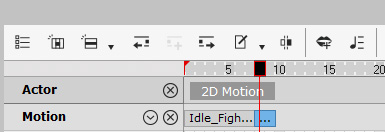
In order to keep the 3D Motion data,
a one-frame 3D motion clip in blue will be generated that
overrides the remaining 2D motion clip.
Align Motion Bone's Angle When Applying
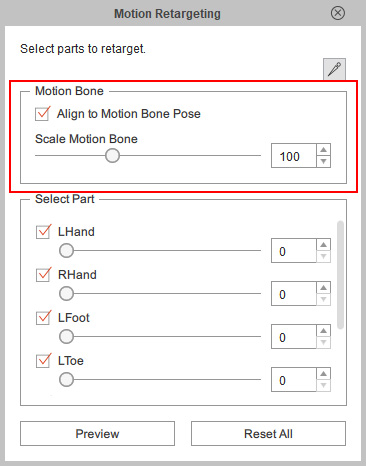
This box is activated by default, and the program will correct the initial pose of the target bone to align the motion bone's initial angle when a motion is applied to a character. You can turn it off in the Motion Retargeting panel for individual motion clip.
- Apply a motion clip to a G3 actor.
- Open the Timeline and right-click on the motion clip to select
Motion Retargeting.
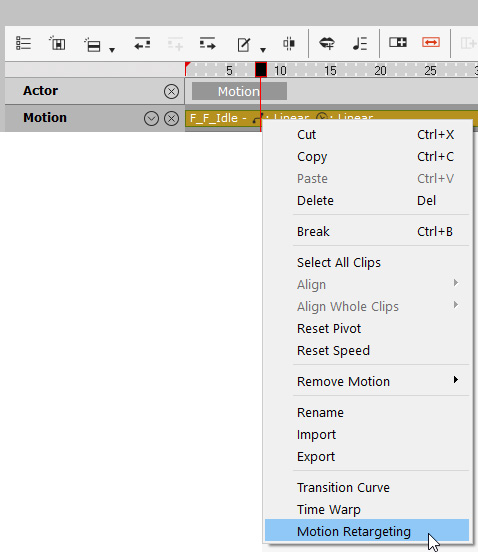
- Deactivate the Align to Motion Bone Pose checkbox in the
Motion Bone group of the
Motion Retargeting panel.
Auto-play Motion Clip After Applying
When this setting is activated, the motion clip automatically starts once you apply it to an actor.
Timeline Audio Scrubbing
When this setting is activated, scrubbing the timeline will play back the sounds and voices.
Timeline Clip Snapping
When this setting is activated, subsequent clips can easily snap to the right-side of previous clips. You can hold the Shift key while dragging the clip to turn the snapping feature on and off.
