


Content Manager and Scene Manager
 Content Manager and Scene Manager
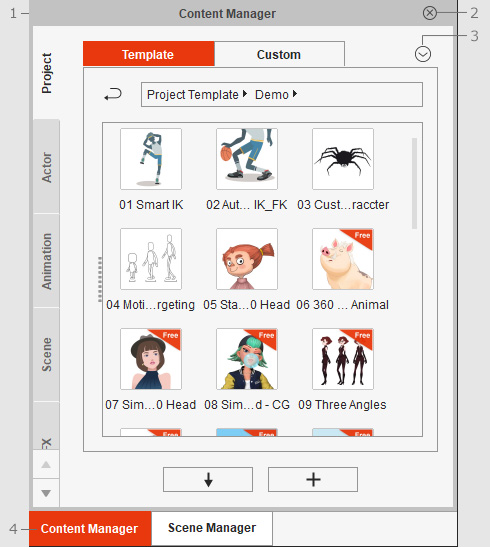
|
Name |
Description |
|
|
1 |
Adjustable Border |
Drag the border to adjust the width of the Content Manager to enlarge the viewing area.
|
|
2 |
Hide |
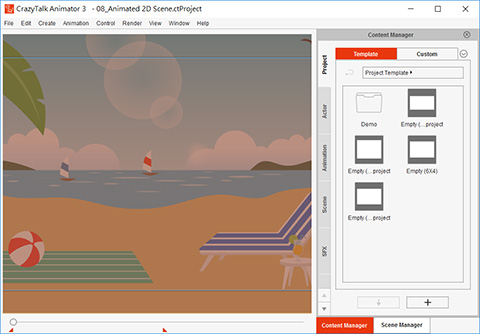
Click this button to hide the panel of the Content Manager or Scene Manager. When they are hidden, you can press F4 to show the Content Manager, and F5 to show the Scene Manager. |
|
3 |
Float |
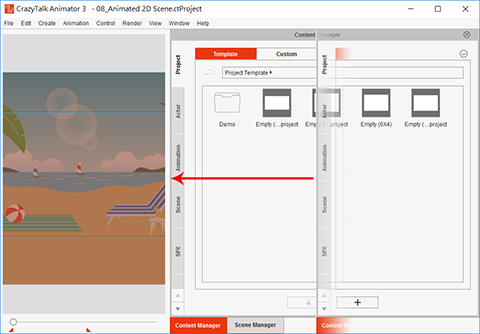
Click this button to individually float the Content Manager or Scene Manager. When they are floating, you can double click on the panel name to dock them back. |
|
4 |
Panel Tabs |
Click the tabs to switch between the Content Manager and Scene Manager panel. |
 Content Manager
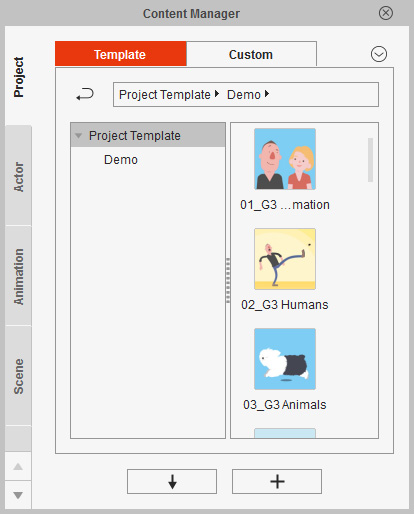
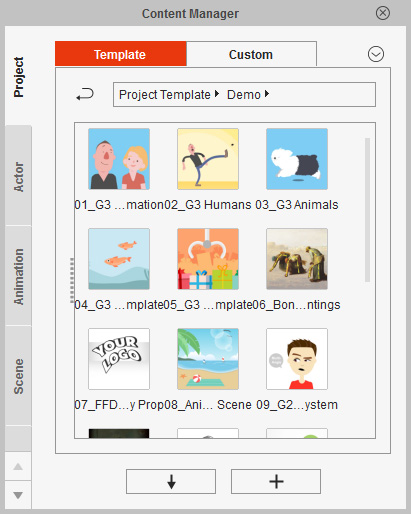
The content manager is used for managing the various Cartoon Animator files including; characters, animations and content associated with a project.
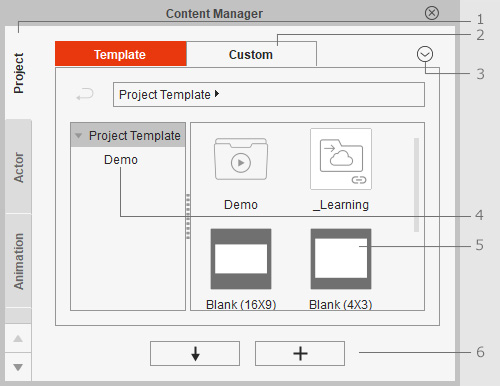
|
Name |
Description |
|||||||||||
|
1 |
Category Tabs |
Click these tabs to switch to the corresponding category. |
||||||||||
|
2 |
Template and Custom Library |
Each category is divided into two libraries:
|
||||||||||
|
3 |
Menu Buttons |
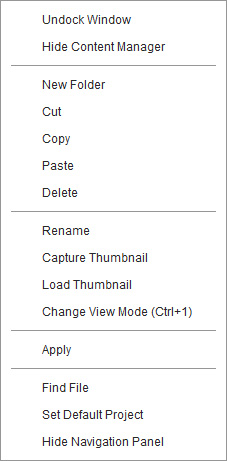
Click this button to show the menu for manipulating the Content Manager, including:
|
||||||||||
|
4 |
Path and Tree View |
The path and tree view show the currently located folder. You can use the Backspace Key to switch to the parent folder of the current one. |
||||||||||
|
5 |
Templates |
In the library pane, you may manipulate the templates, including:
|
||||||||||
|
6 |
Applying and Adding Templates |
|

 :
Click this button to apply the selected template.
This does the same as double-clicking the content thumbnail.
Please refer to the
:
Click this button to apply the selected template.
This does the same as double-clicking the content thumbnail.
Please refer to the  :
Click this button to add the current object in the scene into the Custom library of the selected Category.
If you have selected a template in the Custom Library, then click this button to overwrite the selected template.
Scene Manager
:
Click this button to add the current object in the scene into the Custom library of the selected Category.
If you have selected a template in the Custom Library, then click this button to overwrite the selected template.
Scene Manager
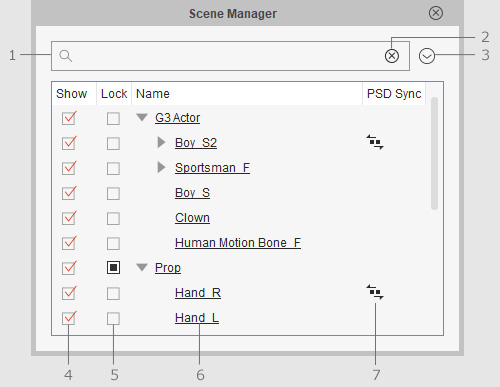
The Scene Manager displays all the objects and characters included in the current project. In Stage Mode you can select multiple items, show/hide items, rename them, lock them from being selected in the working area, and launch them to the synced PSD projects in the image editor. In Composer Mode you can see any content item along with all of their sprites.
Stage Mode
|
Name |
Description |
|
|
1 |
Searching Objects |
Type full or partial titles of objects in the search field to search for desired objects. |
|
2 |
Clearing Search |
Clear your search and start again. |
|
3 |
Menu Buttons |
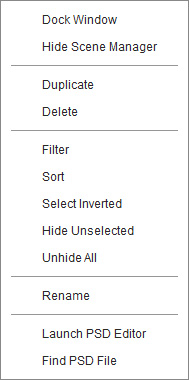
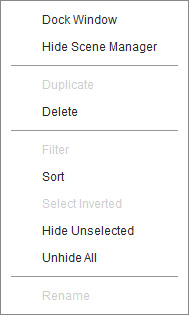
Click this button to show the menu for manipulating the Scene Manager, including:
|
|
4 |
Show/Hide Status |
Show or hide the selected item. This status does not affect the export result. |
|
5 |
Lock |
Check the box so that the object cannot be picked in the Preview window. Please refer to the Using Lock and Unlock section for more information. |
|
6 |
Object List |
Click on the desired object once to select it, double-click (F2) on its name again to enter the name-editing mode. You may rename all the items. |
|
7 |
PSD Sync |
The |


 icon indicates that this object is synced to its PSD project.
Click on the Composer Mode - G3 and Free Bone Characters
icon indicates that this object is synced to its PSD project.
Click on the Composer Mode - G3 and Free Bone Characters
|
Name |
Description |
|
|
1 |
Searching Sprites |
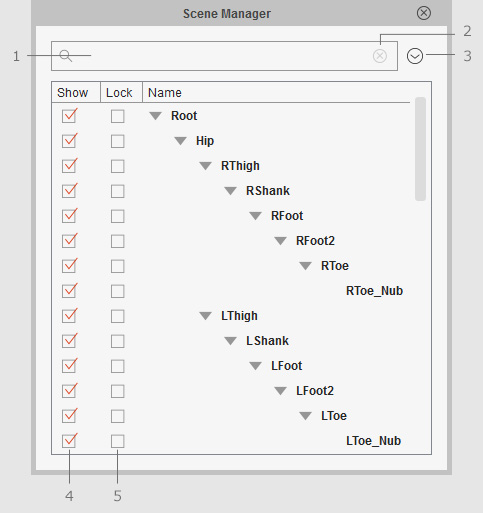
Type full or partial titles of sprites in the search field to search for desired sprites. |
|
2 |
Clearing Search |
Clear your search and start again. |
|
3 |
Menu Buttons |
Click this button to show the menu for manipulating the Scene Manager.
|
|
4 |
Show/Hide Status |
Show or hide the selected item. This status does not affect the export result. |
|
5 |
Lock |
Check the box so that the sprite cannot be picked in the Preview window. Please refer to the Using Lock and Unlock section for more information. |
 Composer Mode - G1 and G2 Characters
|
Name |
Description |
|
|
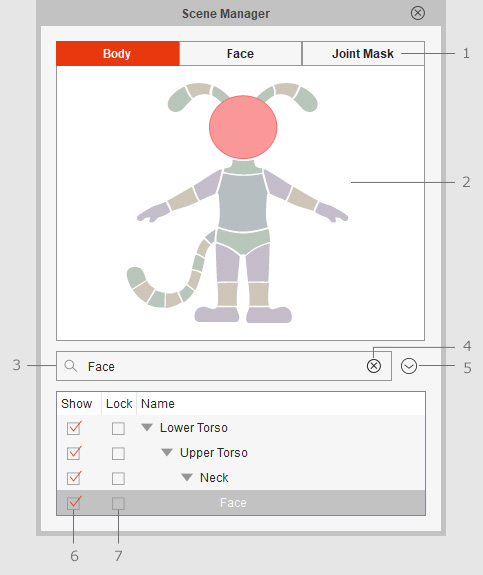
1 |
Tabs |
Click the tabs to switch between the Body, Face and Joint Mask tab. |
|
2 |
Sprite Selection |
Select the desired body part, facial feature or joint mask under each tab. The selected sprite name will be displayed in the field at the bottom. |
|
3 |
Searching Sprites |
Type full or partial titles of sprites in the search field to search for desired sprites. |
|
4 |
Clearing Search |
Clear your search and start again. |
|
5 |
Menu Buttons |
Click this button to show the menu for manipulating the Scene Manager.
|
|
6 |
Show/Hide Status |
Show or hide the selected item. This status does not affect the export result. |
|
7 |
Lock |
Check the box so that the sprite cannot be picked in the Preview window. Please refer to the Using Lock and Unlock section for more information. |
