Creating Facial Sprites with Frontal Angle
When the characters in your scene always face , talk and make any expression directly to the camera, you only need to create facial features that are single and frontal.
To build up facial features for a G1 character, you need to follow the steps below.
* Please note that these steps are suitable for Image-based, Vector-based or Hybrid head types.
-
Apply a character from the Actor >> Template >>
Character >> G1 library (in this case, the Eddie 01).
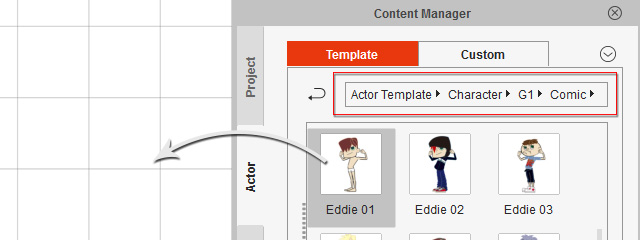
-
The G1 character is loaded and auto-selected.
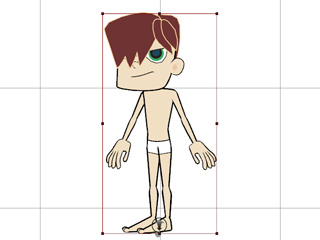
-
Click the
 Composer button to switch to the Composer Mode.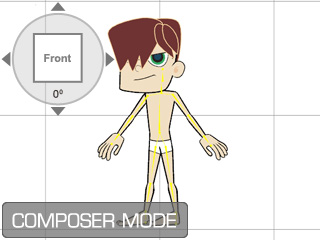
-
Select the sprite of a facial feature (in this case, one of the eyes).
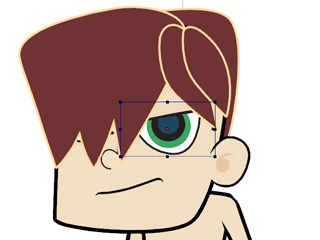
-
Click the Sprite Editor
 button to open the panel.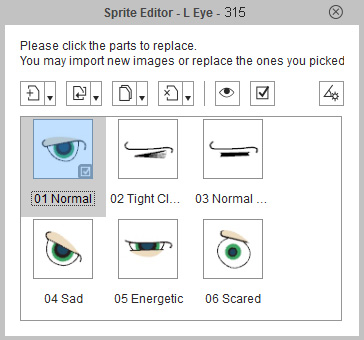
-
Make sure the
pose
is selected and click the
 Replace Current Sprite button.
-
Select a prepared media file and click the OK button to replace the original one.
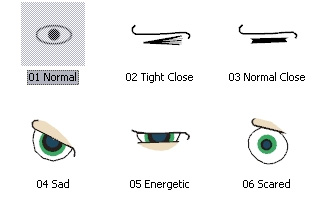
-
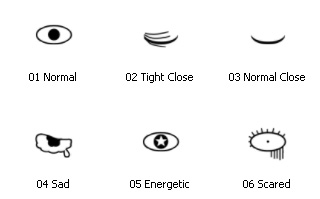
Pick any of the other poses and repeat step 6 to 8
until all prepared media are imported to replace the
original ones.
 Note:
Note:In order to have the eyes be able to roll, you need to create them in specific rules. please register the Pipeline edition of Cartoon Animator 4 under your Reallusion member account to gain access to the whitepaper in your personal member page.
How to Register | Log in. -
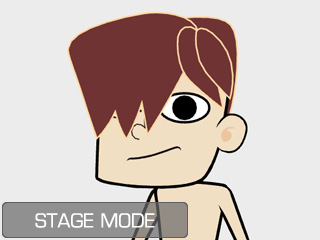
Click the Back to Stage button to bring the new eyes back to the
stage.
 Note:
Note:Please note that the G1 eyes CAN NOT be added into the custom eye library.
