Conform Weighting
Conform weighting can be used to prevent the cloth from penetrating into the skin. However, sometimes conform weighting can be inadequate, causing the seams of the clothes to twist and warp as the body is morphed.
|
|
|
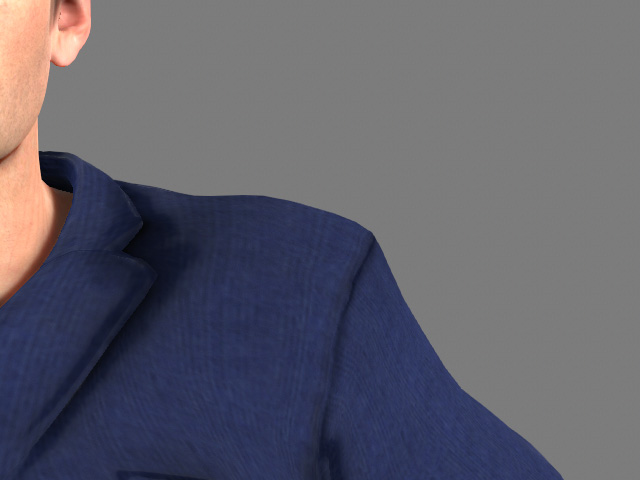
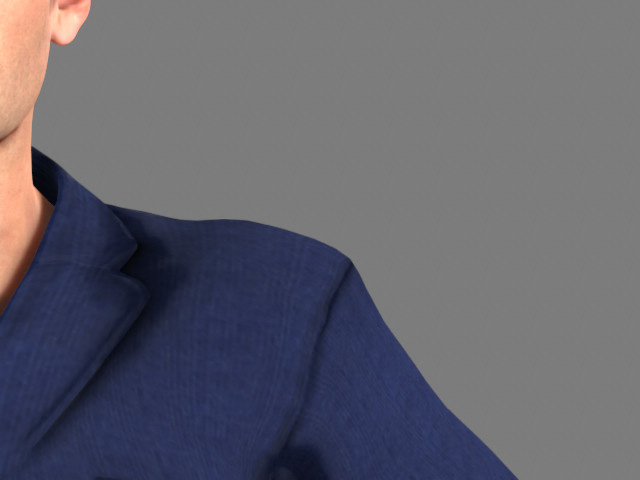
The initial shape of the clothing. |
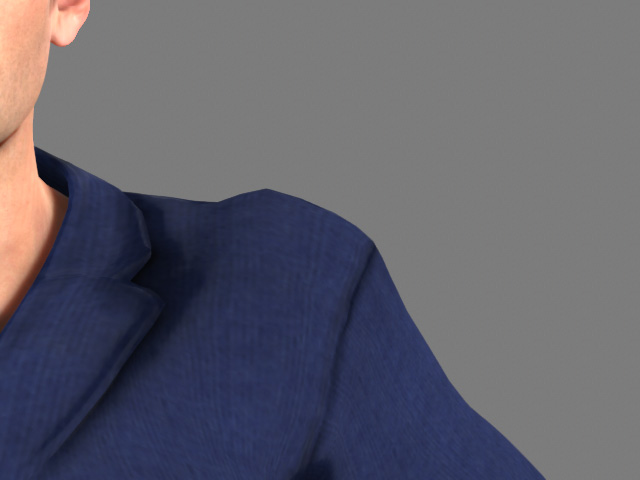
The shoulder line becomes crooked after the body is morphed. |
To prevent this from happening, you can set the conform weighting for the clothes.
- Select the cloth.
-
Go to Modify panel >> Attribute tab >> Modify section and click the Conform button.
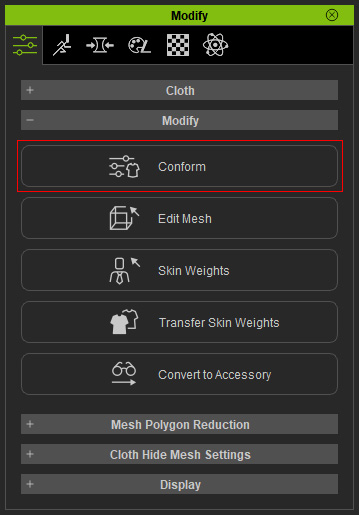
- Scroll down and click the Edit Range button.
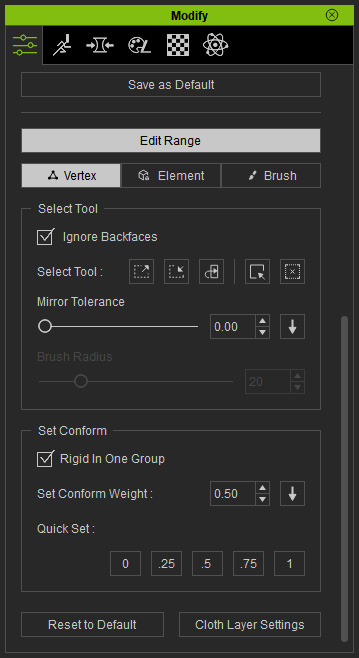
It is highly recommended that you click the Save as Default button before proceeding with the following steps. -
Select a cluster of vertexes to include the ones forming the crooked lines.
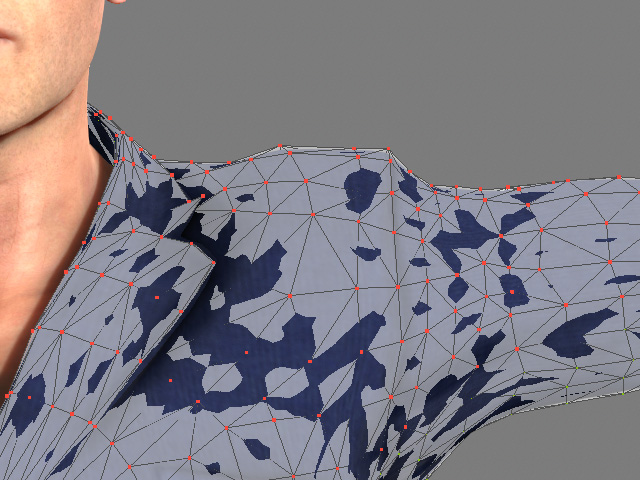
-
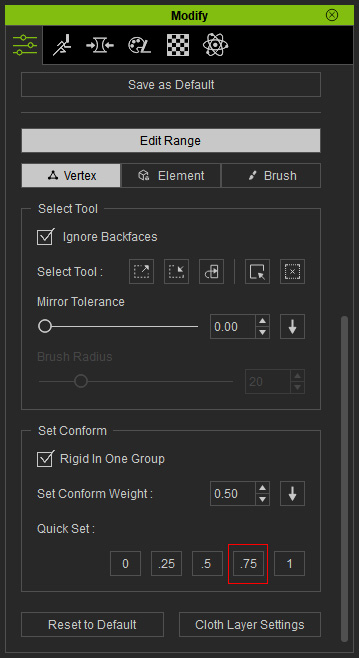
Click the 0.75 button in the Quick Set group. The conforming weight of these vertexes will be set to 0.75.
You will see a dark area tinted on the faces enclosed by the vertexes.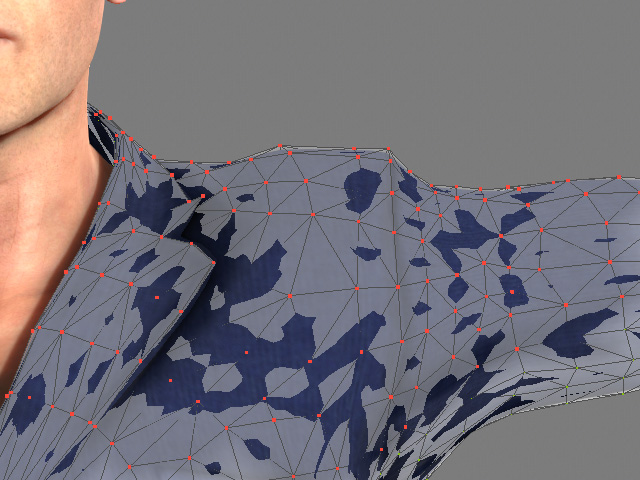
- Shrink the selection of the vertexes by clicking the Shrink button in the Select Tool group.
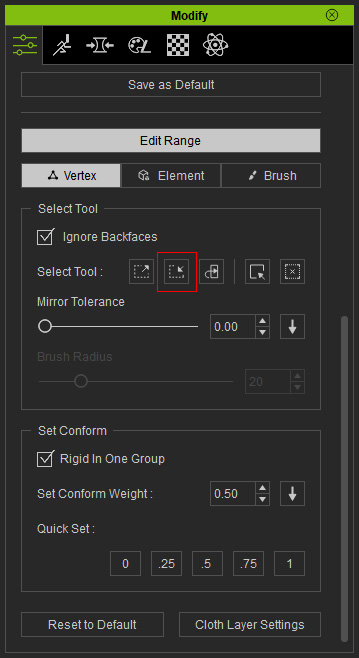
Fewer vertexes are selected.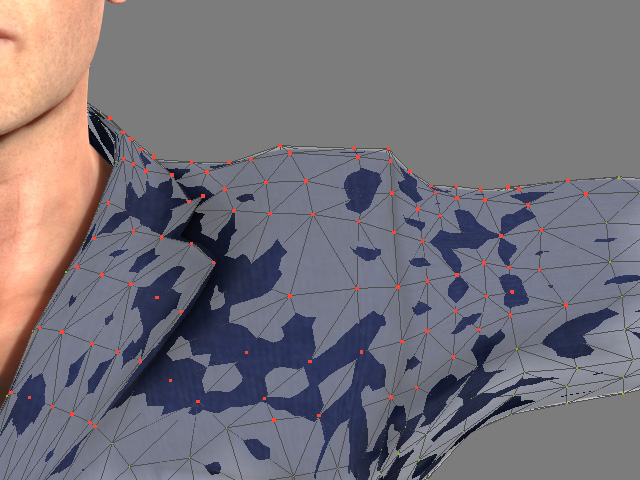
- Click on the 0.5 button in the Quick Set group.
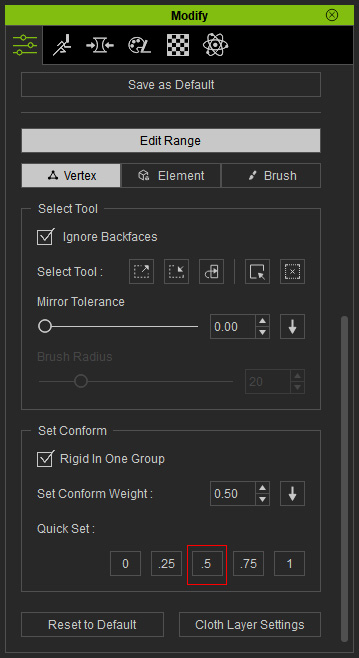
The area becomes darker.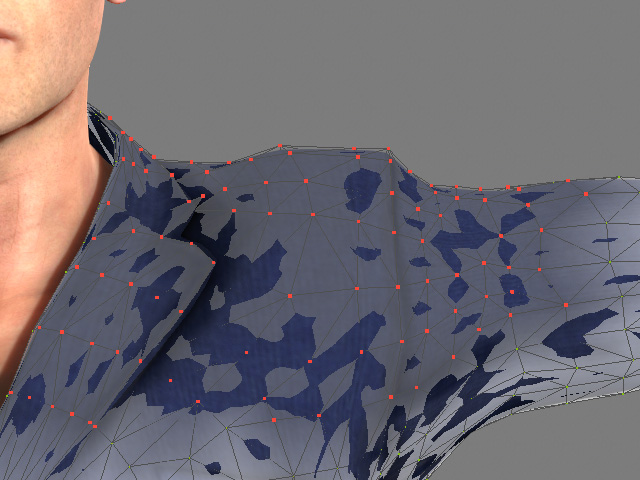
- Shrink the selection again.
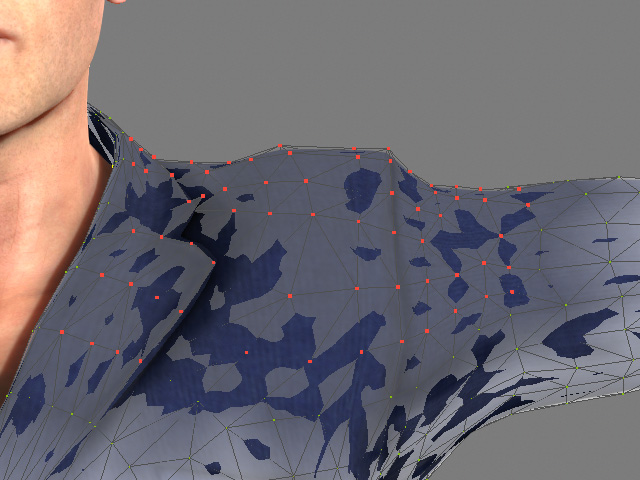
set the conforming weight of the vertexes to 0.25.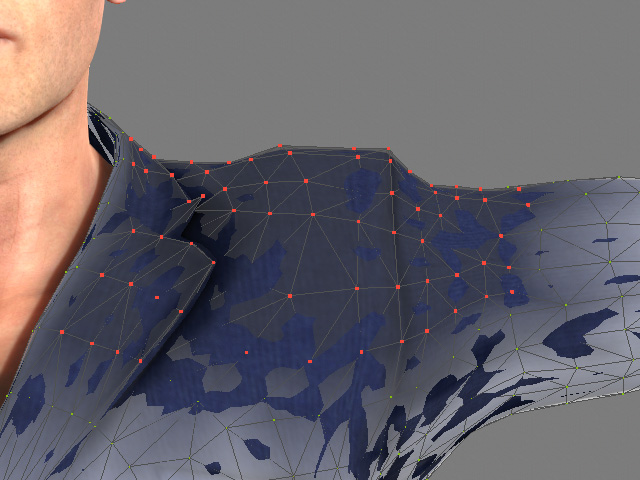
- Shrink the selection again.
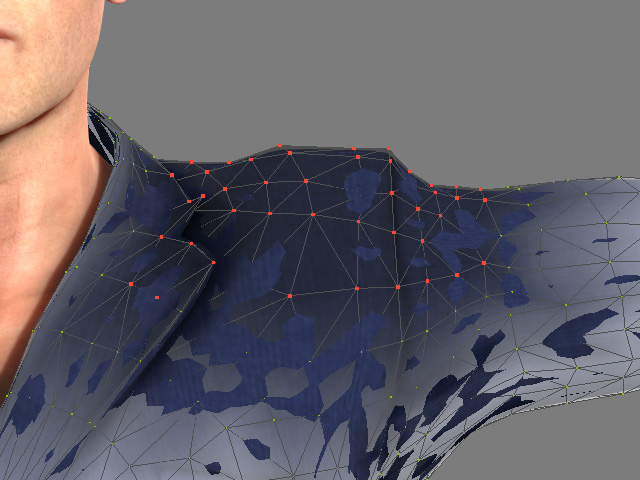
- Manually set the conforming weight to 0.12, and click the Apply
 button.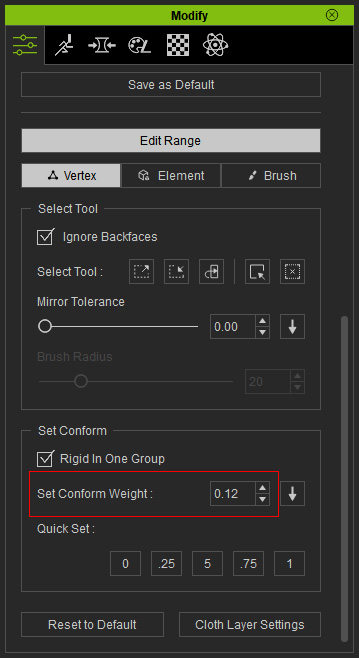
The area around the vertexes turns even darker.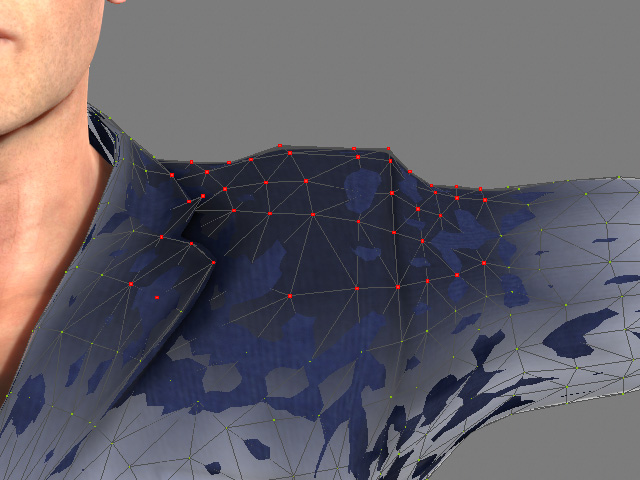
- Shrink the selection again and set the conform weight to 0.
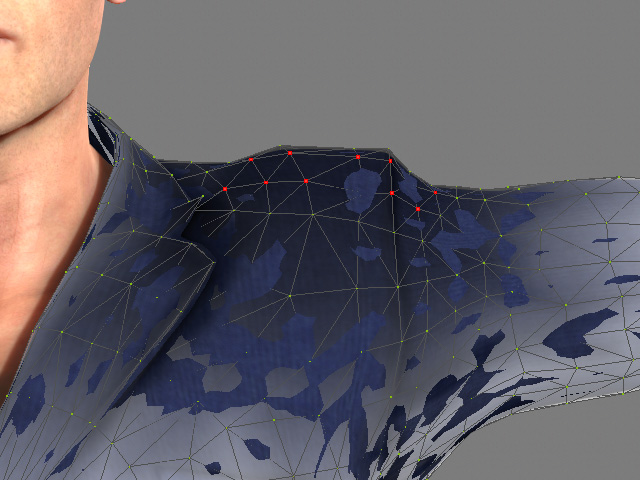
- Leave the Conform mode.
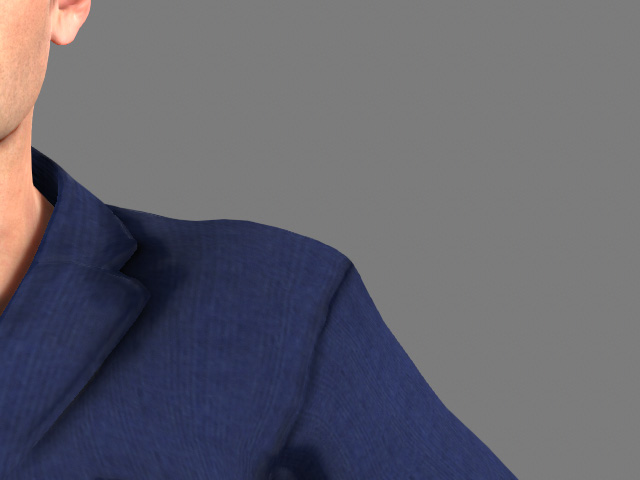
- Morph the character's body shape. As you can see the shoulder-crooked issue is thus solved.