The Introduction for DOF Related User Interface
Modify Panel
|
1 |
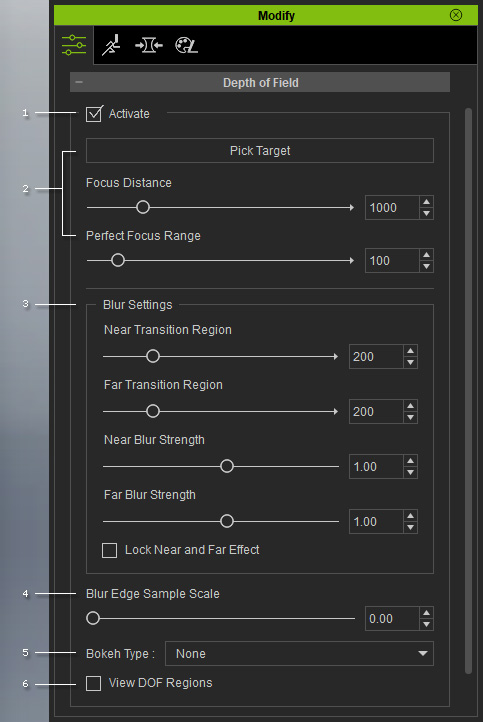
Activate: Check this box to activate the DOF effect. |
|
2 |
Focus Settings:
|
|
3 |
Blur (De-focus) Settings: Use these sliders to determine the width of the near and far transition regions and the blur levels for the completely de-focused near and far regions. |
|
4 |
Blur Edge Sample Scale: This value is used to fixed some sharp-edge imperfection of the objects in the de-focused or transition regions. |
|
5 |
Bokeh Type: This drop-down list can be used to determine the glowing shapes for the highlights in the blur or transition regions. |
|
6 |
View DOF Regions: Activate this checkbox in order to view the different regions in their representative colors. |
Preference Panel
Open the Preference panel (Shortcut: Ctrl + P), in the Real-time Render Options section, you can find the DOF
related settings. They are used to visibly render the DOF in the viewport. Please keep in mind that for exported media, the settings are always ON even if they are deactivated in the Preference panel.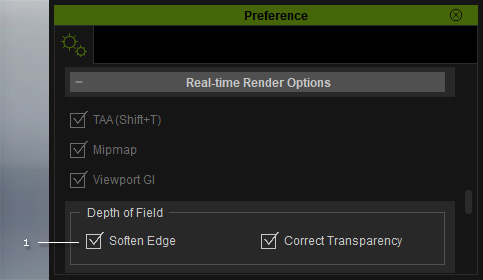
|
1 |
Depth of Field: These two settings can have the most accurate DOF real-time render effect. However, they also consume a lot of system resources. You can consider turning them OFF for lower-end system devices because it will not influence the final rendered result (always ON).
|
