Editing Multiple Materials
When a character contains more than one material and you want these materials to be adjusted at the same time, then you may follow the descriptions in this page.
What Settings Can be Involved?
All settings in the Material Settings section and be
simultaneously adjusted for the multi-picked materials.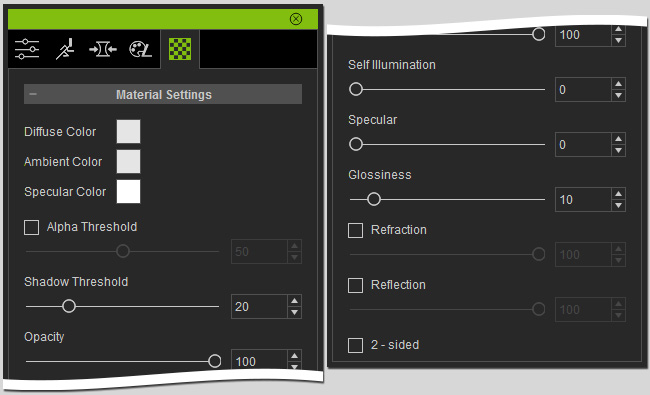
Editing Multiple Materials
-
Select the character.
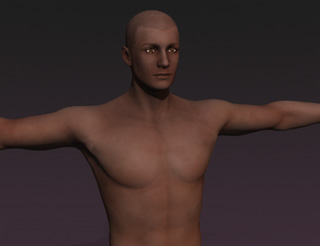
-
Select the materials you want to edit from the material list.
 Note:
Note:There are two methods to selecting multiple materials:
-
Hold the Ctrl key and click on different
materials in the list. This method is suitable for
selecting materials with different material names.
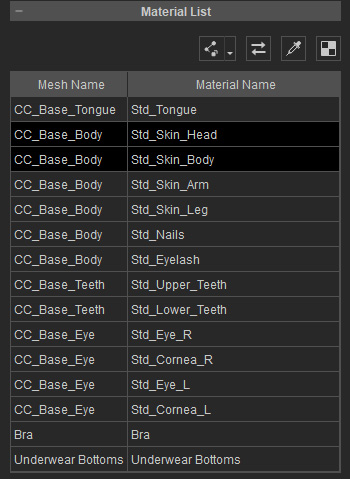
-
Select one of the material and then activate the
Affect all materials with the same name. This
method only adjust the material with identical
material names.
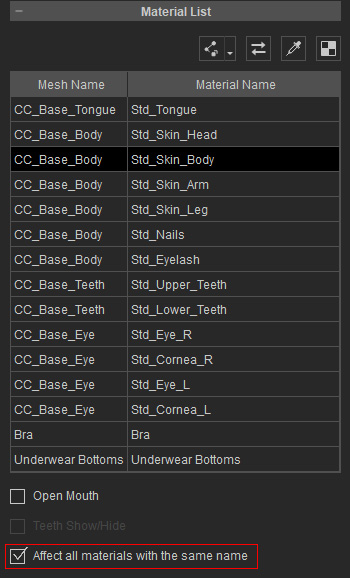
* These two methods are exclusive to each other.
-
Hold the Ctrl key and click on different
materials in the list. This method is suitable for
selecting materials with different material names.
-
Adjust the settings as the
previous section described. The selected
materials or the materials with same name will be adjusted together.
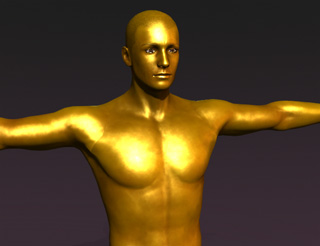 Note:
Note:In this case, the color, specular and glossiness for the face and body are adjusted together at the same time.
