Editing Channel Textures in Materials
In Character Creator, the materials on the character are composed of 18 channels in two shader modes, and they are Diffuse, Opacity, Bump, AO, Specular, Reflection,
Displacement, Glow and Blend in Traditional Shader Mode; and Base Color, Opacity, Bump, AO, Metallic, Roughness,
Displacement, Glow and Blend in PBR Shader Mode, same structure as iClone.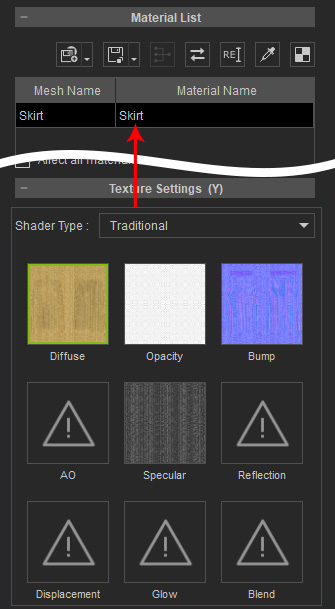
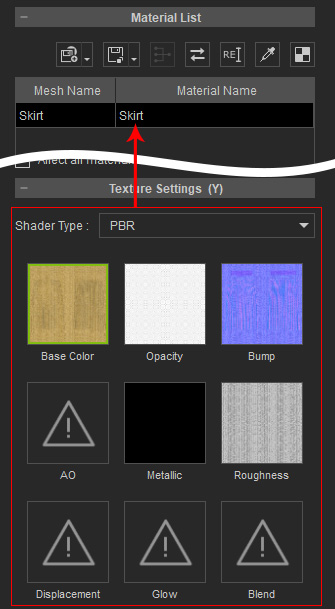
You can now modify the source, strength, UV settings of the texture in Character Creator in the same manner as you do in iClone.
The Source of Textures
There are two sources for the textures of the 8 channels.
- From Appearance Tab: The Appearance tab contains various controls and settings for
modifying the appearance of the character through the calculation of a specific algorithm in
Character Creator.
The calculated result will be individually put into the 8 channel to form a material.
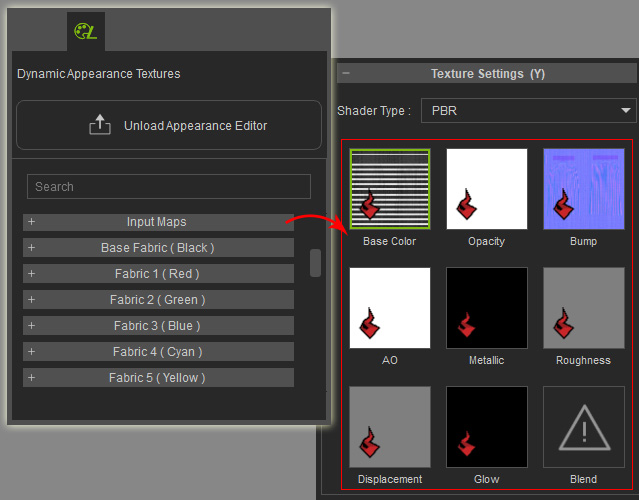
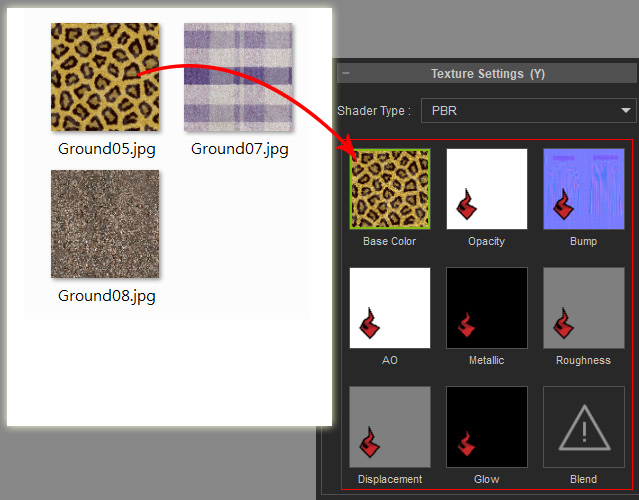
- From Regular Images: You can also load custom images into the 8 texture channels
by drag-and-drop image files onto the channels or by double clicking on
the channels to load desired images.
 Note:
Note:The modifications for the sources are:
- From the Appearance Tab: Modify the settings and control in this tab to adjust the source.
- From Regular Image: Modify the image with image editors.
Editing Multiple Materials
The editing methods for the textures are identical to the one you do in iClone, including modifying the blending behavior, the strength and the UV settings of the textures. Please refer to the Multiple Channel Texture Mapping section for more information.
