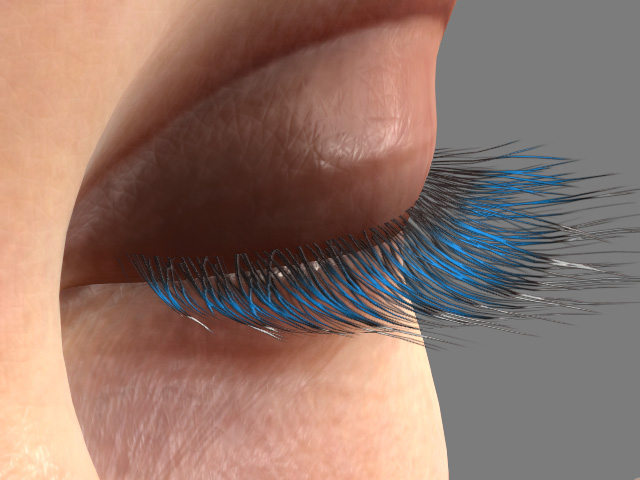
Settings in Appearance Editor - Eyelash
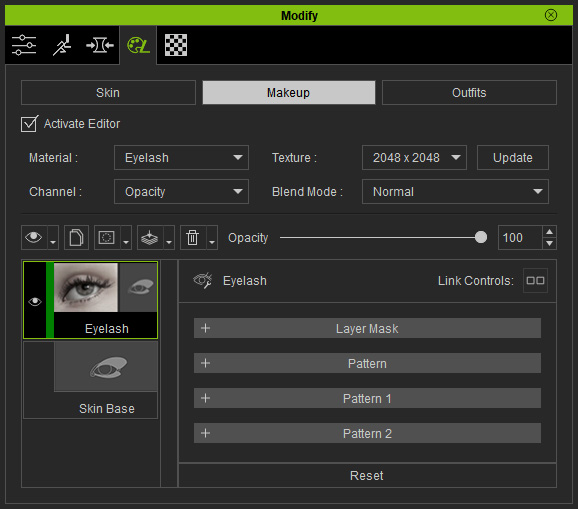
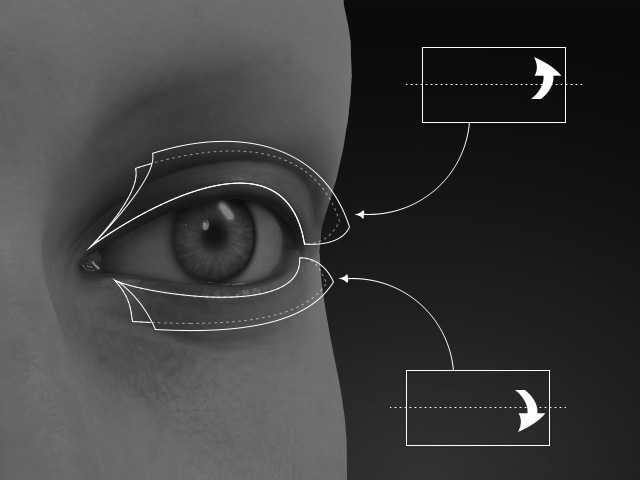
Theory of Eyelash
- Eyelash Mesh: The eyelash mesh is created by a simple plane that is folded from the middle.
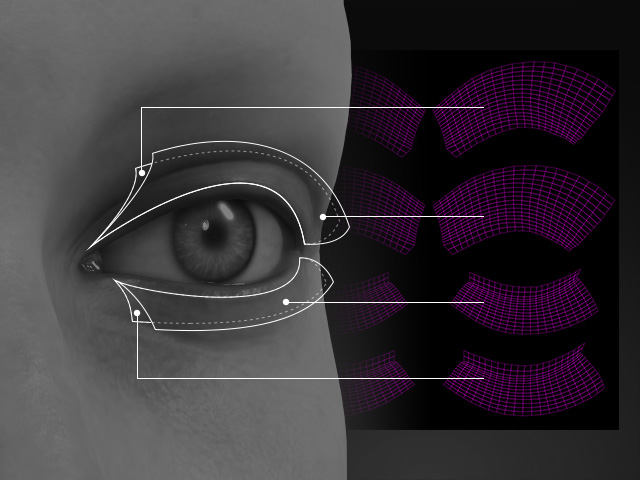
- UV Map: The UV map thus divides the mesh into different eyelash parts.
 Layer Mask
It contains the mask for the entire layer to take effect. The textures in this section can be edited if you have purchased and installed the SkinGen Plugin.
Refer to the Layer Mask section for more information.
Pattern, Pattern 1 and Pattern 2
The settings in these sections adjust certain part of the eyelashes. Besides, these three sections contains identical settings and subsections, so are the usages.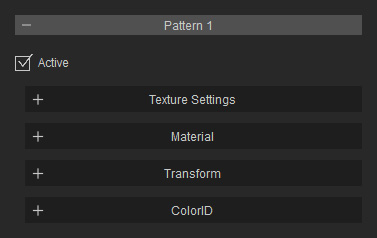
Texture Settings
Contains two texture channels: the Pattern texture masks out the eyelash meshes and the ColorID texture defines desired regions for blending custom colors onto the eyelash. The textures in this section can be edited if you have purchased and installed the SkinGen Plugin.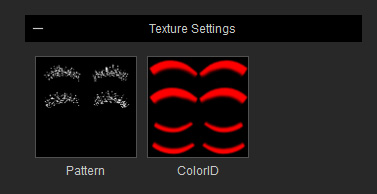
Refer to the Layer Mask section for more information.
Material
The settings in the Material section can be used to set the basic material for the eyelashes.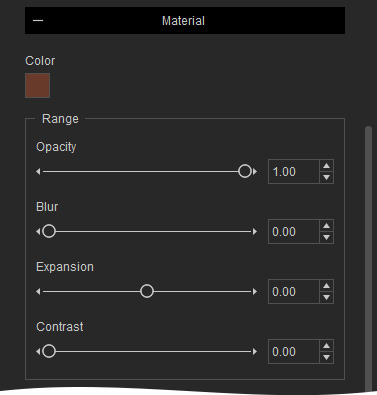
Color
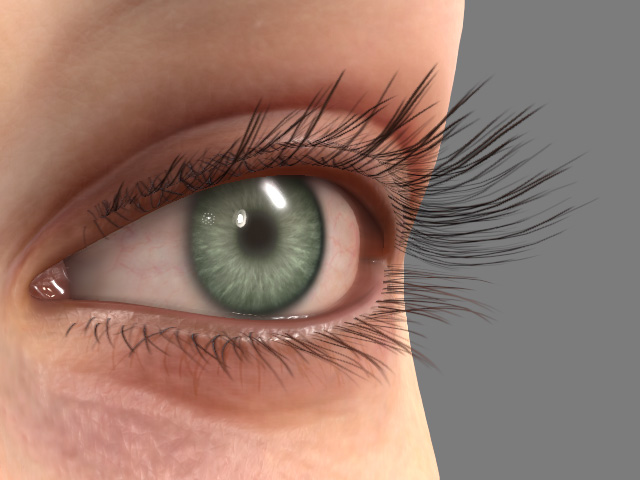
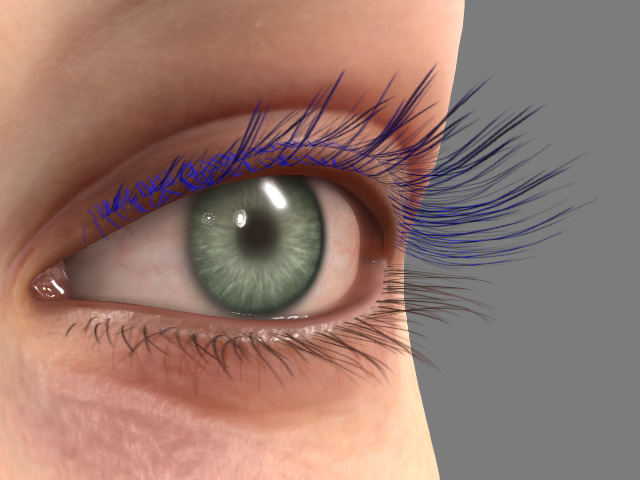
This color picker can be used to dye the base color of the eyelashes in accordance with the Pattern texture.
|
|
|
Color = #683A2A (light brown) |
Color = #0000FF (blue) |
Range
The settings in this group are used for adjusting the Range texture.
- Opacity
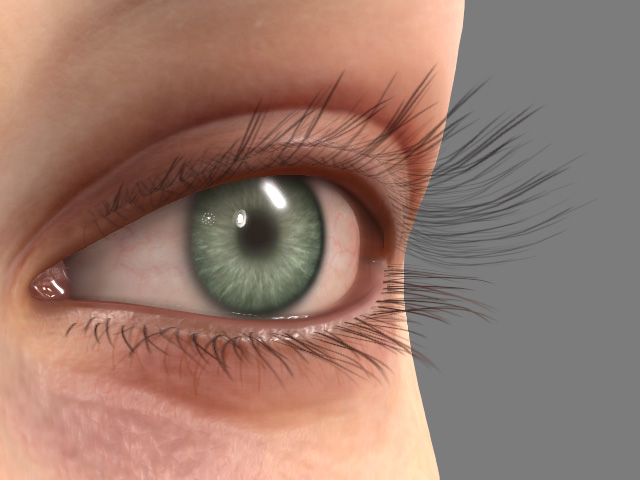
Opacity = 1.00
Opacity = 0.50
- Blur
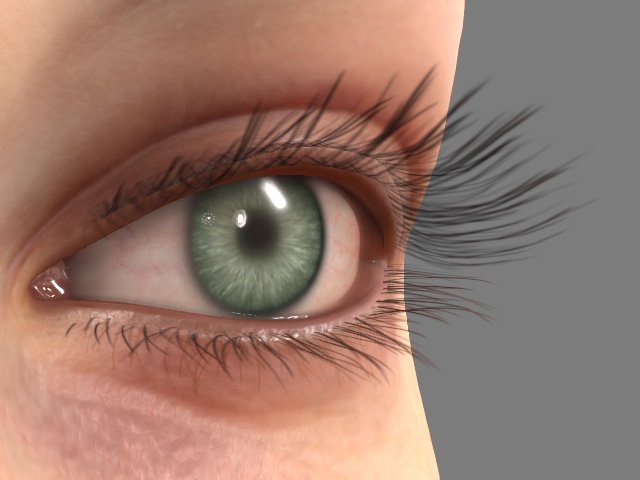
Blur = 0.00
Blur = 0.50
- Expansion: Use this setting to degrade or enhance the thickness of the eyelashes.
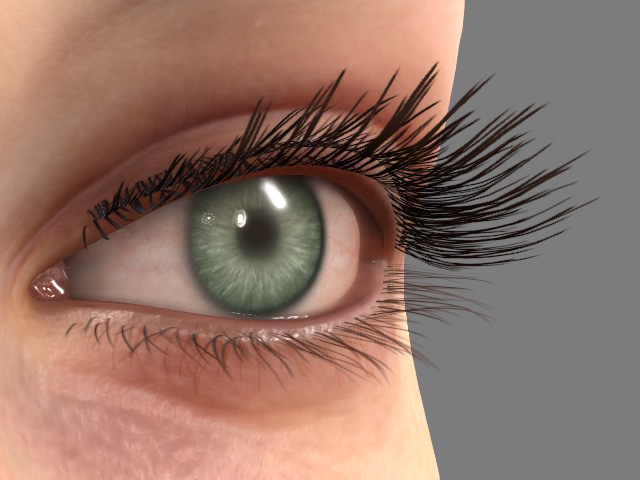
Expansion = 0.00
Expansion = -1.00
- Contrast: You can use this setting to soften or sharpen the edges of each follicle of eyelashes.
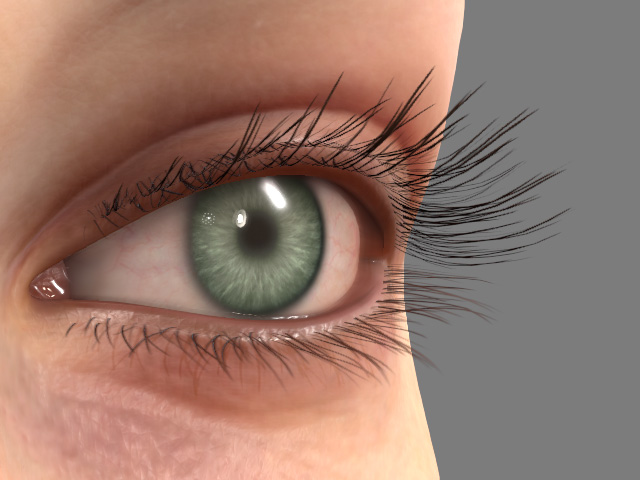
Contrast = 0.00
Contrast = 0.50
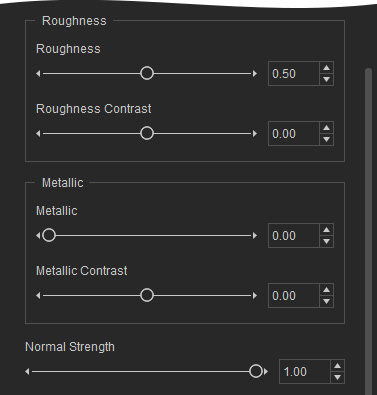
Roughness and Metallic
You can adjust the smoothness and reflectivity of the foundation.
|
Roughness = 0.50 Metallic = 0.00 |
Roughness = 0.00 Metallic = 0.50 |
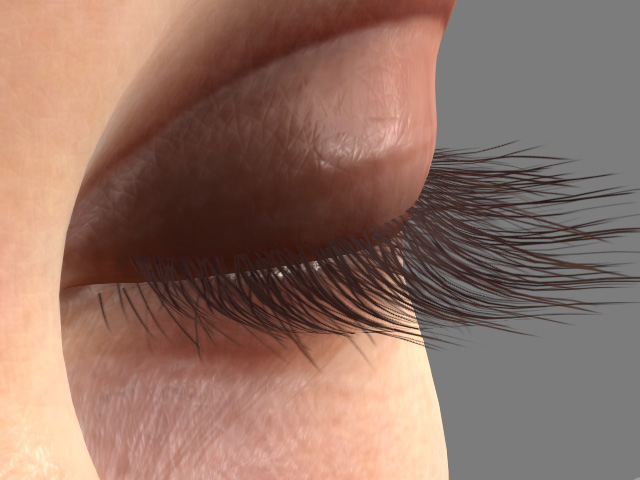
Normal Strength
The settings in this group can be used to adjust the bumpiness of the powder.
|
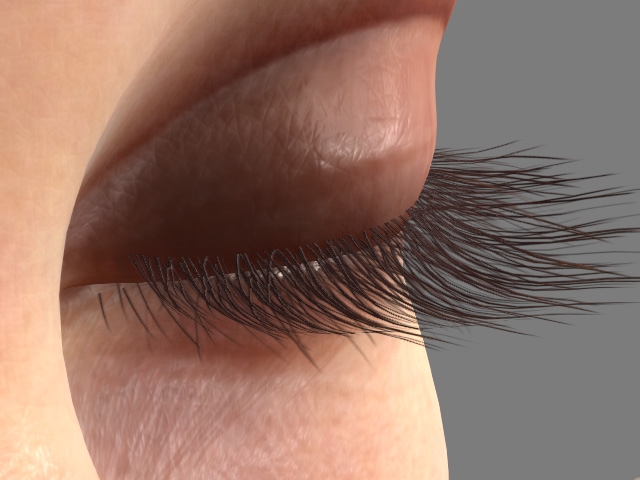
|
|
Normal Strength = 0.00 |
Normal Strength = 1.00 |
Transform
These settings slide the Range texture on the upper and lower eyelash meshes to simulate the relocating of the eyelashes.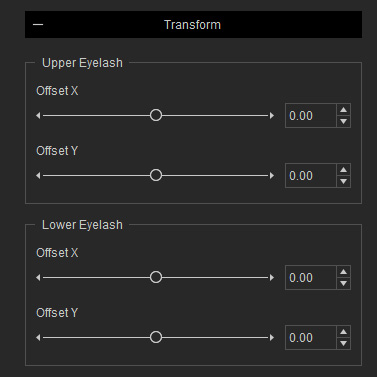
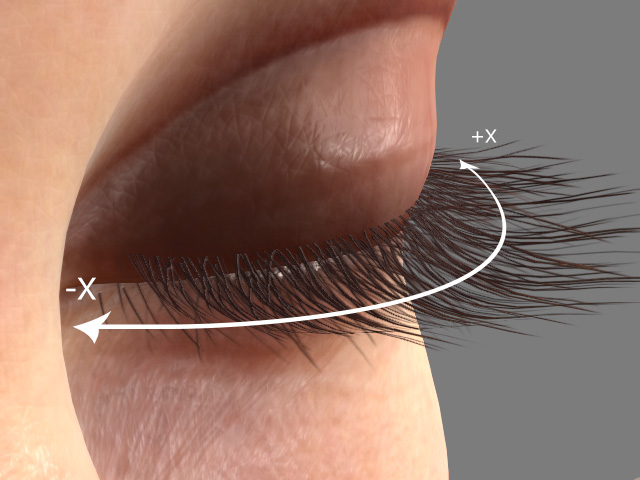
|
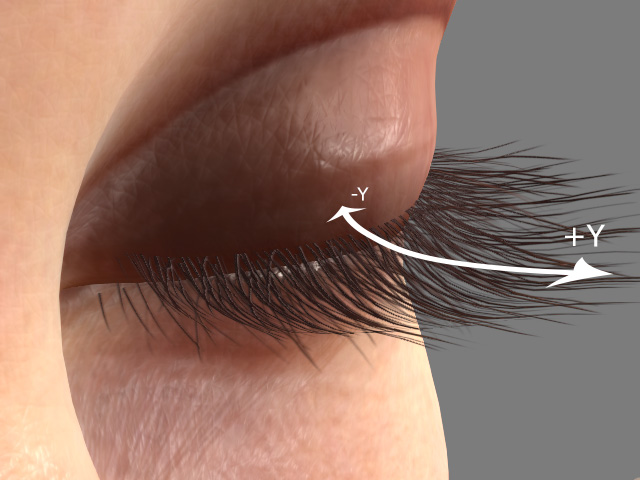
|
|
Offset X |
Offset Y |
ColorID
The settings in the ColorID section can be used to blend certain colors to the eyelashes, based on the ColorID texture.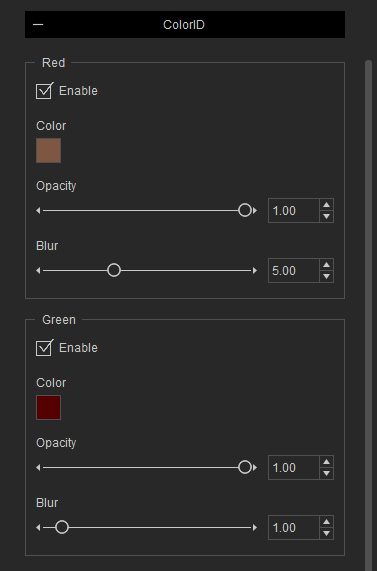
The regions marked in Red or Green of the ColorID texture can be blended with custom color. You can choose and adjust the blending color in these two groups, including the Color, Opacity and Blur settings.
- Given a ColorID texture as the following illustration.
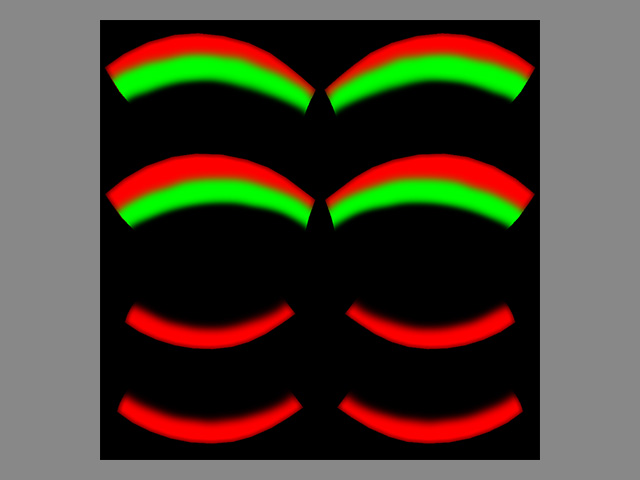
The eyelash is divided into three regions: Black, Red and Green.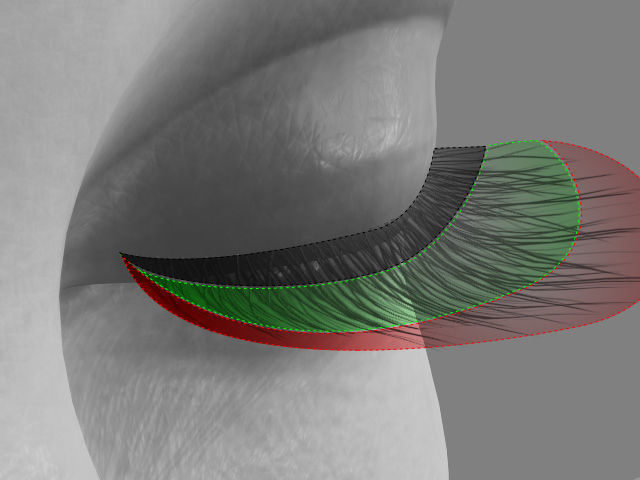
- Activate the Enable checkbox of the Red group.
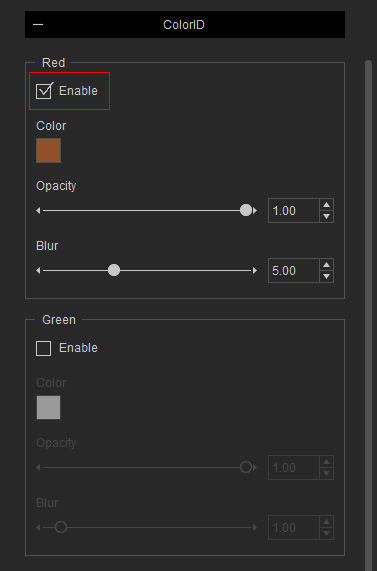
- Choose a custom color (in this case, white).
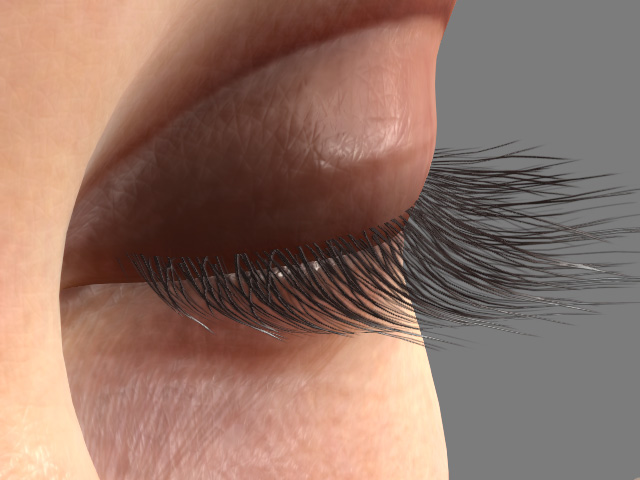
- Adjust the Opacity and Blur settings (Opacity = 1.00, Blur = 0.5).
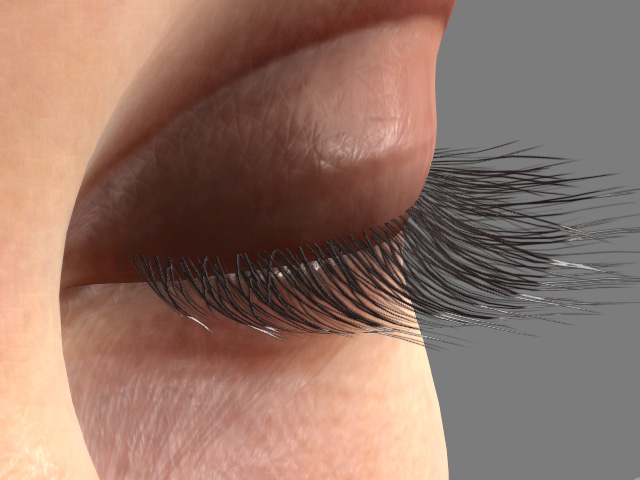
- Repeat the same steps for the Green region.