Settings in Appearance Editor - Makeup & SFX
If you have purchased the Makeup & SFX pack, then you can use even more elegant highlight and contour templates with detailing.
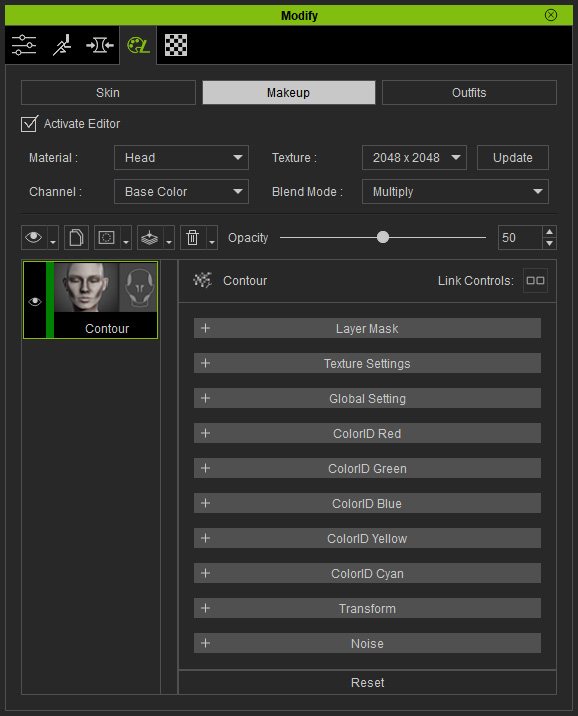
 Layer Mask
Contains the mask for the entire layer to take effect.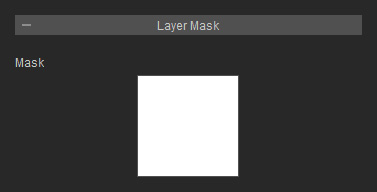
Refer to the Layer Mask section for more information.
Texture Settings
This section contains three channels to determine the range for this template effect and for applying custom normal texture. The textures in this section can be edited if you have purchased and installed the SkinGen Plugin.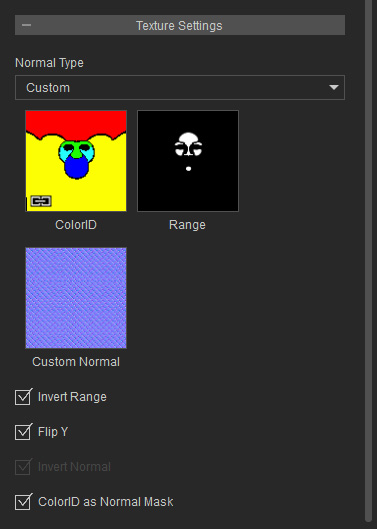
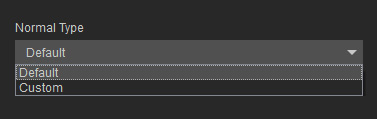
- Normal Type: Use this drop-down list to determine if you want to use the default normal texture or a custom one.
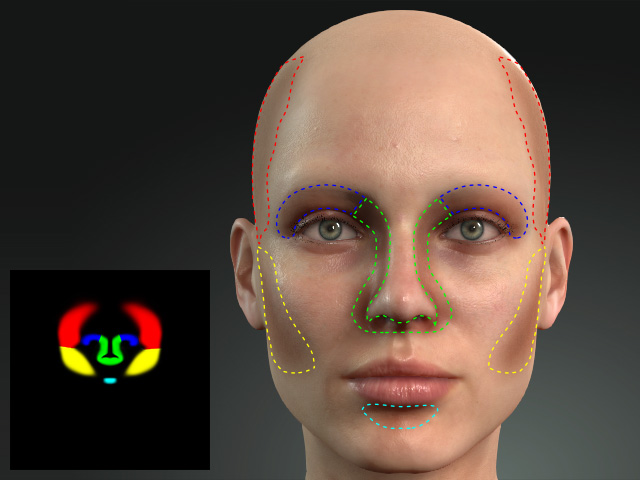
- ColorID Texture: This texture is used to define the effect region on the face. The effective regions on the face are defined by different colored parts of the texture.
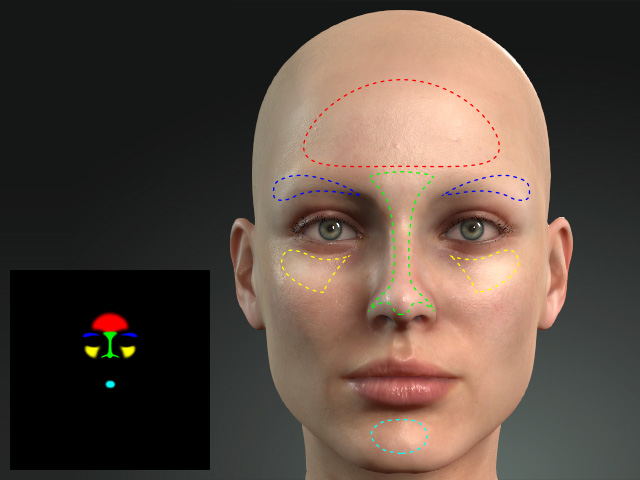
After the Highlight template is applied.
After the Contour template is applied
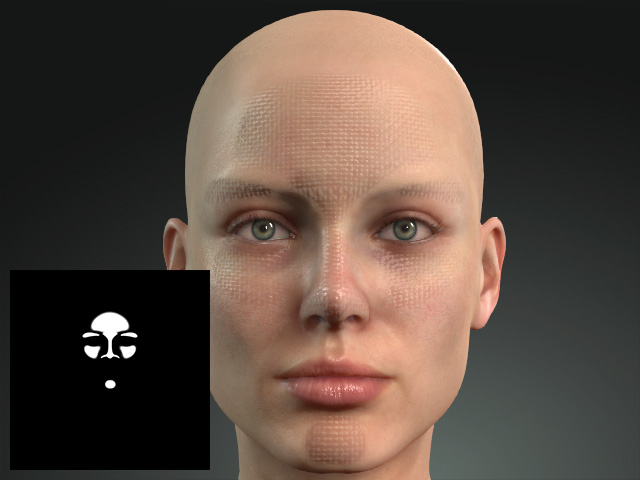
- Range Texture: This texture determines the regions for displaying the noise effect.
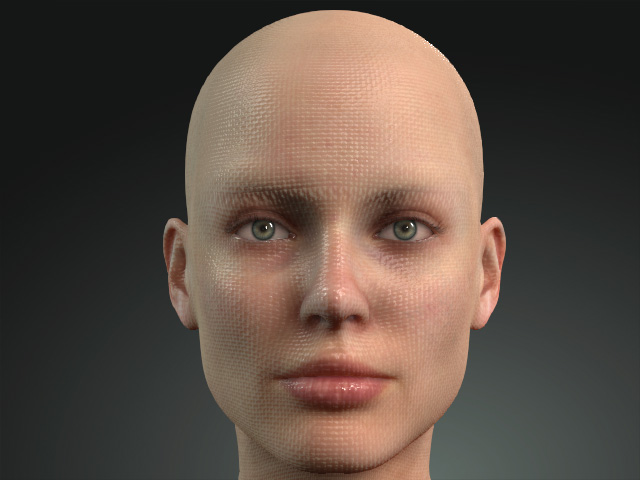
Empty Range channel
Range channel loaded with grayscale image
- Custom Normal Texture: You can load custom normal texture to determine the normal effect within the range.
- Invert Range
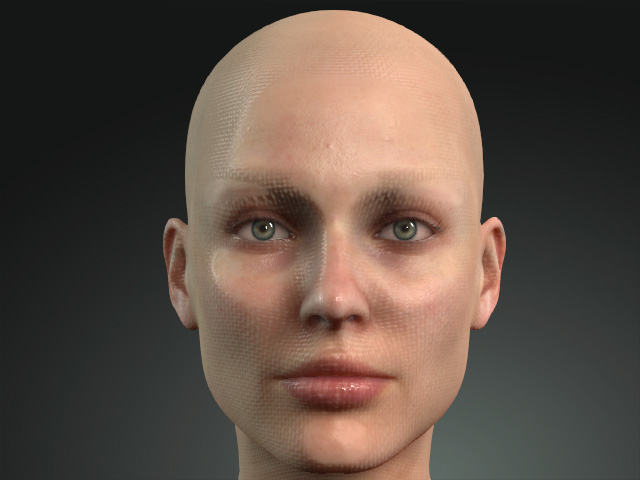
Invert Range = Off
Invert Range = On
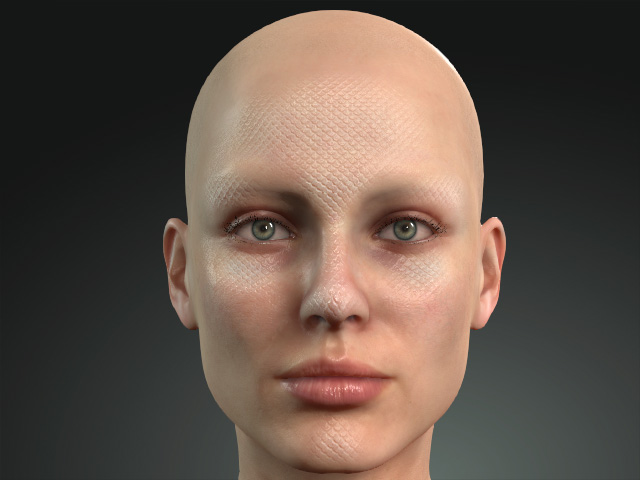
- Normal Range Type: Activate this checkbox to mask the normal effect with the Range texture.
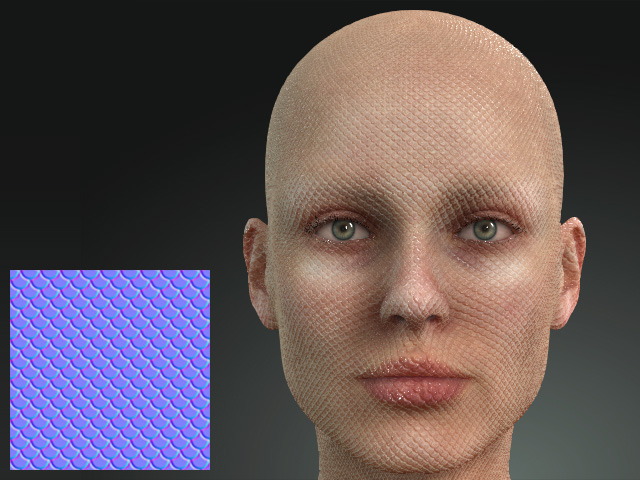
The custom normal map covers the entire head.
After the Normal Range Type is activated.
- Flip Y (for custom normal map only):
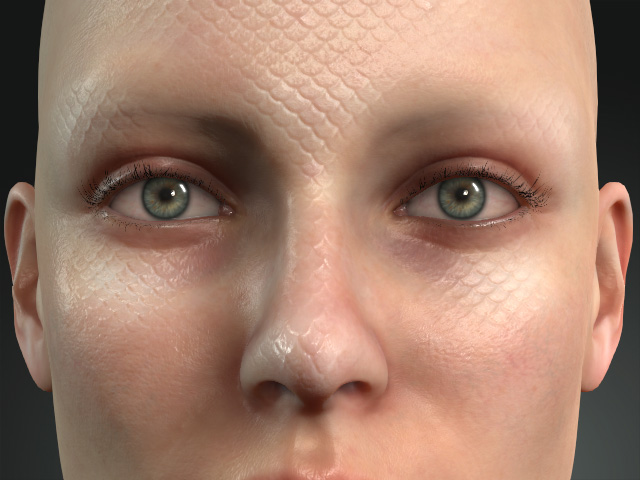
Flip Y = Off
Flip Y = On
- Invert Normal (for default normal map only):
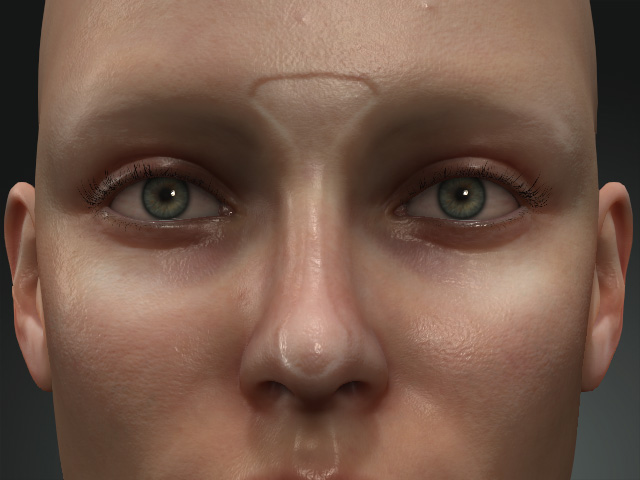
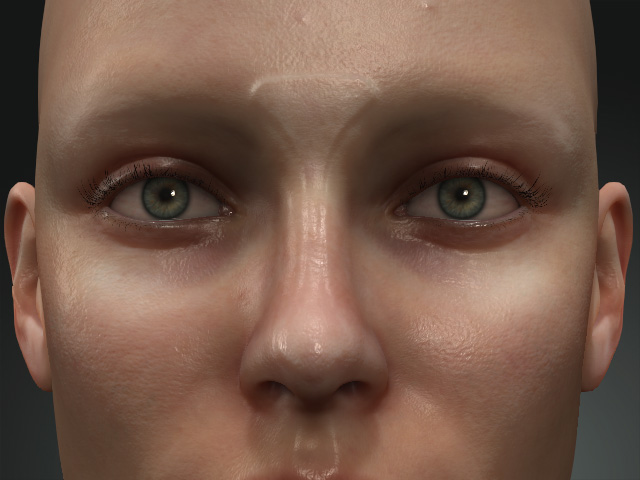
Invert Normal = Off
Invert Normal = On
- ColorID as Normal mask: Use the ColorID texture as the mask for the normal effect instead of the Range texture.
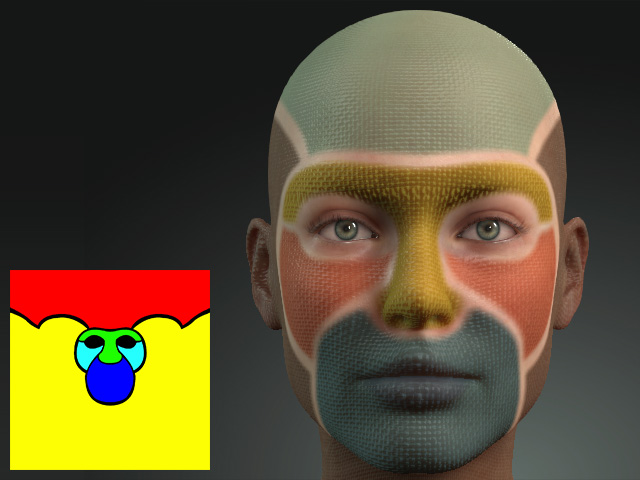
Range texture taken as normal mask
ColorID texture taken as normal mask
Global Settings
Range
These four settings are used to adjust the Range texture.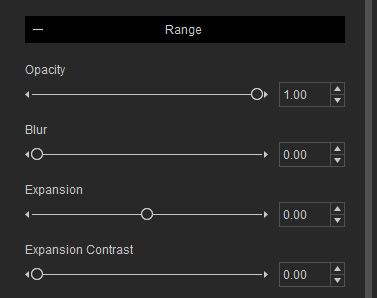
- Opacity: The opacity of the Range texture.
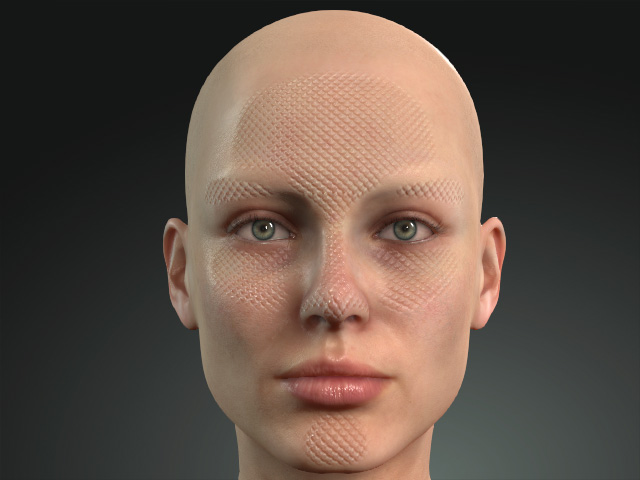
Opacity = 1.00
Opacity = 0.00
- Blur: The blurriness for the normal effect.
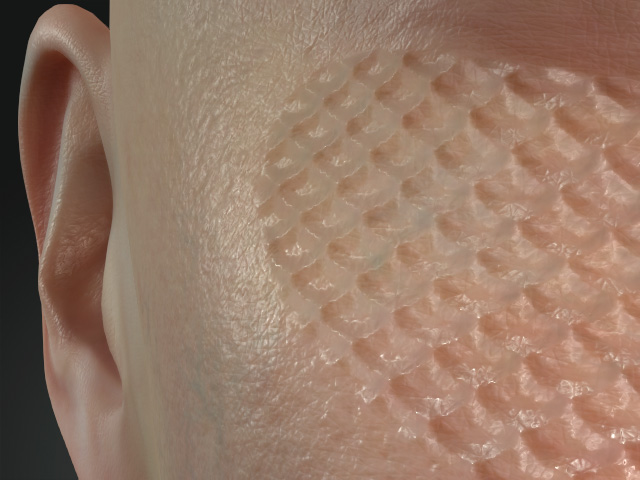
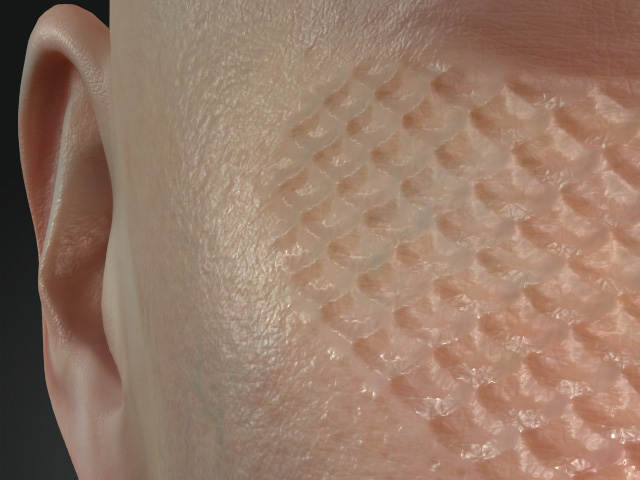
Blur = 0.00
Blur = 1.00
- Expansion: The blurriness for the normal effect.
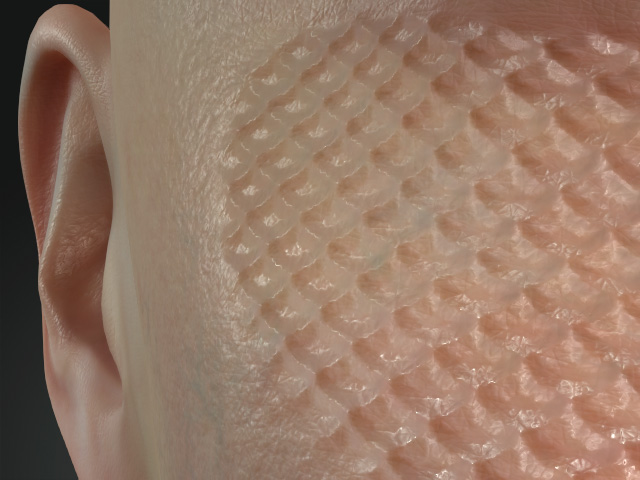
Expansion = -1.00
Expansion = 1.00
- Expansion Contrast: The blurriness for the edges of the Range texture.
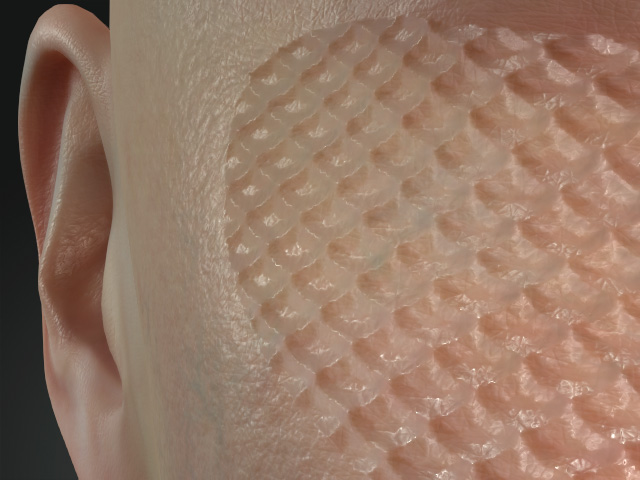
Expansion Contrast = 0.00
Expansion Contrast = 1.00
Custom Normal
These two settings are used to adjust the normal effects by the Custom Normal texture.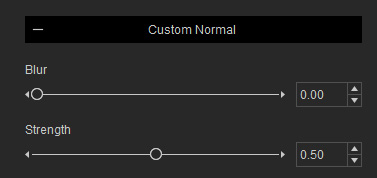
- Strength: The global normal strength for each region.
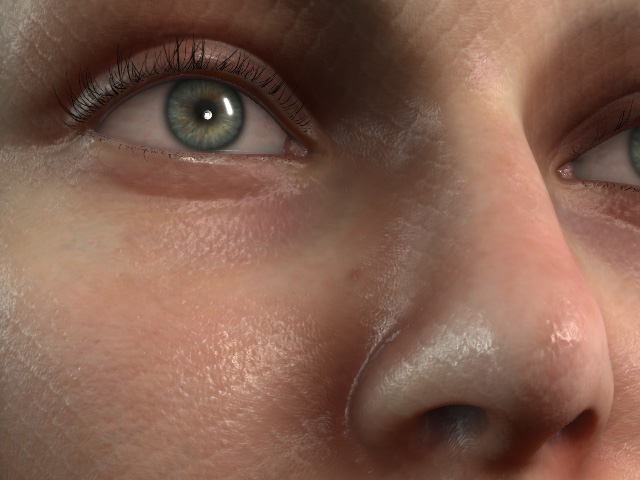
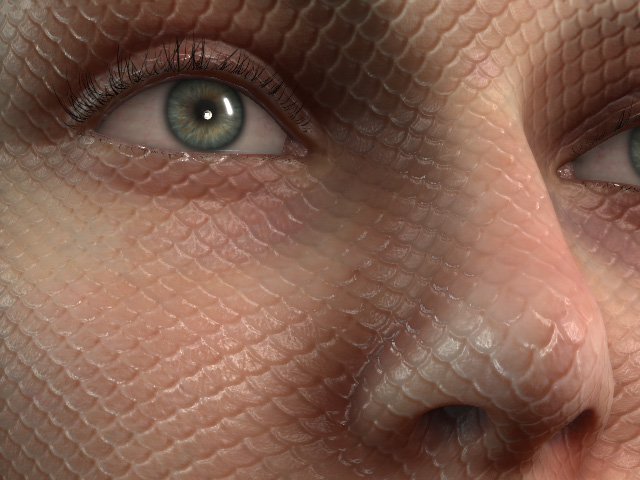
Strength = -0.80
Strength = 0.00
- Blur: The blurriness for the normal effect.
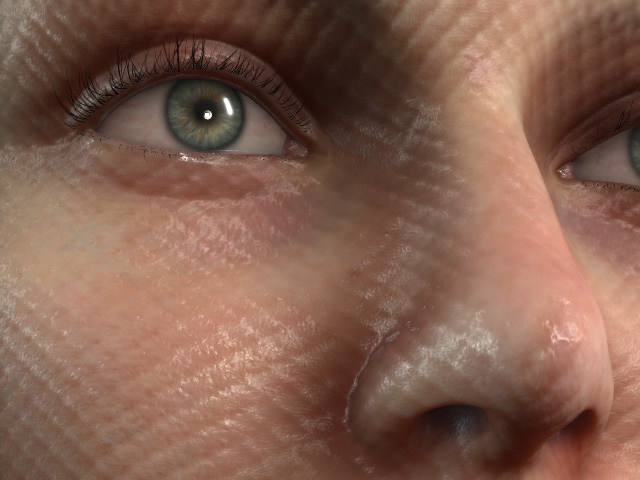
Blur = 0.00
Blur = 0.30
 Color ID Red to Color ID Cyan
These sections contains only one subsection, Material, in which the settings are used to define the appearance of the regions defined by the ColorID texture.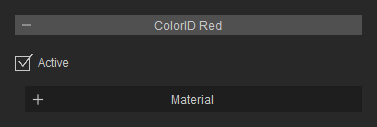
Material
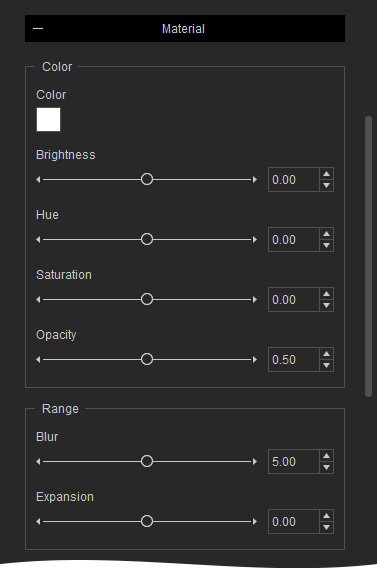
Color
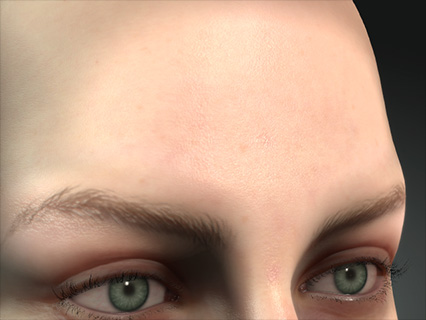
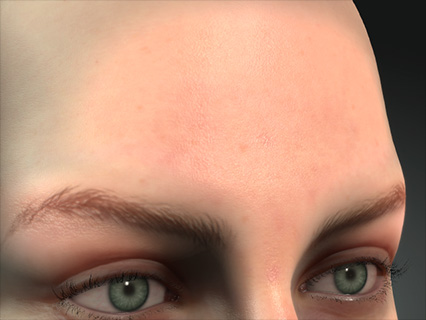
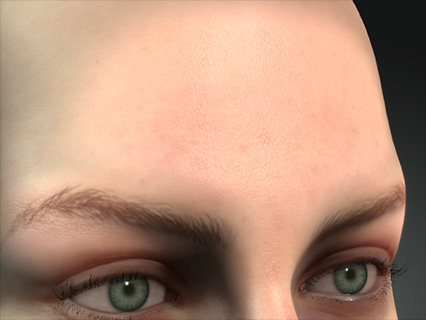
The settings in this group can be used to colorize the noise.
|
|
|
|
Color = #FFDDDD Opacity = 1.00 |
Color = #FF0000 |
Opacity = 0.50 |
Range
The settings in this group can be used to adjust the range texture for showing the noise.
- Blur
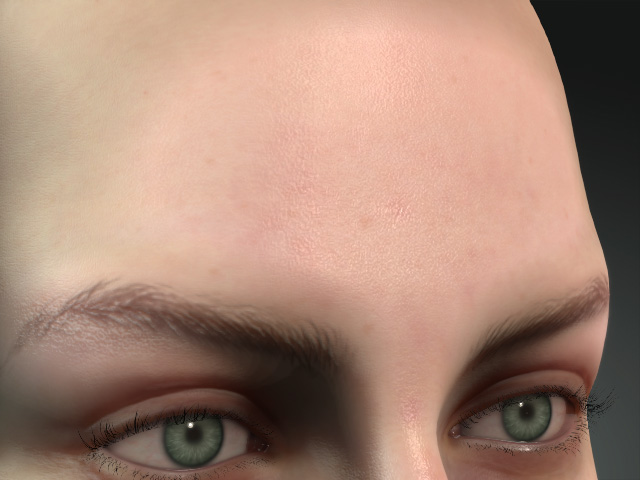
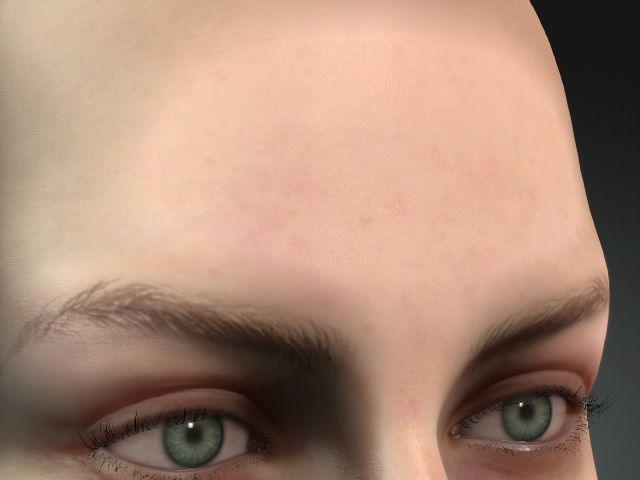
Blur = 0.00
Blur = 0.08
- Expansion
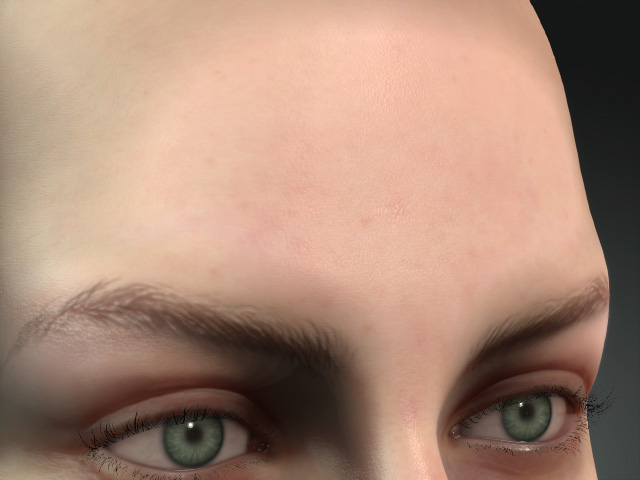
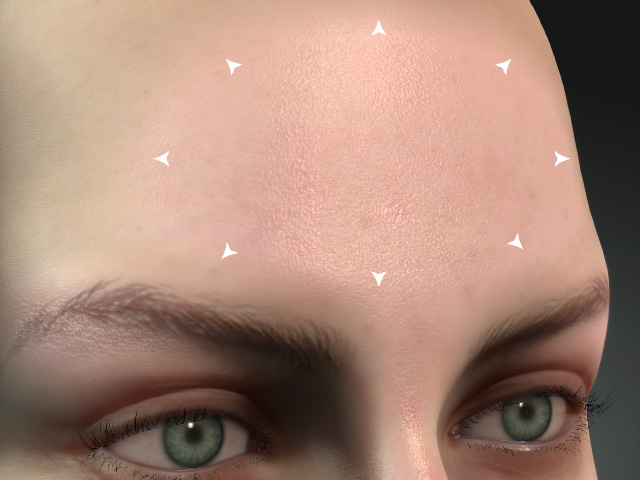
Expansion = -0.90
Expansion = 0.50
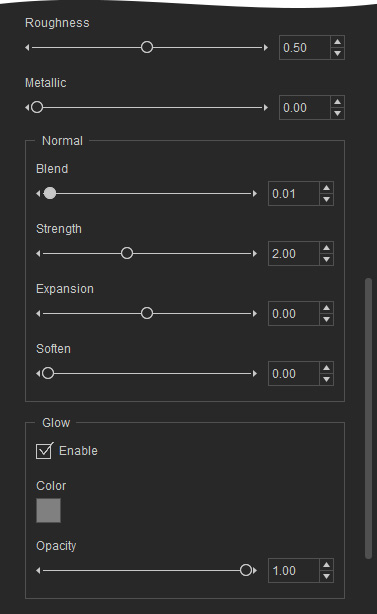
Roughness and Metallic
The settings in this group can be used to adjust the smoothness and reflectivity of the noise.
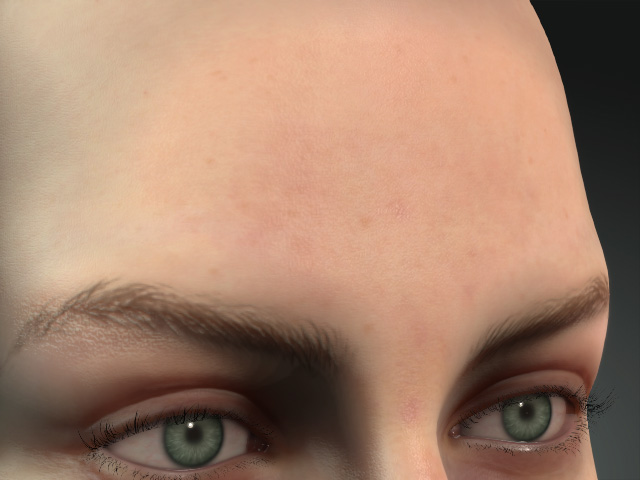
|
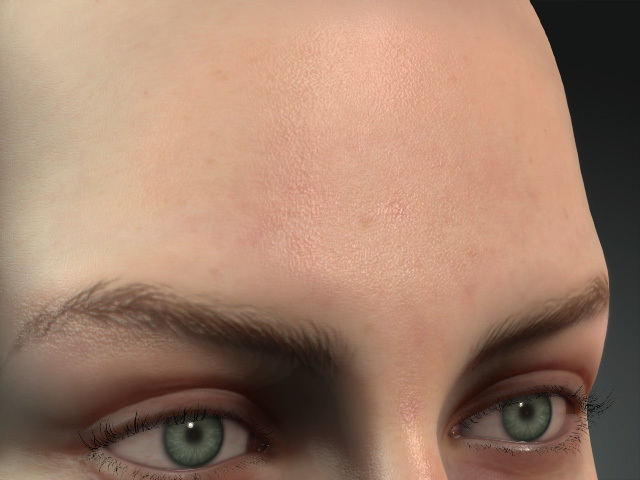
|
|
Roughness = 0.50 Metallic = 0.00 |
Roughness = 0.00 Metallic = 0.50 |
Normal
The settings in this group can be used to adjust the bumpiness of the noise.
- Blend: This setting can be used to blend the normal effect onto the skin underneath.
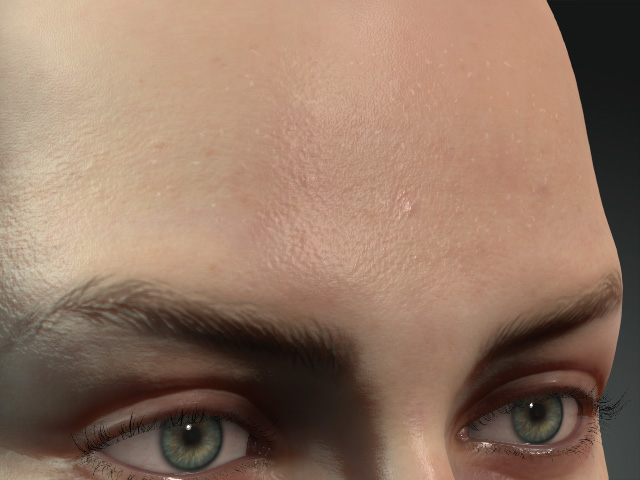
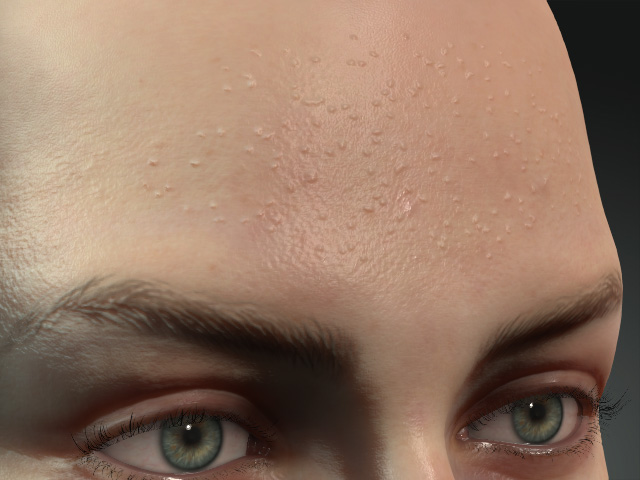
Blend = 0.00
Blend = 1.00
- Strength
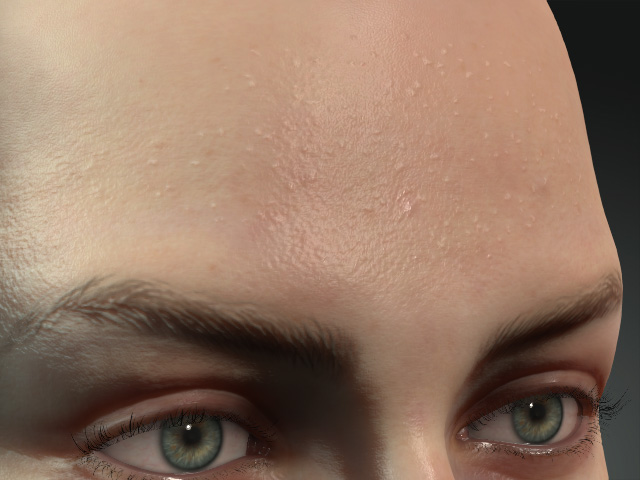
Blend = 1.00
Strength = 0.20
Strength = 5.00
- Expansion:
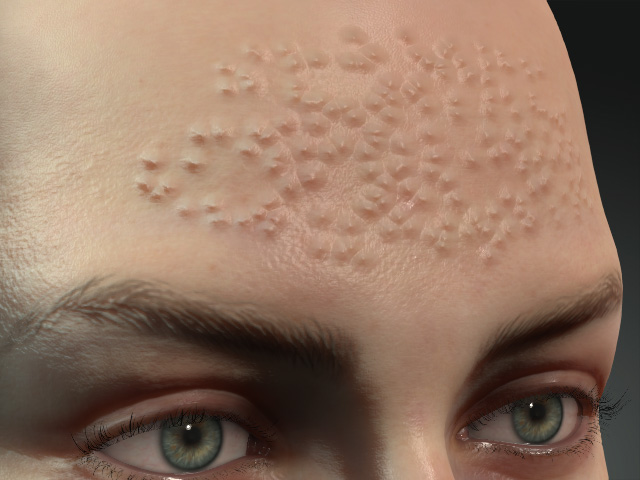
Expansion = 0.10
Expansion = 0.30
- Soften:
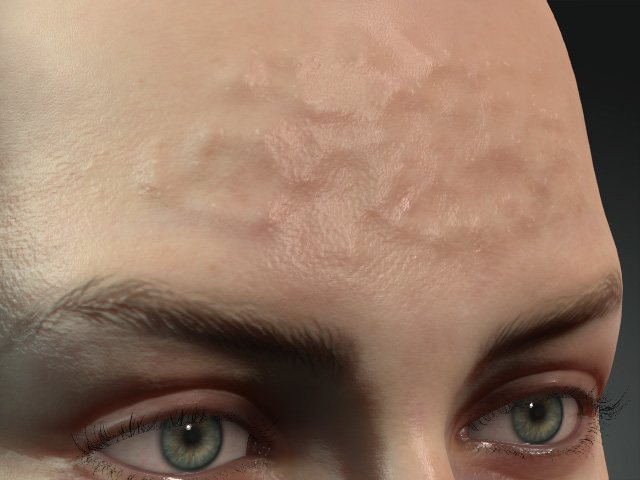
Soften = 0.00
Soften = 1.00
Glow
The settings in this group can be used to have the noise glowing.
- Color
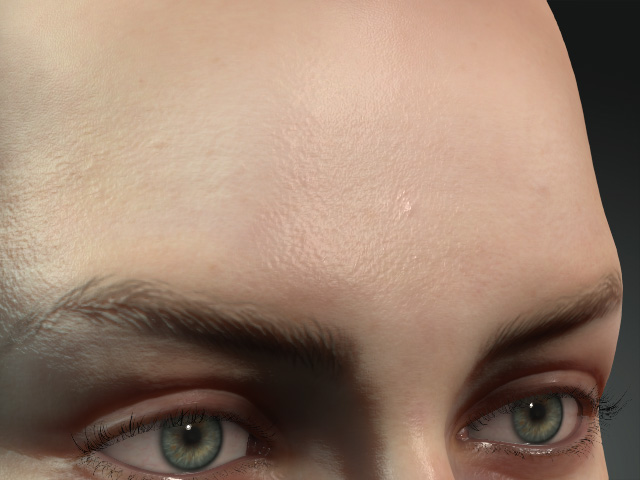
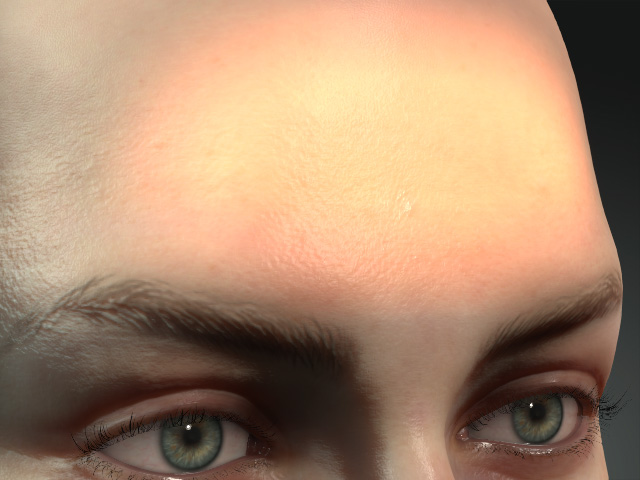
Enable = Off
Enable = On
Color = #812900
- Opacity
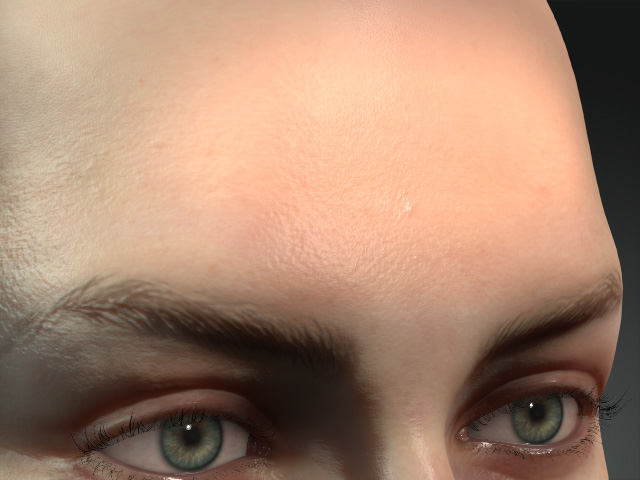
Opacity = 0.50
Opacity = 0.50
Transform
The Transform subsection contains settings for transforming the entire foundation.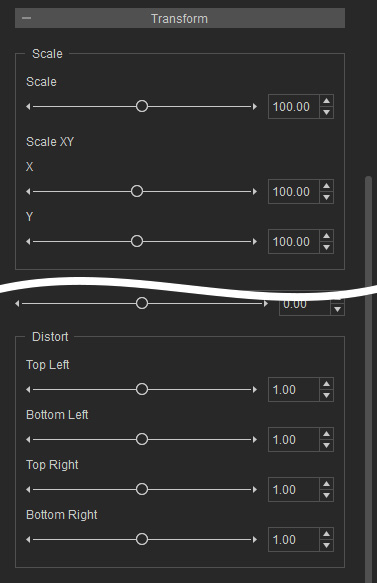
Scale
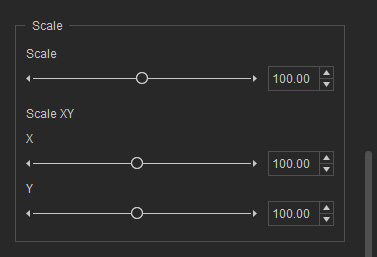
- Scale: This slider scales the entire paint up or down.
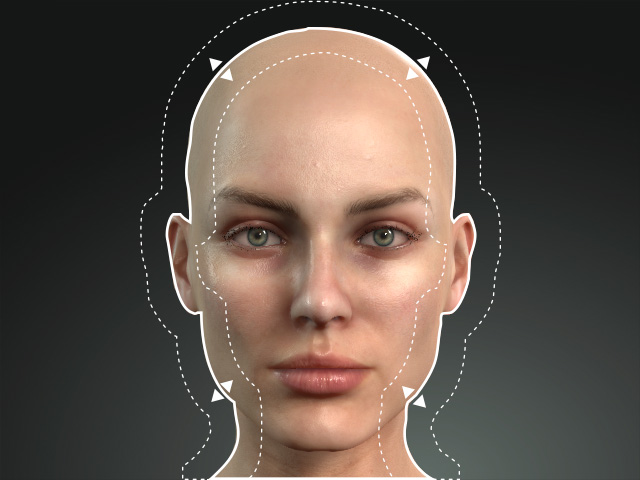
- Scale XY: you can simply scale by one axis only.
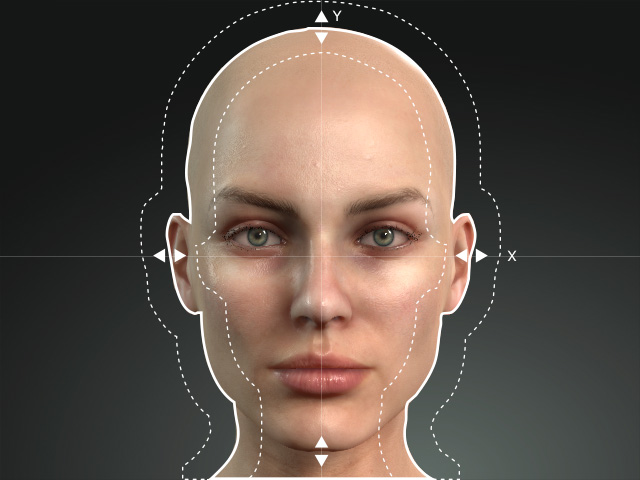
Offset
It contains settings for relocating the painted areas.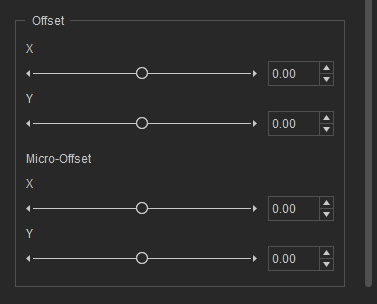
- X: Move the paint by X axis.
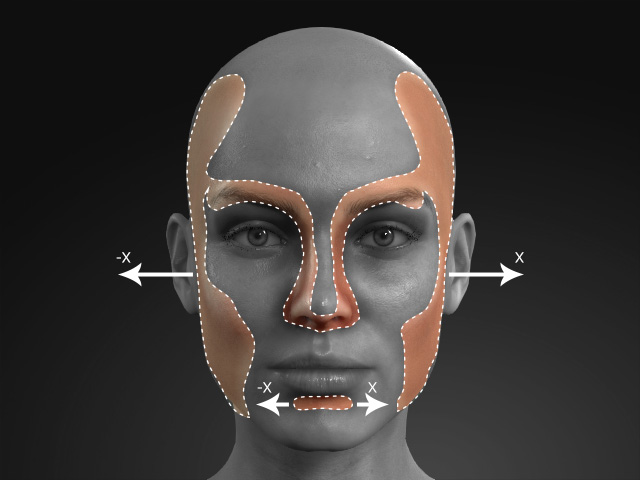
- Y: Move the paint by Y axis.
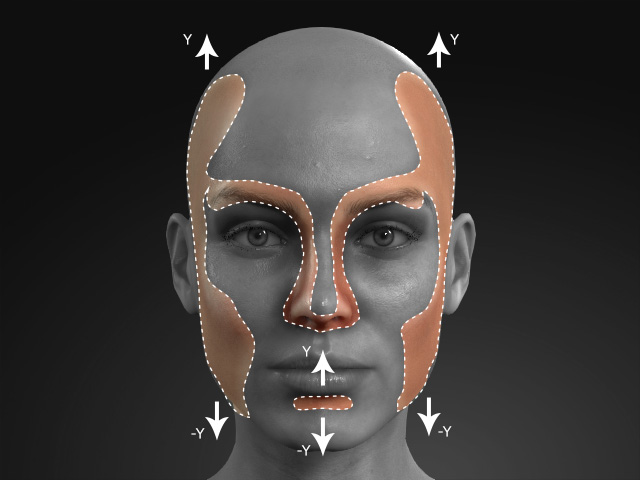
- Micro Offset (X, Y): These sliders moves the paints 10 times slower.
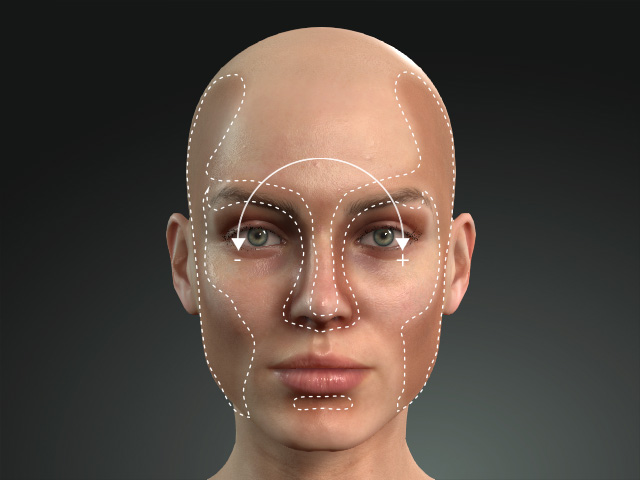
Rotation
This slider rotates the entire painted area.
Distortion
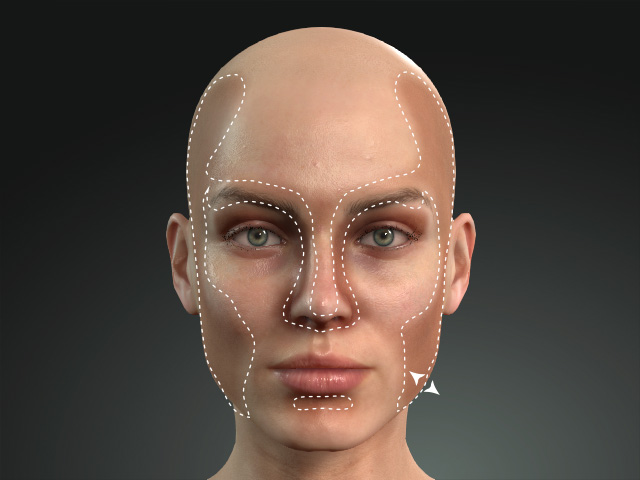
It contains settings for distorting the painted areas by the corners.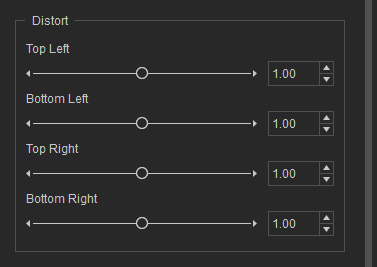
- Top Left
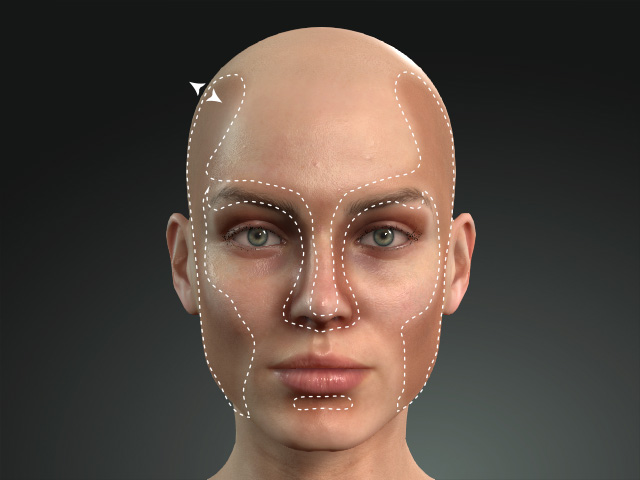
- Bottom Left
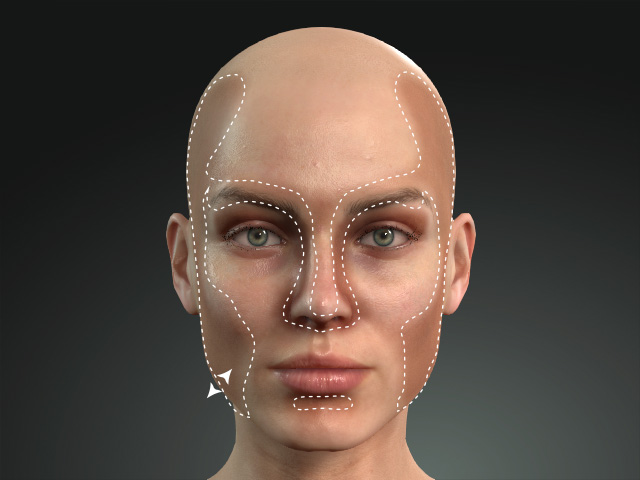
- Top Right
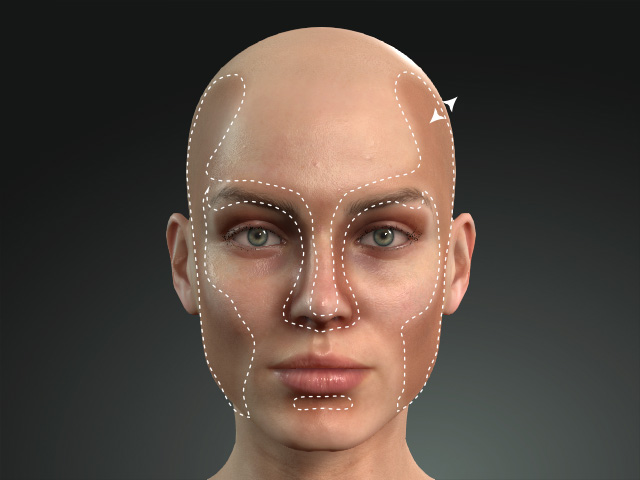
- Bottom Right
Noise
The Noise section contains three subsections with settings for applying noise onto the foundation.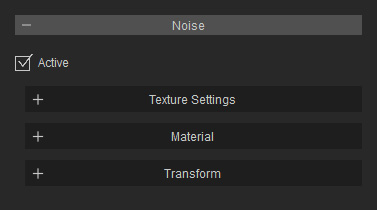
For more information about the settings in these sections, refer to the Noise section of the Settings in Appearance Editor - Foundation, Contour and Highlight page.
