Settings in Appearance Editor - Acne
Head, and Body Materials
Theory of Acne
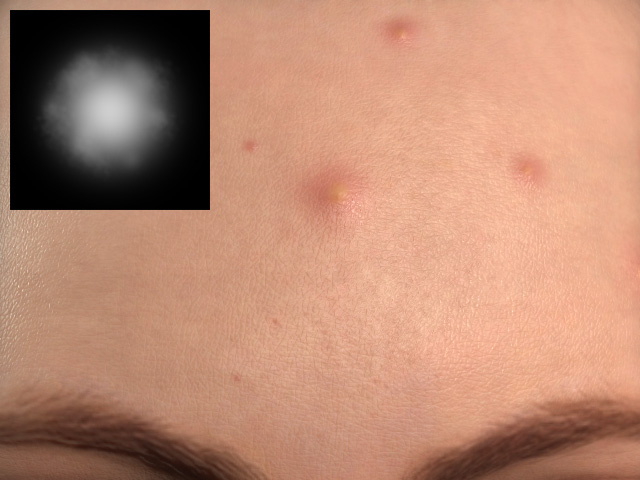
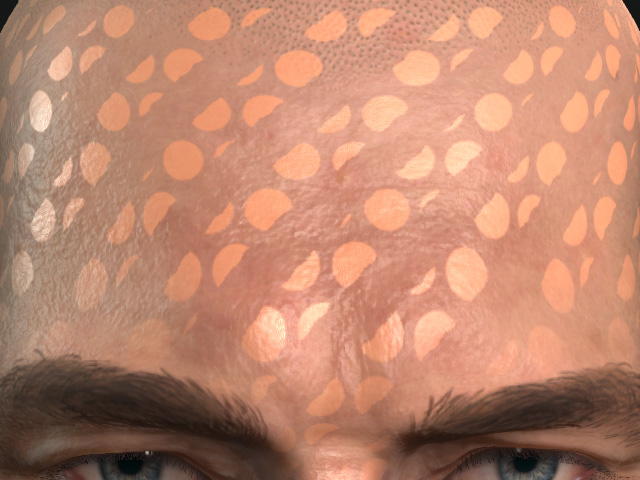
- The acne effect is actually attaching many square patches on the skin and then use mask texture to cutoff all the patches to form the shape of the acne.
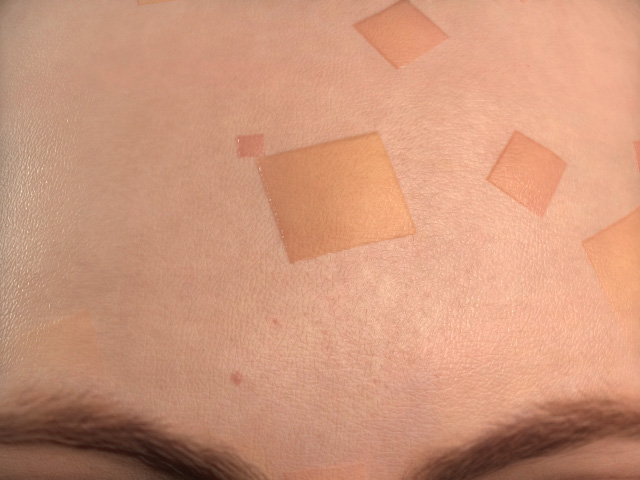
Acne patches without masking.
Patches get masked out.
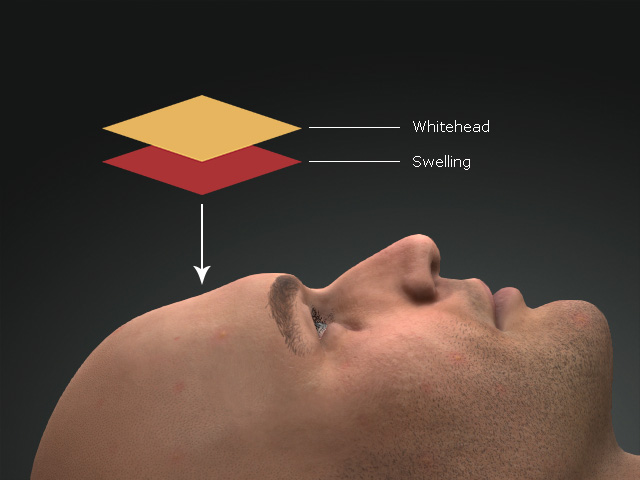
- Each patch is composed of two layers, the Swelling and White Head. You can individually adjust them in the corresponding sub-sections.
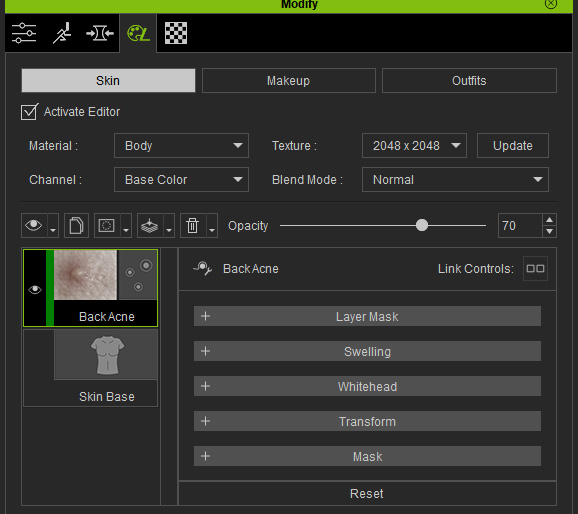
Settings in Appearance Editor
 Layer Mask
It contains the mask for the entire layer to take effect. The textures in this section can be edited if you have purchased and installed the SkinGen Plugin.
Refer to the Layer Mask section for more information.
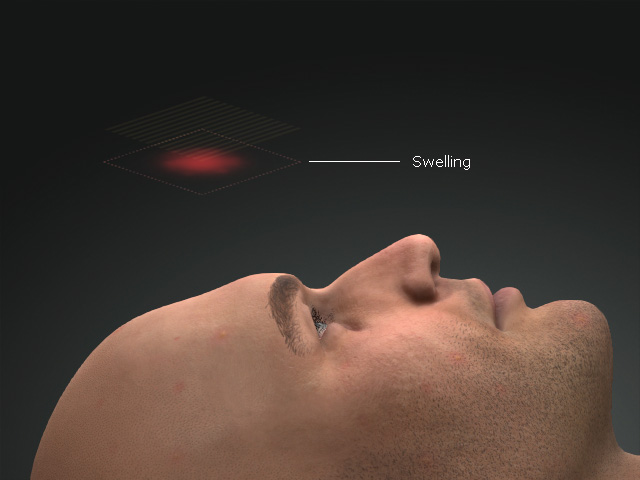
Swelling
This sub-section contains settings to adjust the swelling (base) layer of each acne patch.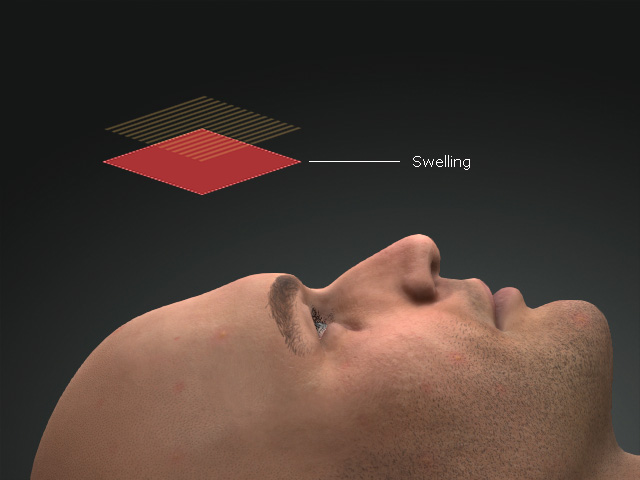
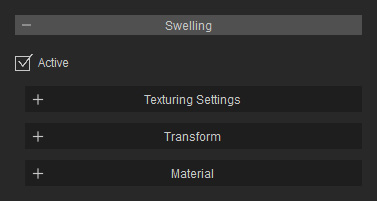
Texturing Settings
This subsection contains a channel for loading a mask to define the shape of each acne.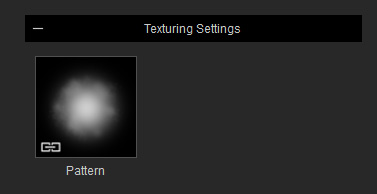
The textures in this section can be edited if you have purchased and installed the SkinGen Plugin.
Transform
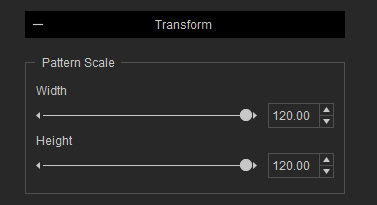
These settings determine the size of the pattern texture (mask) cutoff on each acne patch.
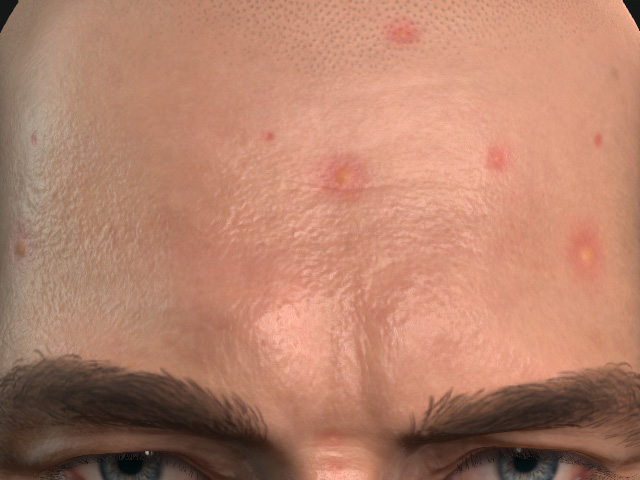
|
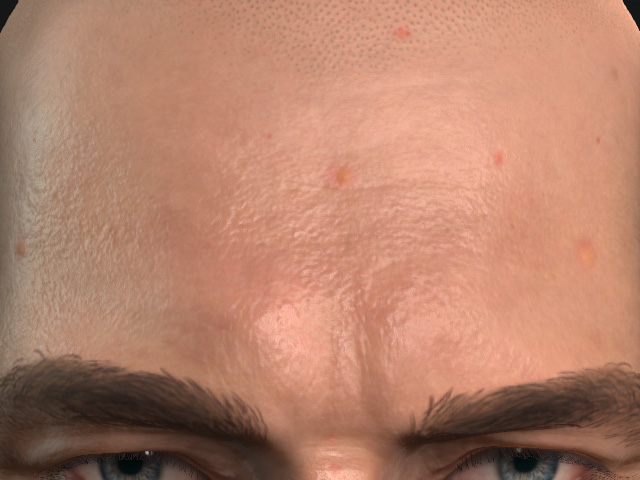
|
|
Weight = 100 Height = 100 |
Weight = 50 Height = 50 |
Material
The settings in this subsection are used for base color, normal and roughness for the swelling (base) layer.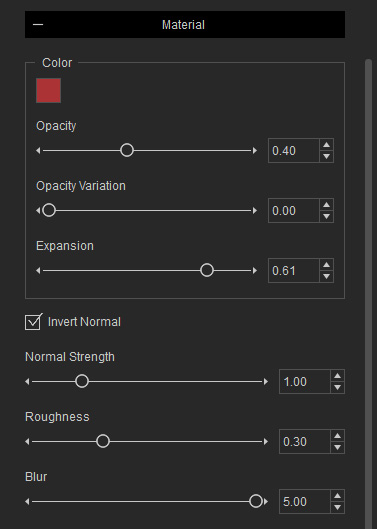
- Color:Color and Opacity
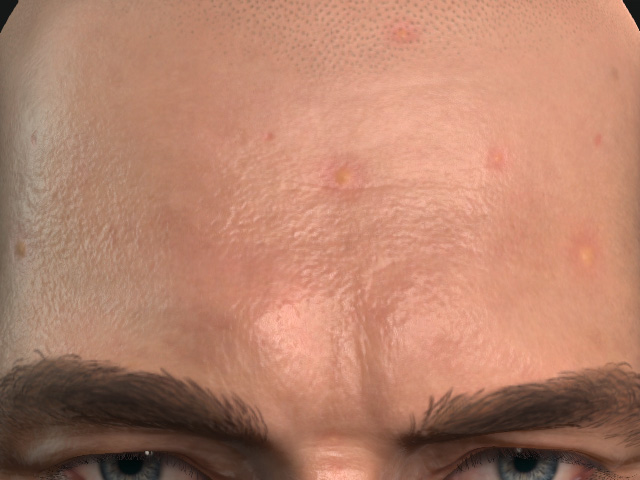
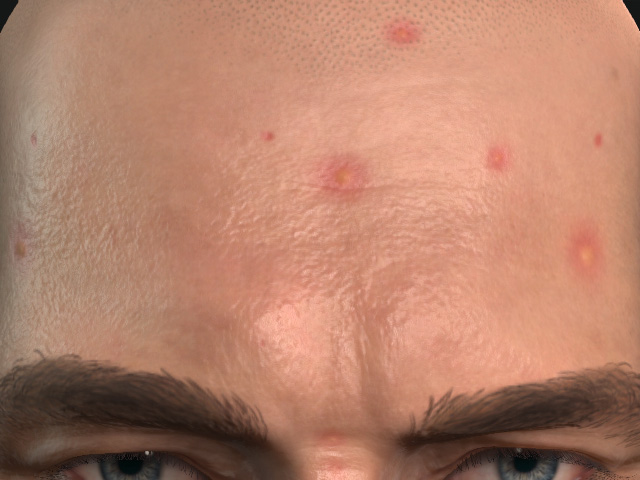
Color = #AB3335 (Dark red)
Opacity = 0.40
Color = #AB3335 (Dark red)
Opacity = 0.80
Opacity Variation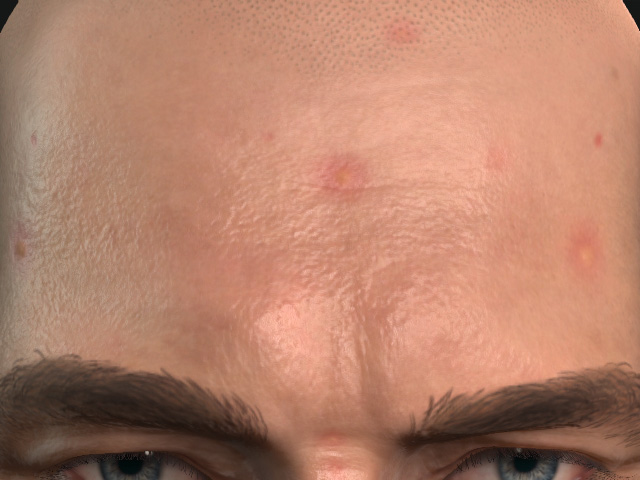
Opacity Variation = 0.00
Opacity Variation = 0.70
Expansion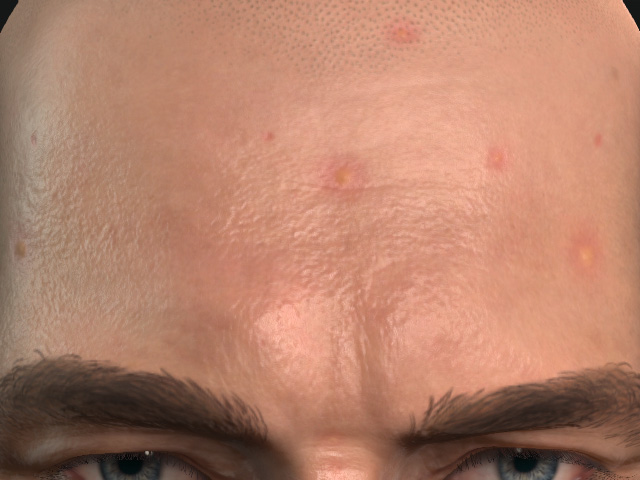
Expansion = 0.60
Expansion = 0.20
- Normal Strength: This setting protrudes or flattens the base layer of the acne patches.
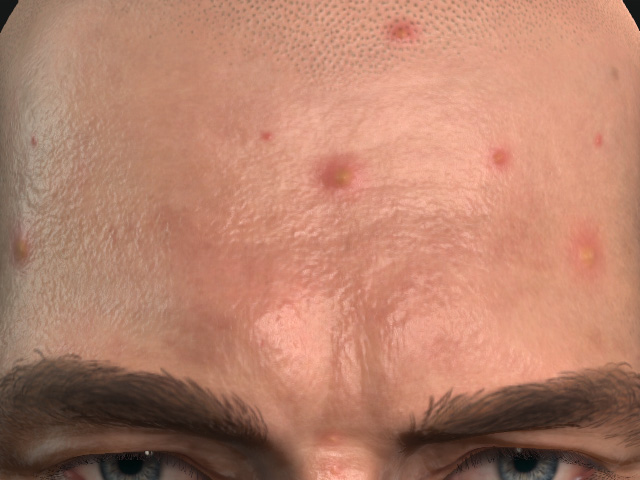
Normal Strength = 1.00
Normal Strength = 10.00
- Invert Normal: It pushes down the extrudes the base layer of each patch and vice versa.
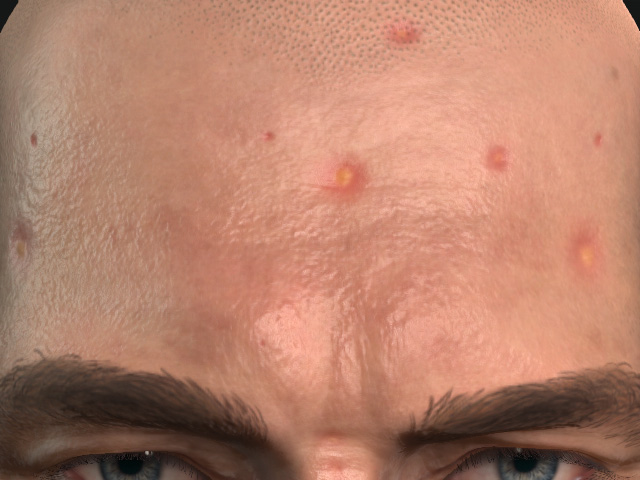
Invert Normal = Off
Invert Normal = On
- Roughness: This setting can make the acne patches less or more greasy.
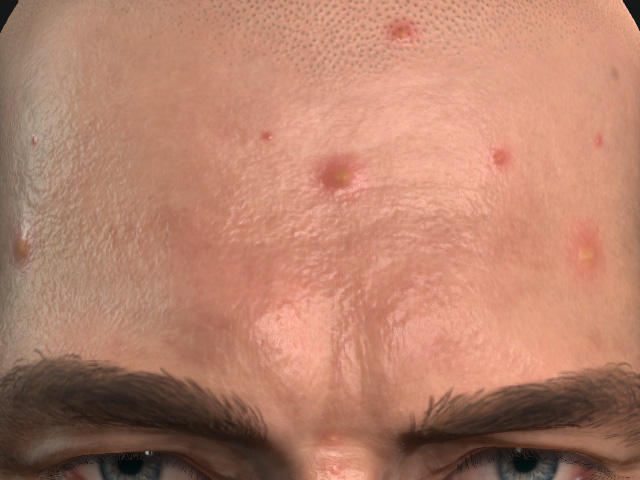
Roughness = 0.60
Roughness = 0.00
- Blur: This setting blurs the entire mask for the swelling layer.
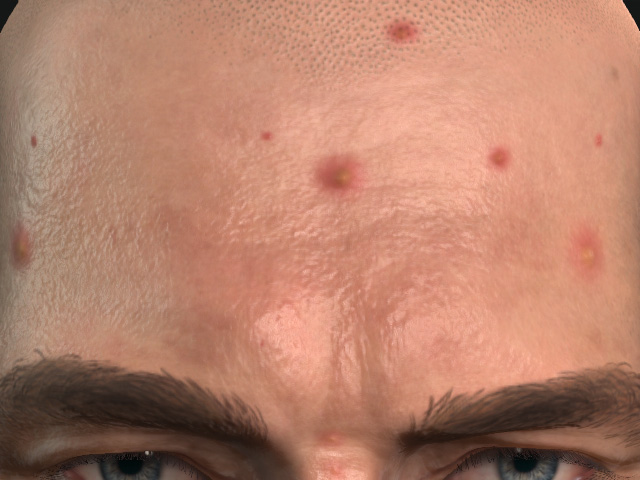
Blur = 5.00
Blur = 0.00
Whitehead
The settings in the Whitehead subsection can be used to adjust the top layer of the acne patches.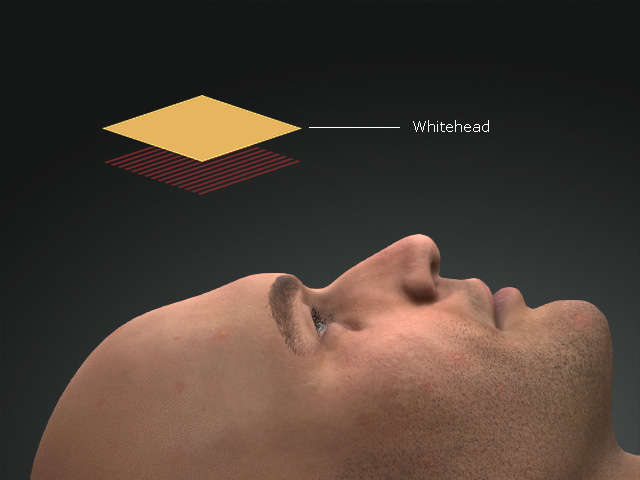
After being masked, the whitehead layer can be used as the pimple part over the swelling layer.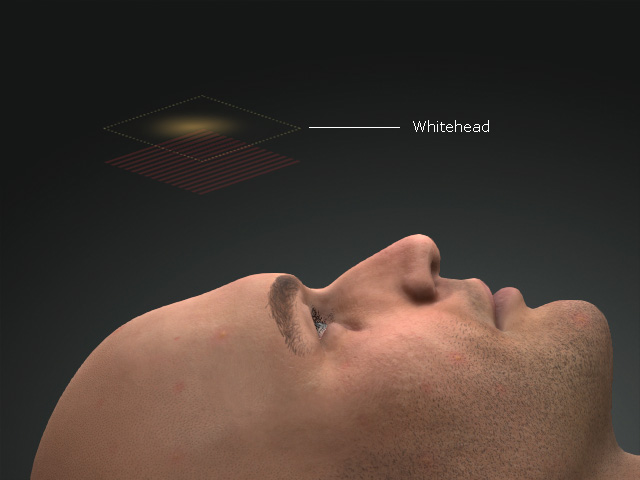
However, the subsections and settings are identical to the ones in the Swelling subsection. Refer to the previous section for more information about using the setting for the adjustments.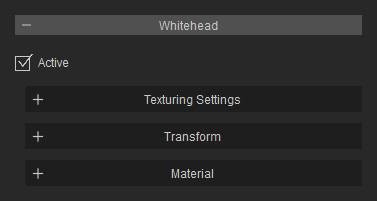
Transform
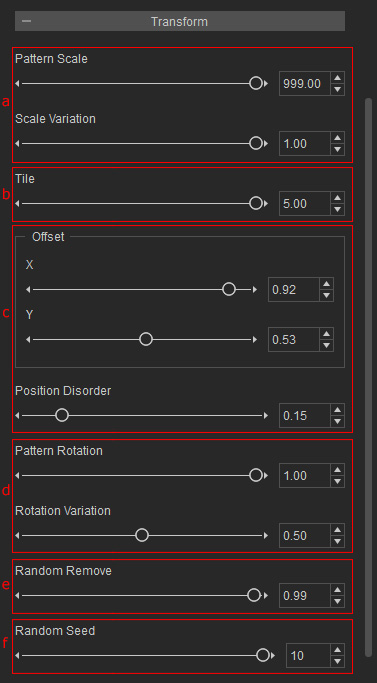
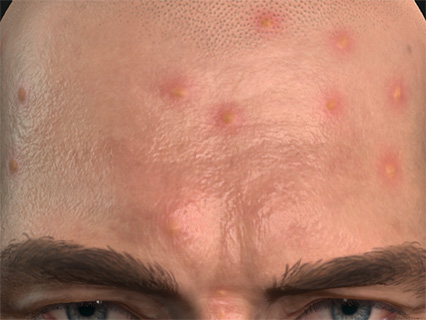
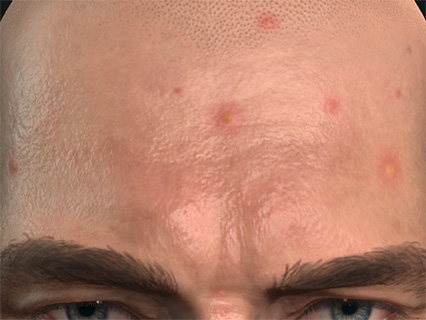
- Size: The Pattern Scale determines the united size for the acne patches while the Scale Variation randomly scales each acne.
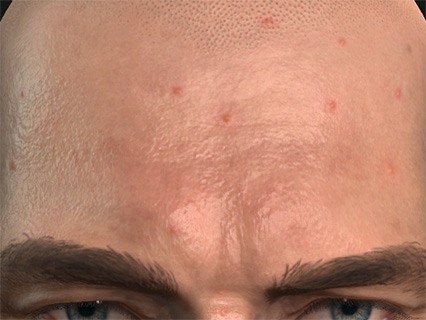
Pattern Scale = 300.00
Scale Variation = 0.00
Pattern Scale = 999.00
Scale Variation = 1.00
- Tile: The repeating times for adding acne patches. This also influences the size of the acne.
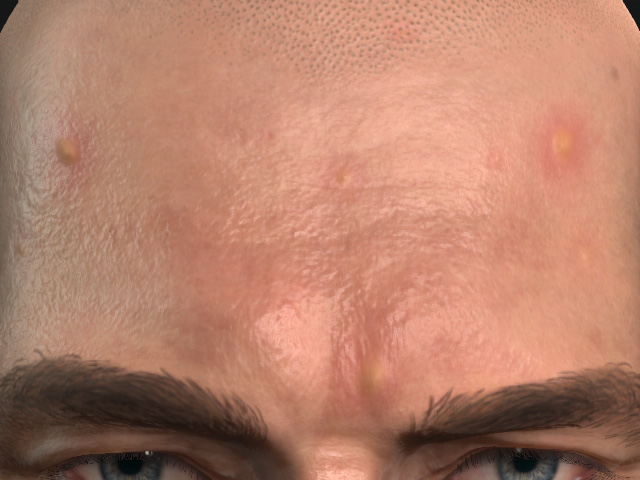
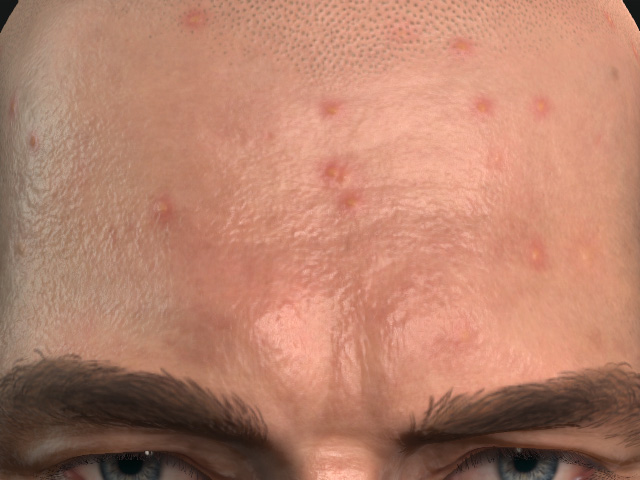
Tile = 1.00
Tile = 3.00
- Offset and Position Disorder: You can use the X, Y values to locate each acne and randomly move them with the Position Disorder value.
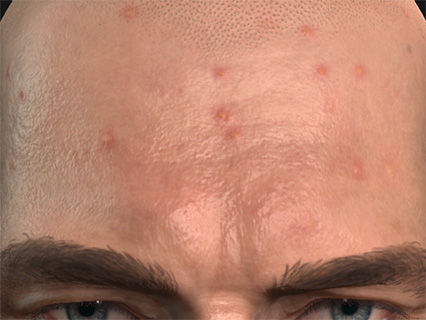
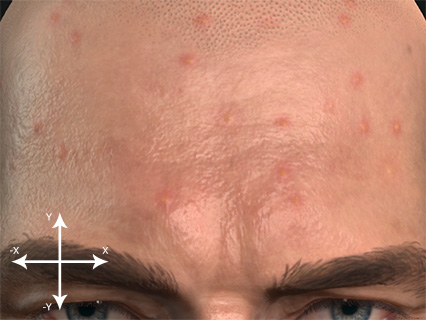
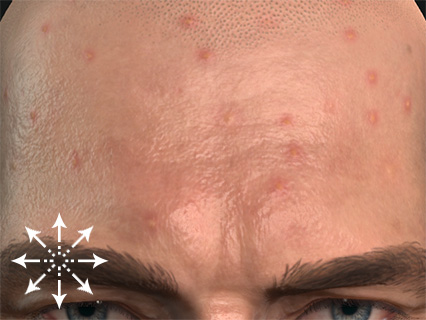
X, Y = 0.92, 0.53
Position Disorder = 0.00
X, Y = 1.00, 0.45
Position Disorder = 1.00
- Orientation: The Pattern Rotation rotates the acne patches in the same direction, clockwise or counterclockwise, while the Rotation Variation rotates the individual patches in random direction.
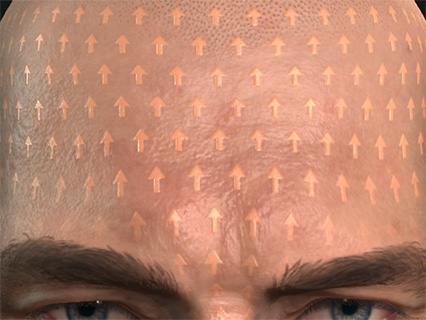
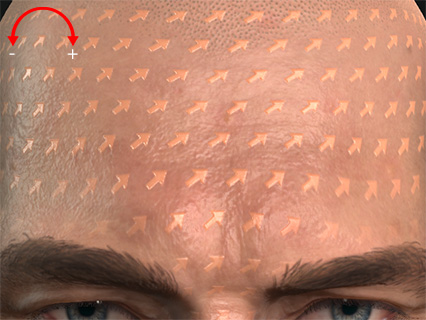
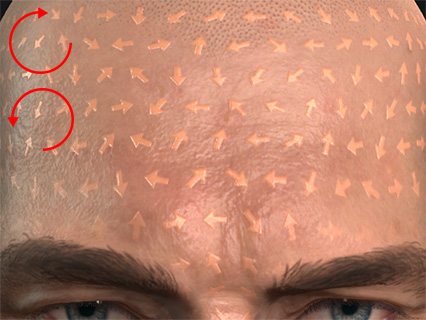
Pattern Rotation = 0.00
Rotation Variation = 0.00
Pattern Rotation = 0.15
Rotation Variation = 0.50
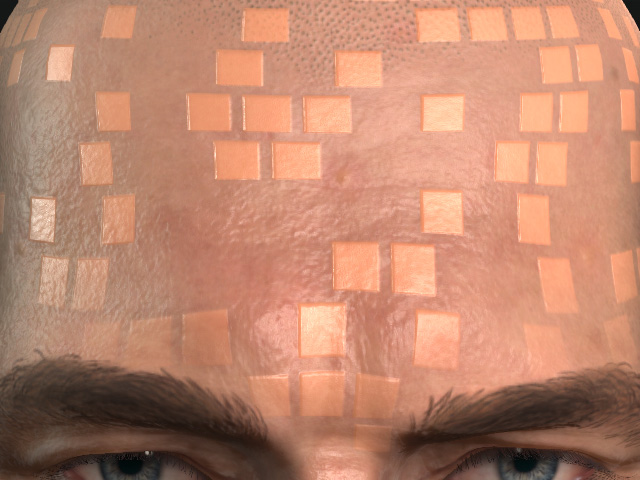
- Random Remove: By default, the acne patches cover the entire model one by one, however, with this setting, you can remove them to prevent from too much graininess.
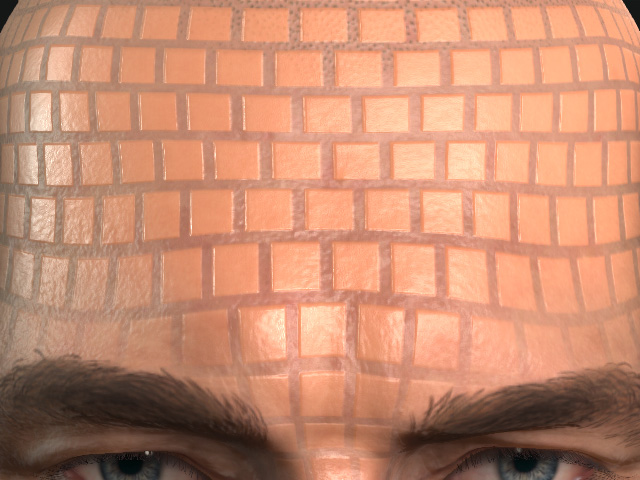
Random Remove = 0.00
Random Remove = 0.50
- Random Seed: This setting randomly show and hide the acne patches that covers the model. Remember that the Random Remove must be greater than 0.00 and this setting takes effect.
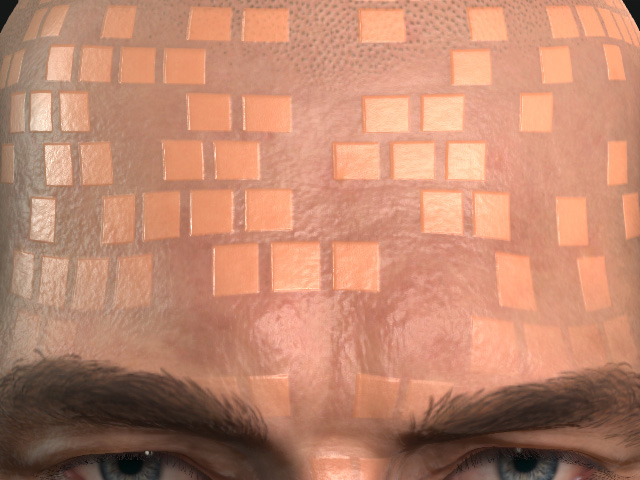
Random Seed = 0
Random Seed = 5
Mask
For the entire acne effect, you can still use one more mask to cutoff the final result with the settings in the Mask section.
- Texturing Settings:
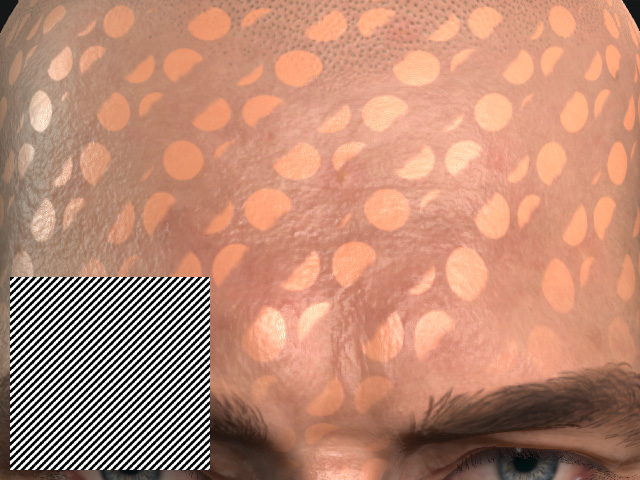
This texture is used to cut off the unnecessary part of the entire acne effect on the entire skin.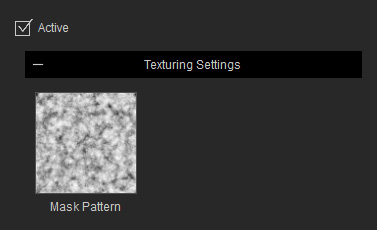
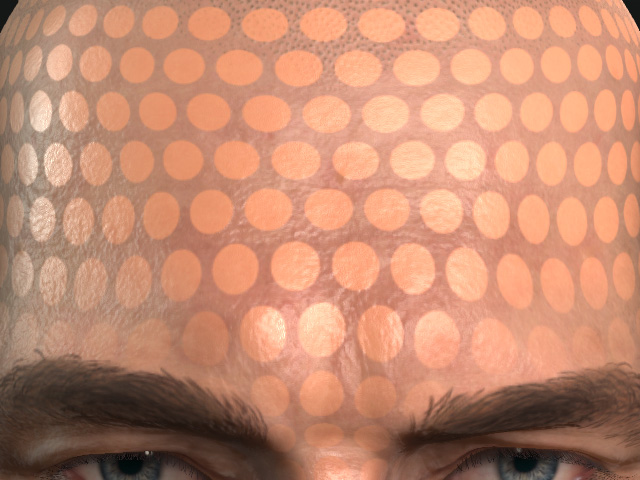
Mask Pattern = No Texture
Mask Pattern = Custom Texture
- Transform:
You can use the transform settings to adjust the size, position and the orientation of the mask.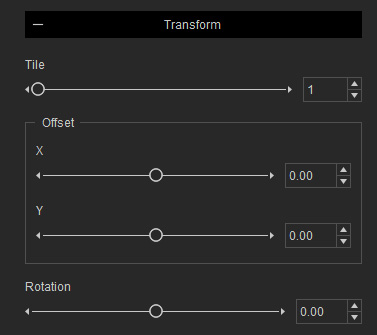
- Tile: This setting can be used to determine the repeating time of the mask.
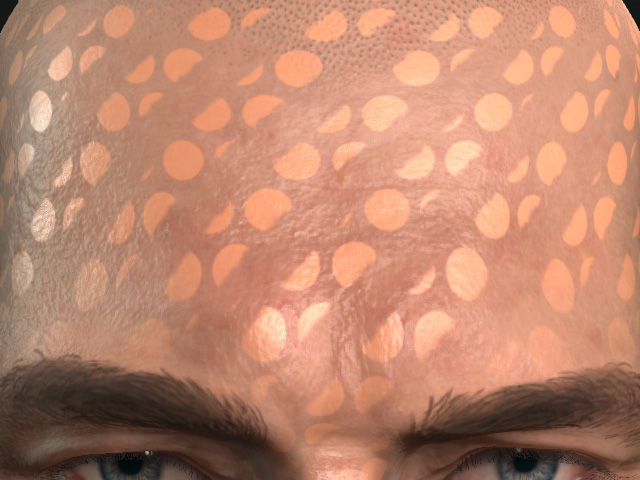
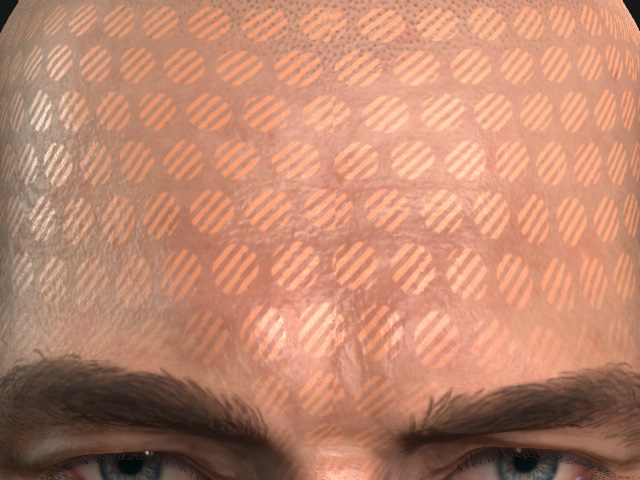
Tile = 1
Tile = 4
- Offset: You can re-locate the mask with the X, Y values.
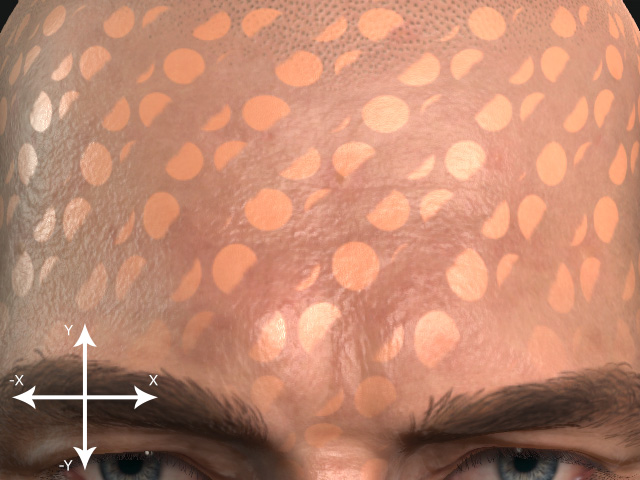
X, Y = 0.00, 0.00
X, Y = 0.50, 0.00
- Rotation: This setting can be used to rotate the mask.
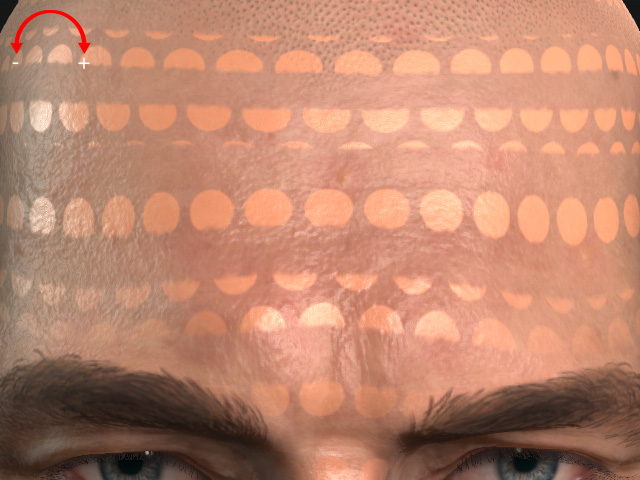
Rotation = 1
Rotation = 0.13
- Tile: This setting can be used to determine the repeating time of the mask.
- Material:
In this section, the settings are used to adjust the blurriness, expansion and contrast.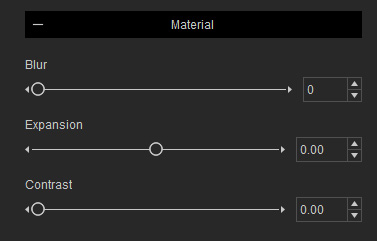
- Blur:
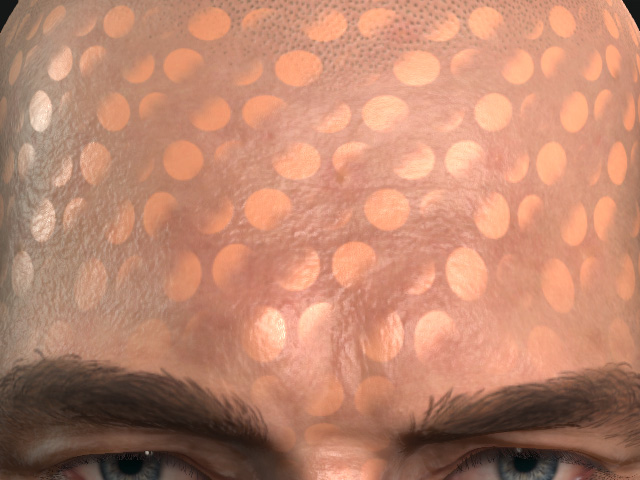
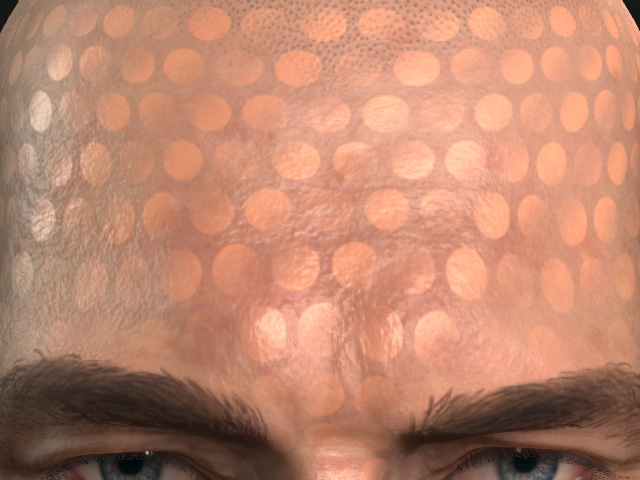
Blur = 0
Blur = 4
- Expansion: This settings can be used to expand the unmasked areas.
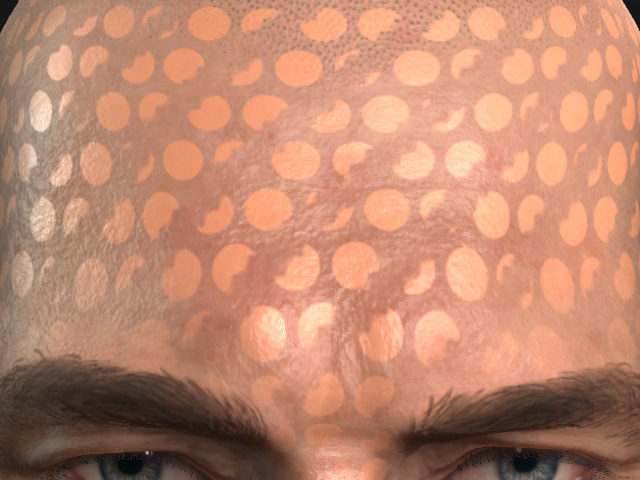
Expansion = 0.00
Expansion = 1.00
- Contrast: You can sharpen the edges of the mask with this setting.
Contrast = 0.00
Contrast = 1.00
- Blur:
