Settings in Appearance Editor - Facial and Body Wrinkles
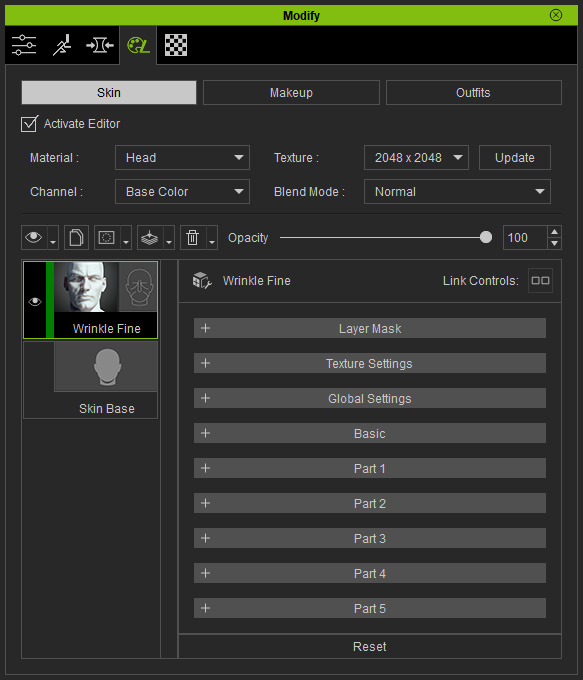
 Layer Mask
Contains the mask for the layer effect.
Refer to the Layer Mask section for more information.
 Global Settings
This section contains settings to adjust the strength and blurriness of the normal effect, also, the tint color over the wrinkles.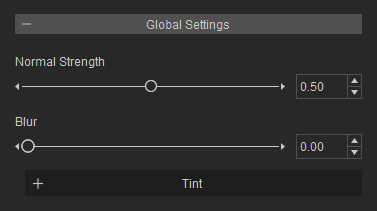
- Normal Strength: This slider sets the strength of the normal effect on the skin.
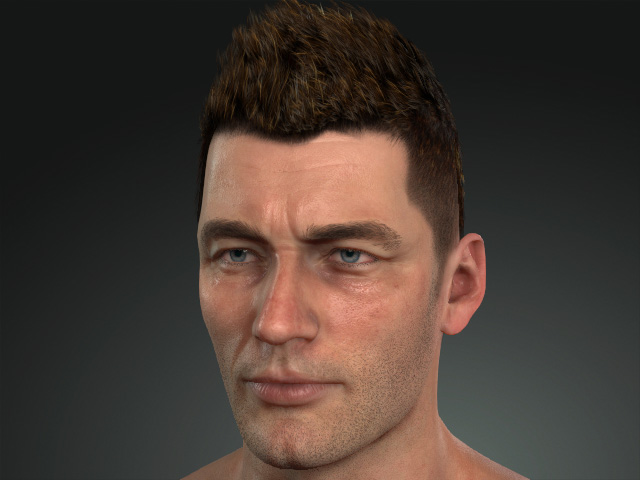
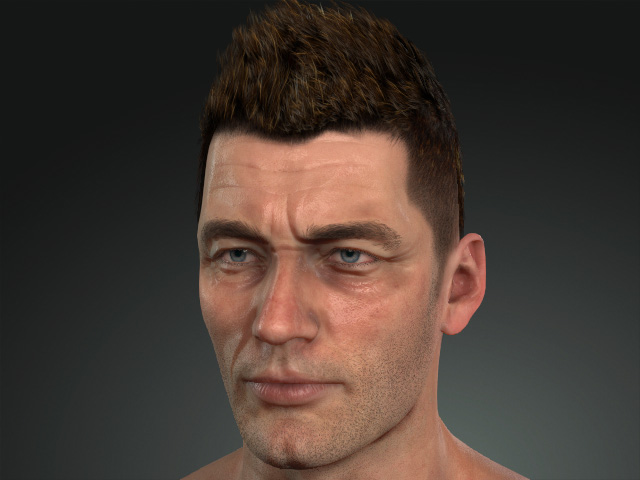
Normal Strength = 0.50
Normal Strength = 1.00
- Blur: This slider defines the blurriness of the normal effects to smooth the skin.
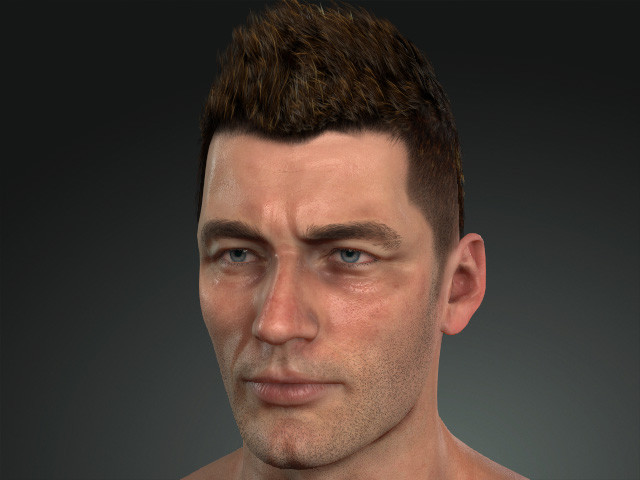
Blur = 0.00
Blur = 1.50
Tint (for Head Material Only)
Tint can be used to emphasize the lines of wrinkles or noise on the skin by blending the skin with desired color, and you can find the adjusting controls in the Tint sub-section.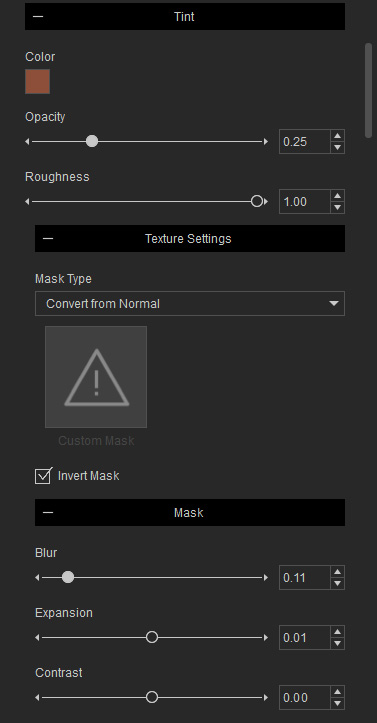
- Color: This swatch can be used to pick and blend a desired color onto the dented lines of the wrinkles.
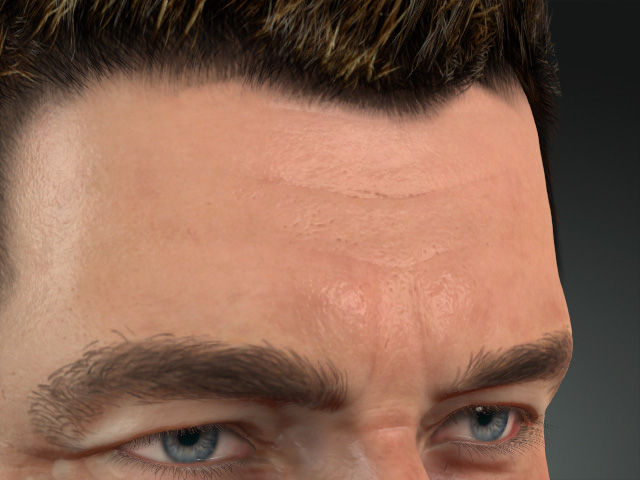
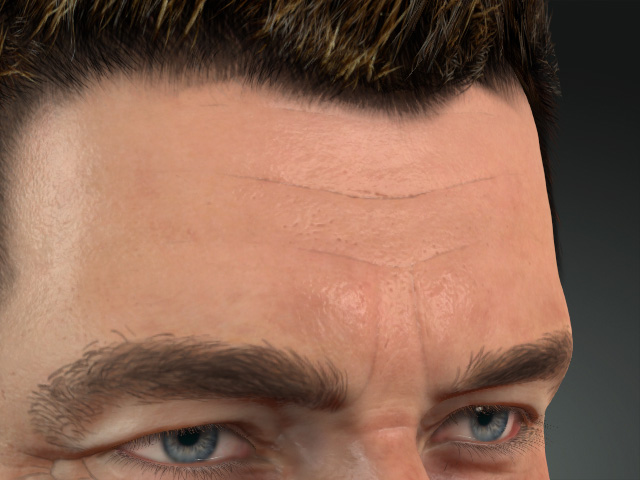
Color = #8d4f39 (default)
Color = #000000
- Opacity: This setting determines the opacity of the overlapping color.
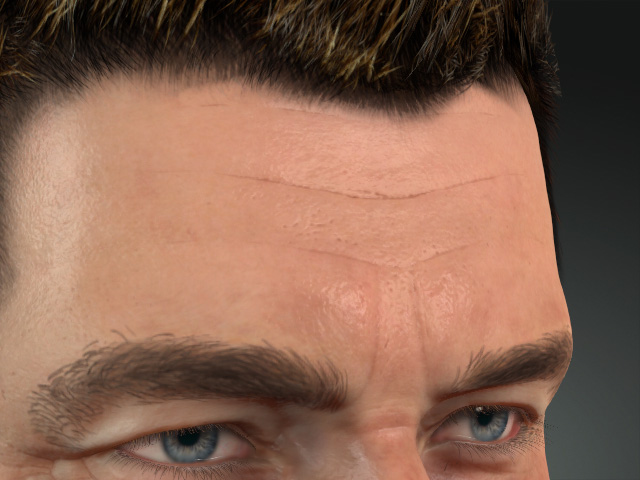
Opacity = 0.25 (default)
Opacity = 1.00
- Roughness: This setting defines the smoothness of the indented lines.
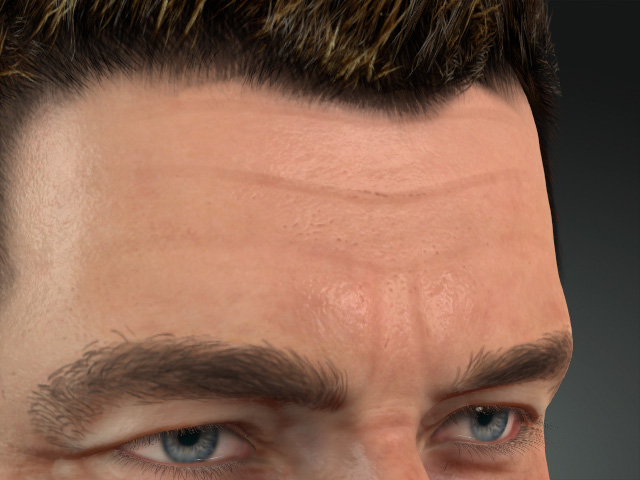
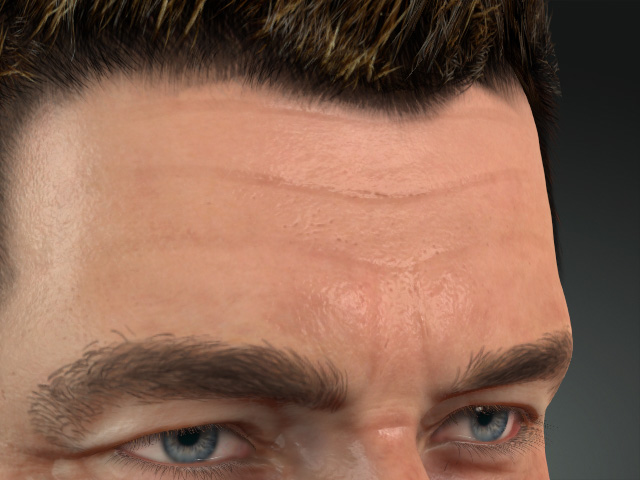
Roughness = 1.00
Roughness = 0.00
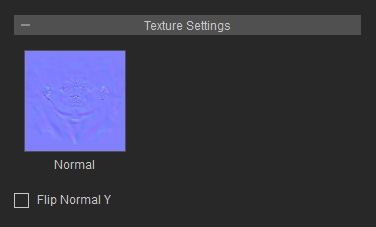
- Mask Type: The mask is used to define the regions for blending the Tint color. By default, this range is converted from the Normal texture in the Texture Settings subsection.
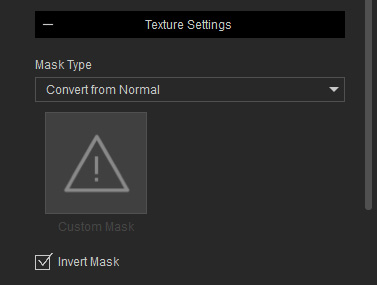
If you have purchased and installed SkinGen plugin, then you can load custom texture to define the mask.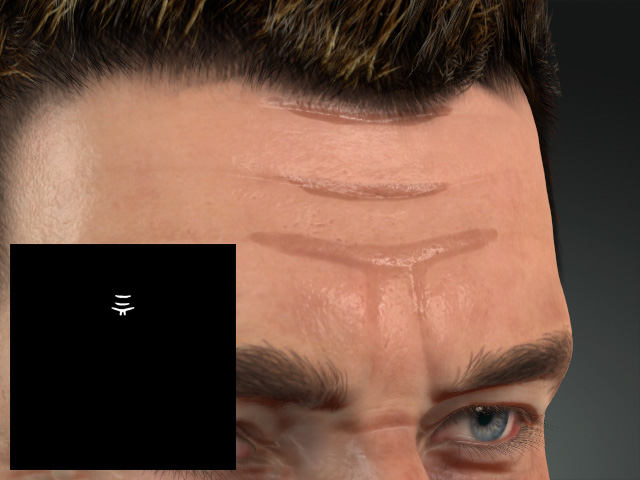
- Blur: This setting is used to blur the region mask.
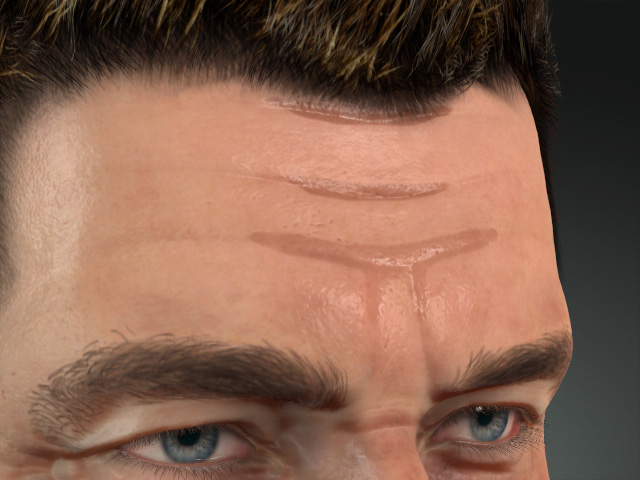
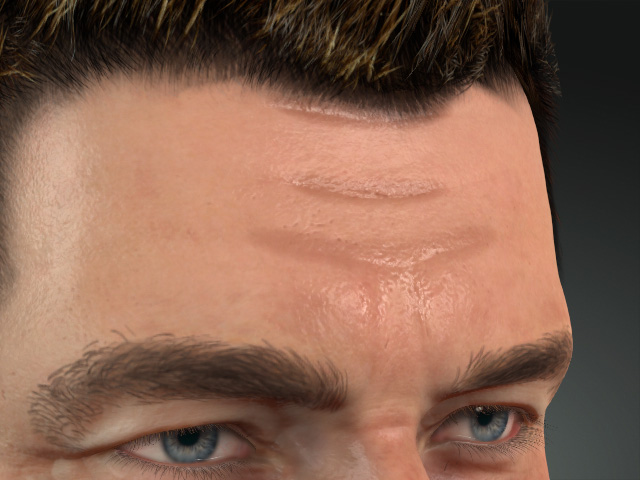
Blur = 0.00
Blur = 1.00
- Expansion: You can use this setting to shrink or expand the tint regions.
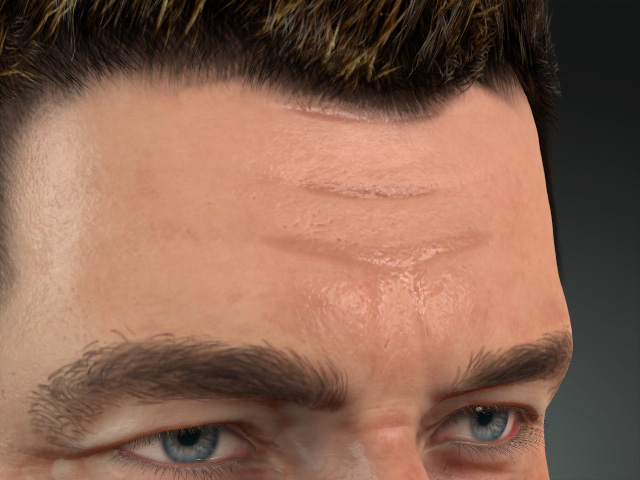
Expansion = 1.00
Expansion = 0.00
- Contrast: To adjust the contrast value of the tint region texture, use this slider to enhance or degrade it.
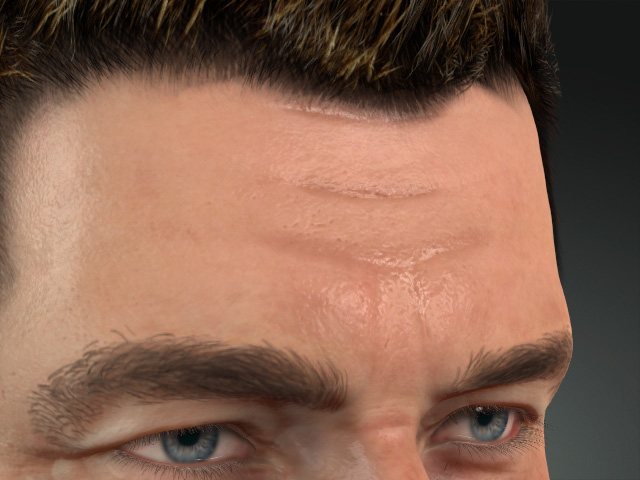
Contrast = 0.00
Contrast = -1.00
Basic
The Basic Settings section contains settings to reinforce the effects in the Global Settings section, such as the Normal Strength, Color Opacity and Roughness Opacity.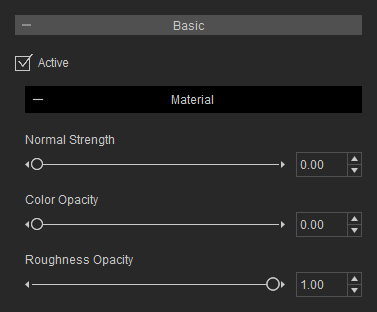
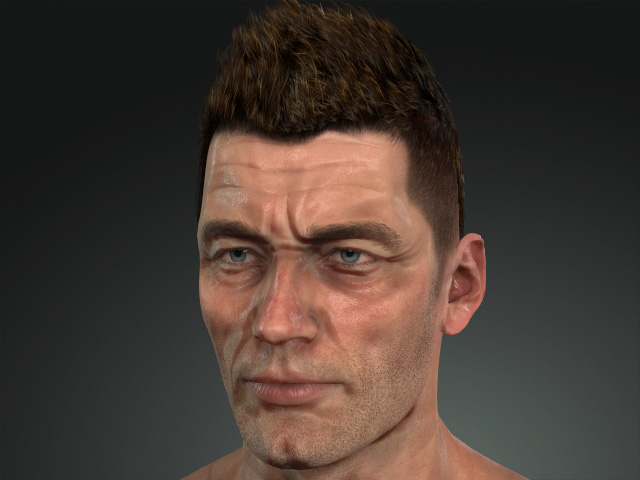
- Normal Strength: This slider enhances the strength of the normal effect on the skin.
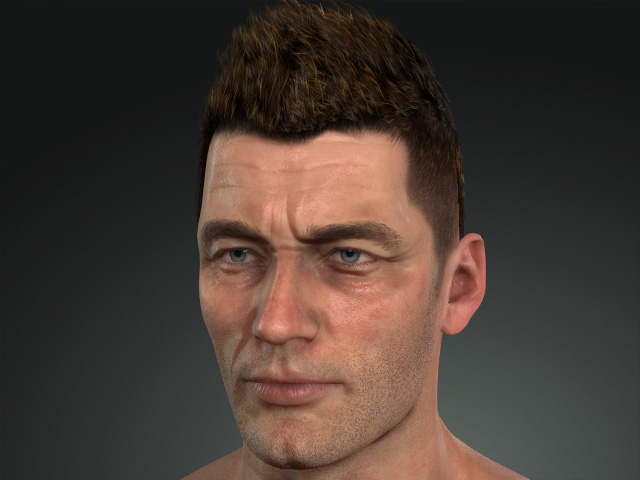
Global Settings > Normal Strength = 1.00
Basic > Normal Strength = 0.00
Global Settings > Normal Strength = 1.00
Basic > Normal Strength = 1.00
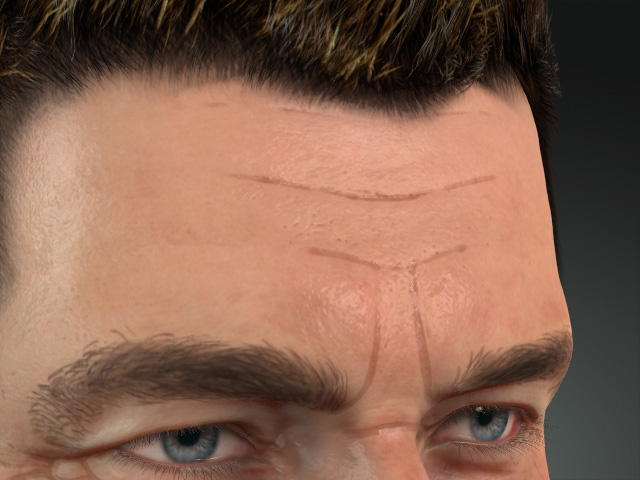
- Color Opacity: This setting determines the opacity of the overlapping color.
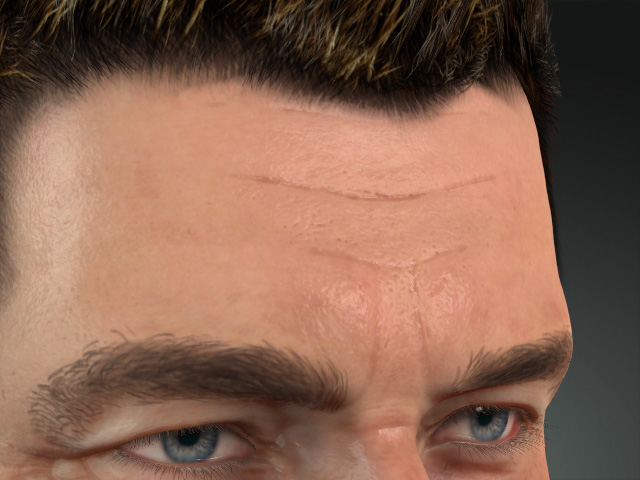
Color Opacity = 0.00
Color Opacity = 0.30
- Roughness Opacity: This setting defines the smoothness of the indented lines.
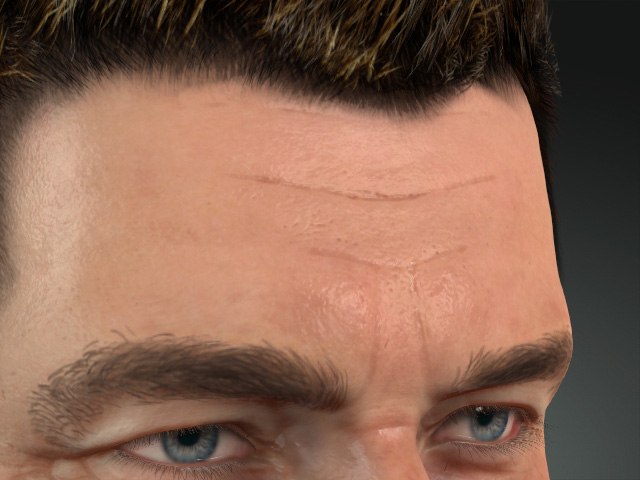
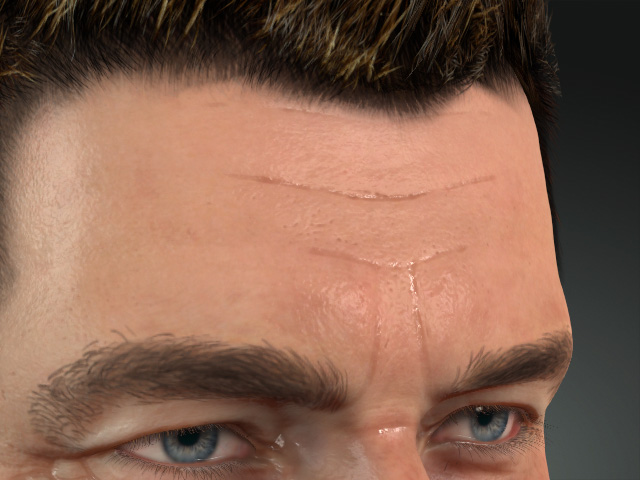
Roughness Opacity = 0.00
Roughness Opacity = 0.50
Part 1 to 5
These Part Sections can be used to modify the normal effect in different regions. They contain settings to adjust different regions on the mesh by means of individual mask textures.
Part Sections in Different Materials
The part sections, though with almost same settings, are named variously in different materials.
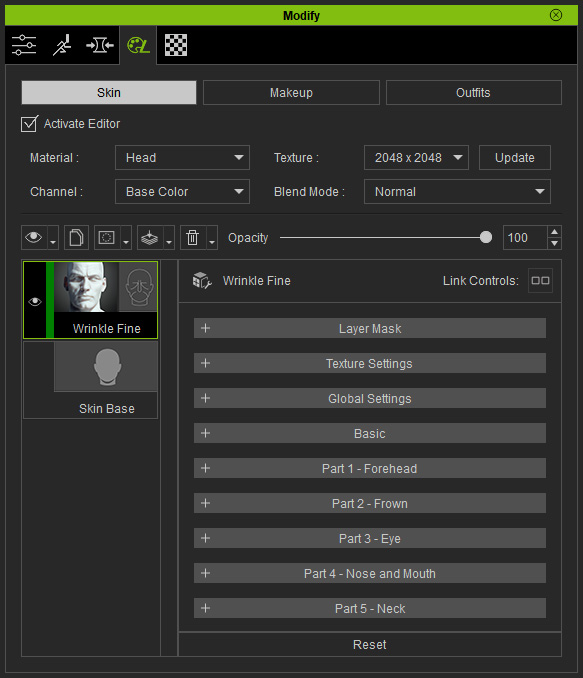
- Head: The Part Sections in the Head material are Part 1 - Forehead, Part 2 - Eye, Part 3 - Nose and Mouth, Part 4 - Ear and Part 5 - Neck.
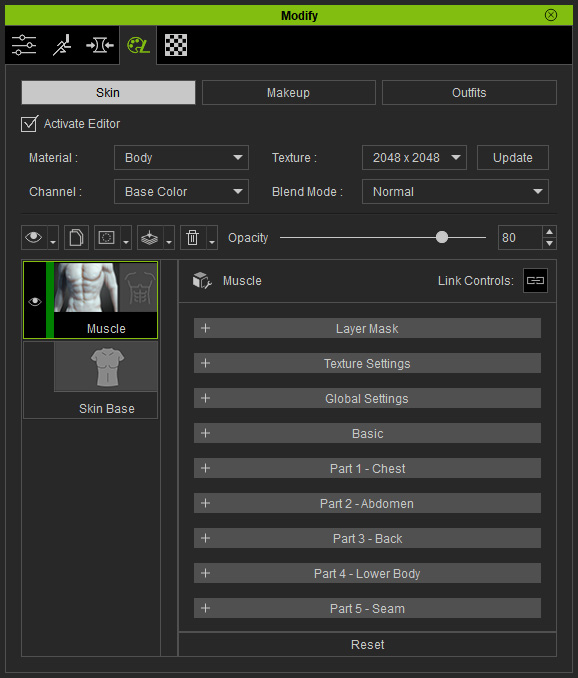
- Body: The Part Sections in the Body material are Part 1 - Chest, Part 2 - Abdomen, Part 3 - Back, Part 4 - Lower Body and Part 5 - Seam.
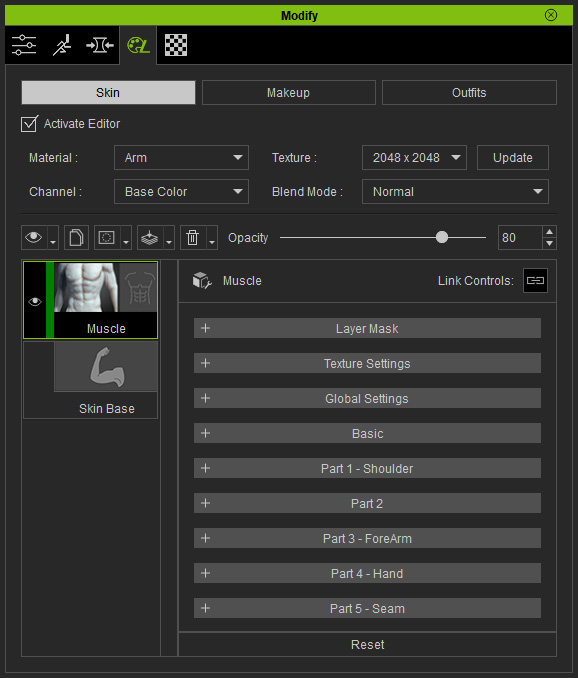
- Arm: The Part Sections in the Arm material are Part 1 - Shoulder, Part 2, Part 3 - ForeArm, Part 4 - Hand and Part 5 - Seam.
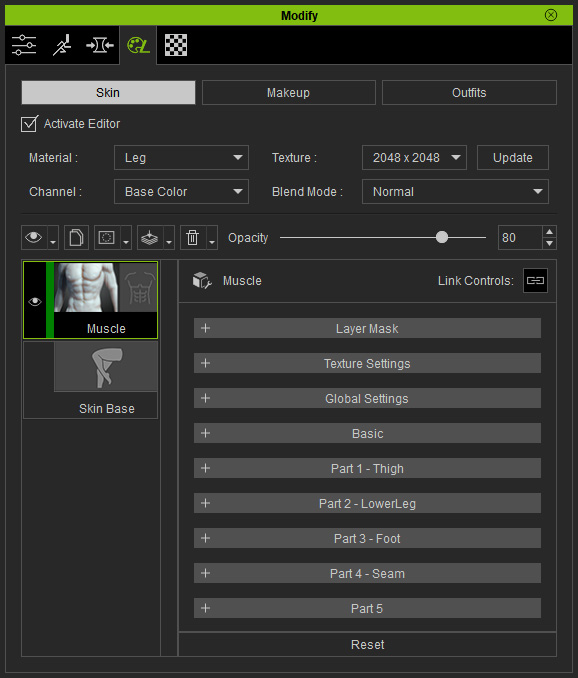
- Leg: The Part Sections in the Leg material are Part 1 - Thigh, Part 2 - LowerLeg, Part 3 - Foot, Part 4 - Seam and Part 5.
Settings in Part Sections
Each Part section contains three sub-sections: Texture Settings, Material and Range. You can activate or deactivate the settings by check up or off the Active checkbox. In this section, the Part 1 - Forehead is taken as an example.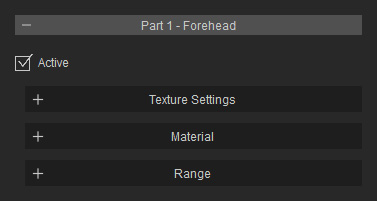
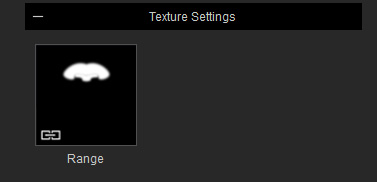
- Texture Settings: This sections contains a mask channel, Range, to define the region that the settings in this section affect.
- Material: These settings can be used to adjust the lines within the range.
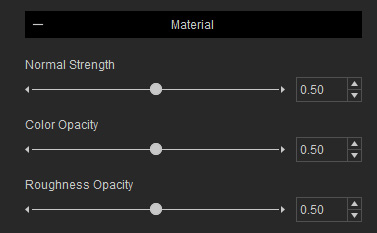
- Normal Strength
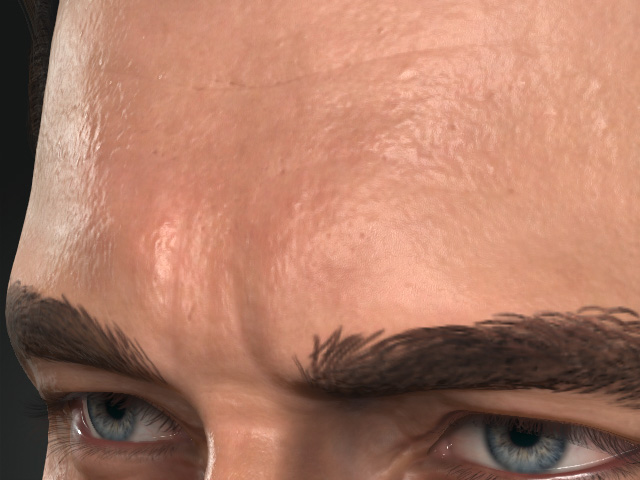
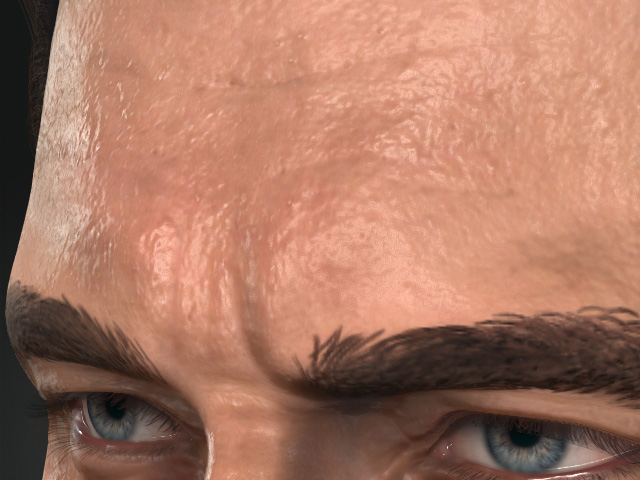
Normal Strength = 0.50 (default)
Normal Strength = 0.80
- Color Opacity: This setting changes the color's opacity value for blending.
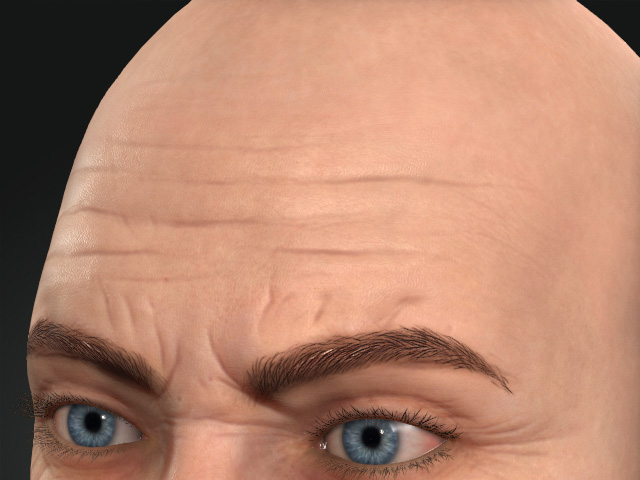
Color Opacity = 0.50 (default)
Color Opacity = 1.00
- Roughness Opacity: You can use this setting to increase the smoothness of the indented lines.
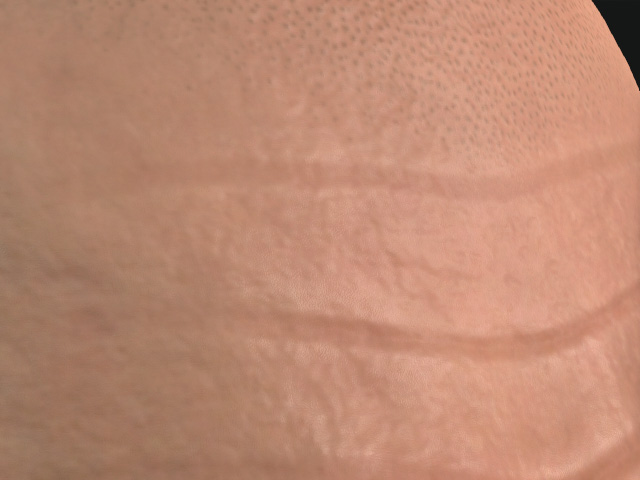
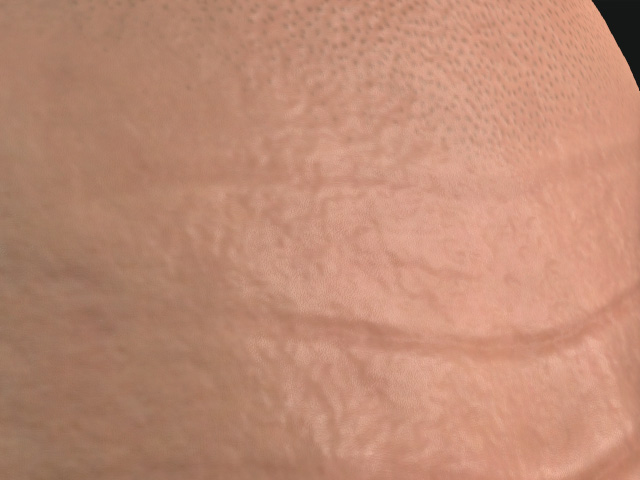
Roughness Opacity = 1.00
Roughness Opacity = 0.00
- Normal Strength
- Range: The settings in this sub-section are used to adjust the Range mask aforementioned in previous section.
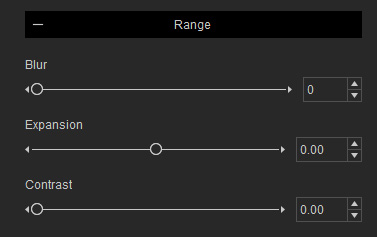
- Blur: The edges of the mask becomes more blurry with this setting.
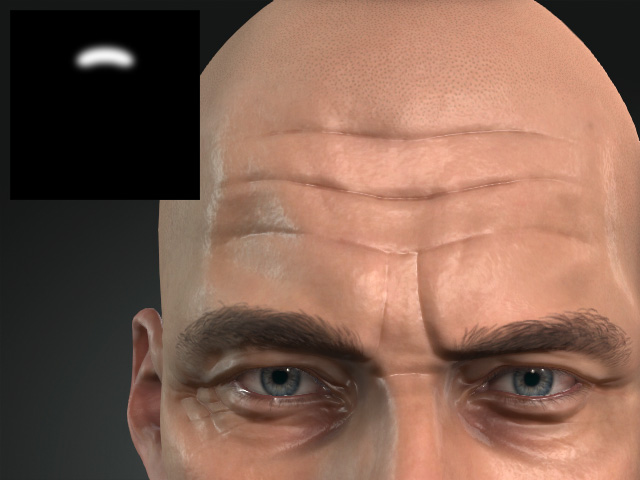
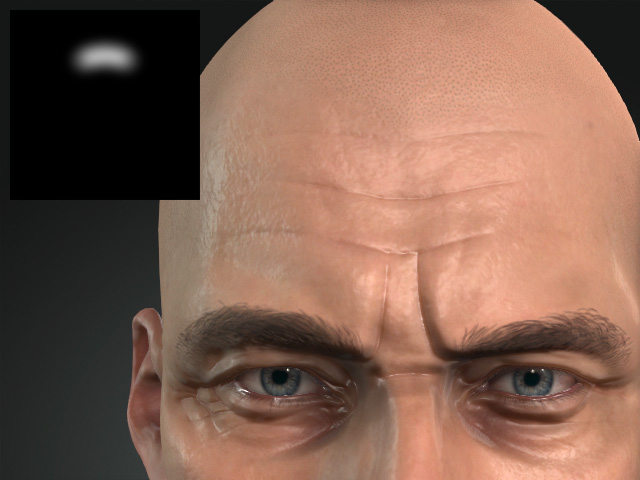
Blur = 0
Blur = 2
- Expansion: Increase or decrease the size of the masked region.
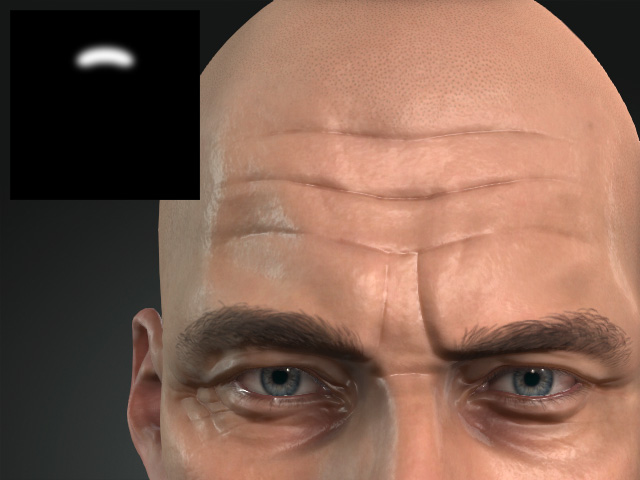
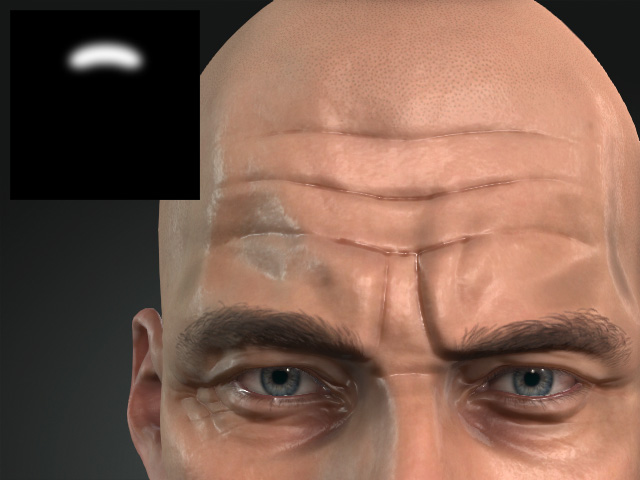
Expansion = -1.00
Expansion = 1.00
- Contrast: Adjust this setting to sharpen the edges of the masked regions.
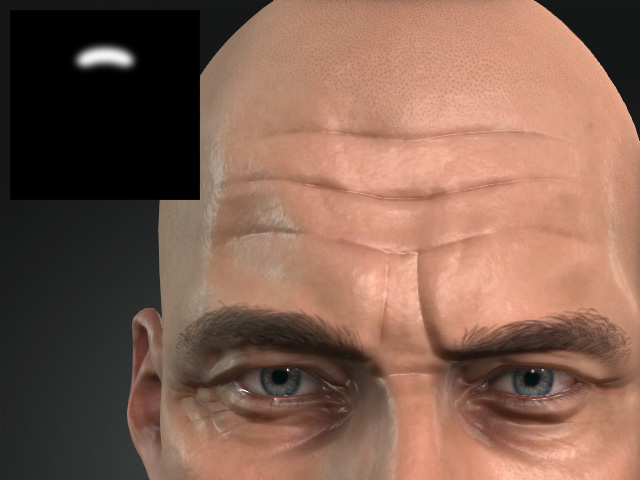
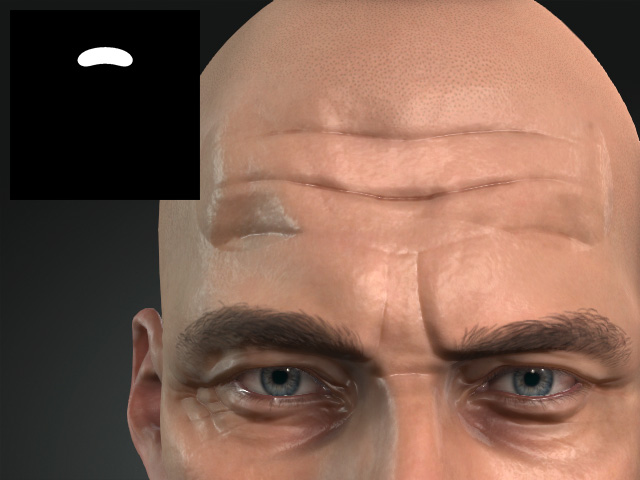
Contrast = 0.00
Contrast = 1.00
- Blur: The edges of the mask becomes more blurry with this setting.
