Adding Decal to Cloth
Character Creator provides Decal feature in the Texture tab of Modify panel. You may then use this feature to add tattoo, scars or any special patterns or prints onto the surface of the skin. The advantage is that you are able to scale, rotate or move the decal to any place on the body without the need to edit the original texture image of the body.
 Note:
Note:
Please note that you must have purchased Essential Clothing & Fabric and Professional Outfits content packs in order to have the input channel for loading custom images.
-
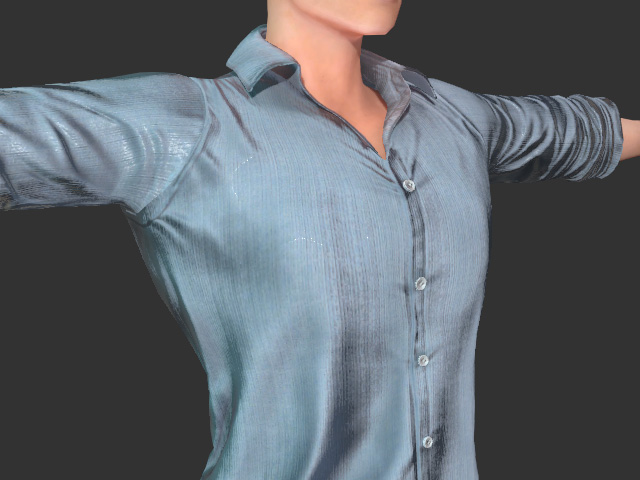
Create a new project and dress the character.
-
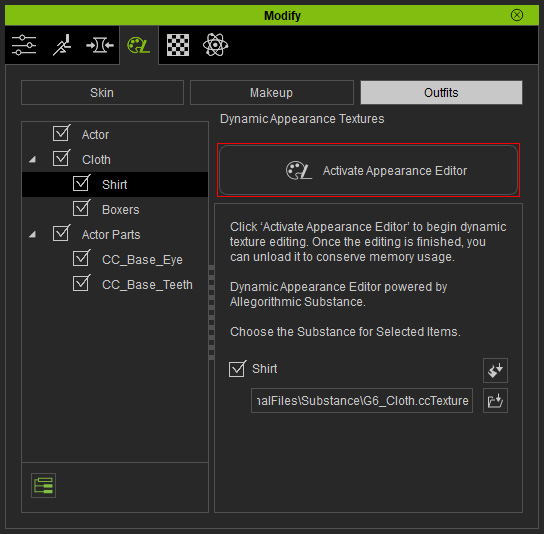
Switch the Modify panel to Appearance tab, click the Outfits button and choose the target cloth (in this case, Shirt) from the tree view.
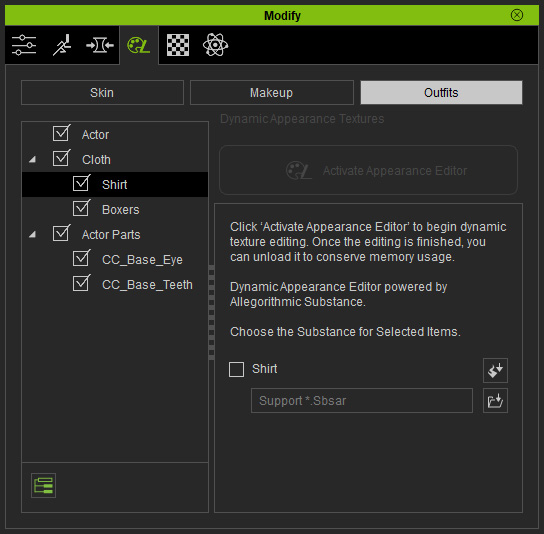
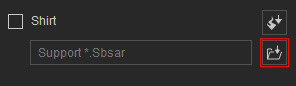
- If the Substance Material field is empty, then click the Load Substance Material button.
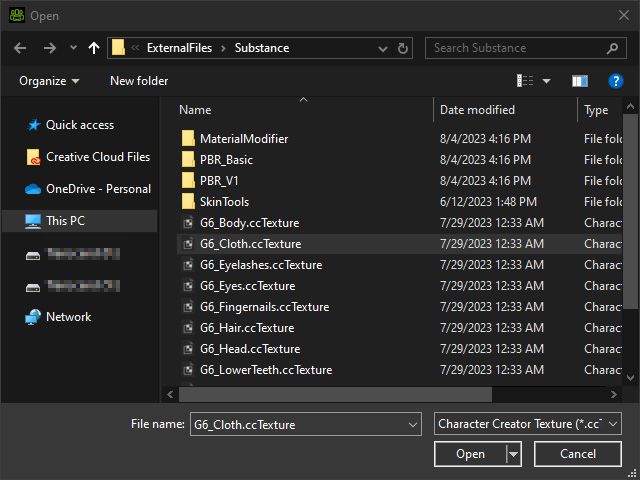
- Choose the G6_Cloth.ccTexture and click the Open button. The default path is C:\Program Files\Reallusion\Character Creator 4\Program\Assets\ExternalFiles\Substance.
- Click the Activate Appearance Editor button.
-
Browse to Cloth >> Shirt >>
Decal.
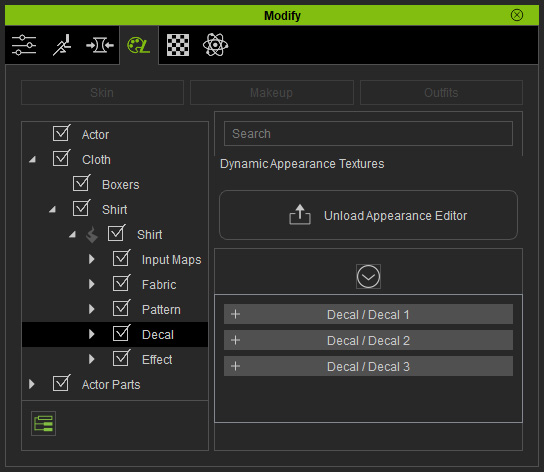
You will see three Decal sections listed in the right pane of this panel. - Open one of the sections (in this case, the Decal 1).
-
Select an item from the Type drop-down list.
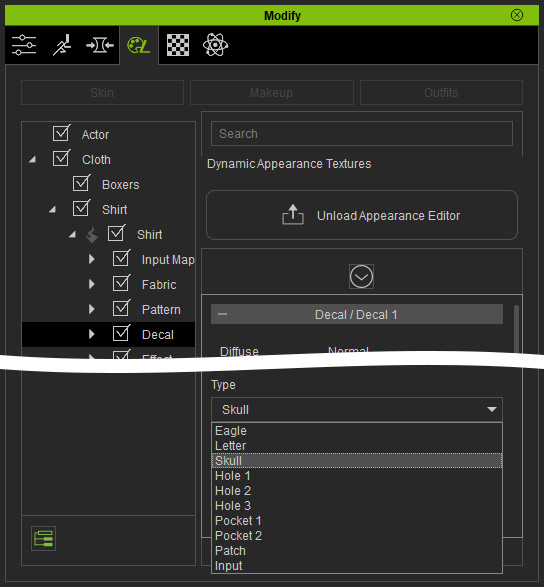
-
The character's cloth will be mapped with the default decal.
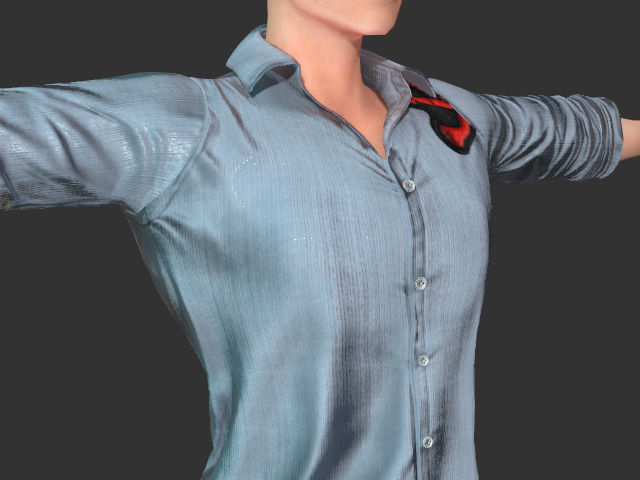
-
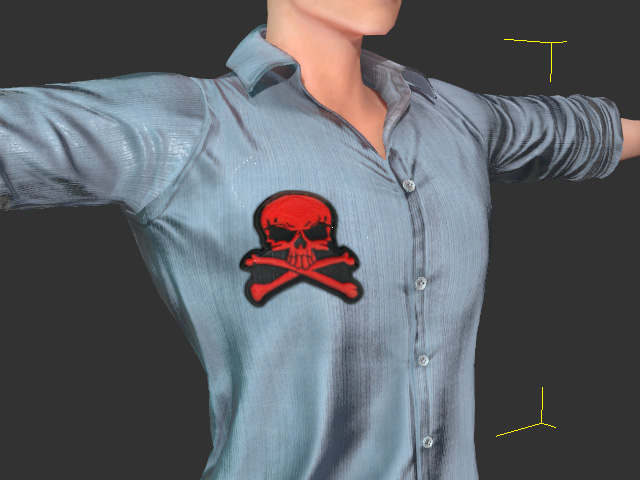
Adjust the position and size of the decal to an ideal position by changing the Translate X, Y
and W&H, W values.
-
Use the Normal value to determine if you want the decal to be a printed image on the cloth or a
patch with its texture.
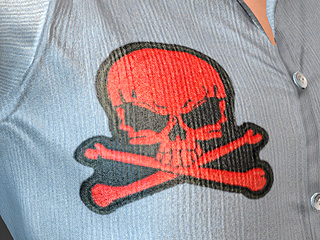
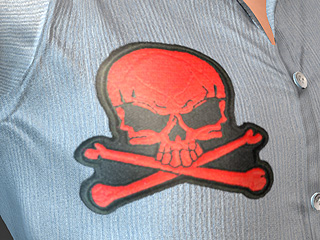
Normal = 0.00
Use the normal texture of the cloth for the decal to make it an imprint.Normal = 1.00
Use the normal texture of the decal to make it a stitched or pasted patch. -
Increase the Normal Strength to make the decal bumpy.
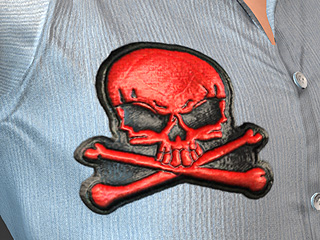
Normal Strength = 0.00
The patch is flat.Normal Strength = 1.00
The patch is bumpy.
