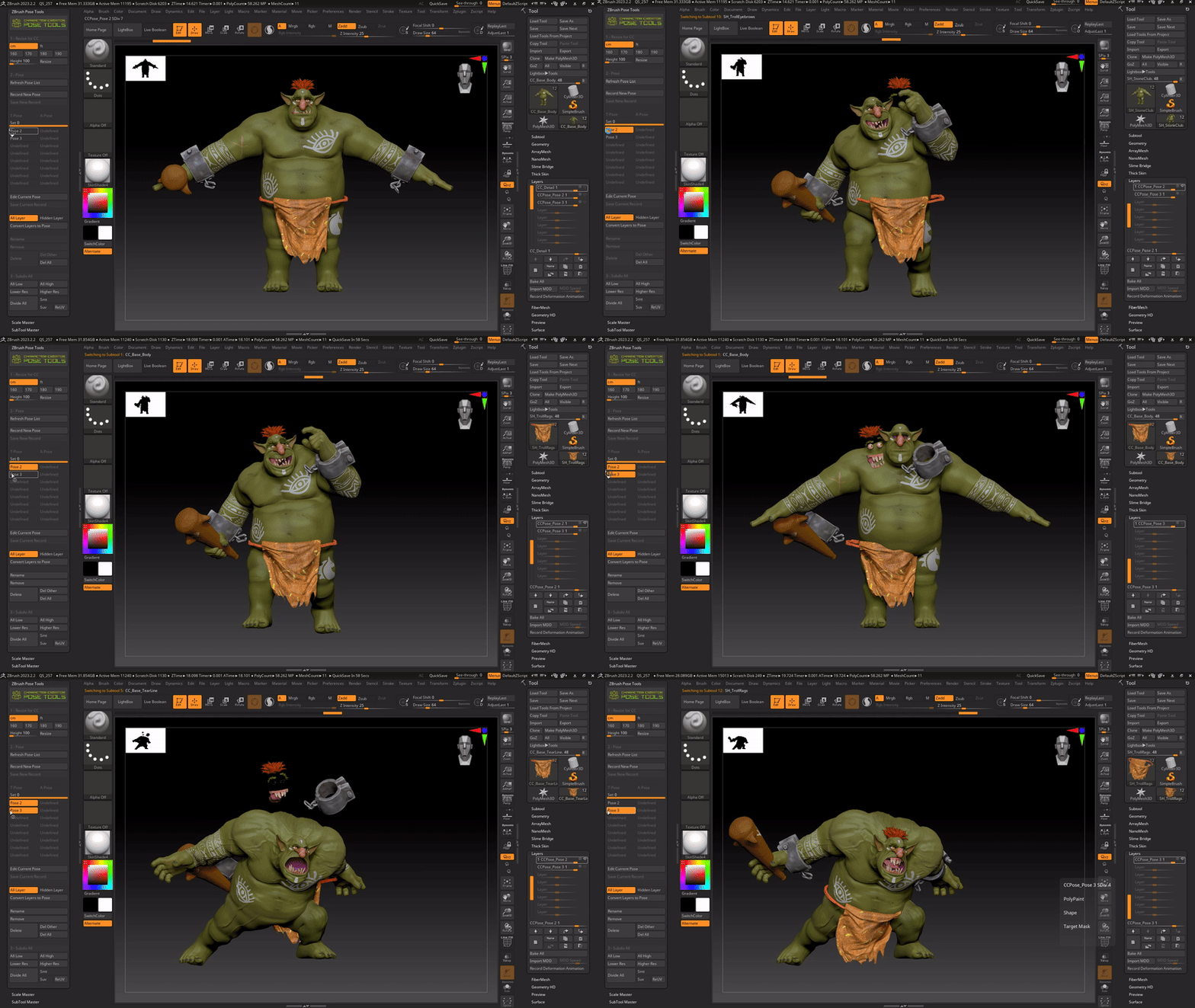
Managing poses transferred to ZBrush with Pose Tools
Instead of sending a model in T-pose or A-pose to ZBrush for further sculpting, you can apply a custom pose; then, rely on the ZBrush Pose Tools plugin to easily store and organize the various poses.
Sending a custom pose to ZBrush
-
Create or load a character in Character Creator (CC).
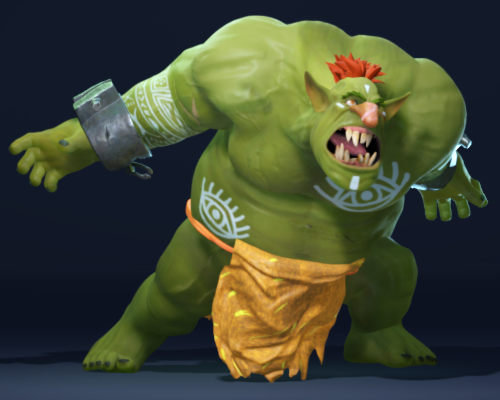
- Apply a pose and facial expression to the character with a template from the Content Manager or by using the Edit Pose panel (N).
 Note:
Note:With GoZ Plus, the character’s facial expressions can also be sent along with the body poses.
- Select the character along with its accessories listed on the Scene Manager and click the GoZ Plus
 button in the toolbar.
Alternatively, access File > Export > GoZ > Character.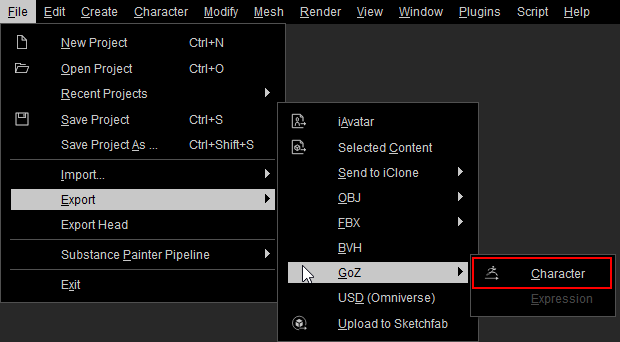
- In the GoZ Settings modal window, choose the Current Pose option and click the GoZ button to send the character with a custom pose to ZBrush.
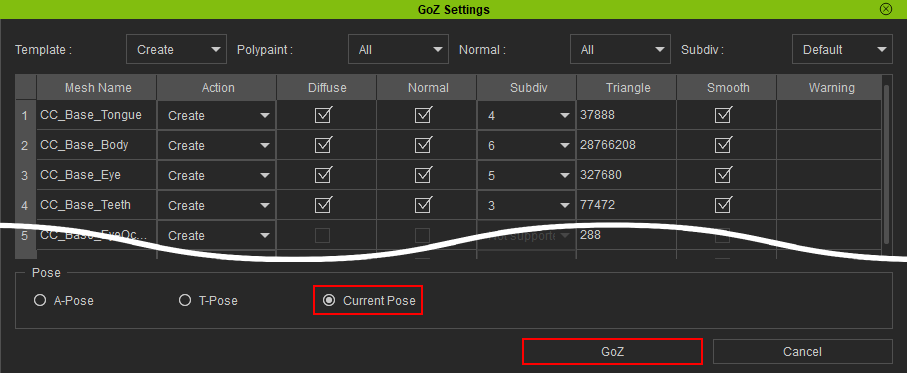
Refer to the GoZ Setting User Interface Introduction section for more information. - Sculpt the model in ZBrush for further editing.
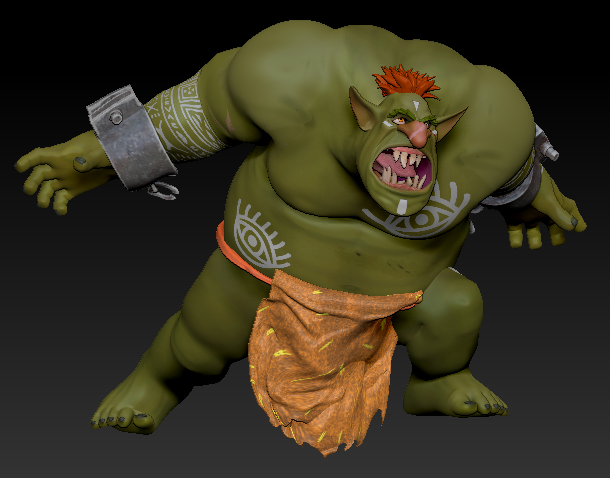
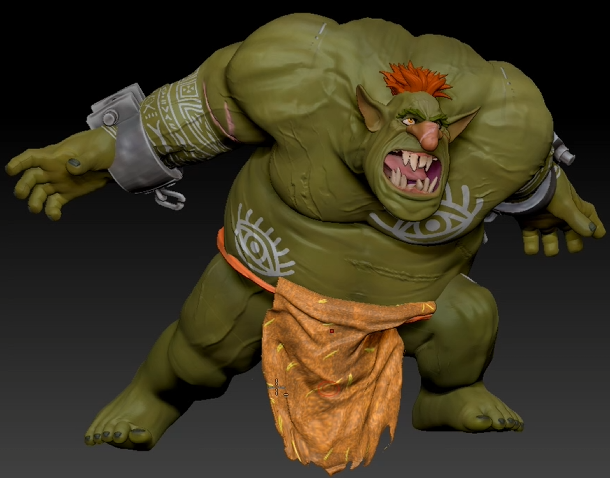
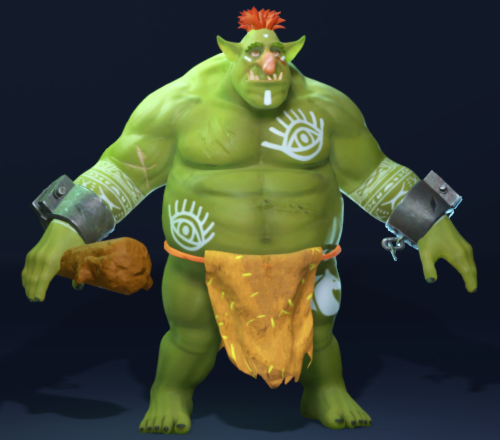
A character without additional sculpted details.
Adding new sculpted details enhances the visual quality of the character.
- To send additional poses to ZBrush, simply select another pose you want in CC and apply it to the model.
- Select the character and accessories and click the GoZ Plus icon in the toolbar.
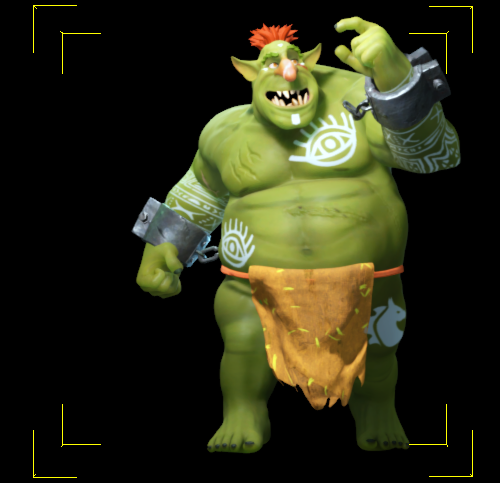
- In the GoZ Settings modal panel, the Template should switch to the Relink option automatically. In the Update Settings option, make sure to enable the Relink Mesh Changes in New Layer option. This will create a new layer for all your linked subtools in ZBrush to record the new pose.
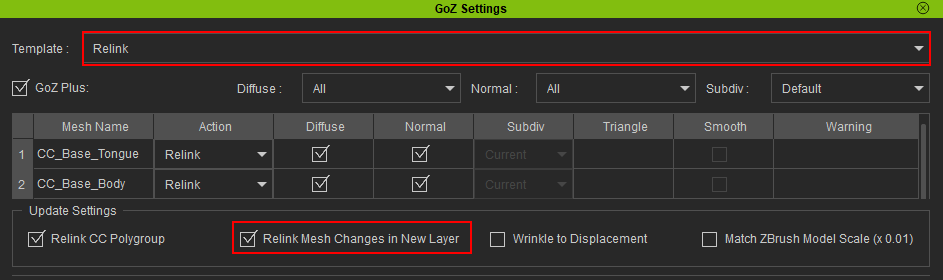
- Keep the rest of the settings as default and click the GoZ button to send the model with a custom pose to ZBrush.

The model now has a new pose recorded within a new layer..png)
Note:When you send a model to ZBrush from CC, only the latest pose position is saved. Keeping the pose consistent in both software allows you to send the model back and forth for editing without distorting its shape. However, previously sent poses to ZBrush cannot be brought back to CC for further editing because CC no longer has the corresponding pose information. Attempting to do so will result in minor to severe mesh distortion.
Organizing poses in ZBrush using Pose Tools
For a character to efficiently switch between poses, it's best to use the ZBrush Pose Tools plugin as explained below:
Note:If you do not have the ZBrush Pose Tools plugin installed in your ZBrush, please click this link to install it.
- In ZBrush, navigate to Zplugin > ZBrush Pose Tools > Refresh Pose List. The list in ZBrush Pose Tools will automatically update with your model’s poses added.
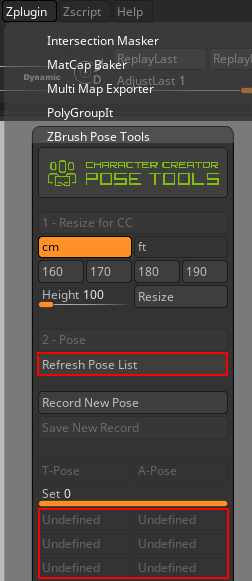
- Select the pose you want to review or edit, and the ZBrush Pose Tool will automatically change the subtools layers to the corresponding pose.