Update Settings for ZBrush Relink
The Update Setting section includes four features that let you update different aspects of your character when relinking to ZBrush:
- Relink CC Polygroup: When enabled, this updates your model’s polygroup in ZBrush to the default CC3+ polygrou
- Relink Mesh Changes in New Layer: When enabled, adds a new layer in the Layers tab in ZBrush for your selected model’s subtools.
- Wrinkle to Displacement: When enabled, converts the currently utilized CC3+ facial wrinkles normal maps into mesh details.
- Match ZBrush Model Scale (x0.01): When enabled, rescales the model by multiplying the object by 0.01 to fit in the ZBrush environment.
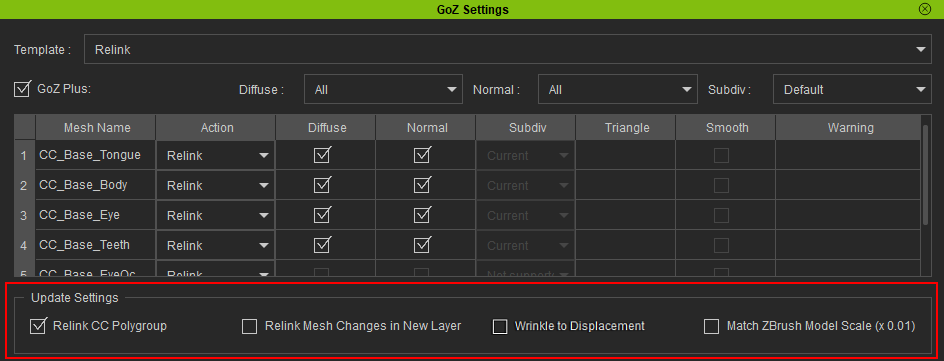
Relink CC Polygroup
Enable this option to apply the default polygroup of the CC3+ model to your character, replacing the existing polygroup in ZBrush after relinking. Disabling this option allows you to retain your custom polygroup in ZBrush after relinking. This option is only available when using a CC3+ model.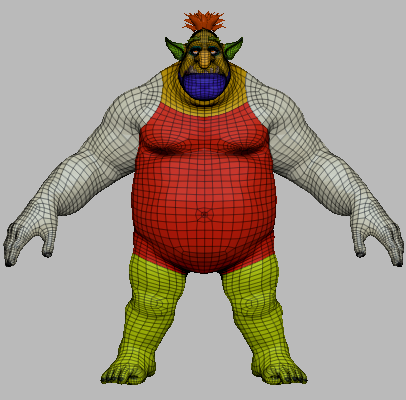 | 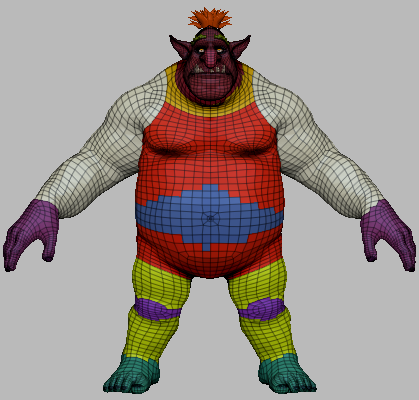 |
Relinking the character with Relink CC Polygroup enabled, will apply the CC polygroups onto the ZBrush character. | Relinking the character with Relink CC Polygroup disabled will keep the existing polygroups in ZBrush. |
Relink Mesh Changes in New Layer
With this feature enabled, ZBrush will create a new layer for all the relinked subtools. The new layer will include the updated mesh’s shape, converted from your character's pose in CC, and the updated surface mesh detail, converted from the normal maps from CC. You can choose this option when any of the meshes' Action columns is set to Relink.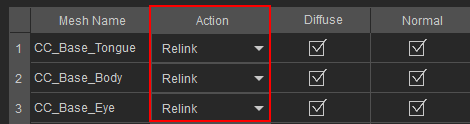
Adding a new pose to the character in ZBrush:
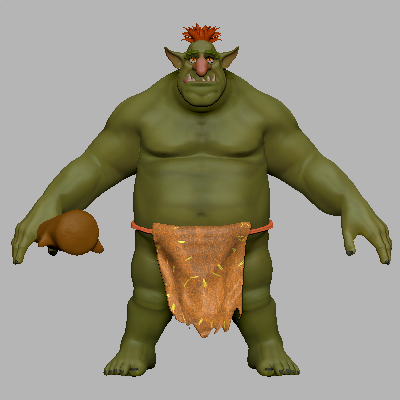 | 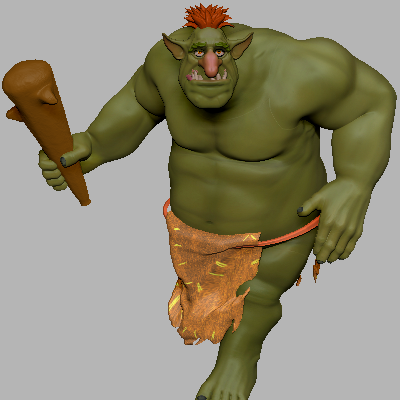 |
Before relinking a pose from CC to ZBrush. | After relinking from CC to ZBrush, a new layer will be added to all the relinking subtools updating the character's pose in ZBrush. |
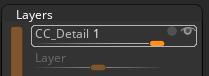
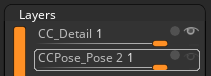
Adding a new scar design to the character in ZBrush:
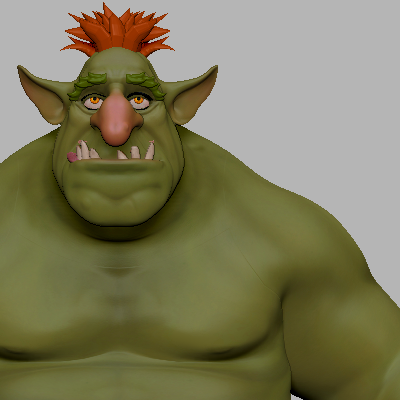 | 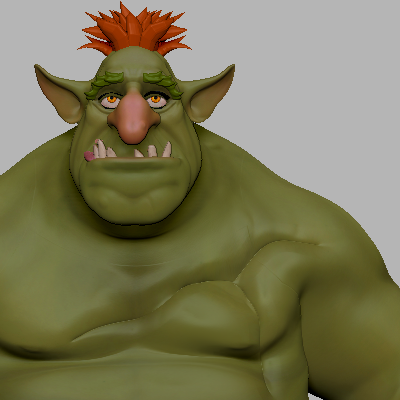 |
Before relinking the scar design (normal map) from Character Creator. | After relinking, the new scar design will be added to a new layer of the subtool. |
Wrinkle to Displacement
Use this feature to convert the character’s current facial wrinkle’s normal maps into surface mesh details in ZBrush. The displacement details can be stored in the subtools detail layer or in a new layer in the Layers tab. This option will only be available for CC3+ models with Expression Wrinkles enabled and only when the Current Pose is selected in the GoZ Settings modal window.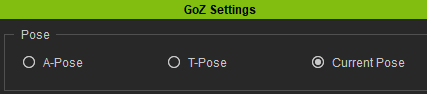
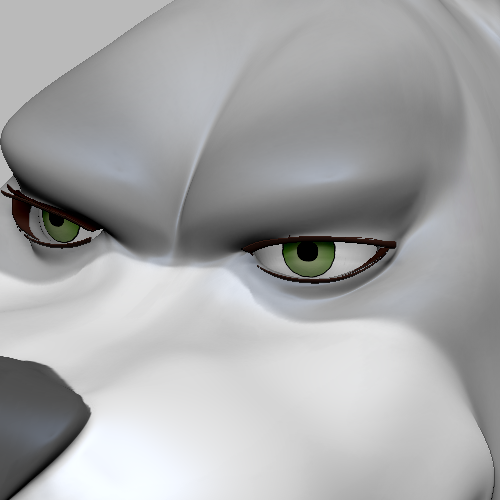 | 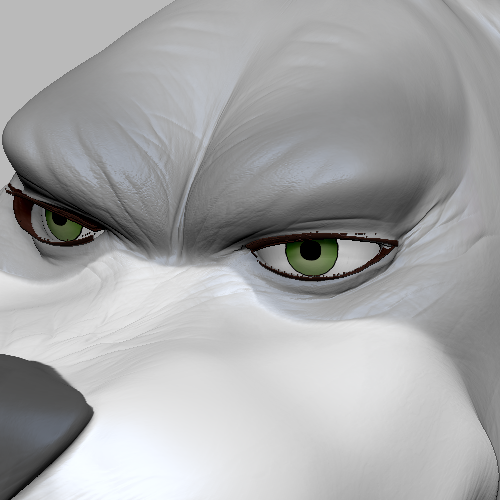 |
The facial expression ZBrush with Wrinkle to Displacement disabled. | By enabling Wrinkle to Displacement, the detailed facial wrinkles will appear when the character makes a facial expression. |
Match ZBrush Model Scale (x 0.01)
Enable this option to resize your object before sending it to ZBrush. The scale of the object will be multiplied by 0.01 to match the unit of measure used in ZBrush.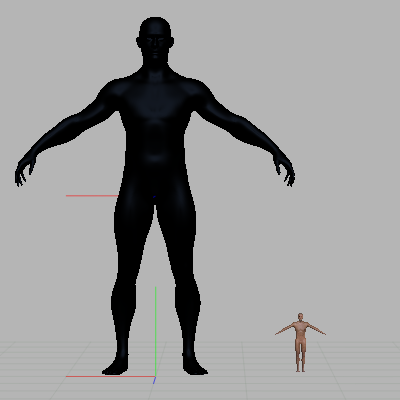 | 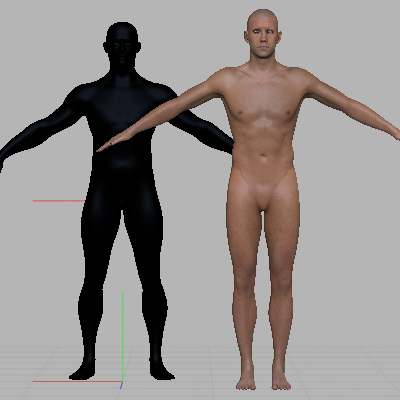 |
Character models sent to ZBrush, with Match ZBrush Model Scale disabled, will likely be too tiny. | Character models sent to ZBrush, with Match ZBrush Model Scale enabled, will be consistent in size. |
