Updating CC characters in ZBrush using Relink
After updating your CC character with ZBrush editing, you can further refine the diffuse and normal maps using CC tools. Subsequently, new designs and changes made in Character Creator can be relinked to ZBrush, resembling a roundtrip process that can be repeated as often as necessary.
- Once you have updated your character from ZBrush, use the tools available in Character Creator to customize the diffuse and normal maps.
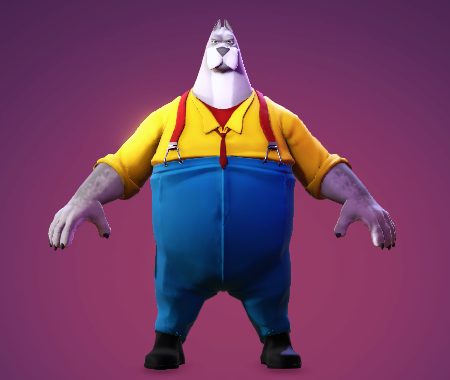
- Once the character is customized, select the edited model parts and click GoZ Plus button
 in the toolbar to open the GoZ Settings modal window.
.png)
- Make sure the Template option is set to Relink in the GoZ Settings modal window.
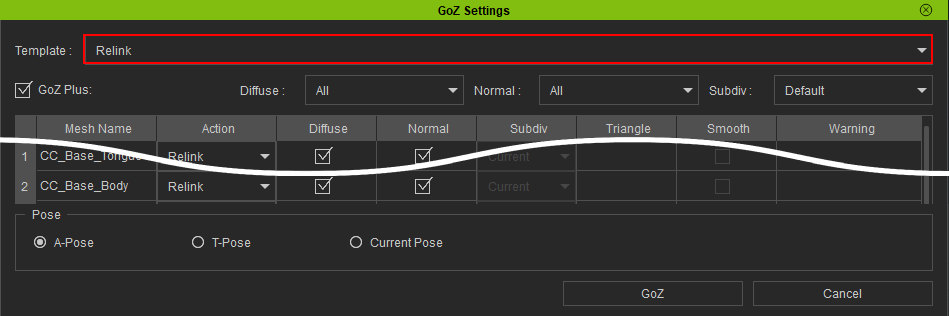
- Enable the Diffuse options to convert your new diffuse maps into polypaint in ZBrush.
- Enable the Normal options to convert your new normal maps into mesh details in ZBrush.
.png)
- In the Pose section, select the pose you want your character model to have in ZBrush. Then click the GoZ button.

 Note:
Note:- It is recommended to use the same pose setting as the character in ZBrush. Using different poses can cause the character in ZBrush to deform because multiple pose layers will be activated on the same ZBrush tool.
- Before starting a new project and sending your model to ZBrush, clear the ZBrush cache. This prevents conflicts between old and new model parts with similar names, avoiding potential issues. Remove existing tools and subtools in ZBrush manually or by reinitializing ZBrush via Preferences > Init ZBrush.
Normal map editing:
.png) | 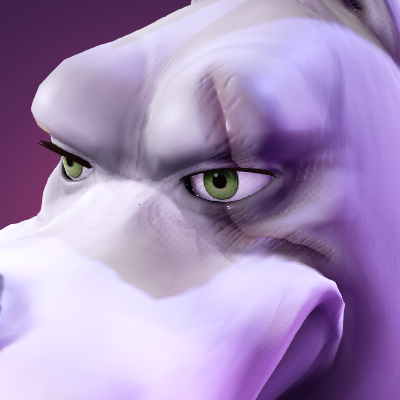 |
Before and after adding a scar to the face.
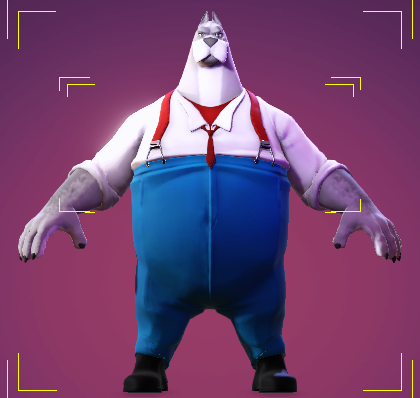
Diffuse map editing:
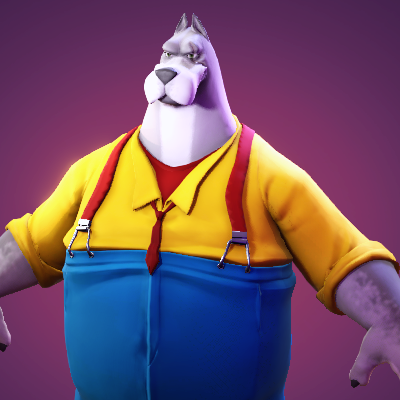 | 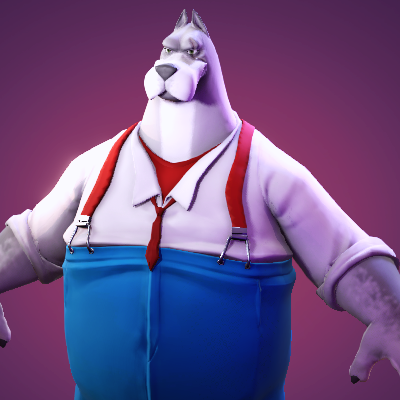 |
Before and after recoloring the shirt.
When relinking your character model to ZBrush, enabling the Normal option adds new normal map details to the existing detail layer. This intensifies the mesh detail effect, which can cause subtools with high mesh detail to display artifacts.
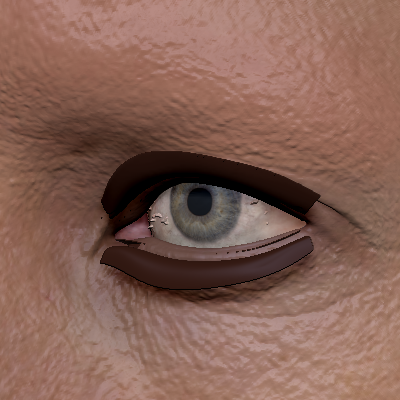 | 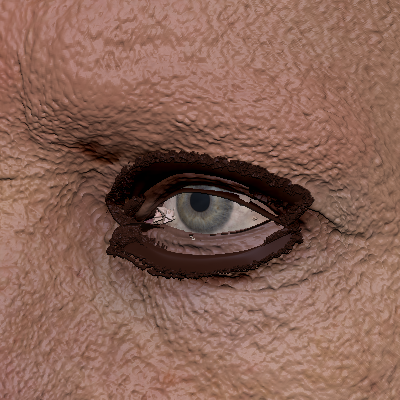 |
Before and after enabling the Normal option for a relinked model. Notice how the skin details become so intensified that they appear noisy.
The ZBrush character is updated with adjustments to polypaint and mesh details.
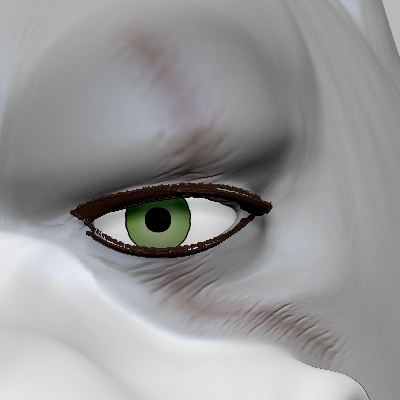 | 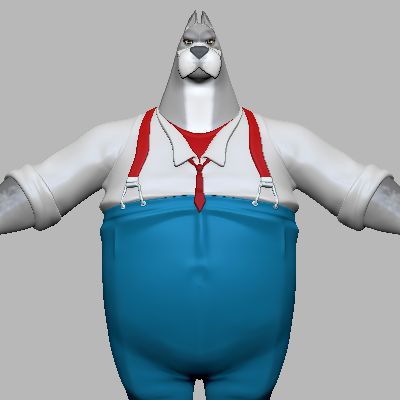 |
The scar details are converted into displacement in the “CC_Detail [...]” layer. | The polypaint on the shirt is changed from yellow to white. |
