


Display Section
The following display settings will only show up in the viewport and not in renders.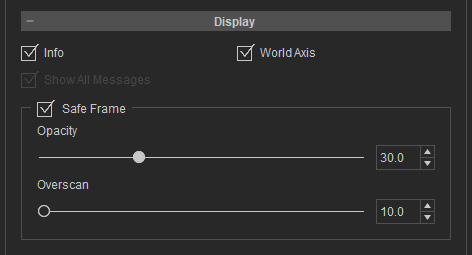
Info
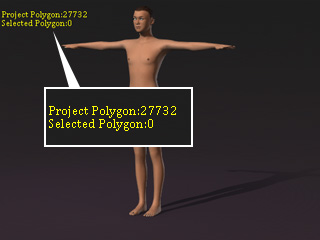
- Polygon Count: When the Polygon Count option is activated,
the polygon count information of the entire project and the character shows at the upper-left corner of the viewport.
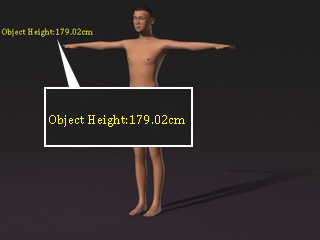
- Model Height: Activate this check box in order to show the character's height at the top-left corner of the preview window.
World Axis
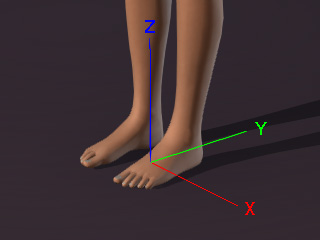
When World Axis option box is checked on, a colored axis coordinate displays on the area of origin. It is very useful when you need to input x, y, z value, or create custom Helper.
- Check/Uncheck the World Axis box to show/hide the world axis, or press Ctrl + A to toggle on/off.
-
The R.G.B. color of the World Axis represent the positive X, Y, Z direction
(R=X, G=Y, B=Z)
Show All Message
This option becomes available only after a “Don’t show this again” setting in pop-up panels has been previously activated. Enabling it restores all suppressed pop-up messages and resets their display state.
Safe Frame
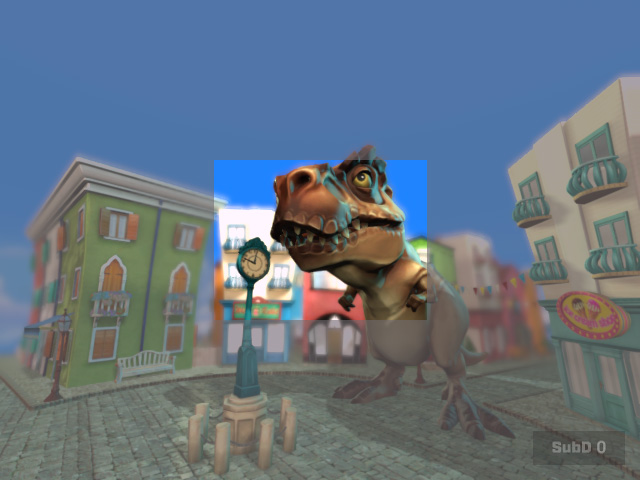
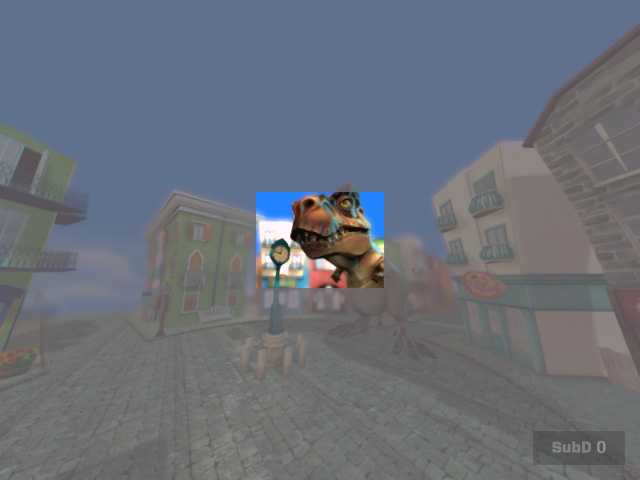
When the Safe Frame checkbox is activated, it adds an Extended view area around the camera view, showing areas beyond the final camera framing without moving the camera in the viewport.
- Opacity: Changes the visibility of the Extended view area.
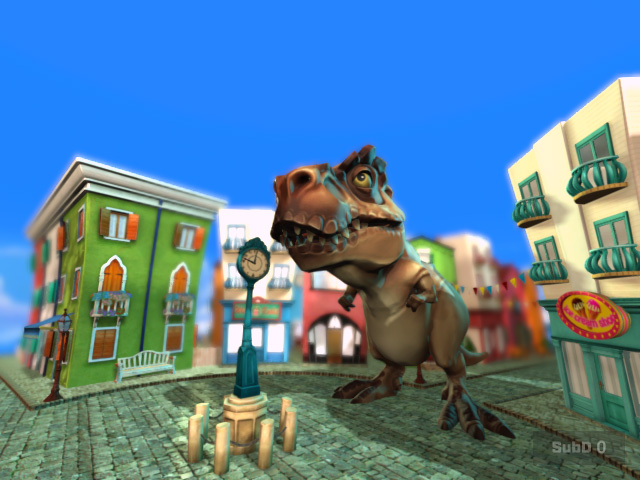
Opacity = 00.0
Opacity = 50.0
- Overscan: Changes the size of the Extended view area.
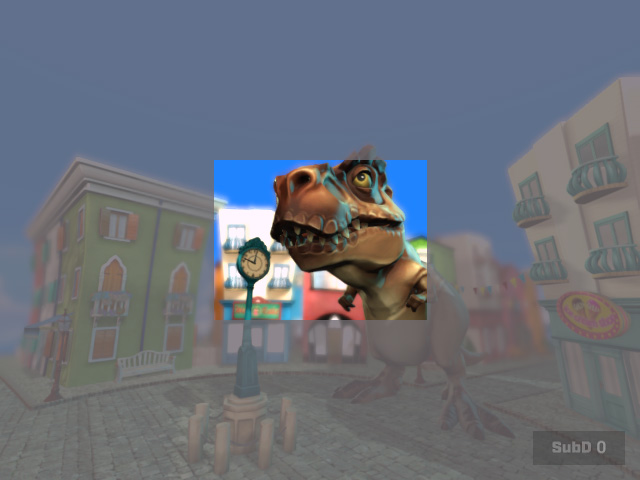
Overscan = 30.0
Overscan = 50.0
