Performance Section

Enable DLSS
Activate DLSS to open up the option of using AI to upscale output resolution. When enabled, the sharpness parameter is used to control the clarity of outcome. DLSS provides 4 AI models to choose from: Balanced, Quality, Performance and Ultra performance.
Progressive Texture Loading
Enabling this checkbox will load objects without textures when launching a project. This helps to increase loading speed and reduce loading time, allowing you to start authoring the project as soon as all the models are loaded.
Texture Loading
- After All Models Loaded: Once all the models are loaded, the loading of textures will begin.
- Manual Loading: The texture loading process will pause once all the models are loaded. To manually initiate texture loading, click the button located at the top-right corner of the viewport.
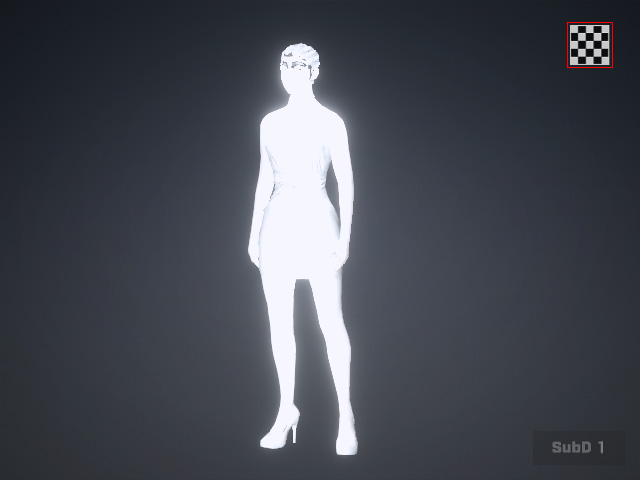
Prior to clicking the Load Textures button, you can begin editing the untextured colorless models.
Progressive Loading (% of CPU)
You can control the amount of CPU power dedicated to loading textures. By increasing this value, the textures will load faster at the expense of system performance.
Image Resource Compression
Compress Resource: Activate Compress Resource to compress loaded textures. Its purpose is to generate DDS cache, which speeds up loading times when reapplying the same objects to different projects.
Morph Slider
Realtime Eye Occlusion Update: Enables real-time updates of eye occlusion while adjusting morph sliders.
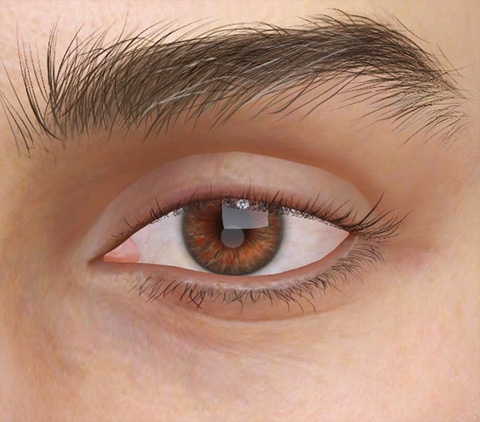 | 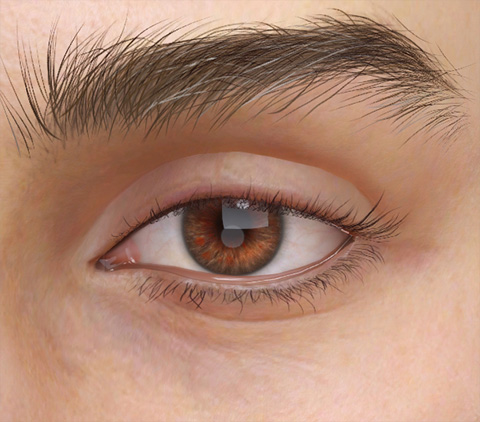 |
Eyes without Eye Occlusion mesh | Eyes with Eye Occlusion mesh |
