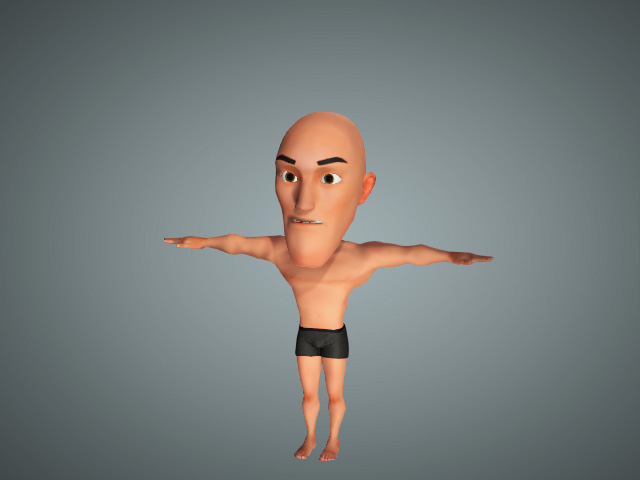
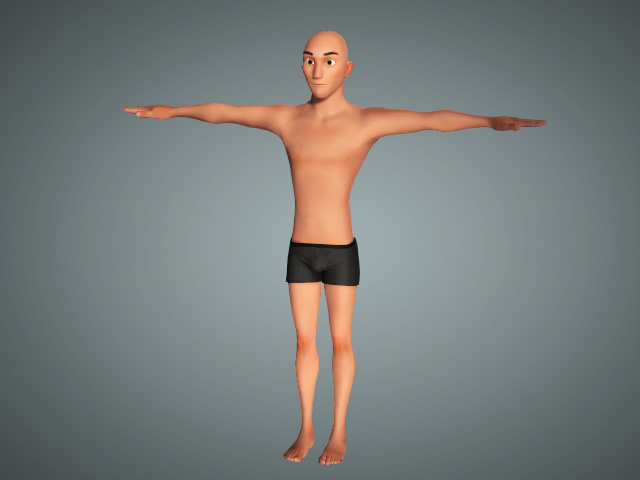
Changing Character Proportion
Unlike general objects that can be resized with the Scale tool, a character can be scaled in entirety, or by using bones which can create different body proportions. This feature can not only scale the size of the bones, but also the skin meshes bound to the bones.
- Create a new project and apply a character (in this case, a CC3+ Character).
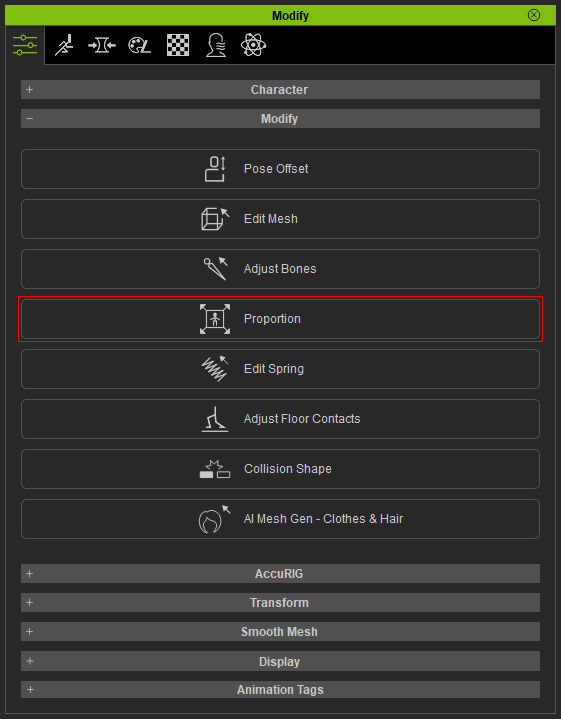
- Make sure the character is selected and click the Proportion
button in the Modify panel.
- Select the Full Body radio button in Bone Type.
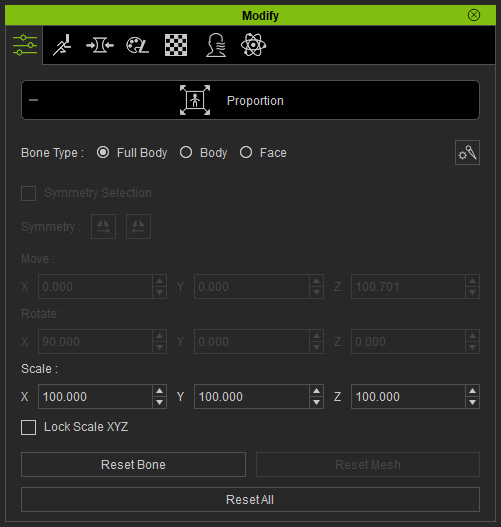
 Gear button: Click this button to show the Gizmo Display Settings for customizing Gizmo display.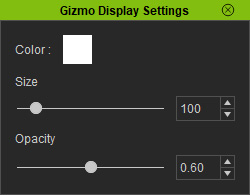
- Scale fields (X, Y and Z): Type in the desired number to change the proportion of the entire character.
- Adjust the X, Y, Z values in the Scale group to scale the entire character; you can also activate the Lock Scale XYZ
checkbox for uniform scale.
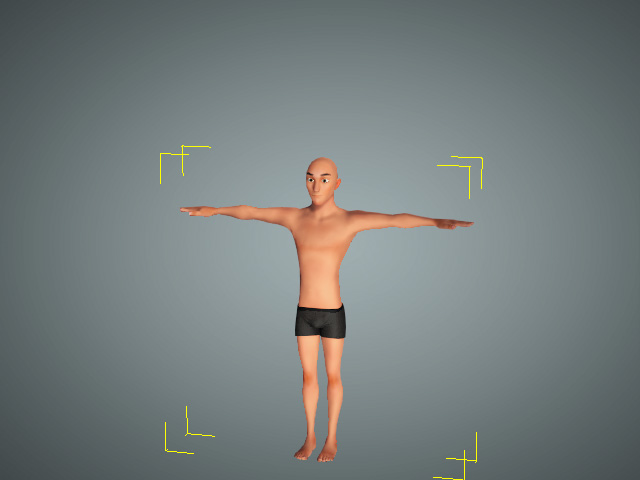
- Select the Body radio button in Bone Type.
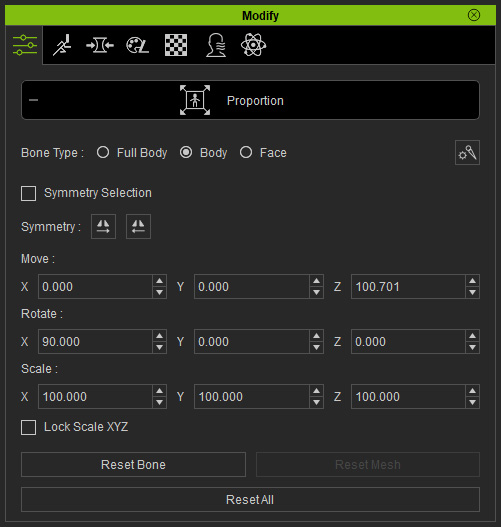
- Gear button: Displays the Gizmo Display Settings for customizing Gizmo display.
- Symmetry Selection checkbox (for Standard Characters only): Activates this setting to adjust symmetrically for the selected bones.
- Symmetry buttons (for Standard Characters only): Copies and pastes the adjustments from left-side to right-side bones or vice versa.
- Gear button: Displays the Gizmo Display Settings for customizing Gizmo display.
- Adjust the Move, Rotate and Scale fields to
change the selected bones and skinned meshes (in this case, the position of the neck bone) for the character.
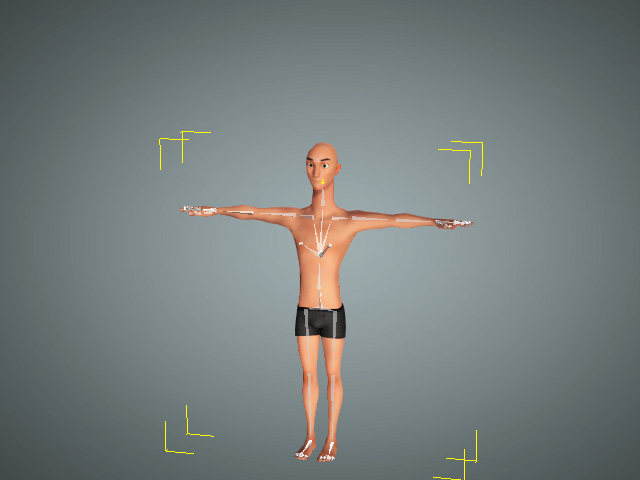
- Choose the Face radio button. You can use this radio button to transform the eyeballs, teeth and tongue.
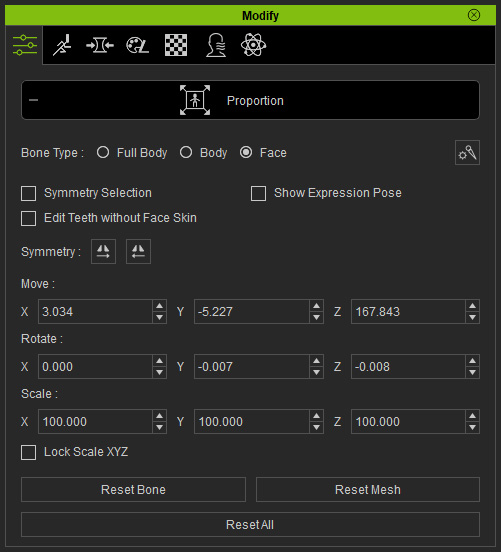
- Gear button: Displays the Gizmo Display Settings for customizing Gizmo display.
- Symmetry Selection checkbox (for Standard Characters only): Activates this setting to symmetrically adjust the selected bones.
- Show Expression Pose checkbox: In the Proportion mode, by default, the facial expression will become a neutral one; however, If you have previously applied any facial expression to the character, activate this checkbox to show it.
- Edit Teeth without Face Skin checkbox: Changes the rotation of teeth without affecting the rest of the face.
- Symmetry buttons (for Standard Characters only): Copies and pastes the adjustments from left-side to right-side bones or vice versa.
- Gear button: Displays the Gizmo Display Settings for customizing Gizmo display.
- Adjust the Move, Rotate and Scale fields to adjust the selected bones and skinned meshes (in this case, the size of the head bone) for the character.
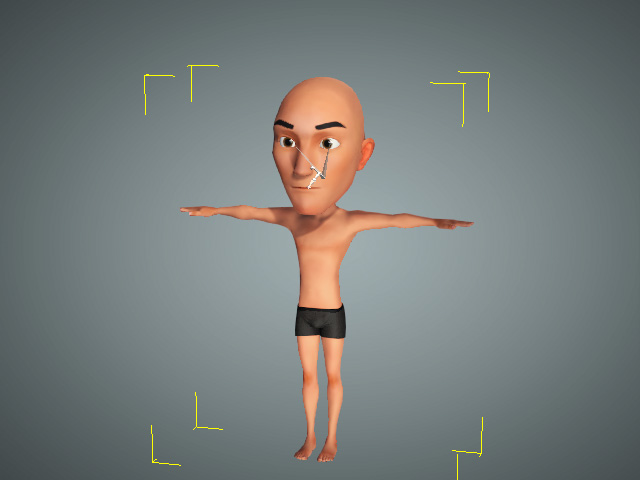
- Follow the same steps to adjust the desired proportion of the character,
then click the Character Proportion button to exit the mode
when finished.