Using Corrective Rule Sliders
After converting the character's Facial Profile to Extended Plus or HD, a new Corrective Regions node will appear at the bottom of the tree structure on the left side of the Facial Profile Editor.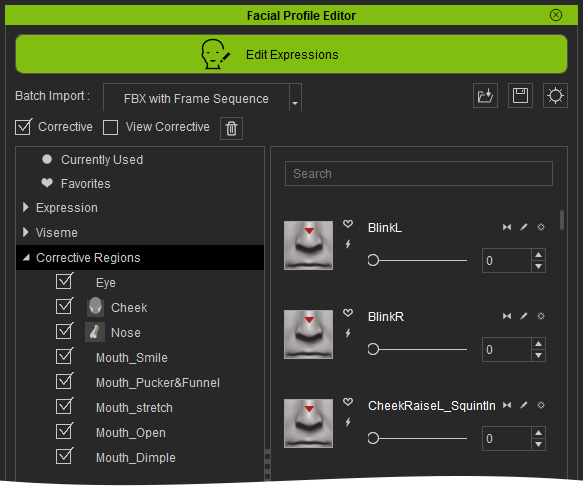
Take the CornerPullR_SharpCornerPullR rule slider as an example: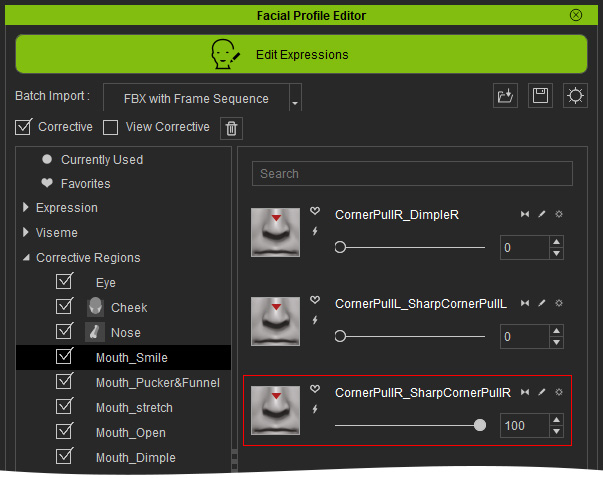
- Name of the Rule Slider: The name of the rule slider indicates that when the effects of two underlying expression sliders are combined, it may result in an incorrect or undesirable outcome. The names of these two sliders are joined with an underscore to form the name of the rule slider.
- Observation: Choose the Currently Used item to view the two sliders causing issues.
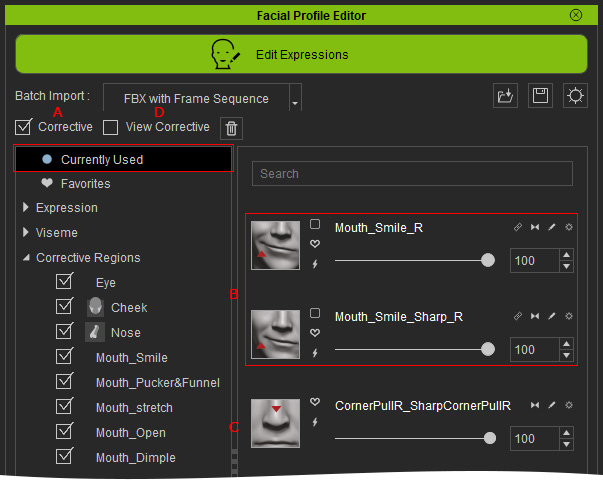
- Corrective: Checks out the expression result with or without the corrections.
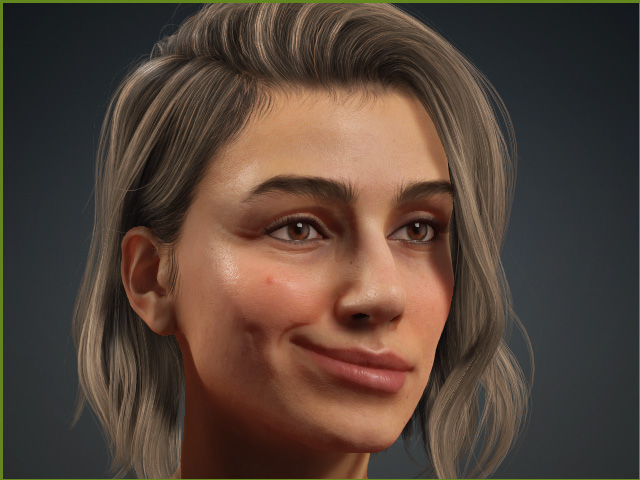
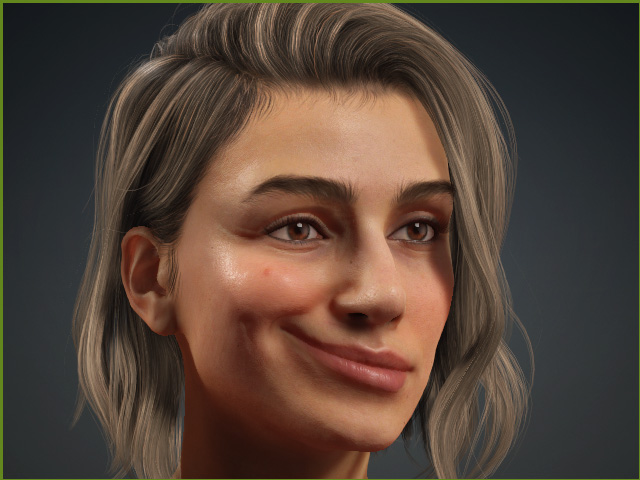
With correction
Without correction (the expression is overly stretched)
- The two sliders in combination that result in issues.
- The rule slider displays the corrected result. Therefore, when you drag either one of the three sliders, they will be automatically synchronized to perform a optimized result.
- View Corrective: Displays only the counteractive effects that help reduce excessive stretching.
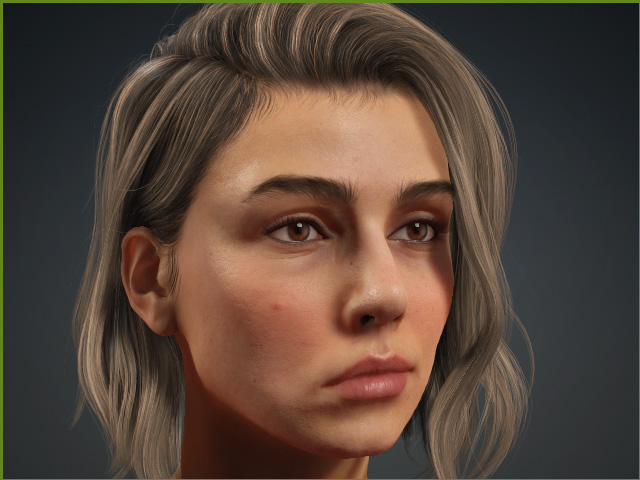
With correction
Displays counteractive effect only that compensate the overly stretching issue
- Corrective: Checks out the expression result with or without the corrections.
