User Interface Introduction for Edit Facial Panel
There are three modes in the Edit Facial panel for adding new facial expressions, Muscle, Expression and Modify.
Muscle
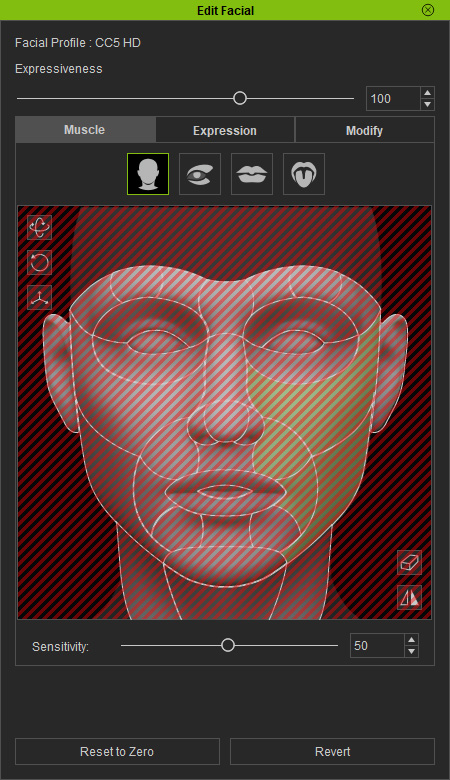
In this mode, you can set the facial expressions by dragging on certain facial features.
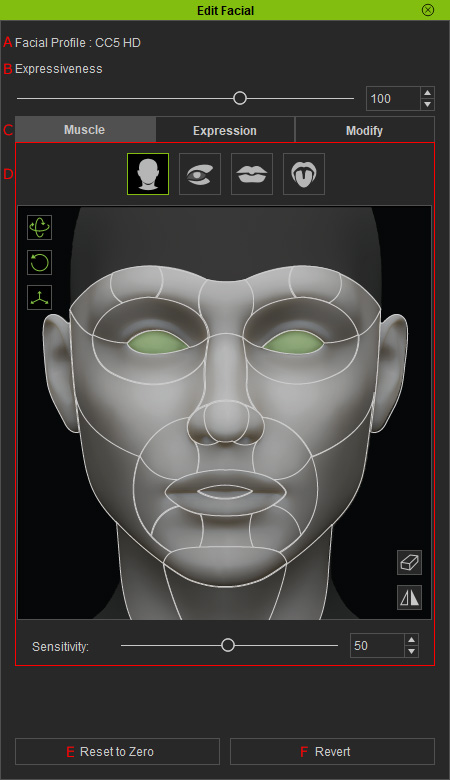
- Facial Profile: Displays the facial expression profile currently applied to the character.
- Expressiveness: This slider determines the influence strength while draggin in the interaction area.
- Modes: Switches between different modes for producing the character's facial expressions using muscles, templates, or sliders.
- Dummy Pane: You can pick the specific facial features (highlighted in green) in the pane and drag in the window to change their
appearance.
- Click the buttons to switch between different facial features.
 Note:
Note: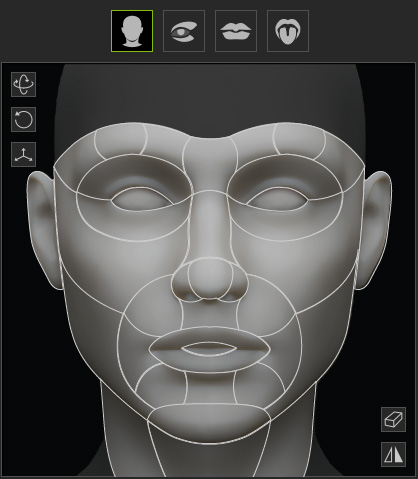

Full Face
Eyes

Mouth
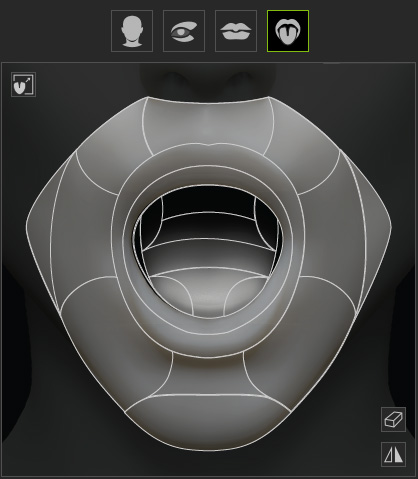
Tongue
- Drag in the following (red) areas to adjust the facial features.
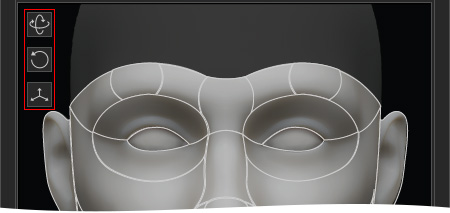
- The icons at the left of the pane are for controlling
the head.
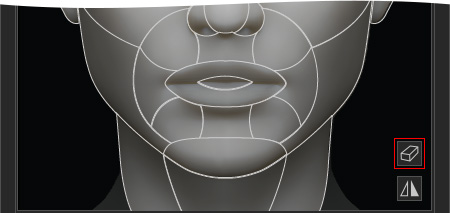
- Click the Eraser to clear all selections.
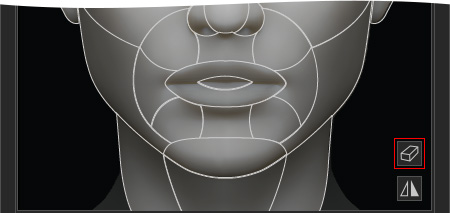
- Activate the Symmetrical Selection checkbox to select bilateral facial features
for simultaneous adjustments.

- Sensitivity: Magnifies cursor movements when dragging the muscle.
- Click the buttons to switch between different facial features.
- Reset to Zero: Overrides the current adjustments and set the facial expression to neutral.
- Revert: Retrieves the original facial expression when the Edit Facial panel is launched.
Expression
The Expression mode contains different templates for facial expression keys. You can then apply the desired template to quickly change the character's facial expression.
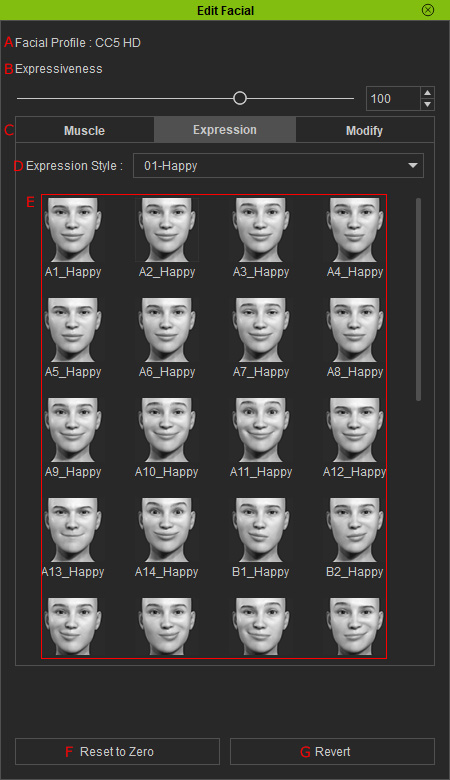
- Facial Profile: Displays the facial expression profile currently applied to the character.
- Expressiveness: This slider determines the influence strength for applying templates.
- Modes: Switches between different modes for producing the character's facial expressions using muscles, templates, or sliders.
- Expression Style: You can use this drop-down list to pick the desired facial expression category.
- Template List: The templates in this list changes according to the picked category from the Expression Style drop-down list.
- Reset to Zero: Overrides the current adjustments and set the facial expression to neutral.
- Revert: Retrieves the original facial expression when the Edit Facial panel is launched.
Modify
In the Modify Mode, you can fine-tune the facial features with different sliders.
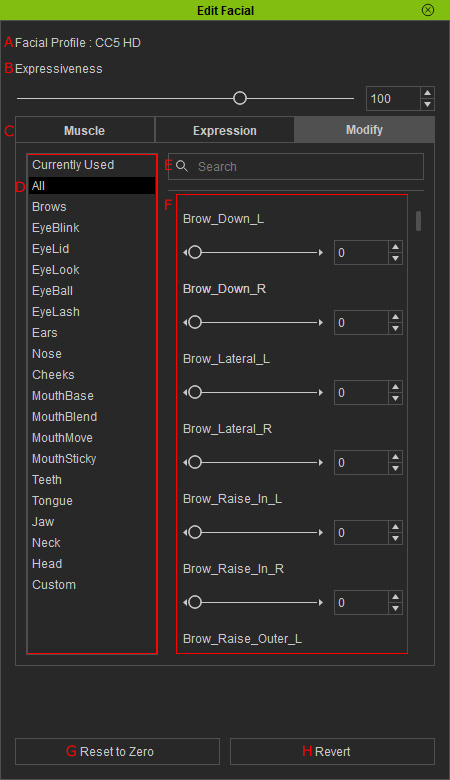
- Facial Profile: Displays the facial expression profile currently applied to the character.
- Expressiveness: This slider determines the influence strength for adjusting the sliders.
- Modes: Switches between different modes for producing the character's facial expressions using muscles, templates, or sliders.
- Facial Features: Pick the desired facial features for fine-tuning.
- Search Sliders: Type in the slider names for filtering the sliders.
- Sliders: The sliders for adjusting the picked facial features.
- Reset to Zero: Overrides the current adjustments and set the facial expression to neutral.
- Revert: Retrieves the original facial expression when the Edit Facial panel is launched.
