Upgrading to GoZ Plus
To upgrade your GoZ to GoZ Plus, ensure your Character Creator (CC) version is 4.42 or above. Follow the instructions below to update your CC.
- Ensure that both CC and Zbrush are closed.
- Open Reallusion Hub, and go to Updates.
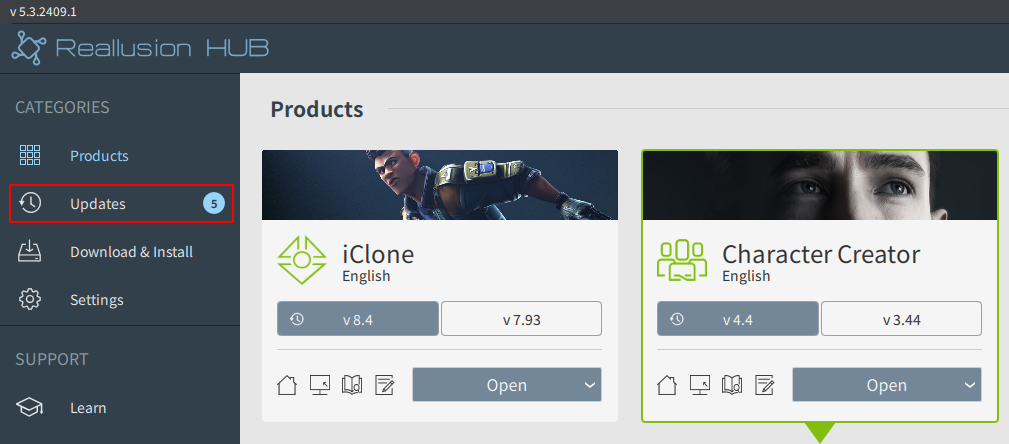
- Click the Update button to update your CC.

- After the update is completed, launch the CC application.
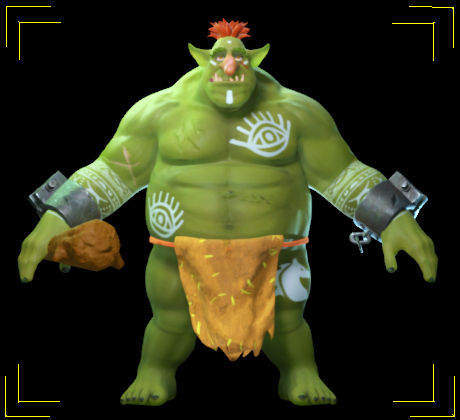
- In CC, open or import a character you want transferred to ZBrush.
- Click the GoZ Plus icon in the top toolbar.

- In the subsequent GoZ dialog box, select the version of ZBrush for the GoZ Plus installation and click OK.
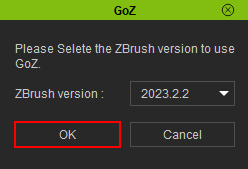
Once the installation is complete, the GoZ Settings modal window will appear, indicating that the GoZ plugin has been successfully upgraded to GoZ Plus.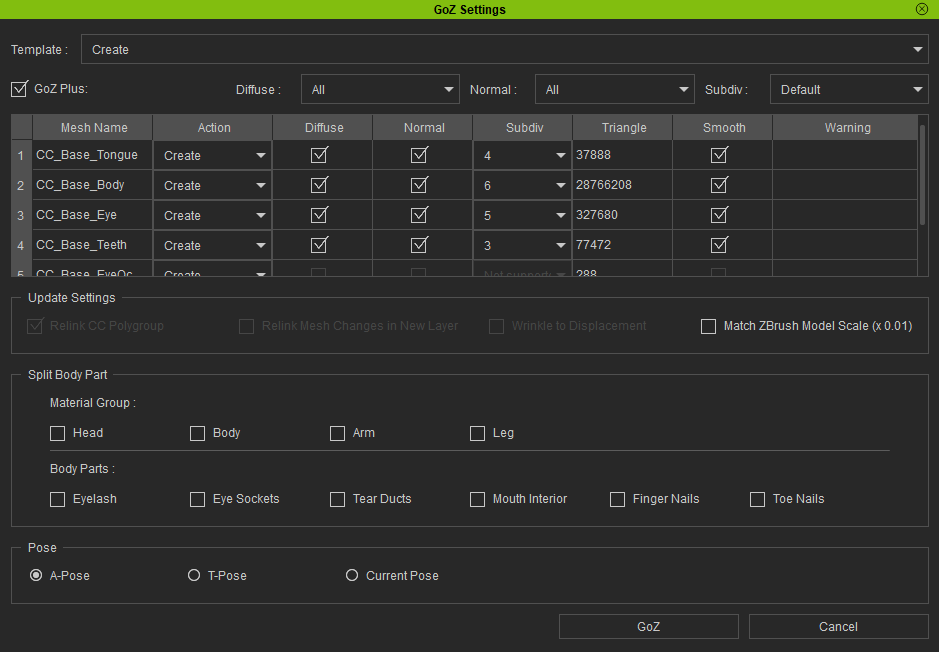
Manually Specify the Location of the ZBrush Application
You can also manually specify the ZBrush installation location in Character Creator:
- Go to File > Export > GoZ > Settings to open the ZBrush Path Settings panel.
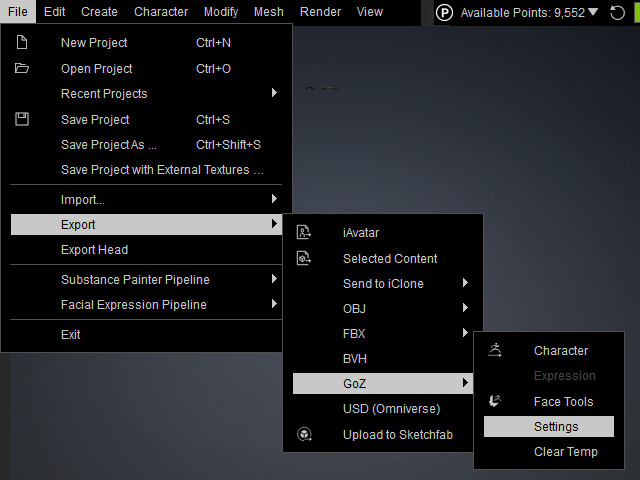
Then click Choose ZBrush EXE File to manually specify the ZBrush executable file.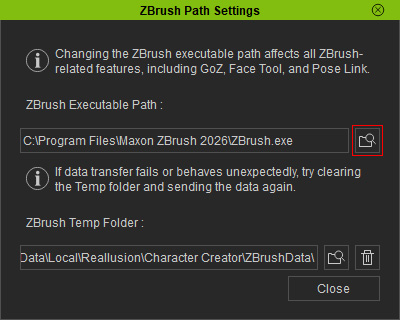
- Go to Plugins > Pose Link > Settings to open the ZBrush Path Settings panel.
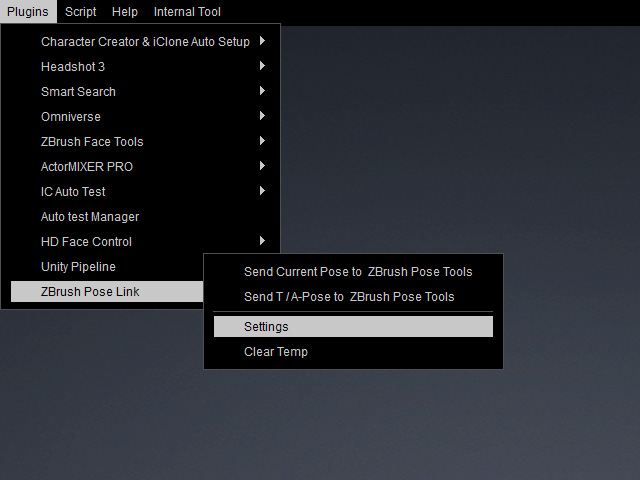
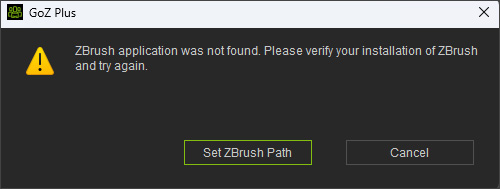
Then click the Choose ZBrush EXE File button to specify the ZBrush executable file. - If a message appears stating that the ZBrush application cannot be found when you click the GoZ button, click Set ZBrush Path and specify the ZBrush executable file.