Unifying Materials
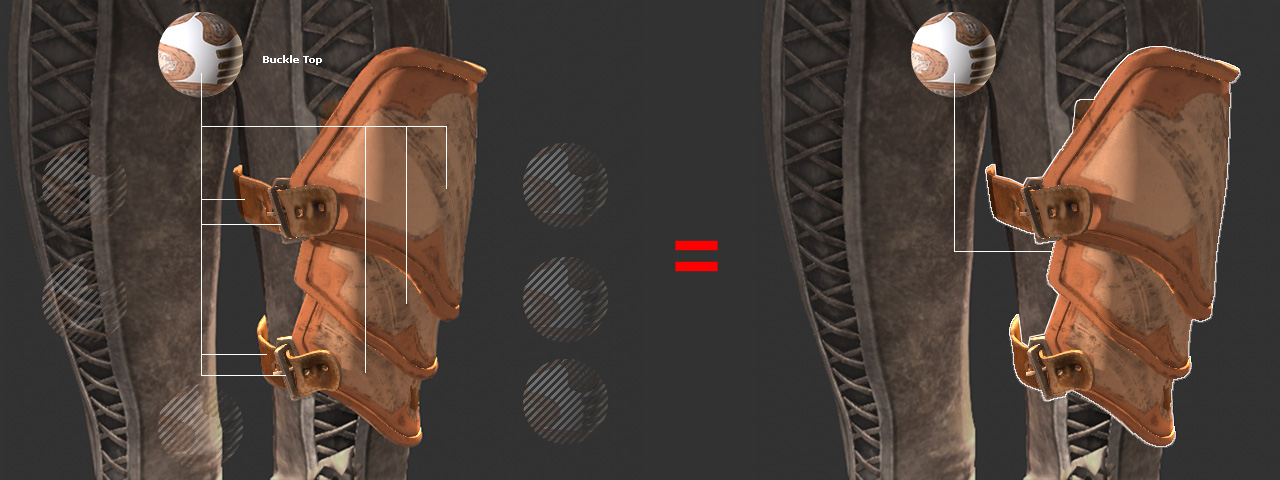
When importing characters from DAZ Studio, Poser, or ZBrush into Character Creator using Transformer, you may encounter duplicate materials and textures applied to different parts of accessories or clothing. This adds an unnecessary load to the character—an issue commonly found with content from Xurge3D. The Unify Materials command combines selected materials assigned to the selected object into a single material. All textures used by the original materials are consolidated into the unified material, reducing the overall material complexity of the object.
This command is useful for simplifying an object's material structure by reducing multiple materials into one. It can significantly decrease the object's file size, simplify material management, and improve system performance.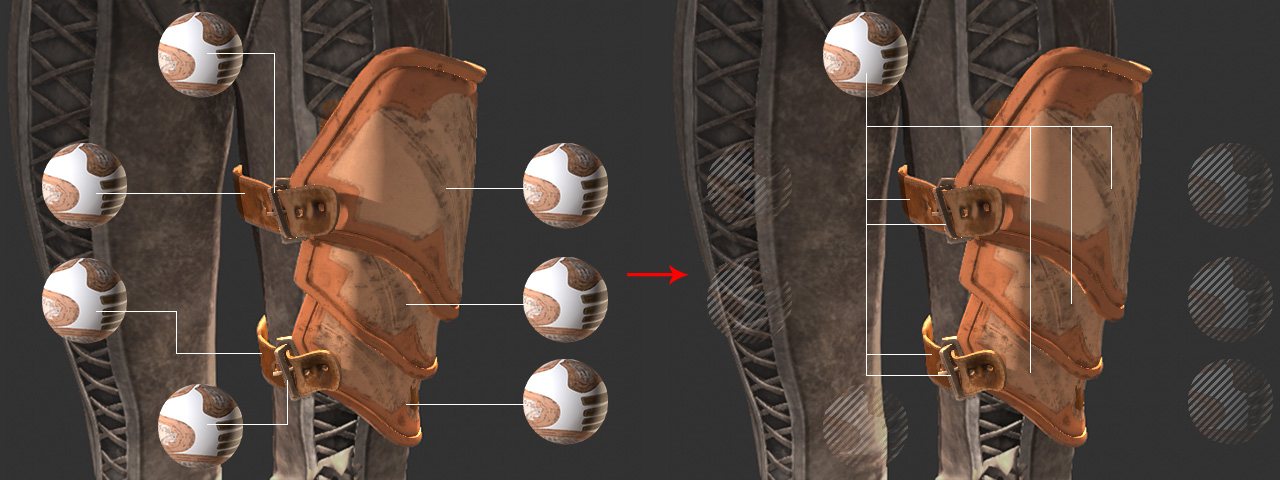
- Import a DAZ Studio character in FBX format using the Transformer
tool.
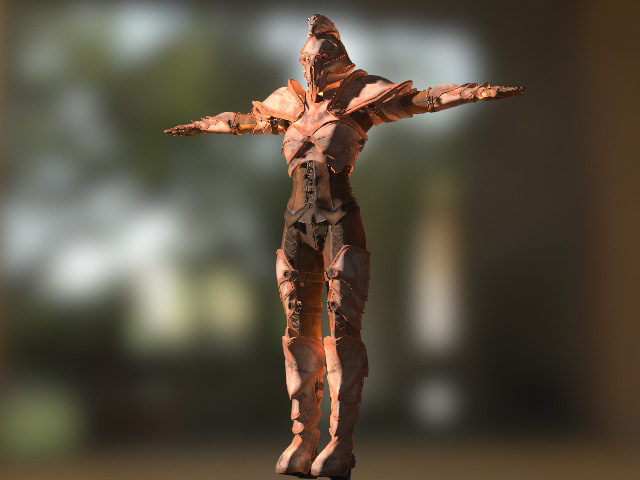
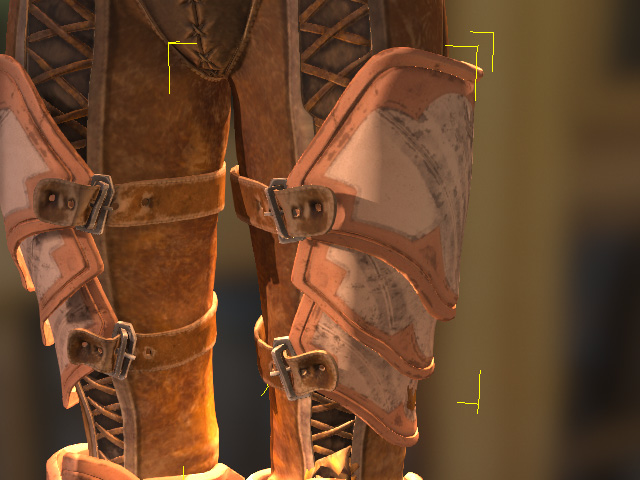
- Select a piece of clothing or an accessory.
- Navigate to the Material tab in the Modify panel to view the material list.
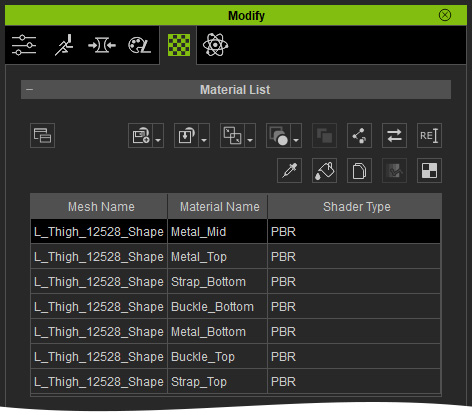
- Click through the materials individually to check for identical textures. In this example, the seven materials have unique names but share the same nine texture channels.
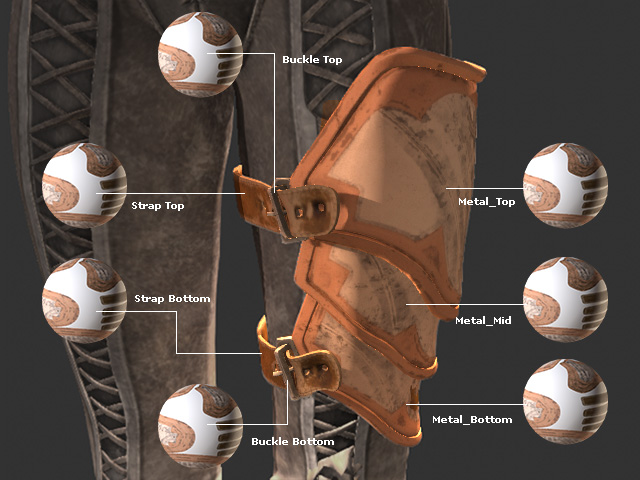
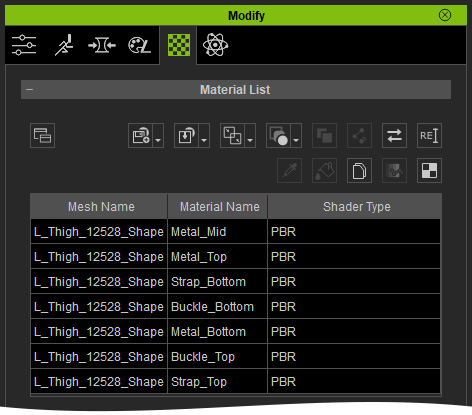
- From the list, select all materials that utilize identical textures and settings.
 Warning:
Only merge materials that contain identical texture channels and identical texture resources. Materials with different texture content or different texture channel configurations should not be merged.
When Unify Materials is executed, one material is designated as the reference material. Its material definition is then applied to every mesh that originally used the merged materials. If the merged materials are not identical, their original material definitions are replaced by the reference material, which may cause incorrect texture assignments and unexpected rendering results.
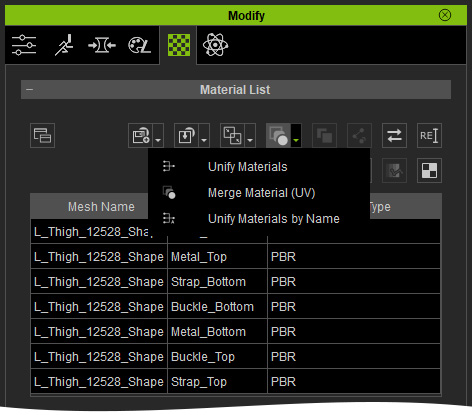
- Click the Options button above the Material List. Select the Unify Materials command.
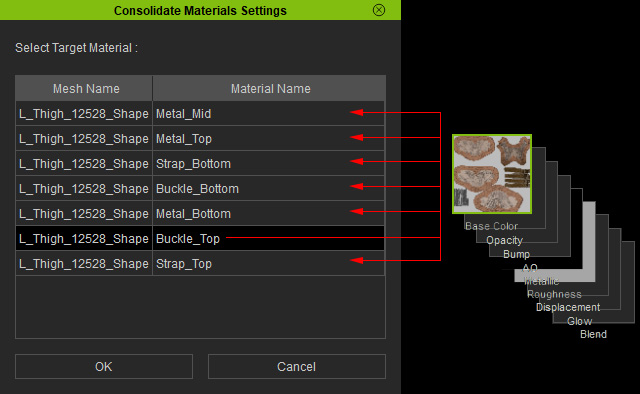
- In the Unify Materials panel, pick one material from the list to serve as the source for sharing textures with the others. Click the OK button.
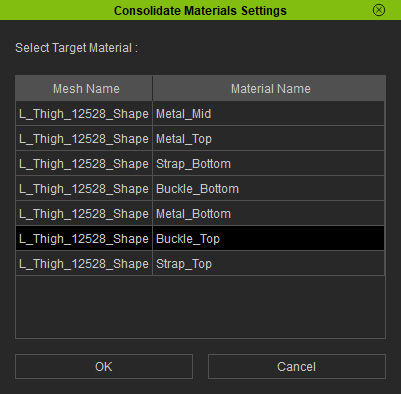
- The remaining materials will now adopt this source material and its associated textures.
- Only one material (the source) will remain in the list.
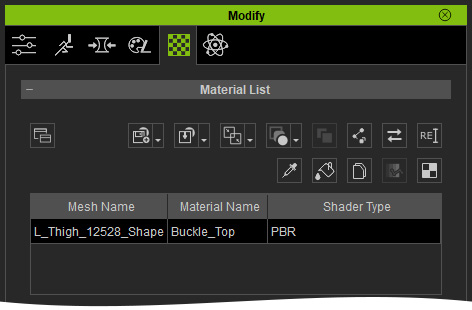
- This single material is now applied to all parts, effectively covering the entire object.