Four-View Character Template (New for v5.2)
In AI Studio, go to Templates > Custom Tools to explore all 6 template tools. Click the Four-View Character template to open it.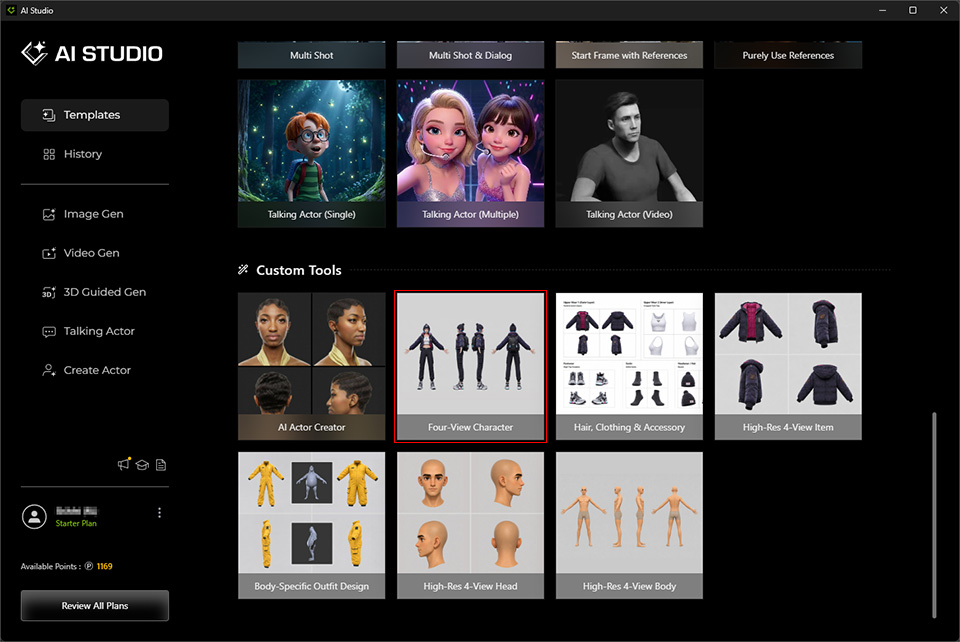
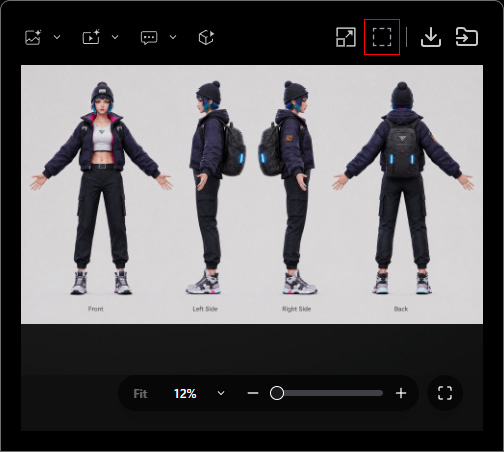
The Four-View Character template generates a high resolution (3840 x 2160 4K) image containing front, left, right, and back views in A-Pose from any character images or photos. The image can be used as source image for the Hair, Clothing & Accessory and High-Res 4-View Item templates in AI Studio or the target images in the View Set of Character mesh type in AI Mesh Generator.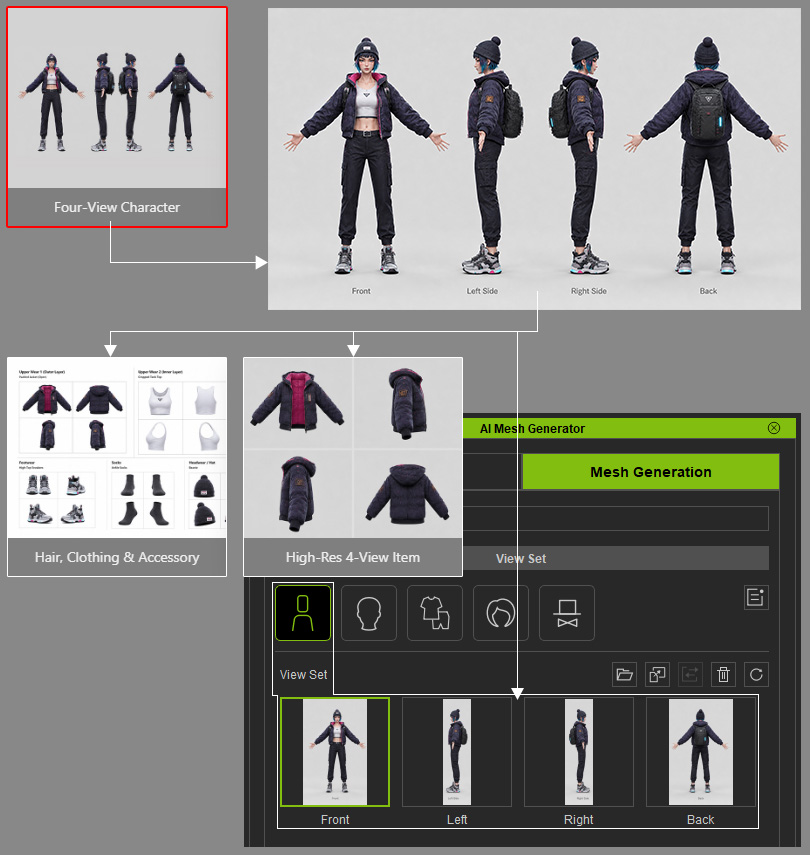
Replace Reference Images
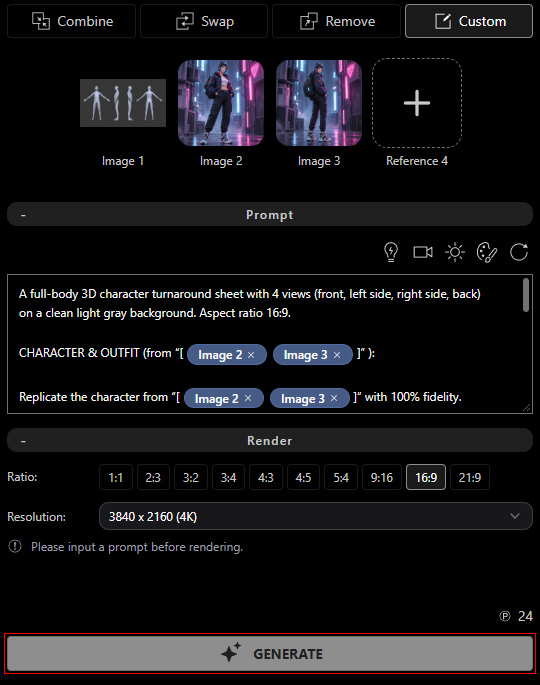
- After the template opens, AI Studio automatically goes to Image Gen > Edit > Custom (under the Operation section).
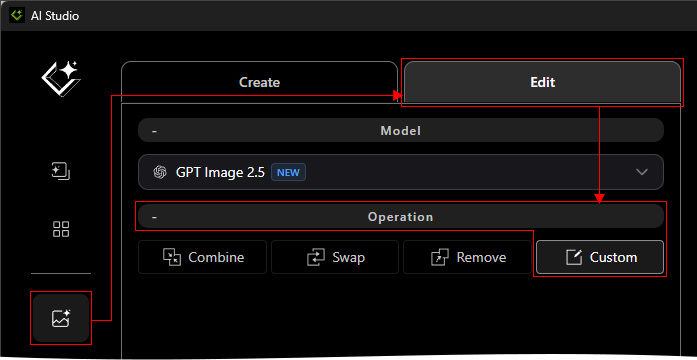
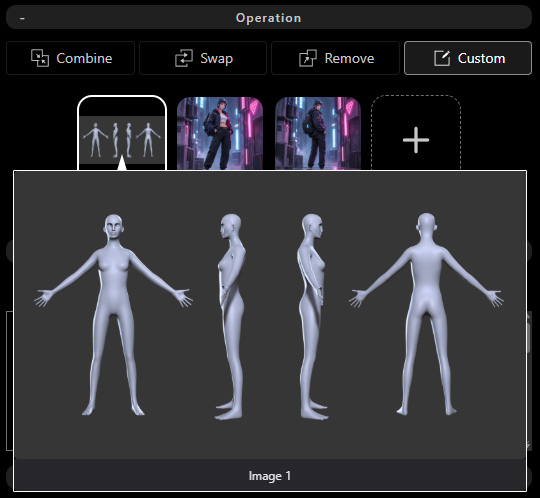
- Keep Image 1 unchanged, as it defines the four viewing angles for the AI.
- Replace Image 2 and Image 3 with images of the character you want to generate. You can remove either image, but at least one reference image is required.
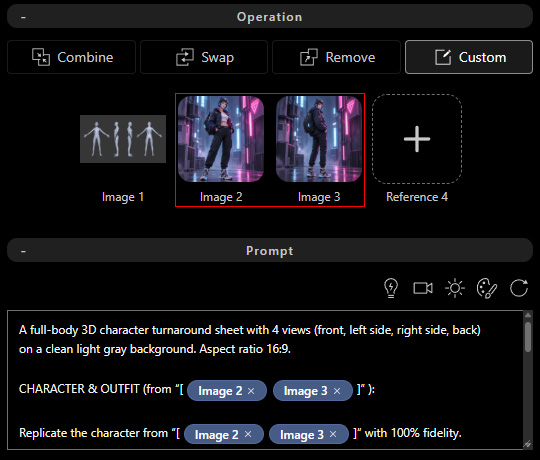
** You can use one or multiple reference images to provide the character's appearance. Ensure the images depict the same character for consistent results.
Update the Prompt
- The prompt is preconfigured. Do not modify its content except for the image references in the CHARACTER & OUTFIT section. Make sure the image references match the number of reference images used above.
- One reference image:
CHARACTER & OUTFIT (from "[ Image 2]"):
Replicate the character from "[ Image 2]" with 100% fidelity.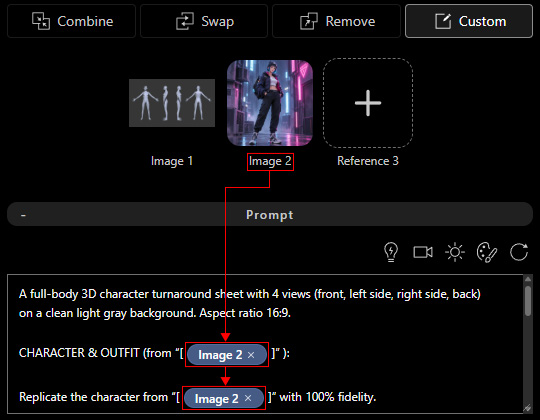
- Two reference images:
CHARACTER & OUTFIT (from "[ Image 2 Image 3 ]"):
Replicate the character from "[ Image 2 Image 3 ]" with 100% fidelity.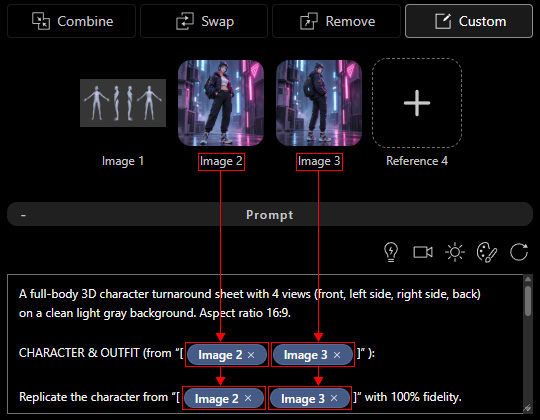
- For additional reference images, follow the same pattern and include all corresponding image slots.
- One reference image:
- Click GENERATE to generate a four-view character image. If you are not satisfied with the result, click GENERATE again to generate another image.
Copy Each View
- Activate the Select tool.
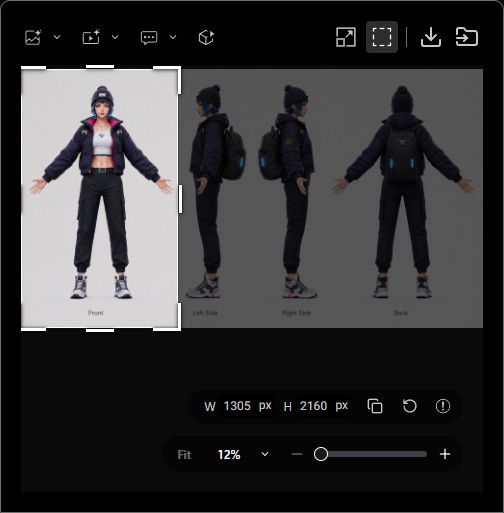
- Select one view from the generated four-view image.
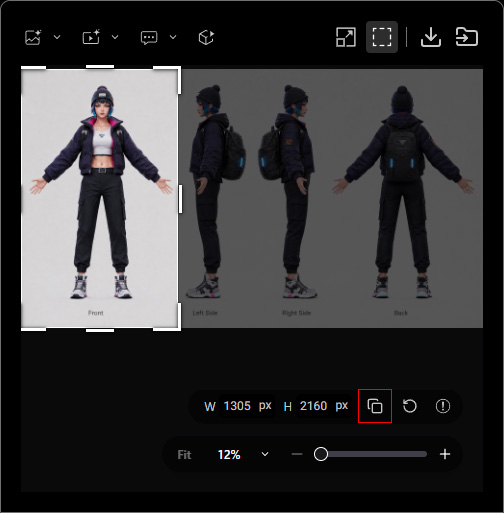
- Click Copy to Clipboard below the selection, or press Ctrl + C, to copy the selected view to the system clipboard.
Import Views into AI Mesh Generator
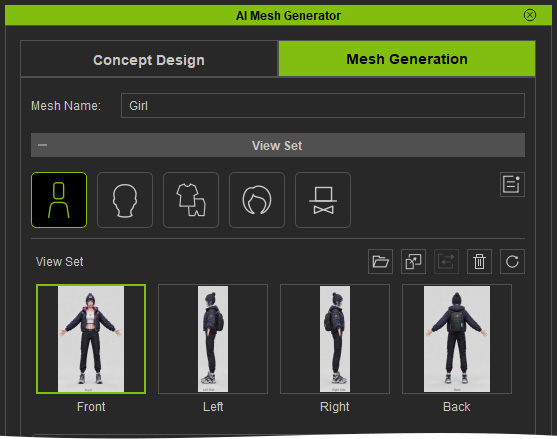
- Open AI Mesh Generator and go to the Mesh Generation page. Enter the Mesh Name.
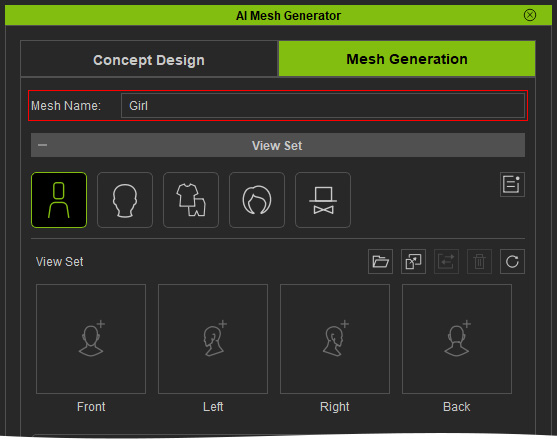
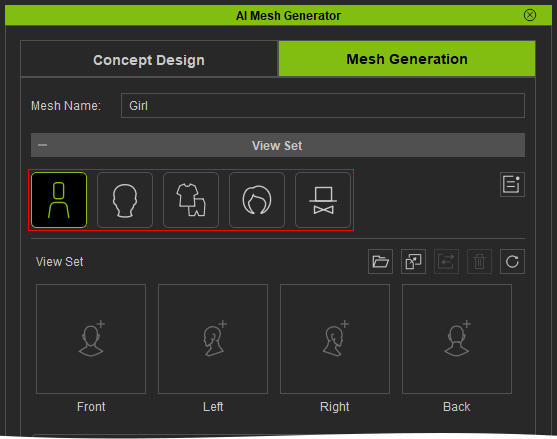
- Make sure that the Mesh Type setting matches the one copied in the AI Studio. In this example, select Character.
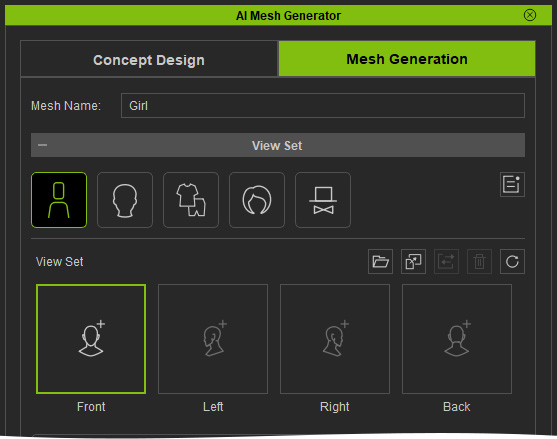
- Under View Set, select the slot corresponding to the one in step 8 (Front, Left, Right, or Back).
- Click Paste image from clipboard, or press Ctrl + V, to paste the copied view.
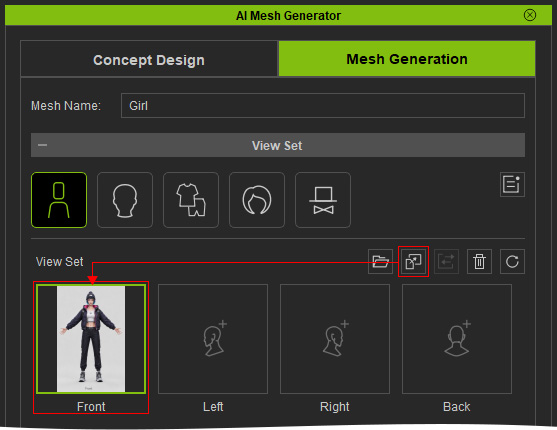
- Repeat for the remaining views. A Front view is required; the other views are optional.